
1. Introduction
This manual provides essential information for the safe and efficient use of your N-one NPad Q2 Android Tablet. Please read this manual thoroughly before operating the device and retain it for future reference. The NPad Q2 is a 10.1-inch Android tablet designed for various tasks, featuring an Octa-Core processor, 12GB RAM, 128GB internal storage, and a 6600mAh battery.
2. Package Contents
Verify that all items are present in the package:
- N-one NPad Q2 Android Tablet
- User Manual
- Charger
- Type-C Data Cable
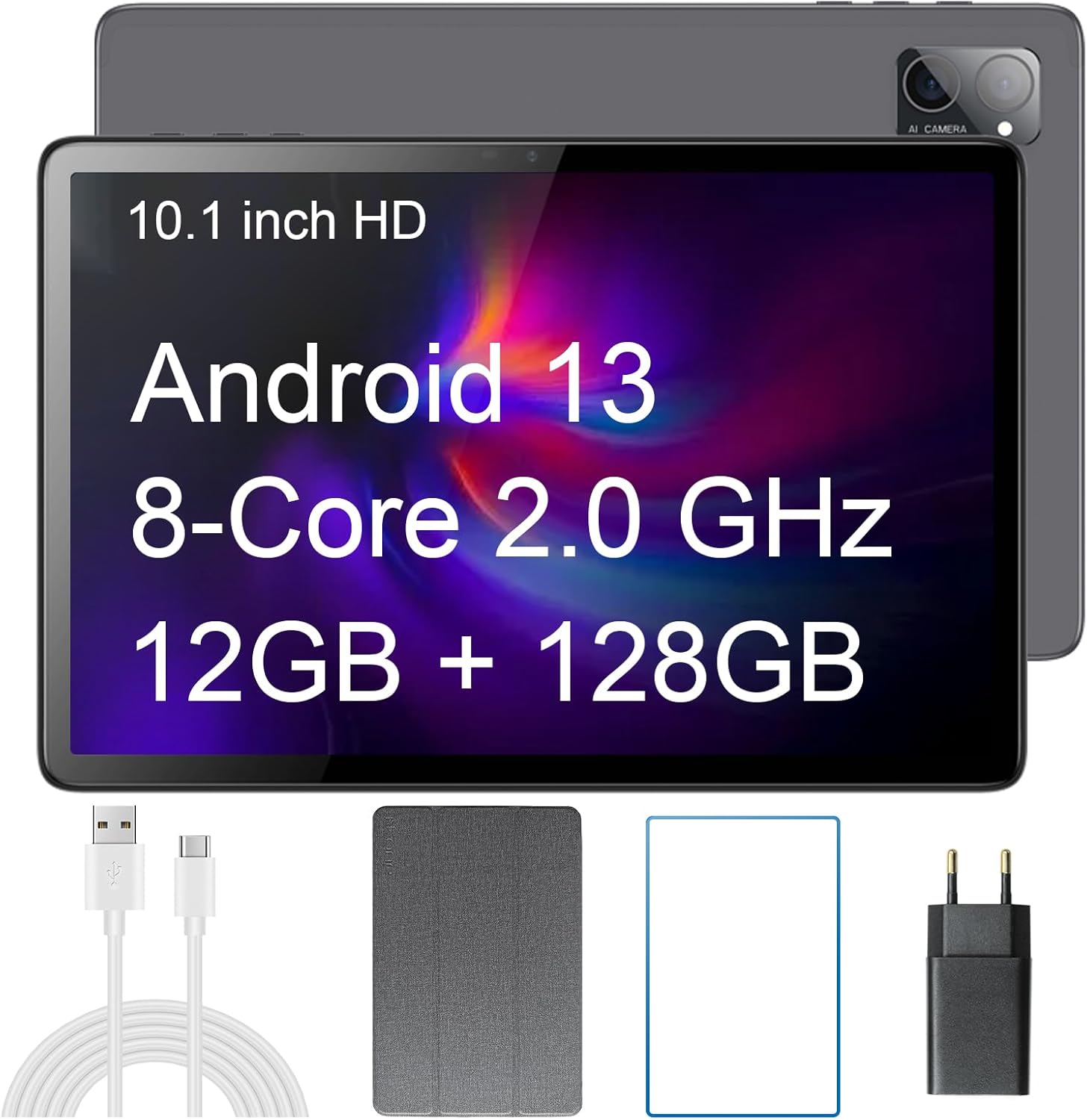
Figure 2.1: N-one NPad Q2 Tablet and Accessories
3. Product Overview
Familiarize yourself with the physical components and features of your NPad Q2 tablet.
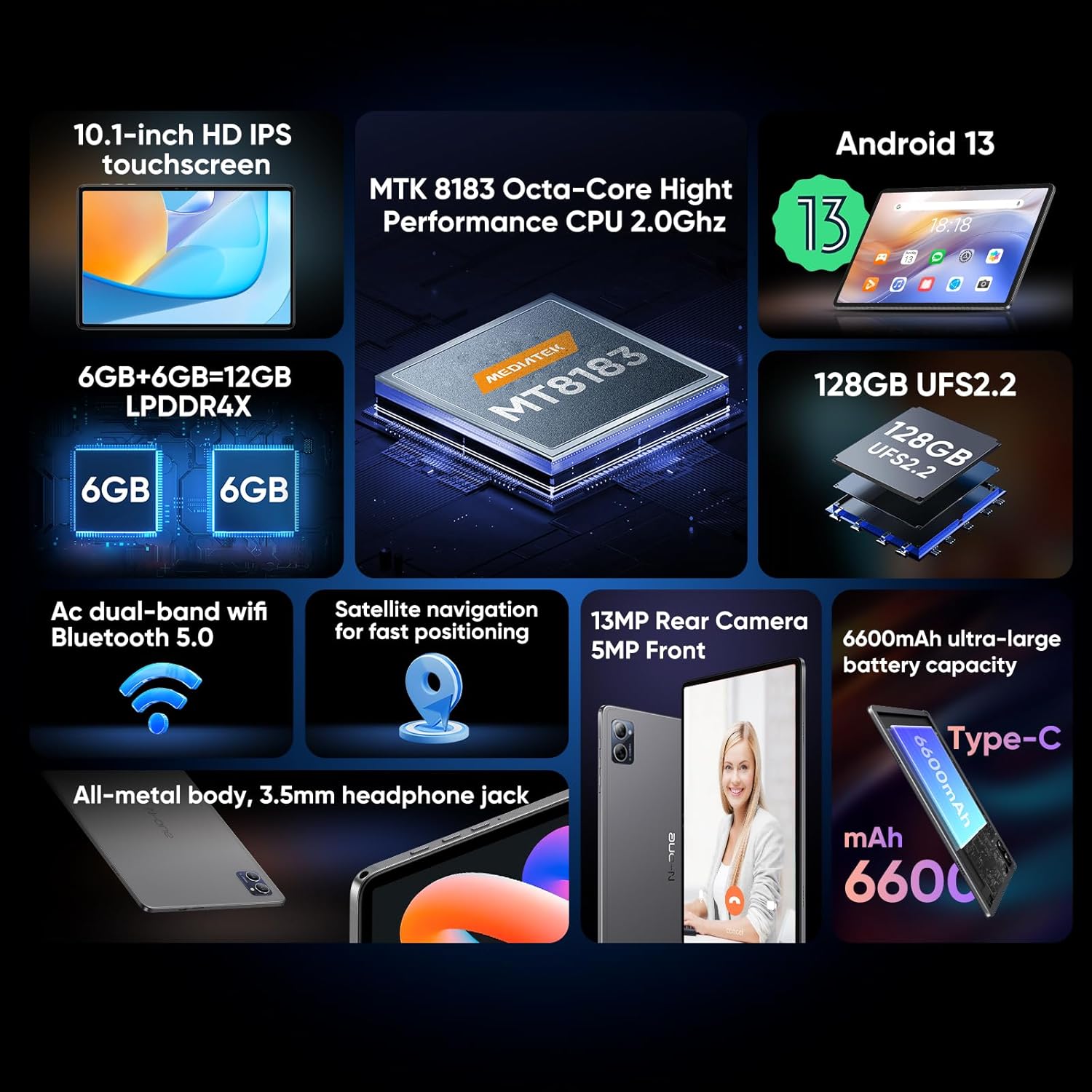
Figure 3.1: NPad Q2 Feature Overview
3.1 Processor
The tablet is equipped with a MediaTek MT8183 Octa-Core processor, operating at 2.0 GHz, which includes 4 A73 high-power cores and 4 A53 cores, alongside a Mali-G72 GPU for graphics processing.

Figure 3.2: MediaTek MT8183 Octa-Core Processor Details
3.2 Memory and Storage
The NPad Q2 features 12GB of RAM (6GB physical + 6GB virtual expansion) and 128GB of high-speed internal storage. Storage can be expanded up to 1TB using a TF card.
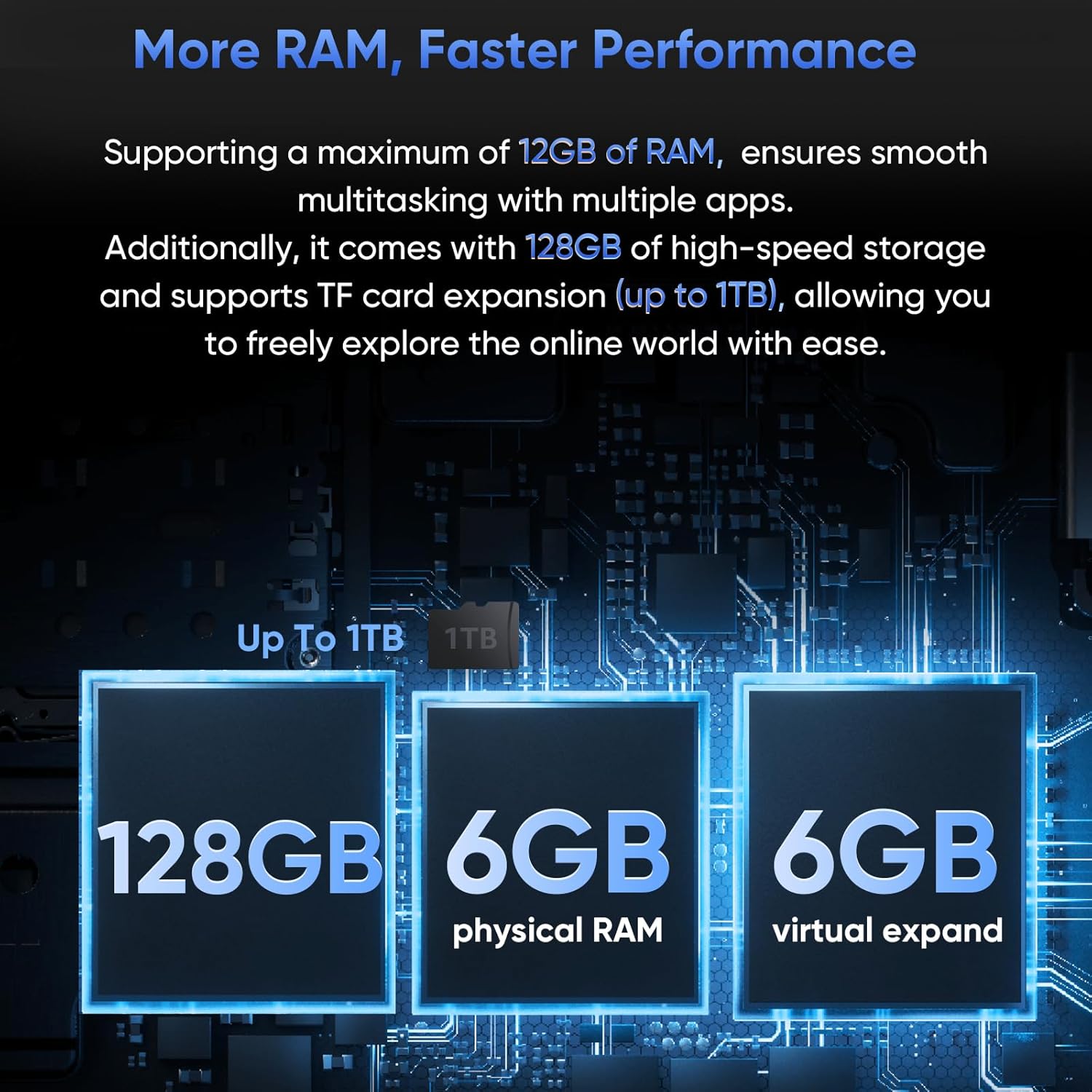
Figure 3.3: Memory and Storage Configuration
3.3 Display
The tablet features a 10.1-inch IPS HD screen with a resolution of 1280x800 pixels and a 16:10 aspect ratio. It offers a 178° wide viewing angle.
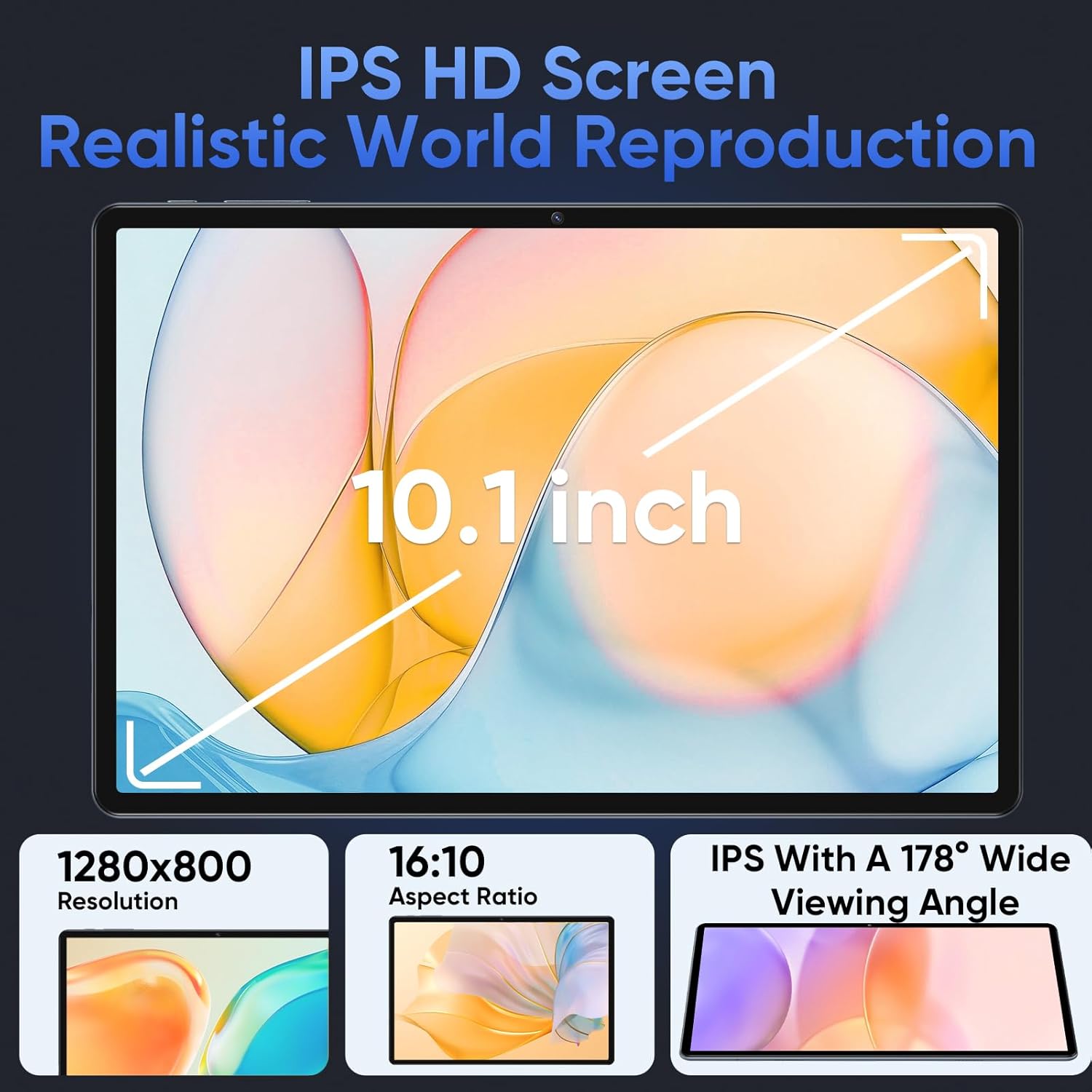
Figure 3.4: Display Specifications
3.4 Cameras
The NPad Q2 includes a 13-megapixel rear camera and a 5-megapixel front camera for photography and video calls.

Figure 3.5: Camera Placement and Resolution
3.5 Battery
The tablet is powered by a 6600mAh lithium battery, providing extended usage times.

Figure 3.6: Battery Capacity and Estimated Usage
4. Setup
4.1 Initial Charging
Before first use, fully charge the tablet using the provided Type-C cable and charger. Connect the Type-C cable to the tablet's charging port and the charger to a power outlet. The battery indicator on the screen will show charging status.
4.2 Power On/Off
- To Power On: Press and hold the Power button until the N-one logo appears on the screen.
- To Power Off: Press and hold the Power button until the power options menu appears. Select 'Power off'.
- To Restart: Press and hold the Power button. Select 'Restart' from the power options menu.
4.3 Initial Configuration
Upon first power-on, the tablet will guide you through the initial setup process. Follow the on-screen instructions to:
- Select your language.
- Connect to a Wi-Fi network.
- Set up your Google account (or skip for later).
- Review and accept terms and conditions.
- Set up screen lock (PIN, pattern, password).
5. Operating Instructions
This section covers basic operations of your NPad Q2 tablet.
5.1 Basic Navigation
The NPad Q2 uses a touch screen for navigation. Common gestures include:
- Tap: To select an item or open an app.
- Touch and Hold: To access contextual menus or move icons.
- Swipe: To scroll through pages or lists.
- Pinch-to-Zoom: To zoom in or out on images and web pages.
5.2 Connecting to Wi-Fi
- Go to Settings > Network & internet > Wi-Fi.
- Toggle Wi-Fi On.
- Select your desired network from the list.
- Enter the password if prompted and tap Connect.
5.3 Bluetooth Pairing
- Go to Settings > Connected devices > Bluetooth.
- Toggle Bluetooth On.
- Ensure the device you want to pair with is in pairing mode.
- Select the device from the 'Available devices' list and follow any on-screen prompts to complete pairing.
5.4 Using the Camera
Open the Camera app from the home screen or app drawer. You can switch between the 13MP rear camera and the 5MP front camera. Tap the shutter button to take photos or record videos.
5.5 Managing Storage
The tablet has 128GB of internal storage. To expand storage, insert a TF (microSD) card into the designated slot. You can manage files using a file manager app or by connecting the tablet to a computer.
5.6 Applications
The NPad Q2 runs on Android 13, providing access to a wide range of applications via the Google Play Store. You can download, install, and manage apps from there.
6. Maintenance
6.1 Cleaning
Use a soft, lint-free cloth to clean the screen and body of the tablet. Avoid using harsh chemicals or abrasive materials that could damage the surfaces.
6.2 Battery Care
To prolong battery life:
- Avoid extreme temperatures.
- Do not let the battery fully discharge frequently.
- Use the original charger and cable.
- Adjust screen brightness and close unused apps to conserve power.
6.3 Software Updates
Periodically check for system updates to ensure your tablet has the latest features and security patches. Go to Settings > System > System update.
7. Troubleshooting
If you encounter issues with your tablet, refer to the following common solutions:
- Tablet not powering on: Ensure the battery is charged. Connect the charger and try again.
- Screen unresponsive: Restart the tablet by holding the power button for approximately 10 seconds.
- Wi-Fi connection issues: Restart your Wi-Fi router and the tablet. Verify the Wi-Fi password.
- Apps crashing: Clear the cache of the problematic app (Settings > Apps > [App Name] > Storage & cache > Clear cache). If the issue persists, try reinstalling the app.
- Slow performance: Close unused apps, clear cache, or consider a factory reset as a last resort (backup data first).
8. Specifications
| Feature | Specification |
|---|---|
| Brand | N-one |
| Model Name | NPad Q2 |
| Operating System | Android 13 (listed in description), Android 14 (listed in specifications) |
| Screen Size | 10.1 Inches |
| Screen Resolution | 1280x800 HD |
| Processor | MediaTek MT8183 Octa-Core, 2 GHz |
| RAM | 12 GB (6GB physical + 6GB virtual) |
| Internal Storage | 128 GB |
| Expandable Storage | Up to 1 TB (via TF card) |
| Rear Camera | 13 MP |
| Front Camera | 5 MP |
| Battery Capacity | 6600 mAh Lithium Ion |
| Average Battery Life | 8 Hours (video play) |
| Wireless Connectivity | Wi-Fi 5 (802.11n), Bluetooth 5.0 |
| GPS | Supported |
| Item Weight | 1.19 pounds |
| Product Dimensions | 9.49 x 6.26 x 0.32 inches |
9. Warranty and Support
For warranty information and technical support, please refer to the warranty card included with your product or visit the official N-one website. Keep your purchase receipt as proof of purchase for warranty claims.


