
1. Product Overview
The iJoy Mini Projector is a compact and portable device designed for versatile entertainment. It supports Full HD 1080P video quality and offers various connectivity options, making it suitable for home cinema, outdoor movie nights, or enhancing room decor. The projector features a built-in HiFi speaker and supports expandable storage via a micro SD card.

Figure 1.1: The iJoy Mini Projector, showing its compact design, included remote control, and USB cables.
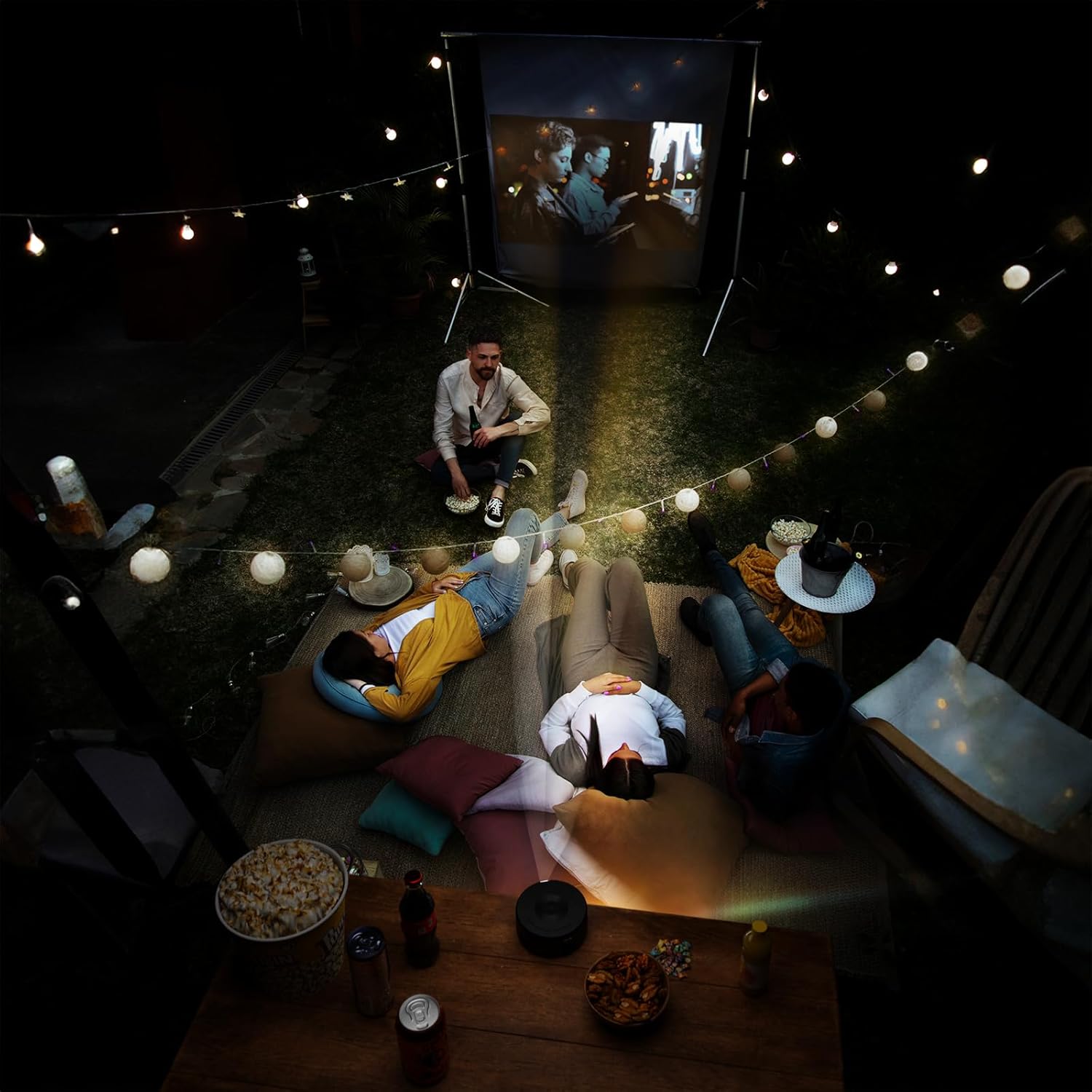
Figure 1.2: Dimensions of the iJoy Mini Projector, measuring 4.5 inches across and 2 inches tall, highlighting its compact size.
2. Package Contents
Upon opening the package, ensure all the following items are present:
- iJoy Mini Projector
- User Manual (this document)
- Power Adaptor
- Remote Control
- USB Cables (Type-A to Type-C)
- Mini Tripod (if included with your specific model)
3. Setup Guide
3.1 Power Connection
- Connect the provided power adaptor to the projector's power input port.
- Plug the power adaptor into a standard electrical outlet.
- The projector will typically indicate power status with an LED light.
3.2 Placement and Positioning
For optimal viewing, place the projector on a stable, flat surface. The included mini tripod can be used to adjust the angle and height. Ensure there are no obstructions in front of the lens or around the ventilation openings.
- Projection Distance: Adjust the distance between the projector and the projection surface (wall or screen) to achieve the desired screen size.
- Focus Adjustment: Use the focus wheel on the projector to sharpen the image until it is clear.

Figure 3.1: The projector in use, demonstrating its ability to project high-quality video with an adjustable screen size, suitable for various environments.
4. Operating Instructions
4.1 Connecting Devices
The iJoy Mini Projector offers multiple ways to connect your devices:
- iOS Devices (iPhone/iPad): Connect directly using a compatible USB cable (e.g., Lightning to USB). The projector supports plug-and-play functionality for iOS.
- Android Devices: Connect using a compatible USB cable (e.g., USB-C to USB). An app may be required for screen mirroring on some Android devices. Refer to your device's instructions for specific mirroring requirements.
- USB Storage: Insert a USB flash drive into the projector's USB port to play media files directly.
- Micro SD Card: Insert a micro SD card into the designated slot to access media files.
- Bluetooth: The projector features Bluetooth connectivity. This is primarily for connecting to external audio devices like Bluetooth speakers. To pair, navigate to the Bluetooth settings on the projector's menu and select your desired device.

Figure 4.1: Demonstrates the projector's compatibility with iPhone devices, allowing for direct plug-and-play connection.

Figure 4.2: Illustrates the projector's support for Android devices, which may require an app download for full functionality.
4.2 Basic Operation
- Power On/Off: Press the power button on the projector or the remote control to turn the unit on or off.
- Input Source Selection: Use the remote control or the projector's buttons to navigate the menu and select the desired input source (e.g., USB, Micro SD, Phone).
- Navigation: Use the arrow keys and OK/Enter button on the remote or projector to navigate menus and confirm selections.
- Volume Control: Adjust the volume using the dedicated volume buttons on the remote control. The projector has a built-in HiFi speaker.
5. Maintenance
Proper maintenance ensures the longevity and optimal performance of your iJoy Mini Projector.
- Lens Cleaning: Gently wipe the projector lens with a soft, lint-free cloth specifically designed for optical surfaces. Do not use abrasive cleaners or excessive force.
- Dust Removal: Keep the projector free from dust. Use a soft brush or compressed air (held upright) to clean ventilation openings.
- Storage: When not in use, store the projector in a cool, dry place, away from direct sunlight and extreme temperatures. Use the original packaging or a protective case to prevent damage.
- Power Off Properly: Always power off the projector using the designated power button and allow it to cool down before unplugging or moving.
6. Troubleshooting
If you encounter issues with your iJoy Mini Projector, refer to the following common problems and solutions:
| Problem | Possible Cause | Solution |
|---|---|---|
| No image projected |
|
|
| Image is blurry or out of focus |
|
|
| No sound |
|
|
| Device not connecting via USB |
|
|
7. Specifications
| Feature | Detail |
|---|---|
| Brand | iJoy |
| Model Number | B0D6GVWNK2 |
| Item Weight | 13.1 ounces |
| Package Dimensions | 7 x 6.5 x 3 inches |
| Batteries | 1 Lithium Ion battery (included) |
| Color | Black |
| Special Features | Portable |
| Recommended Uses | Home Cinema |
| Connectivity Technology | Bluetooth, USB |
| Display Resolution | 1024 x 768 (Native) |
| First Available Date | June 7, 2024 |
8. Warranty and Support
For detailed warranty information, please refer to the warranty card included with your product or visit the official iJoy website. If you require technical support or have questions not covered in this manual, please contact iJoy customer service through their official channels.
You can often find support contact information on the product packaging or the brand's official website. Keep your purchase receipt as proof of purchase for warranty claims.