
Acoyer SRP9232D
Acoyer Universal TV Remote Control User Manual
Model: SRP9232D
Introduction
This manual provides detailed instructions for setting up and operating your new Acoyer Universal TV Remote Control. This remote is designed to simplify your home entertainment experience by controlling multiple devices with a single unit. Please read this manual carefully before use to ensure proper functionality and to maximize your remote's capabilities.

Image: Front and back view of the Acoyer Universal TV Remote Control.
Compatible Devices
Your Acoyer Universal Remote Control is compatible with a wide range of audio and video devices, including:
- TV brands: Samsung, LG, Vizio, Sony, Hisense, Onn, Sharp, RCA, Element, Westinghouse, Sanyo, Emerson, Philips, JVC, Sceptre, Sansui, Panasonic, Magnavox, Skyworth, and more.
- DVD/Blu-ray players
- Media Streaming Players
- Sound Bars
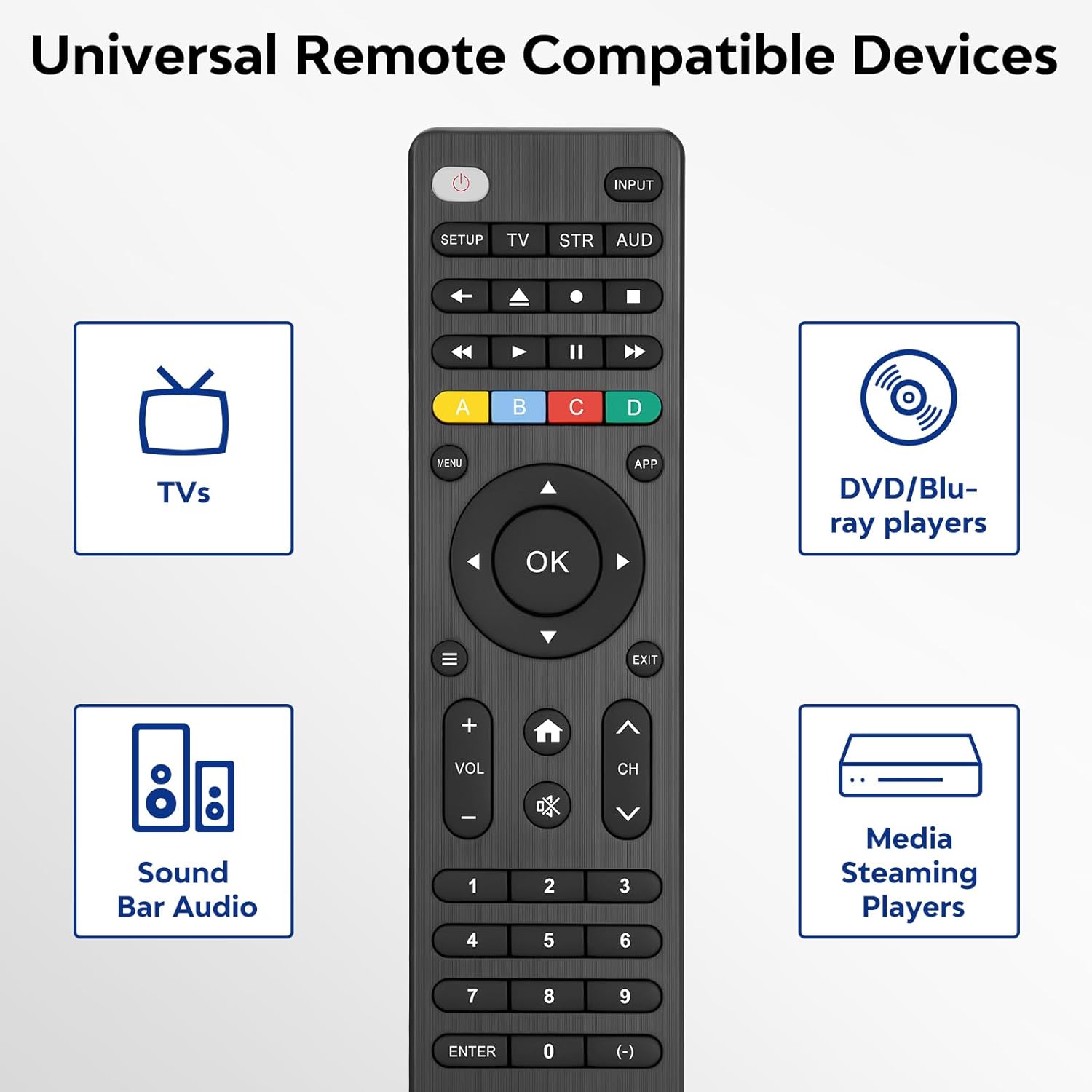
Image: Visual representation of compatible device types.

Image: List of compatible brands including Samsung, LG, Vizio, Sony, Hisense, Philips, and more.
Not Compatible Devices
Please note that this universal remote is NOT compatible with the following devices:
- Roku Streaming Sticks
- Roku Sound Bar
- Amazon Sound Bar
- TCL Sound Bar
- Hisense Sound Bar
- Anker Sound Bar
- Klipsch Sound Bar
- Fire TV Sticks
- TCL Fire TV
- Insignia Fire TV
- Toshiba Fire TV
- Amazon Fire Stick
- Fire TV Cube
This product connects and pairs via infrared only. If you are unsure about compatibility, please refer to the product's code list or contact customer support.

Image: Visual representation of devices not compatible with the remote.
Setup
Direct Code Entry Pairing
Follow these steps to program your universal remote using direct code entry:
- Step 1: Find the device type you need in the provided code list (included in the package). Then, locate and circle all the codes for your specific brand.
- Step 2: Press and hold down the SETUP button for 3 seconds until the red light on the remote turns on.
- Step 3: Press and release the TV/STR/AUD button on the remote. The red light will blink once and then remain on.
- Step 4: Enter the first 4-digit code from your code list.
- Step 5: Point the remote at your TV (or other device) and test the buttons to see if the device responds as expected. If the buttons do not control the device, repeat steps 2-4 and enter a different code from your list to test.
Note: If all codes in the program fail, please refer to the instructions on page 7 of your physical user manual for "Automatic Code Search" (including code table and usage instructions).

Image: Visual guide for the direct code entry pairing process.
Operating Instructions
Button Functions
Familiarize yourself with the functions of each button on your universal remote control:

Image: Detailed layout of remote buttons and their corresponding functions.
| Button | Function |
|---|---|
| Power | Turns devices ON / OFF |
| Setup | Used to program the remote |
| Input | Selects video inputs |
| TV / STR / AUD | Selects the device to control (TV, Streaming Device, Audio Device) |
| Last Channel | Returns to the previously selected channel |
| Record / Stop / Fast Forward / Pause / Rewind | Controls media playback |
| ABCD Buttons | Access additional features for DVRs, cable, and satellite receivers |
| Menu | Displays the on-screen menu |
| App Hotkey | Access top apps like Netflix, Amazon Prime, Hulu, and more |
| OK | Selects menu items for the controlled device |
| Up / Down / Left / Right Navigation | Navigates through menus and options |
| Info / Options | Displays on-screen show/content information |
| Exit | Exits on-screen menus |
| Home / Guide | Easily access features on today's streaming devices, or Guide on cable/satellite receivers |
| Volume Up / Down | Adjusts volume |
| Channel Up / Down | Changes channels |
| Mute | Mutes sound |
| Numbers (0-9) | Enter numbers for direct channel selection |
| Enter Key | Confirms selection (some devices require Enter to be pressed after channel selection) |
| (-) Dash | Used to select digital channels (e.g., 4.1) |
The universal remote control utilizes infrared technology, providing a rapid response time of 0.2 seconds and an effective range of up to 30 feet.

Image: Features of the remote's infrared technology.
Maintenance
Battery Installation
The universal remote control requires two (2) AAA alkaline batteries for operation. Batteries are not included in the package.
- Open the battery compartment cover on the back of the remote.
- Insert the two AAA batteries, ensuring correct polarity (+ and -) as indicated inside the compartment.
- Close the battery compartment cover securely.
Warning: Do not mix old and new batteries, or mix different types of batteries together. This can lead to battery leakage or damage to the remote.

Image: Battery compartment and remote dimensions.
Troubleshooting
If you encounter issues with your universal remote, try the following troubleshooting steps:
- Remote not responding: Ensure fresh AAA batteries are correctly installed. Check if the red light on the remote illuminates when a button is pressed.
- Device not responding: Verify that the remote is pointed directly at the device's infrared sensor. Ensure there are no obstructions between the remote and the device.
- Incorrect device control: Re-attempt the programming steps (Direct Code Entry) using a different code from the provided code list for your device brand.
- Limited functionality: Some advanced functions may not be supported by all universal remotes or specific device models. Refer to your device's original manual for specific feature compatibility.
- Red light blinks continuously: This may indicate a programming error or low battery. Re-program the remote or replace the batteries.
Specifications
| Feature | Detail |
|---|---|
| Model Number | SRP9232D |
| Package Dimensions | 6.89 x 3.27 x 0.75 inches |
| Item Weight | 2.05 ounces |
| Power Source | 2 * AAA alkaline batteries (not included) |
| Color | Black |
| Special Feature | Universal |
| Max Number of Supported Devices | 3 |
| Compatible Devices | Sound Bar, Television, VCR, Streaming Device, DVD/Blu-ray Player |
| Manufacturer | Acoyer |
| Country of Origin | China |
Warranty and Support
Acoyer is committed to providing safe, durable, and user-friendly remote control products. We value your experience with our products.
For any questions regarding your order or product, please do not hesitate to contact us. Our customer service team aims to respond to inquiries within 24 hours on working days.
Please refer to your purchase documentation for specific warranty details and terms.