
1. Product Overview
The akimart FRAMEO 10.1 Inch WiFi Digital Photo Frame is designed to display your cherished photos and videos with ease. Featuring a 1280x800 HD IPS touch screen, LED mood lighting, and 32GB of internal storage, this frame allows instant sharing of moments via the Frameo App from anywhere.
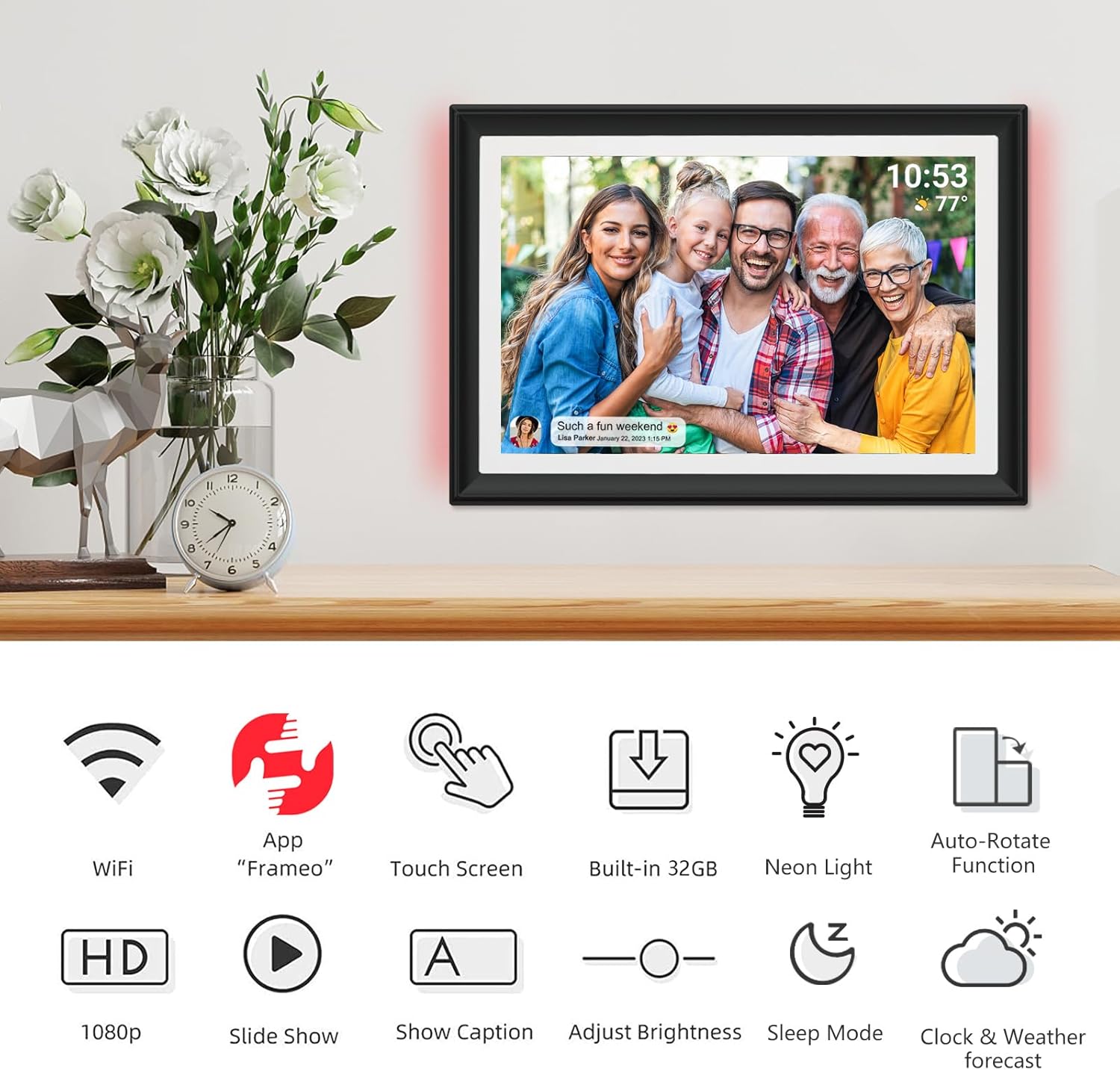
Image: The akimart FRAMEO 10.1 Inch WiFi Digital Photo Frame, showcasing its sleek design and LED light feature.
2. Setup
2.1 Unboxing and Components
Carefully remove all components from the packaging. Ensure you have the following:
- Digital Photo Frame (10.1 inch)
- Power Adapter
- Detachable Stand
- User Manual
2.2 Powering On and Initial Setup
- Connect the power adapter to the frame and plug it into a power outlet.
- The frame will automatically power on. Follow the on-screen prompts to select your preferred language and time zone.
- Connect the frame to your Wi-Fi network by selecting your network and entering the password.
2.3 Frameo App Installation and Photo Sharing
The Frameo App is essential for sharing photos and videos to your digital frame.
- Download the 'Frameo' App from the App Store (iOS) or Google Play Store (Android) on your smartphone or tablet.
- Create an account and follow the in-app instructions to connect your mobile device to the photo frame. You will receive a unique code on your frame to enter into the app.
- Share this code with friends and family to allow them to send photos and videos directly to your frame from anywhere in the world.

Image: The Frameo App interface on a smartphone, demonstrating connectivity with the digital photo frame.

Image: A family uploading photos to the Frameo digital photo frame, illustrating the cloud-based sharing feature.
2.4 Video Guide: Initial Setup and Photo Sharing
Video: An official akimart video demonstrating the setup and photo sharing features of the FRAMEO WiFi Digital Photo Frame.
3. Operating Instructions
3.1 Touch Screen Navigation
The frame features an intuitive touch screen for easy navigation:
- Swipe: Swipe left or right to manually browse through photos and videos.
- Tap: Tap on a photo or video to access options such as reacting, hiding, adjusting, or viewing the gallery.
- Pinch-to-Zoom: Use two fingers to zoom in or out on photos.

Image: A hand interacting with the touch screen of the digital photo frame, highlighting its user-friendly interface.
3.2 Automatic Rotation
The frame automatically adjusts the display orientation (portrait or landscape) based on how it is positioned. This feature ensures your photos are always displayed correctly.
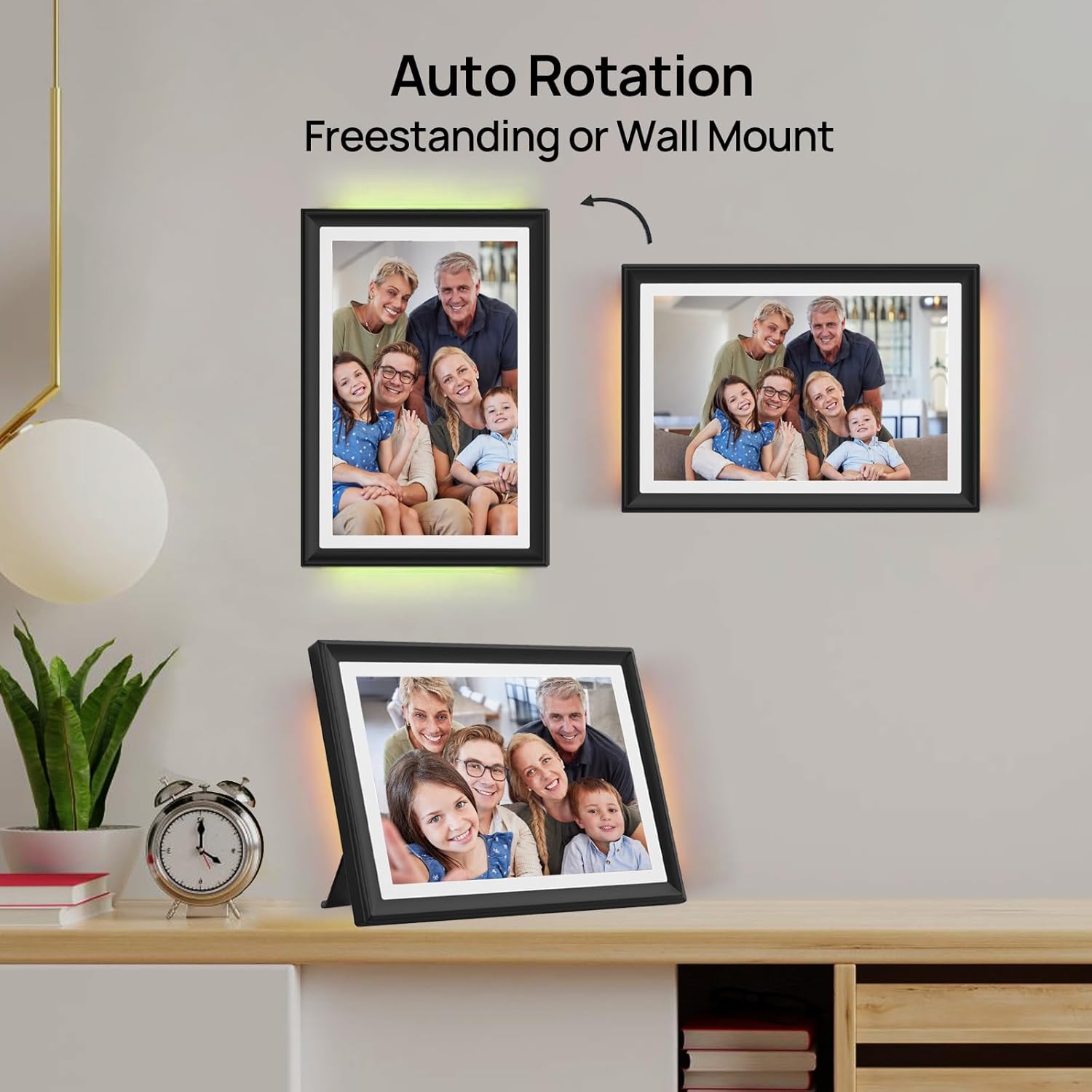
Image: The digital photo frame demonstrating its auto-rotation capability, showing images in both portrait and landscape orientations.
3.3 Display Settings and Mood Light
Customize your viewing experience through the settings menu:
- Caption Display: Enable or disable captions for photos.
- Clock & Weather: Display the current time and local weather information on the screen.
- Mood Light: Adjust the color and brightness of the integrated LED mood light to match your environment or preference. You can also set it to automatically change colors.
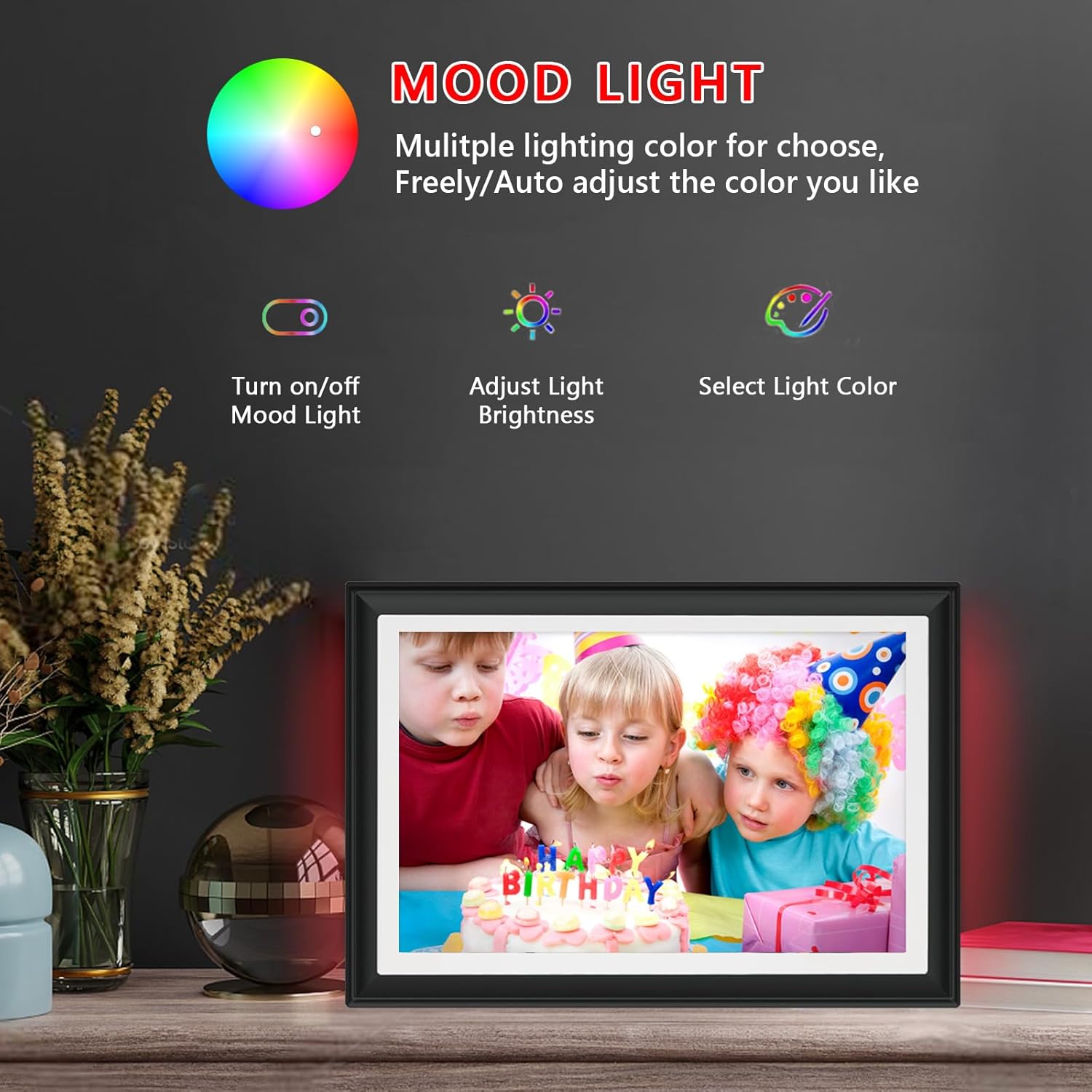
Image: The digital photo frame showcasing its customizable LED mood lighting feature, with various color options.
3.4 Slideshow and Media Playback
Manage how your media is displayed:
- Slideshow Interval: Set the duration each photo is displayed before transitioning to the next.
- Play Order: Choose between chronological, reverse chronological, or shuffle playback for your media.
- Video Playback: Videos (up to 15 seconds) can be set to autoplay or played manually. Adjust video volume as needed.
4. Maintenance
4.1 Cleaning the Frame
To maintain the clarity of your screen, gently wipe it with a soft, dry, lint-free cloth. Avoid using abrasive cleaners or sprays directly on the screen.
4.2 Software Updates
Ensure your frame's software is up-to-date for optimal performance and new features. The frame will typically notify you of available updates. Follow the on-screen instructions to install them.
4.3 Backup and Restore
The frame has 32GB of built-in memory. You can extend storage and manage your media:
- SD Card & USB Drive: The frame supports external storage via U disk and SD card. You can import and export pictures or videos to and from these devices.
- Cloud Backup: Utilize the Frameo App's cloud backup features to secure your photos and videos.

Image: The digital photo frame highlighting its large 32GB internal storage and options for expansion via SD card and USB drive.
4.4 Sleep Mode
To conserve energy and extend the lifespan of your device, activate the sleep mode. You can schedule specific times for the frame to automatically turn off and on.
5. Troubleshooting
If you encounter any issues with your akimart FRAMEO Digital Photo Frame, refer to the following common solutions:
- No Power: Ensure the power adapter is securely connected to both the frame and a working power outlet.
- Wi-Fi Connectivity Issues: Check your Wi-Fi router and ensure the frame is within range. Re-enter your Wi-Fi password if necessary.
- Photos Not Appearing: Verify that photos have been successfully uploaded via the Frameo App. Check your internet connection.
- Screen Unresponsive: Try restarting the frame by unplugging it and plugging it back in after a few seconds. If the issue persists, perform a factory reset (refer to the 'Settings' menu for this option).
- Video Playback Issues: Ensure videos are no longer than 15 seconds and are in MP4 format. Check the video volume settings.
For further assistance, please contact akimart customer support.
6. Specifications
| Feature | Detail |
|---|---|
| Product Dimensions | 7 x 9 x 0.99 inches |
| Item Weight | 1.76 pounds |
| Item Model Number | ZN-DP1002 |
| Brand | akimart |
| Color | Black |
| Resolution | 1280 x 800 |
| Compatible Devices | Smartphone |
| Screen Size | 10.1 Inches |
| Internal Storage | 32GB |
| Supported Media Formats | JPG/JPEG/BMP/PNG (pictures), MP4 (videos) |
7. Warranty and Support
7.1 Product Warranty
Your akimart FRAMEO Digital Photo Frame comes with a 1-year free warranty. Please refer to the instruction on the Thank You Card included in your packaging to activate your warranty within 14 days of receiving the product.
7.2 Customer Support
For any questions, technical assistance, or warranty claims, please contact akimart customer support. Refer to the contact information provided in your product packaging or visit the official akimart website for support details.