
Makayuron B302
Makayuron Smart Lock B302 User Manual
Model: B302 | Brand: Makayuron
1. Product Overview
The Makayuron Smart Lock B302 is an advanced security solution designed for modern homes. It integrates multiple unlocking technologies, including fingerprint recognition, password entry, NFC, remote access via the Tuya app, and traditional mechanical keys, offering convenience and robust security. Its durable construction ensures reliable performance in various environments.

Figure 1.1: Makayuron Smart Lock B302 showing the main unit, mortise, batteries, and a smartphone displaying the control app.
Key Features:
- Multiple Unlocking Methods: Fingerprint, password, NFC, remote access, and mechanical key.
- Tuya App Integration: Remote control, real-time access records, and two-way communication.
- Durable Construction: Made from aluminum alloy and tempered glass for environmental adaptability.
- Long Standby Time: Equipped with a large-capacity battery box and energy-saving module.
- Wide Door Thickness Compatibility: Suitable for doors ranging from 45mm to 100mm.
- Multi-language Support: Supports 9 languages, including Arabic.
- Automated Locking: Features auto-lock and one-touch locking functions.
- Anti-Peeping Password: Enhances security during password entry.

Figure 1.2: Overview of the six primary unlocking methods: Mechanical Keys, IC card, Fingerprint, Bluetooth, App Control, and Passcode.
2. Setup Guide
2.1 Package Contents
Before installation, ensure all components are present:
- Smart Lock Unit (Front and Rear Panels)
- 4585 Mortise
- Matching Buckle Box
- 4 x AA Batteries
- NFC Cards (if applicable)
- Mechanical Keys
- Installation Manual
- Mounting Accessories (screws, etc.)
2.2 Installation Requirements
- Door Thickness: 45mm - 100mm.
- Tools Required: Screwdriver, drilling machine (recommended).

Figure 2.1: Illustration of the installation process, highlighting the need for a screwdriver and drilling machine.
2.3 Initial Setup and Testing
It is crucial to connect the smart lock to your mobile phone and test all functions before permanent installation on the door. This ensures proper operation and avoids potential issues after mounting.
- Install the batteries into the smart lock unit.
- Download the Tuya Smart app from your device's app store.
- Follow the in-app instructions to pair the smart lock with your smartphone via Wi-Fi.
- Test all unlocking methods (fingerprint, password, NFC, app unlock) to confirm functionality.
- Verify that the auto-lock and one-touch lock features are working correctly.

Figure 2.2: Detailed view of the smart lock components, including the touch keypad, fingerprint reader, battery box, and USB port for power supply.

Figure 2.3: The Tuya app interface for mobile remote management of the smart lock, showing security records and various control options.
3. Operating Instructions
3.1 Unlocking Methods
The Makayuron Smart Lock B302 offers several convenient ways to unlock your door:
Fingerprint Unlock:
Place your registered fingerprint on the scanner located on the handle. The lock will recognize your fingerprint in 0.3 seconds and unlock in 1 second.

Figure 3.1: A user demonstrating fingerprint unlock, which recognizes the print in 0.3 seconds.
Passcode Unlock:
Enter your registered password on the touch keypad. The lock supports anti-peeping password entry, allowing you to input random numbers before or after your actual code to prevent others from guessing it.

Figure 3.2: A user entering a passcode on the smart lock's tactile keypad.
One-Time Password:
Generate temporary passwords via the Tuya app for guests or service providers. These passwords can be set to expire after a single use or a specific time period.

Figure 3.3: An example of using a one-time password for temporary access, useful for visitors or deliveries.
NFC Unlock:
Tap a registered NFC card or device against the card sensing area on the lock to unlock.
Tuya App Control:
Use the Tuya Smart app on your smartphone to remotely unlock the door from anywhere. You can also view unlock records and manage user access.

Figure 3.4: A hand holding a smartphone displaying the Tuya app, used for controlling and accessing the smart lock.

Figure 3.5: A user receiving a real-time notification from the Tuya app about smart lock activity, enhancing home security.
Mechanical Key Unlock:
In case of battery depletion or system malfunction, use the provided mechanical key to unlock the door manually.
3.2 Locking Methods
Auto-Lock:
The lock can be configured to automatically lock after a set period (10-99 seconds) once the door is closed.
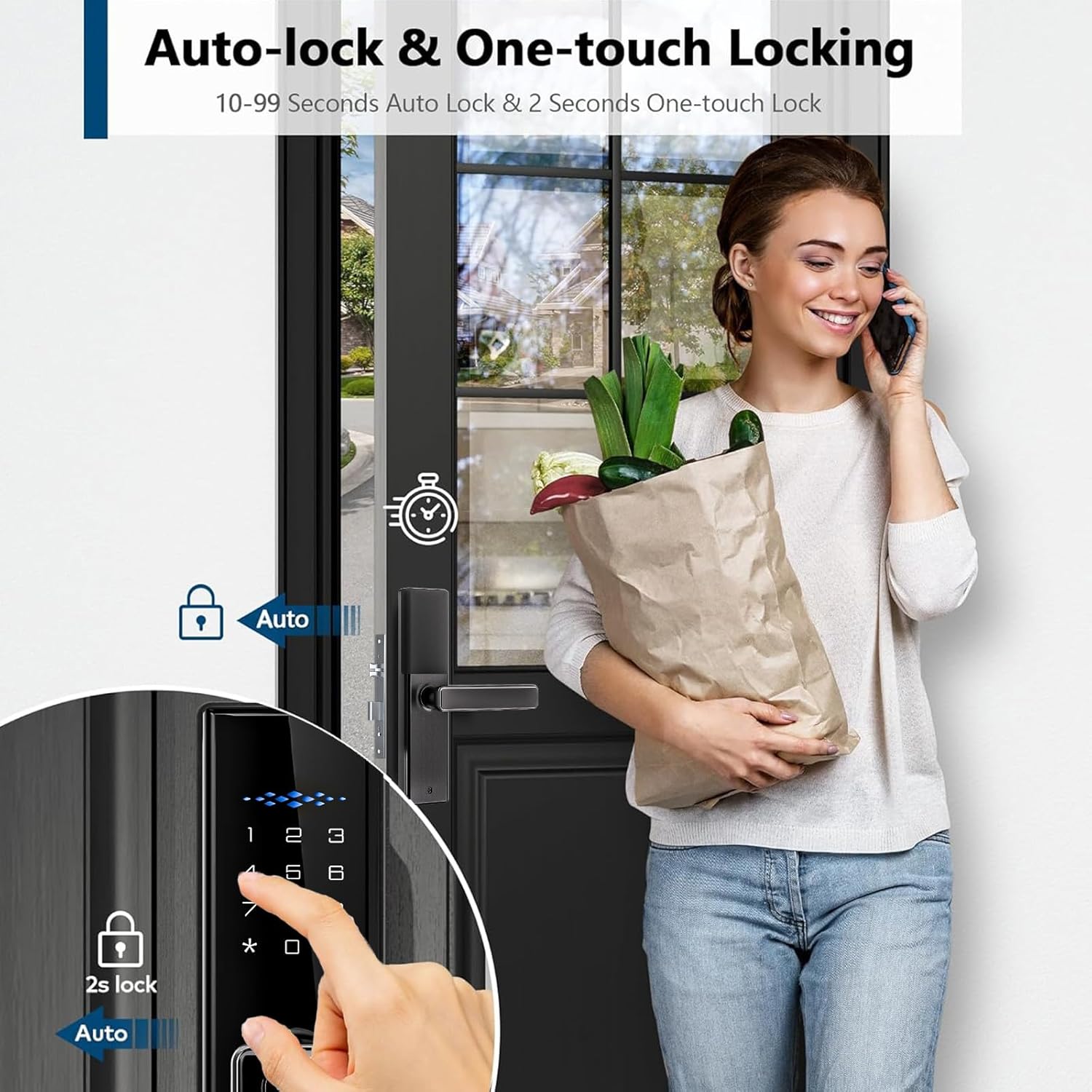
Figure 3.6: The smart lock's auto-lock feature, which automatically secures the door after a set time.
One-Touch Locking:
Simply press the designated lock button on the keypad to instantly secure the door (2-second lock activation).
3.3 Language Switching
The smart lock supports 9 languages. To switch languages, the lock must be in the initialized state. Enter the corresponding command on the keypad:
| Language | Command |
|---|---|
| English | 889911# |
| Arabic | 889915# |
| Russian | 889914# |
| Portuguese | 889912# |
| Thai | 889919# |
| Spanish | 889913# |
| Vietnamese | 889917# |
| Indonesian | 889916# |
| Chinese | 889918# |

Figure 3.7: The smart lock's keypad displaying the commands for switching between supported languages.
4. Maintenance
4.1 Battery Replacement
The smart lock is powered by 4 AA batteries. When the battery level is low, the lock will provide an audible or visual alert. Replace all four batteries simultaneously to ensure optimal performance and prevent issues.
- Locate the battery compartment on the interior panel of the lock.
- Open the compartment cover.
- Remove the old batteries and dispose of them responsibly.
- Insert new AA alkaline batteries, ensuring correct polarity.
- Close the battery compartment cover securely.

Figure 4.1: The 4 AA batteries that power the smart lock, emphasizing their role in continuous and reliable operation.
4.2 Cleaning and Care
- Wipe the lock's surface with a soft, damp cloth. Avoid abrasive cleaners or solvents that could damage the finish.
- Keep the fingerprint sensor and keypad clean and free of dust or debris for accurate operation.
- Do not expose the lock to excessive moisture or direct water spray.
5. Troubleshooting
This section addresses common issues you might encounter with your Makayuron Smart Lock B302.
| Problem | Possible Cause | Solution |
|---|---|---|
| Lock does not respond to input. | Low batteries; system error. | Replace batteries. If issue persists, use mechanical key and contact support. |
| Fingerprint not recognized. | Fingerprint sensor dirty; unregistered fingerprint; improper placement. | Clean sensor. Ensure finger is clean and dry. Re-register fingerprint if necessary. Try different angle. |
| Password not accepted. | Incorrect password; keypad dirty; anti-peeping feature misunderstood. | Verify password. Clean keypad. Ensure correct sequence with anti-peeping. |
| Tuya app connection issues. | Wi-Fi signal weak; incorrect pairing; app malfunction. | Ensure strong Wi-Fi signal. Re-pair the lock with the app. Restart app/phone. Check app updates. |
| Auto-lock not functioning. | Feature disabled; door not fully closed. | Check settings in Tuya app to ensure auto-lock is enabled and configured correctly. Ensure door is completely closed. |
| Lock is stuck or jammed. | Mechanical obstruction; mortise misalignment. | Do not force. Use mechanical key. Inspect door frame and mortise for obstructions or misalignment. Contact professional if needed. |
| Abnormal alarms or notifications. | Tampering attempt; sensor malfunction. | Check the lock for signs of tampering. Review app logs for details. If false alarms persist, contact support. |

Figure 5.1: The smart lock's real-time alarm system, designed to provide advance notice of danger and deter unauthorized access.
6. Specifications
| Attribute | Detail |
|---|---|
| Model Number | B302 |
| Brand | Makayuron |
| Color | Black |
| Material | Aluminum |
| Product Dimensions (L x W x H) | 6 x 5 x 25 cm |
| Item Weight | 2.12 Kilograms |
| Mortise Type | 4585 Mortise |
| Door Thickness Compatibility | 45mm - 100mm |
| Unlock Methods | Fingerprint, Password, NFC, Remote, Mechanical Key |
| Special Features | Anti-Peeping Password, 9 Language Support (Incl. Arabic), Rechargeable, Auto-Lock |
| Power Source | 4 x AA Alkaline Batteries |
| Included Components | Lock, Batteries, Cards, Manual, Accessories |
7. Warranty and Support
When you purchase a Makayuron Smart Lock B302, you receive a one-year warranty from the date of purchase. This warranty covers manufacturing defects and ensures the quality and reliability of your product.
If you encounter any problems during use, require technical assistance, or have questions about your smart lock, please do not hesitate to contact Makayuron customer support. Our team is dedicated to serving you wholeheartedly and providing timely solutions.
For more information and to explore other Makayuron smart home solutions, please visit the official Makayuron Store:
Ask a question about this manual
Ask about setup, troubleshooting, compatibility, parts, safety, or missing instructions. Manuals+ will review the question and use this page’s manual context to help answer it.