
1. Introduction
This manual provides detailed instructions for the setup, operation, and maintenance of your JBL PartyBox Ultimate portable speaker. Please read this manual thoroughly before using the product to ensure proper function and to maximize your listening experience. The JBL PartyBox Ultimate delivers powerful sound, dynamic light shows, and versatile connectivity options for any event.
2. What's in the Box
Verify that all items are present upon unboxing:
- JBL PartyBox Ultimate 1100W Portable Speaker
- JBL Wireless Two Microphone System with Dual-Channel Receiver
- Ring-Angle Power Cord (6.6')
- MicroFiber Cleaning Cloth
- USBC Cable
- AUX Cable
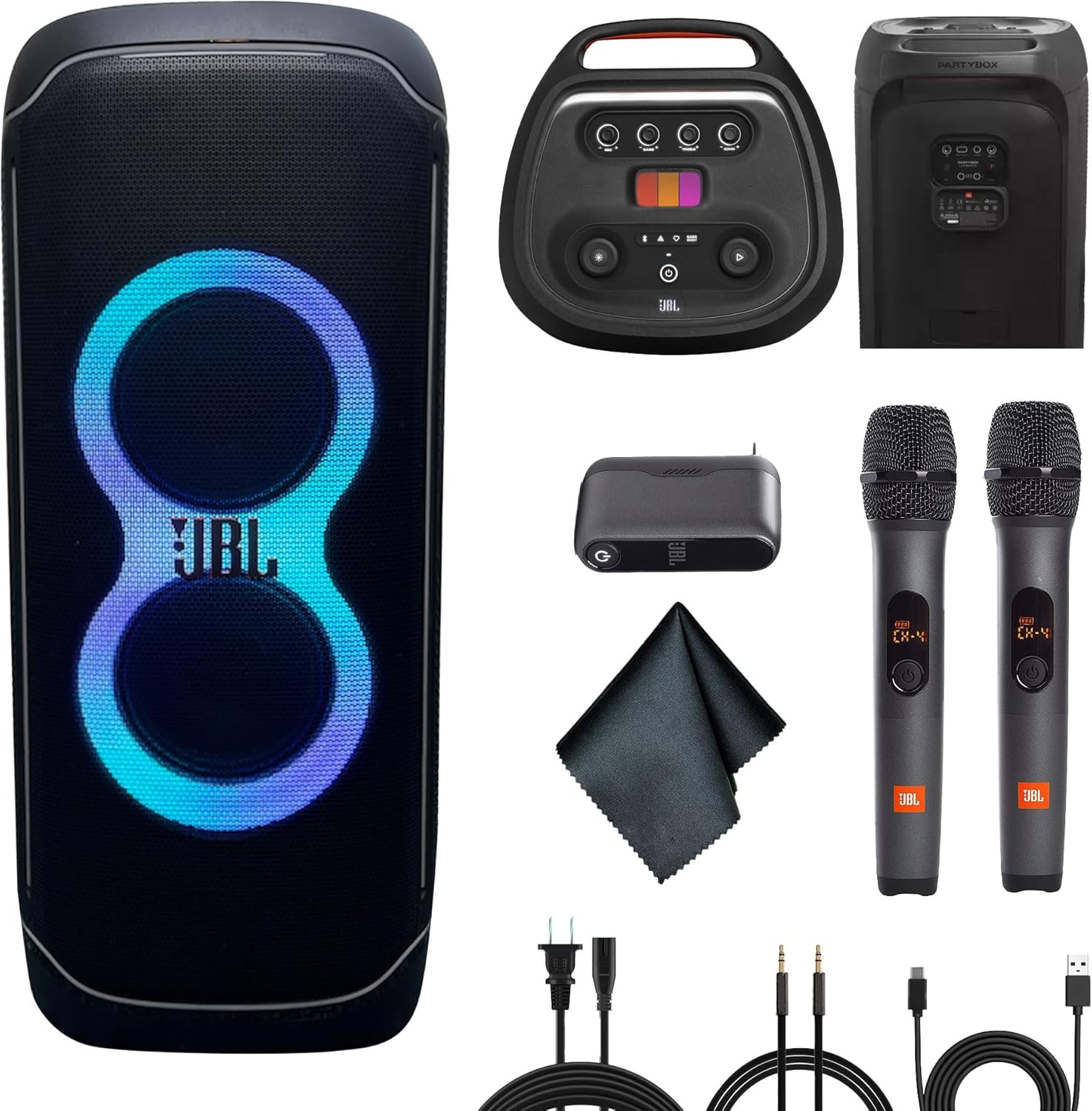
Image: The JBL PartyBox Ultimate speaker shown with all bundled accessories, including the wireless microphones, cables, and cleaning cloth.
3. Product Overview
3.1 Speaker Features
The JBL PartyBox Ultimate is designed for powerful audio and dynamic visual experiences. Key features include:
- 1100W JBL Signature Sound: High-fidelity audio with deep bass, clear mids, and crisp highs.
- Dolby Atmos Support: Immersive 3D audio experience via Wi-Fi streaming.
- Dynamic Light Show: Multi-colored lights, starry LEDs, and strobe effects that sync with the music.
- Dual-band Wi-Fi & Bluetooth Connectivity: Seamless streaming from various devices and services.
- Dual Microphone Inputs & Guitar Jack: For live performances and karaoke.
- IPX4 Splashproof Rating: Protection against splashing water.
- Built-in Self-Tuning: Optimizes audio performance for any environment.
- Mobility: Integrated handle and wheels for easy transport.
- JBL One App Control: Full control over speaker functions and customization.
3.2 Control Panel

Image: The top control panel of the JBL PartyBox Ultimate, showing various buttons and the PartyPad interface.
The top panel provides access to essential controls:
- Power Button: Turns the speaker on or off.
- Bluetooth Button: Initiates Bluetooth pairing mode.
- Light Show Button: Cycles through light show modes or turns them off.
- Bass Boost Button: Enhances bass levels.
- Play/Pause Button: Controls audio playback.
- Microphone Volume/Bass/Treble/Echo Knobs: Adjusts microphone audio settings.
- PartyPad: Interactive pads for sound effects.
3.3 Rear Panel Connections

Image: The rear panel of the JBL PartyBox Ultimate, displaying various input and output ports, including power input.
The rear panel includes:
- AC Power Input: For connecting the power cord.
- USB Port: For charging devices or playing audio from USB drives.
- AUX Input: For connecting external audio sources via a 3.5mm cable.
- Microphone Inputs (x2): For wired microphones or the wireless microphone receiver.
- Guitar Input: For connecting a guitar.
4. Setup
4.1 Power Connection
- Connect the provided power cord to the AC Power Input on the rear of the speaker.
- Plug the other end of the power cord into a suitable power outlet.
- The speaker will begin charging automatically if the battery is not full.
4.2 Initial Power On
Press the Power Button on the top control panel to turn on the speaker. The light show will activate, and the speaker will be ready for use.
4.3 Speaker Placement
For optimal sound performance, place the speaker on a stable, flat surface. The integrated wheels and handle allow for easy repositioning. Ensure adequate space around the speaker for sound dispersion and light show visibility.
5. Operating Instructions
5.1 Bluetooth Connectivity
- Turn on the JBL PartyBox Ultimate.
- Press the Bluetooth Button on the top panel. The Bluetooth indicator will flash, indicating pairing mode.
- On your mobile device, enable Bluetooth and select "JBL PartyBox Ultimate" from the list of available devices.
- Once connected, the Bluetooth indicator will glow solid, and you can begin streaming audio.
5.2 Wi-Fi Connectivity (Dolby Atmos, AirPlay, Google Home, Alexa)
- Download and install the JBL One App on your smartphone or tablet.
- Open the app and follow the on-screen instructions to connect your PartyBox Ultimate to your Wi-Fi network.
- Once connected to Wi-Fi, you can stream high-resolution audio, including content with Dolby Atmos support, and integrate with services like Apple AirPlay, Google Home, and Alexa.
5.3 Sound Adjustment
- Use the Volume Knob on the top panel to adjust the overall speaker volume.
- Press the Bass Boost Button to cycle through different bass enhancement levels.
- For microphone inputs, use the dedicated Bass and Treble knobs to fine-tune the sound.
5.4 Light Show Control

Image: Front view of the JBL PartyBox Ultimate speaker with its vibrant light show active.

Image: Side view of the JBL PartyBox Ultimate speaker showcasing its integrated light effects.
Press the Light Show Button on the top panel to cycle through various light patterns and colors. The lights will synchronize with the beat of the music. Further customization is available through the JBL One App.
5.5 Wireless Microphone System
Image: The JBL Wireless Two Microphone System, including two microphones and a dual-channel receiver.
- Connect the dual-channel receiver of the wireless microphone system to one of the microphone inputs on the rear panel of the PartyBox Ultimate.
- Turn on the wireless microphones. They should automatically pair with the receiver.
- Use the Mic Volume, Bass, Treble, and Echo knobs on the top panel to adjust the microphone audio to your preference.
5.6 PartyPad
The PartyPad on the top control panel allows you to trigger various sound effects and loops to enhance your party atmosphere. Tap the different colored pads to activate effects.
5.7 Pairing Multiple PartyBox Ultimate Speakers
For an even larger sound experience, you can wirelessly pair multiple PartyBox Ultimate speakers. Refer to the JBL One App for instructions on how to set up a multi-speaker system.
6. Maintenance
6.1 Cleaning
- Always disconnect the speaker from the power source before cleaning.
- Use the provided microfiber cleaning cloth to gently wipe down the speaker's exterior.
- For stubborn dirt, use a slightly damp cloth. Avoid using harsh chemicals, abrasive cleaners, or solvents.
- Ensure all ports are dry before reconnecting power or other devices.
6.2 Water Resistance
The JBL PartyBox Ultimate has an IPX4 splashproof rating, meaning it is resistant to splashing water from any direction. It is not designed to be submerged in water. Do not expose the speaker to heavy rain or immerse it in liquids.
6.3 Storage
When not in use, store the speaker in a cool, dry place away from direct sunlight and extreme temperatures. If storing for an extended period, ensure the battery is partially charged (around 50%) to prolong its lifespan.
7. Troubleshooting
If you encounter issues with your JBL PartyBox Ultimate, refer to the following common solutions:
- No Power: Ensure the power cord is securely connected to both the speaker and a working power outlet. Check if the power outlet is functional.
- No Sound: Verify the volume is turned up on both the speaker and your connected device. Check that the correct input source is selected (Bluetooth, Wi-Fi, AUX).
- Bluetooth Pairing Issues: Ensure the speaker is in pairing mode (flashing Bluetooth indicator). Turn off and on Bluetooth on your device, then try pairing again. Move closer to the speaker.
- Wi-Fi Connection Problems: Check your Wi-Fi router and internet connection. Ensure the speaker is within range of your Wi-Fi network. Use the JBL One App to reconfigure the Wi-Fi connection.
- Microphone Not Working: Ensure the wireless microphone receiver is properly connected to a microphone input. Check that the microphones are powered on and paired with the receiver. Adjust microphone volume knobs.
- Light Show Not Working: Press the Light Show button to ensure it's enabled. Check settings in the JBL One App.
For more detailed troubleshooting or persistent issues, please contact JBL customer support or visit the official JBL website.
8. Specifications
| Feature | Specification |
|---|---|
| Model Name | JBLPARTYBOXULTAM |
| Speaker Type | 3D, Woofer |
| Speaker Maximum Output Power | 1100 Watts |
| Connectivity Technology | Auxiliary, Bluetooth, Wi-Fi |
| Wireless Communication Technology | Bluetooth, Wi-Fi |
| Audio Output Mode | 3D Spatial Audio (Dolby Atmos) |
| Woofer Diameter | 9 Inches |
| Tweeter Diameter | 2.75 Inches |
| Water Resistance Level | IPX4 Splashproof |
| Control Method | App |
| Power Source | Corded Electric |
| Product Dimensions | 17.3 x 17.9 x 41.3 inches |
| Item Weight | 87.1 pounds |
9. Warranty and Support
9.1 Warranty Information
The JBL PartyBox Ultimate comes with an Extended Warranty. Please refer to the warranty card included with your product or visit the official JBL website for specific terms and conditions regarding your warranty coverage.
9.2 Customer Support
For technical assistance, product registration, or further inquiries, please visit the official JBL support website or contact their customer service department. Contact information can typically be found on the JBL website or in your product packaging.


