
1. Introduction
Thank you for choosing the Bettdow AC1037 Smart Projector. This manual provides essential information for setting up, operating, and maintaining your projector. Please read it thoroughly before use to ensure optimal performance and longevity of the device.
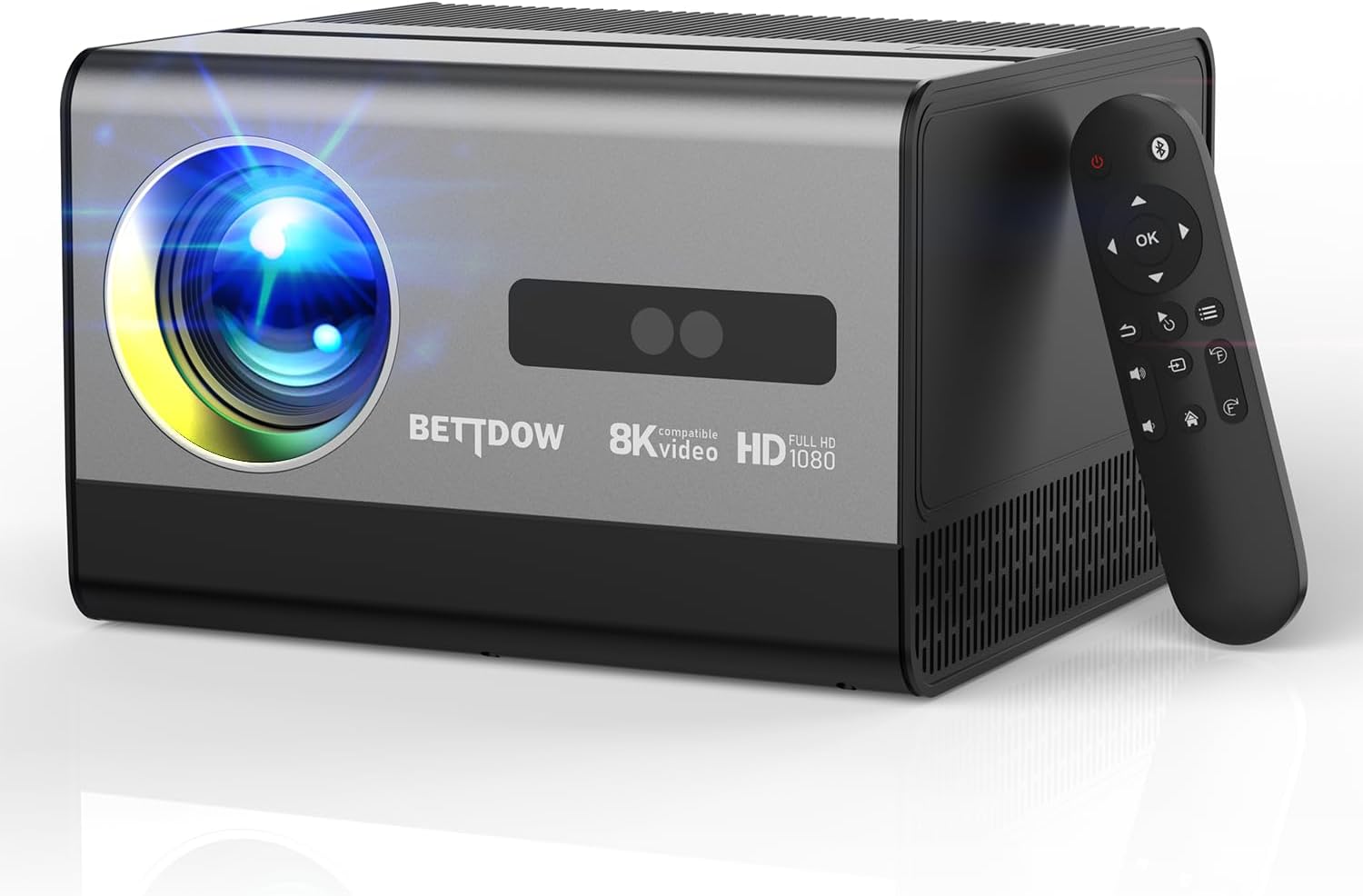
Image 1.1: Bettdow AC1037 Smart Projector and Remote Control
The Bettdow AC1037 is a versatile smart projector featuring native 1080p resolution, 18000 lumens brightness, and compatibility with 4K/8K content. It runs on Android 12, offering integrated Wi-Fi 6 and Bluetooth 4.2 for seamless connectivity. Key features include automatic keystone correction, electronic focus, and a built-in 16W Hi-Fi stereo speaker system.
2. Setup
2.1 Unpacking and Placement
Carefully remove all components from the packaging. Place the projector on a stable, flat surface or mount it according to your preference. Ensure adequate ventilation around the device.

Image 2.1: Various Mounting Options
2.2 Power Connection
- Connect the power adapter to the projector's power input port.
- Plug the power adapter into a suitable electrical outlet.
2.3 Connecting Input Devices
The projector supports multiple input sources:
- HDMI: Connect your computer, game console, or other HDMI-enabled devices using an HDMI cable.
- USB: Insert a USB drive for direct media playback.
- AV: Use the AV port for older devices.
- 3.5mm Audio Jack: Connect wired headphones or external speakers.
- RJ45: For wired network connection.

Image 2.2: Projector Ports Diagram
2.4 Network Connection (Wi-Fi)
- Power on the projector.
- Navigate to the 'Settings' menu on the Android 12 interface.
- Select 'Network & Internet'.
- Turn on Wi-Fi and select your desired network from the list.
- Enter the password if prompted and connect. The projector supports 2.4G and 5G Wi-Fi.

Image 2.3: Dual Wi-Fi and Bluetooth Connectivity
2.5 Bluetooth Pairing
- Go to 'Settings' > 'Connected Devices' > 'Pair new device'.
- Ensure your Bluetooth device (e.g., speaker, headphones) is in pairing mode.
- Select your device from the list on the projector screen to pair.
2.6 Initial Image Adjustment
The Bettdow AC1037 features automatic keystone correction and electronic focus for quick setup.
- Electronic Focus: The projector will automatically adjust focus. You can fine-tune it using the remote control if needed.
- Auto Keystone Correction: The projector automatically corrects trapezoidal distortion. Manual adjustment options are available in the settings for 4P+4D correction.

Image 2.4: Electric Focus and Auto Keystone Correction
3. Operating Instructions
3.1 Power On/Off
- Power On: Press the power button on the projector or the remote control.
- Power Off: Press the power button again. A confirmation prompt may appear on screen.
3.2 Navigating the Android 12 Interface
Use the remote control to navigate the Android 12 operating system. The interface provides access to various apps, settings, and input sources.

Image 3.1: Android 12 Interface with Apps
3.3 Using Applications
The Android 12 system allows you to download and use various applications from Google Play, including streaming services like YouTube, Disney, and Amazon Prime. Ensure a stable internet connection for optimal performance.
3.4 Screen Mirroring
Mirror content from your smartphone or tablet wirelessly to the projector:
- Ensure both your mobile device and the projector are connected to the same Wi-Fi network.
- On the projector, select the screen mirroring function (e.g., 'Miracast' or 'AirPlay' depending on your device).
- On your mobile device, activate the screen mirroring feature (e.g., 'Smart View', 'Screen Cast', 'Mirror Share').
- Select the projector from the list of available devices.

Image 3.2: Smartphone Screen Mirroring and PC Connection
3.5 Audio Output Options
The projector features a built-in 16W Hi-Fi stereo speaker. For alternative audio, you can:
- Connect wired headphones or speakers via the 3.5mm audio jack.
- Pair Bluetooth speakers or headphones wirelessly.

Image 3.3: Built-in 16W Hi-Fi Stereo Speaker
3.6 Adjusting Projection Settings
Access the 'Settings' menu to adjust various projection parameters:
- Picture Mode: Select from preset modes or customize brightness, contrast, color, and sharpness.
- Aspect Ratio: Adjust the image aspect ratio (e.g., 16:9, 4:3).
- Zoom: Digitally adjust the screen size without moving the projector.

Image 3.4: Flexible Screen Sizes (40-200 inches)
4. Maintenance
4.1 Cleaning the Lens and Casing
- Lens: Use a soft, lint-free cloth specifically designed for optical lenses. Gently wipe the lens in a circular motion. Avoid abrasive materials or harsh chemicals.
- Casing: Wipe the projector's exterior with a soft, dry cloth. Do not use liquid cleaners directly on the device.
4.2 Dust Prevention
The Bettdow AC1037 features a P5X dust-proof optical engine designed to minimize dust accumulation. However, regular cleaning of the surrounding environment and occasional gentle cleaning of the projector's vents can further prevent dust buildup.

Image 4.1: Full-Sealed Optical Engine for Dust Prevention
4.3 Cooling System Care
Ensure the projector's ventilation openings are not blocked to allow proper airflow. Overheating can affect performance and lifespan. Do not place the projector on soft surfaces that might obstruct vents.
4.4 Extending LED Lamp Life
The LED lamp in your Bettdow AC1037 projector has an estimated lifespan of 100,000 hours. To maximize its life, avoid frequent power cycles and ensure the projector is used in a well-ventilated area.
5. Troubleshooting
5.1 No Image / Blurry Image
- Check Power: Ensure the projector is properly connected to power and turned on.
- Input Source: Verify that the correct input source (HDMI, USB, etc.) is selected.
- Focus: Use the electronic focus function via the remote control to sharpen the image.
- Keystone: Adjust keystone correction if the image is distorted.
- Cables: Ensure all cables are securely connected.
5.2 No Sound
- Volume: Check the projector's volume level and ensure it is not muted.
- Audio Output: Verify that the correct audio output is selected (internal speaker, Bluetooth, 3.5mm jack).
- Source Device: Ensure the connected source device (e.g., laptop, streaming stick) is also not muted and its volume is up.
- Bluetooth Connection: If using Bluetooth, ensure the device is properly paired and connected.
5.3 Wi-Fi Connectivity Issues
- Network Check: Ensure your Wi-Fi router is working correctly and other devices can connect.
- Signal Strength: Move the projector closer to the Wi-Fi router or reduce interference from other devices.
- Reboot: Restart both the projector and your Wi-Fi router.
- Firmware: Check for any available firmware updates for the projector.
- Alternative: Consider using a wired RJ45 connection if persistent Wi-Fi issues occur.
5.4 Dust Spots on Projection
- While the projector features a P5X dust-proof optical engine, dust can still accumulate over time.
- Gently clean the projector lens with a suitable optical cleaning cloth.
- If internal dust spots persist, contact customer support for assistance.
6. Specifications
| Feature | Detail |
|---|---|
| Brand | Bettdow |
| Model | AC1037 |
| Native Resolution | 1920 x 1080 (Full HD) |
| Supported Resolution | 4K, 8K |
| Brightness | 18000 Lumens (550 ANSI) |
| Contrast Ratio | 10000:1 |
| Operating System | Android 12 |
| Connectivity | Wi-Fi (2.4G/5G), Bluetooth, HDMI, USB, AV, 3.5mm Audio Jack, RJ45 |
| Special Features | Electronic Focus, Auto Keystone Correction (4P+4D), Portable, P5X Dust-Proof |
| Built-in Speaker | 16W Hi-Fi Stereo |
| LED Lamp Life | 100,000 hours |
| Screen Size | 40-300 inches (recommended up to 200 inches) |
| Aspect Ratio | 16:9 |
| Power Consumption | 16 watts (Potência em watts) |
| Product Dimensions | 32 x 20 x 27 cm |
| Product Weight | 3.96 kg |
7. Warranty and Support
7.1 Manufacturer's Warranty
The Bettdow AC1037 Smart Projector comes with a 1-year manufacturer's warranty from the date of purchase. This warranty covers defects in materials and workmanship under normal use. Please retain your proof of purchase for warranty claims.
7.2 Customer Support
For technical assistance, troubleshooting beyond this manual, or warranty inquiries, please contact Bettdow customer support through the retailer where you purchased the product or visit the official Bettdow website for contact information.
