
1. Introduction
The Coralife Seascape Smart LED Light Fixture is designed to provide customizable lighting for your aquarium. This slim, low-profile fixture offers full spectrum lighting suitable for freshwater and saltwater fish, medium light level plants, and low light corals. It features Wi-Fi and Bluetooth connectivity, allowing for comprehensive control via the free Aqueon BlueIQ App.
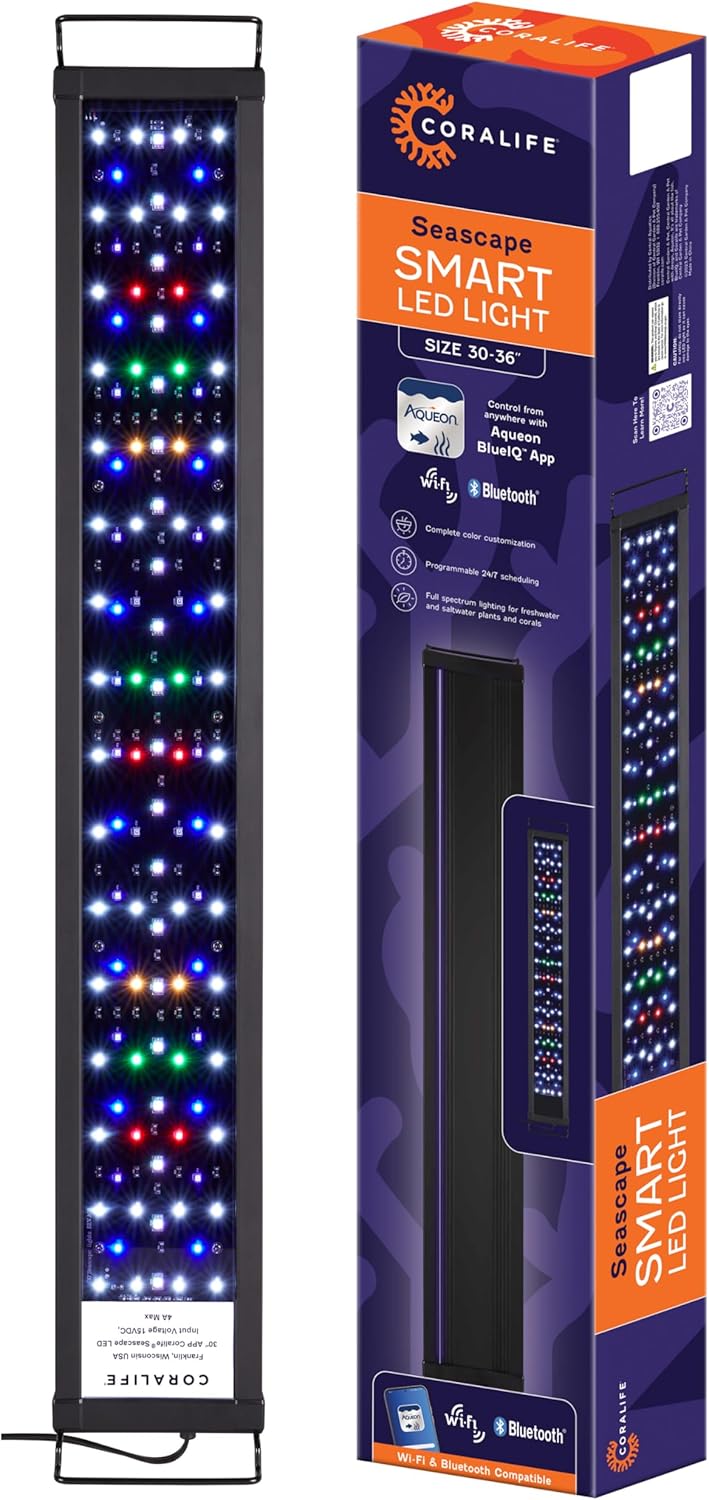
Image 1.1: Coralife Seascape Smart LED Light Fixture and its retail packaging. This image displays the Coralife Seascape Smart LED Light Fixture alongside its retail box, highlighting the product's design and branding.
2. Safety Information
- Read all instructions before using this product.
- Do not operate if the cord or plug is damaged.
- Ensure the fixture is securely mounted above the aquarium and cannot fall into the water.
- Always unplug the fixture before performing any maintenance on the aquarium or the light itself.
- This product is for indoor use only.
- Keep out of reach of children.
3. Package Contents
Verify that all components are present in the package:
- Coralife Seascape Smart LED Light Fixture (30-36 inch)
- Adjustable Mounting Brackets
- Power Supply Unit
- Instruction Manual
4. Setup
4.1 Mounting the Light Fixture
- Attach the adjustable mounting brackets to the ends of the light fixture.
- Place the fixture securely on top of your aquarium. The brackets are designed to fit aquariums between 30 and 36 inches in length. Adjust the brackets as needed to ensure a stable fit.

Image 4.1: Dimensions of the Coralife Seascape Smart LED Light Fixture. This image illustrates the key dimensions of the light fixture: 30-36 inches in length (adjustable), 4.5 inches in width, and 0.7 inches in height.
4.2 Power Connection
- Connect the power supply unit to the light fixture.
- Plug the power supply into a suitable electrical outlet.
4.3 App Download and Initial Pairing
The Coralife Seascape Smart LED Light Fixture is controlled via the Aqueon BlueIQ App.
- Download the free Aqueon BlueIQ App from the Google Play Store or Apple App Store.
- Open the app and follow the on-screen instructions to create an account or log in.
- Ensure your smartphone's Wi-Fi and Bluetooth are enabled.
- Within the app, select the option to add a new device. The app will guide you through connecting the light fixture via either Wi-Fi or Bluetooth.
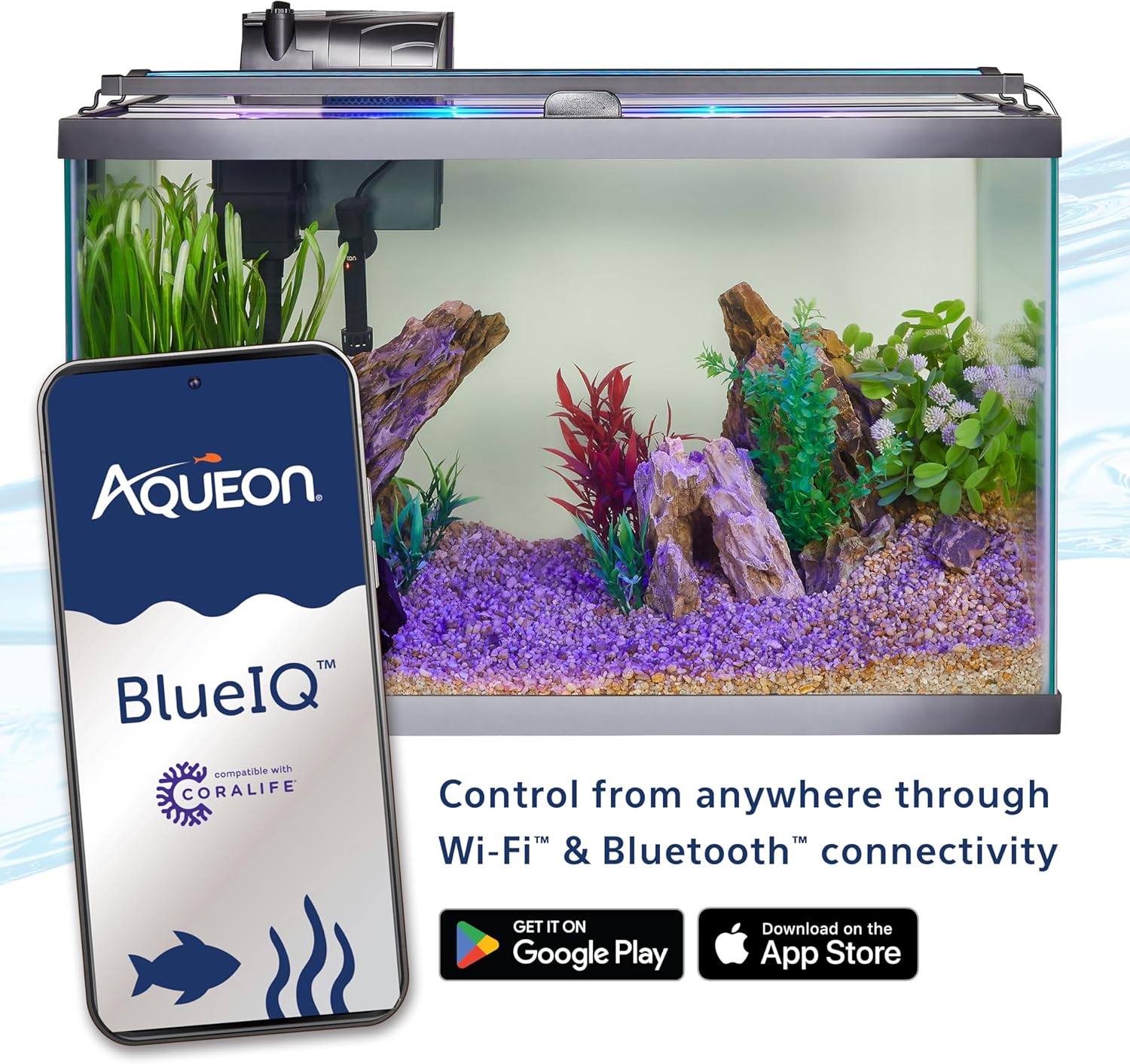
Image 4.2: Smartphone displaying the Aqueon BlueIQ app controlling the Coralife LED light. A smartphone screen shows the Aqueon BlueIQ app interface, demonstrating how the Coralife LED light can be controlled wirelessly via Wi-Fi or Bluetooth. The light is shown mounted on an aquarium.
5. Operating Instructions
The Aqueon BlueIQ App provides comprehensive control over your light fixture's features.
5.1 Light Intensity and Color Customization
- Use the app's slider bars to adjust the intensity of white, blue, and color (RGB) LEDs separately. Adjustments can be made in 1% increments.
- Utilize the RGB color selection tool to fine-tune the overall color output.

Image 5.1: App color customization. A screenshot of the Aqueon BlueIQ app interface, detailing sliders for adjusting White, Blue, and RGB channel intensities, along with an RGB color selection tool for complete color customization.
5.2 24/7 Scheduling
- The app allows you to create a custom 24/7 lighting schedule, mimicking natural light cycles including sunrise, day, sunset, and night.
- Pre-set schedules are available for quick setup.
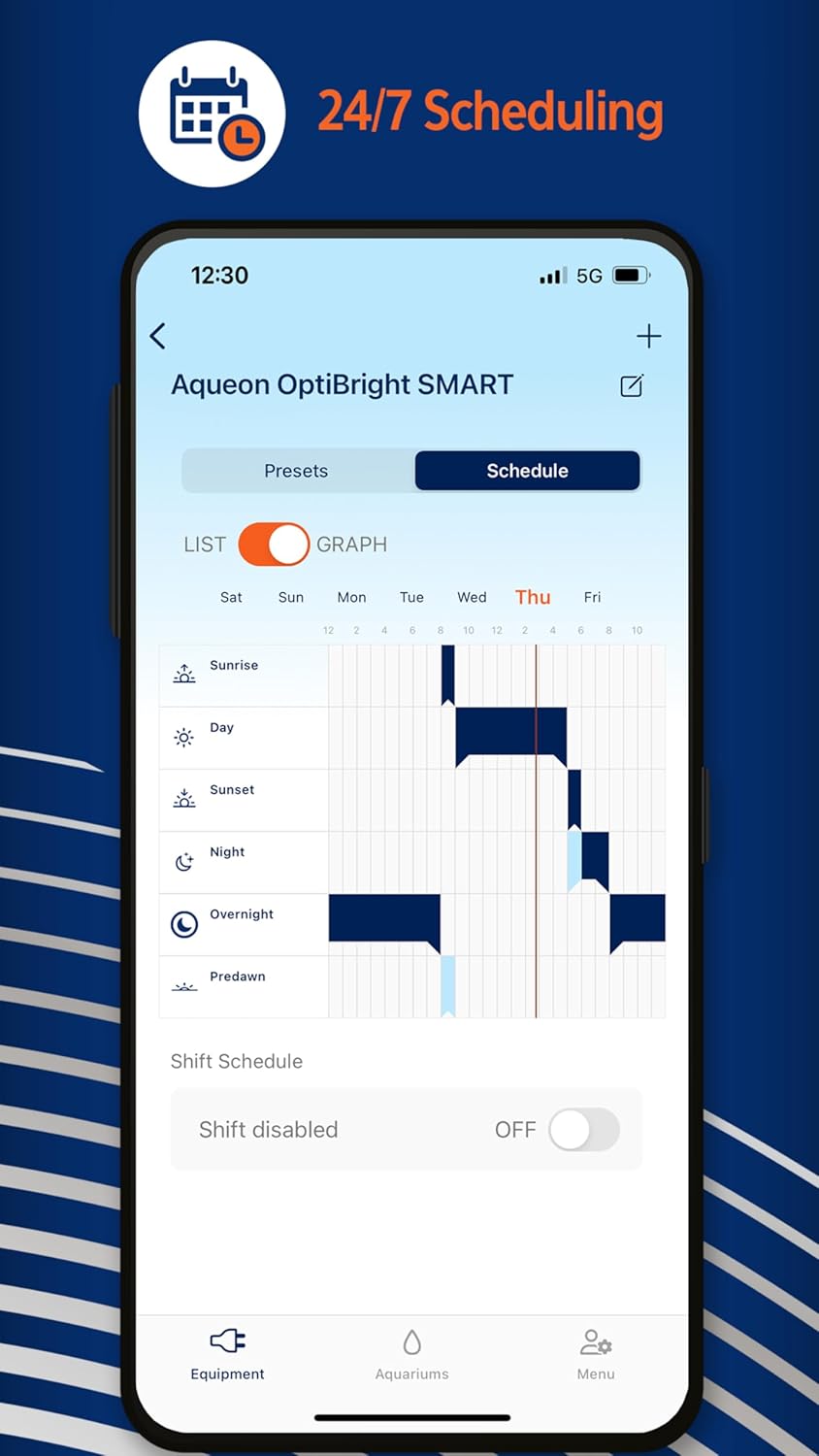
Image 5.2: App scheduling. A screenshot of the Aqueon BlueIQ app's scheduling feature, displaying a graph and list view for setting up a 24/7 lighting schedule, including sunrise, day, sunset, night, overnight, and predawn periods.
5.3 Weather Effects
- Cloud Mode: Dims and brightens the light to simulate clouds passing overhead. Adjust intensity for desired speed.
- Lightning Mode: Randomly dims all lighting and flashes white LEDs to create a lightning storm effect. Intensity affects the frequency of flashes.

Image 5.3: App weather effects. A screenshot of the Aqueon BlueIQ app's weather effects section, featuring toggles and intensity sliders for Cloud Mode and Lightning Mode, as well as options for RGB Circulation Mode and Top Accent Strip.
5.4 Blue Ambiance Illumination
The fixture includes a blue illumination strip on top for an elevated ambiance. This feature can be toggled on or off via the app.

Image 5.4: LED array. This image shows the underside of the Coralife Seascape Smart LED Light Fixture, revealing the array of white, blue, red, and green LEDs that provide full spectrum lighting.
6. Maintenance
- Cleaning: Regularly wipe the exterior of the light fixture with a soft, damp cloth to remove dust and water spots. Ensure the fixture is unplugged before cleaning.
- Do not use abrasive cleaners or solvents, as these can damage the fixture's surface or internal components.
- Keep the LED surface clear of debris to ensure optimal light output.
7. Troubleshooting
- Light Not Turning On:
- Check if the power supply is securely connected to both the fixture and the electrical outlet.
- Verify that the electrical outlet is functional.
- Ensure the light is not set to an 'off' schedule or a very low intensity in the app.
- Connectivity Issues (Wi-Fi/Bluetooth):
- Ensure your smartphone is within range of the fixture for Bluetooth connection, or within range of your Wi-Fi network for Wi-Fi control.
- Restart the Aqueon BlueIQ App.
- Unplug the light fixture for 30 seconds and then plug it back in to reset.
- If issues persist, try re-pairing the device through the app's setup process.
- App Not Responding or Disconnecting:
- Ensure your app is updated to the latest version.
- Check your device's internet connection.
- Close and reopen the app.
- If frequent disconnections occur, consider the strength and stability of your Wi-Fi network.
8. Specifications
| Feature | Detail |
|---|---|
| Brand | Coralife |
| Model Number | 100550371 |
| UPC | 096316002784 |
| Size | 30-36 inches (adjustable) |
| Fixture Dimensions (LxWxH) | 30-36" x 4.5" x 0.7" (approximate, based on image) |
| Item Weight | 4.14 pounds |
| Connectivity | Wi-Fi, Bluetooth |
| Control App | Aqueon BlueIQ App |
| Lighting Type | Full Spectrum LED (White, Blue, Color) |
| Material | Acrylic |
| Color | Black |
| Manufacturer | Central Garden & Pet |
| Country of Origin | China |
| Date First Available | June 5, 2024 |
9. Warranty Information
Central Aquatics warrants that this product shall be free from defective electrical components due to defects in materials or workmanship for a period of twelve months from the date of purchase. If a defect is shown, Central Aquatics will, at the sole discretion of Central Aquatics, either repair or replace the product without charge. No cash refunds will be made. This warranty is provided solely to the original consumer purchaser of the product and may not be transferred or assigned. You must retain original proof of purchase to validate this warranty.
10. Customer Support
For technical assistance, troubleshooting beyond this manual, or warranty claims, please contact Central Garden & Pet customer support. Refer to the product packaging or the manufacturer's official website for the most current contact information.

