
1. Product Overview
The 8Bitdo 18 Key Retro Mechanical Numpad is a versatile input device designed for both PC numpad functionality and standard calculator operations. It features a retro aesthetic, hot-swappable mechanical switches, and multiple connectivity options.

Image: Front view of the 8Bitdo 18 Key Retro Mechanical Numpad, C64 Edition, showcasing its retro design and LED display.
2. Package Contents
Before proceeding with setup, please ensure all items are present in the package:
- 8Bitdo 18 Key Retro Mechanical Numpad
- 2.4G Wireless Adapter
- USB-C Cable
- Instruction Manual

Image: The 8Bitdo Numpad alongside its packaging and included accessories, such as the 2.4G adapter and USB-C cable.
3. Setup and Connectivity
3.1 Charging the Numpad
The numpad is equipped with a rechargeable Lithium Polymer battery. A full charge takes approximately 4 hours and provides up to 160 hours of use.
- Connect the supplied USB-C cable to the numpad's USB-C port.
- Connect the other end of the cable to a USB power source (e.g., computer USB port, USB wall adapter).
- The LED indicator will show charging status and turn off when fully charged.

Image: Side view of the numpad, highlighting the USB-C charging port and the magnetic compartment for the 2.4G adapter.
3.2 Connectivity Options
The numpad supports three connection methods: Bluetooth, 2.4G Wireless, and Wired USB-C.
3.2.1 Bluetooth Connection
- Set the mode switch on the numpad to 'BT'.
- On your Windows or Android device, go to Bluetooth settings and enable Bluetooth.
- Press and hold the Bluetooth pairing button on the numpad (usually indicated by a Bluetooth icon) until the LED starts blinking rapidly.
- Select '8Bitdo Retro Numpad' from the list of available devices on your computer or phone.
- The LED will become solid when connected.
3.2.2 2.4G Wireless Connection
- Locate the 2.4G wireless adapter stored in the magnetic compartment on the numpad's side.
- Set the mode switch on the numpad to '2.4G'.
- Plug the 2.4G wireless adapter into an available USB port on your PC.
- The numpad should automatically connect. The LED indicator will become solid.

Image: A hand demonstrating the insertion of the 2.4G wireless adapter into its magnetic storage compartment on the numpad.
3.2.3 Wired USB-C Connection
- Set the mode switch on the numpad to 'OFF' or 'BT'/'2.4G' (wired connection will override wireless).
- Connect the USB-C cable from the numpad to a USB port on your PC.
- The numpad will be recognized as a standard USB input device.
3.3 Compatibility
The 8Bitdo Retro Mechanical Numpad is compatible with:
- Windows 10 (1803) and above
- Android 9.0 and above
4. Operating the Numpad
4.1 Switching Between Numpad and Calculator Modes
The device functions as both a PC numpad and a standalone calculator. Use the dedicated mode switch or button (often labeled 'CAL' or a similar icon) to toggle between these modes.

Image: A user operating the 8Bitdo Numpad in Standard Calculator Mode, demonstrating its use as a standalone calculator.
4.2 Windows Calculator App Shortcut
A dedicated shortcut button is available to instantly launch the Windows Calculator application on your PC. Refer to the numpad's control panel for the specific button.
4.3 Independent Control Panel
The numpad features an independent control panel with a turn dial and buttons for effortless operations. These controls manage connectivity modes, power, and potentially other functions.
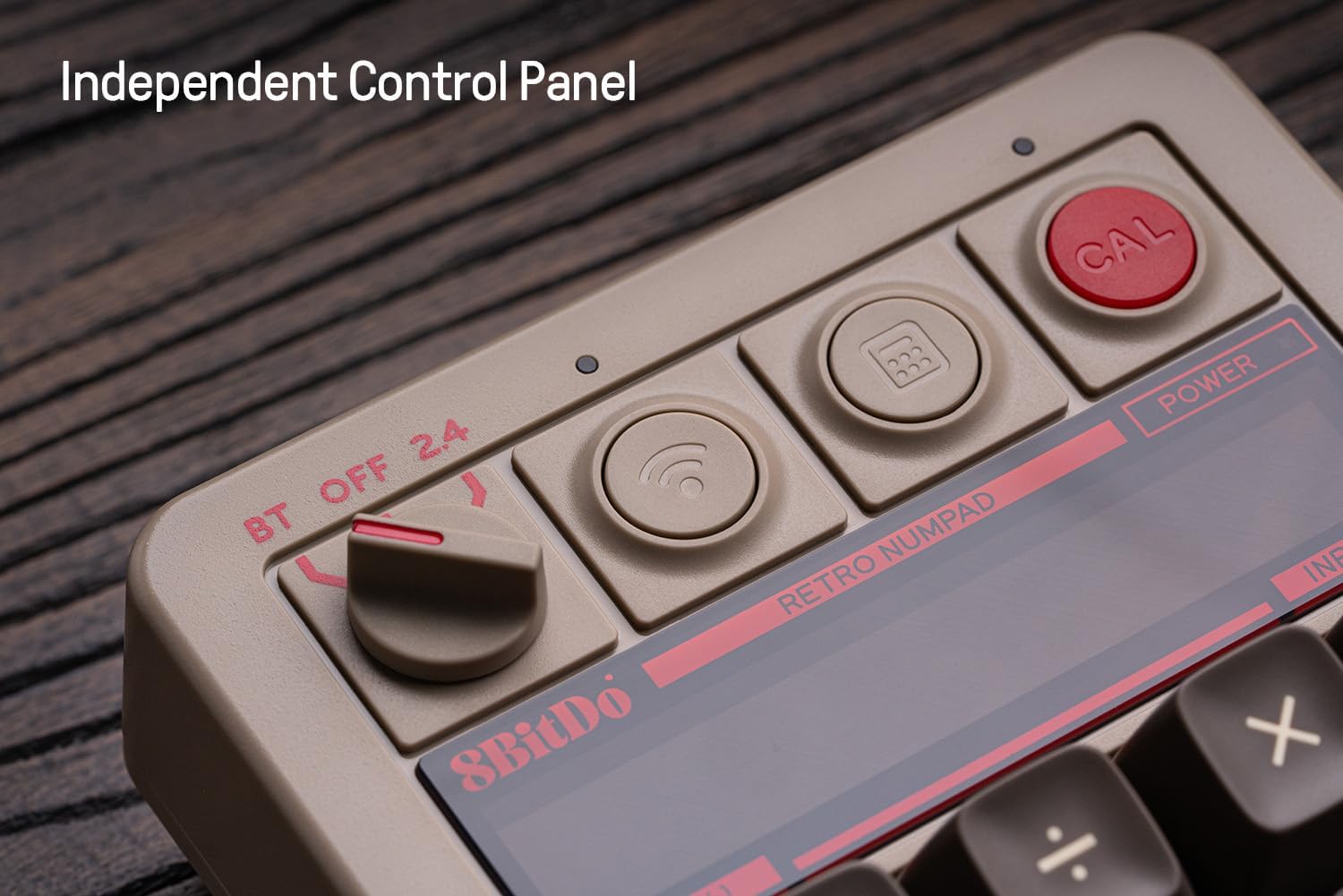
Image: Close-up view of the numpad's independent control panel, showing the mode switch, wireless/Bluetooth buttons, and the calculator shortcut button.
4.4 Retro LED Display
The numpad incorporates a nine-digit seven-segment LED display, providing clear and visible numerical output for calculator mode and status indicators.
4.5 Hot-swappable PCB and Switches
The numpad features a hot-swappable PCB, allowing users to easily change the mechanical switches without soldering. It comes equipped with Kailh Box White switches V2.

Image: Detailed view of the hot-swappable PCB, showing a keycap and switch removed to illustrate the ease of switch replacement.
4.6 N-key Rollover
The numpad supports N-key rollover, ensuring that every key press is registered accurately, even when multiple keys are pressed simultaneously.
4.7 Keycaps
The C64 Edition features double-shot ABS keycaps with an SA profile, providing durability and a distinct tactile feel.
5. Maintenance
5.1 Cleaning
To maintain the numpad's appearance and functionality:
- Use a soft, dry cloth to wipe the exterior.
- For stubborn dirt, slightly dampen the cloth with water or a mild cleaning solution. Avoid harsh chemicals.
- Use compressed air to remove dust and debris from between the keycaps.
5.2 Keycap and Switch Replacement
Due to the hot-swappable design, keycaps and switches can be replaced. Use a keycap puller and switch puller (not included) for safe removal and installation. Ensure the new switches are compatible with the PCB.
5.3 Battery Care
To prolong battery life:
- Avoid fully discharging the battery frequently.
- Store the numpad in a cool, dry place when not in use for extended periods.
- Charge the battery at least once every three months if unused.
6. Troubleshooting
6.1 Connectivity Issues
- No Connection (Bluetooth/2.4G): Ensure the numpad is charged and the mode switch is set correctly. Re-pair Bluetooth or re-insert the 2.4G adapter. Try a different USB port for the 2.4G adapter.
- Intermittent Connection: Reduce distance between numpad and device. Avoid sources of interference (e.g., other wireless devices).
- Wired Connection Not Recognized: Try a different USB-C cable or USB port on your PC. Ensure the cable is fully inserted.
6.2 Display Issues
- Display Blank: Ensure the numpad is powered on and charged. If in PC numpad mode, the display may show less information. Switch to calculator mode to verify.
- Incorrect Characters: Restart the numpad. If persistent, check for firmware updates.
6.3 Key Input Problems
- Keys Not Responding: Check for debris under keycaps. If hot-swappable, ensure switches are fully seated.
- Double Input/Missed Input: This could indicate a faulty switch. Utilize the hot-swappable feature to replace the affected switch.
6.4 Battery Not Charging
- Ensure the USB-C cable is functional and properly connected.
- Try a different USB power source.
- If the issue persists, contact customer support.
7. Specifications
| Feature | Detail |
|---|---|
| Model Name | C64 Edition |
| Number of Keys | 18 |
| Switches | Kailh Box White switches V2 (Hot-swappable) |
| Keycaps | Double-shot ABS (C64 edition) |
| Connectivity | Bluetooth, 2.4G Wireless, Wired USB-C |
| Compatibility | Windows (10 and above), Android (9.0 and above) |
| Battery Type | Lithium Polymer |
| Battery Life | Up to 160 use hours |
| Charging Time | Approx. 4 hours |
| Display | Nine-digit seven-segment LED |
| Dimensions | 7.91 x 7.05 x 2.36 inches |
| Item Weight | 1.3 pounds |
8. Warranty Information
8Bitdo products typically come with a limited manufacturer's warranty. For specific details regarding the warranty period and terms for your 8Bitdo 18 Key Retro Mechanical Numpad, please refer to the warranty card included in your product packaging or visit the official 8Bitdo website.
9. Support
For further assistance, firmware updates, or to download the 8Bitdo Ultimate Software V2 (for firmware updates only), please visit the official 8Bitdo support website:
You may also contact 8Bitdo customer service through their website for technical support or inquiries.
