
1. Introduction and Overview
The JBL Clip 5 is a compact, ultra-portable Bluetooth speaker designed to deliver robust audio performance wherever you go. Its signature integrated carabiner allows for easy attachment to backpacks, belt loops, or other gear, ensuring your music is always within reach. Engineered for durability, the Clip 5 features a high waterproof and dustproof rating, making it an ideal companion for outdoor adventures and poolside relaxation. With advanced connectivity options and a focus on sound quality, this speaker enhances your listening experience on the move.

Figure 1: The JBL Clip 5 Bluetooth Speaker in Black, shown alongside its accompanying protective hardshell case. The speaker features a prominent JBL logo and an integrated carabiner for portability.
2. Setup
2.1 Charging the Speaker
Before initial use, fully charge your JBL Clip 5. The speaker is equipped with an exposed USB-C port for convenient charging. A compatible USB-C charging cable is included with your product.
- Connect the USB-C cable to the charging port on the speaker.
- Connect the other end of the cable to a compatible USB power adapter (not included) or a powered USB port.
- The charging indicator light will illuminate to show charging status.
2.2 Powering On/Off
To power on the JBL Clip 5, press and hold the power button located on the side of the speaker. To power off, press and hold the power button again.
2.3 Bluetooth Pairing
To connect your JBL Clip 5 to a Bluetooth-enabled device:
- Ensure the speaker is powered on.
- Press the Bluetooth button on the side of the speaker. The Bluetooth indicator light will begin to flash, indicating it is in pairing mode.
- On your device, navigate to the Bluetooth settings and select "JBL Clip 5" from the list of available devices.
- Once connected, the Bluetooth indicator light on the speaker will become solid.
3. Operating the Speaker
3.1 Basic Controls
The JBL Clip 5 features intuitive controls on its front surface:
- Play/Pause: Press the central play button (triangle icon) to play or pause audio.
- Volume Up: Press the '+' button to increase the volume.
- Volume Down: Press the '-' button to decrease the volume.
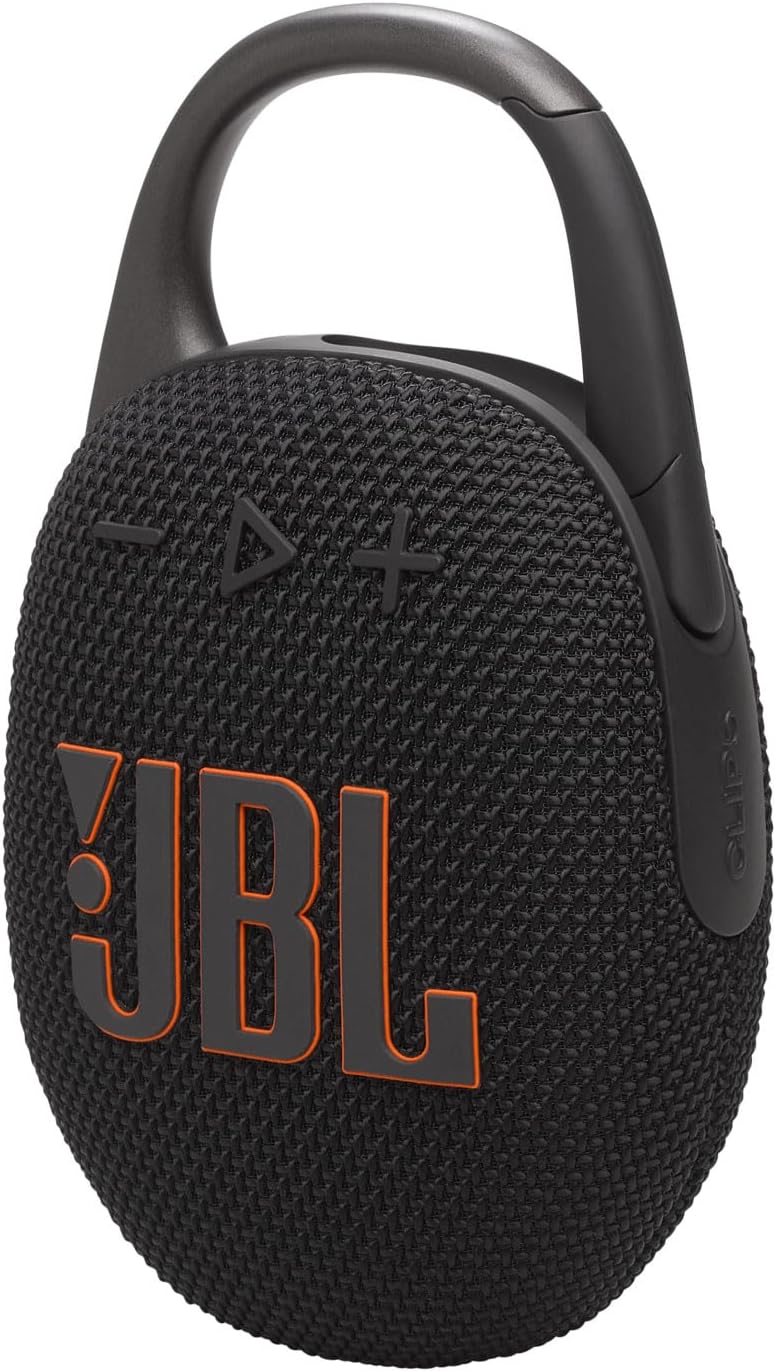
Figure 2: Front view of the JBL Clip 5, highlighting the play/pause, volume up (+), and volume down (-) buttons on the speaker's fabric grille.
3.2 Auracast™ Multi-Speaker Connection
The JBL Clip 5 supports Auracast™ technology, allowing you to wirelessly connect multiple Auracast-enabled JBL speakers for a synchronized audio experience. This feature is ideal for spreading music across different rooms or creating a larger soundstage.
- To initiate Auracast, press the dedicated Auracast button (triangle with waves icon) on the side of the primary speaker.
- On additional Auracast-enabled speakers, press their respective Auracast buttons to join the audio stream.
- For stereo sound, pair two Clip 5 speakers using the Auracast feature via the JBL Portable app.
3.3 Playtime Boost
To extend the battery life of your JBL Clip 5 by up to 3 additional hours, tap the Playtime Boost feature. This optimizes the speaker's performance for louder and crisper sound while conserving power.
4. Key Features
- JBL Pro Sound: Experience powerful and clear audio with deep, punchy bass, characteristic of JBL's professional sound engineering.
- Redesigned Carabiner: The fully integrated carabiner has been re-engineered with a wider opening, enhancing portability and ease of attachment to various items.
- Extended Playtime: Enjoy up to 12 hours of continuous music playback on a single charge. The Playtime Boost feature can extend this by an additional 3 hours.
- Waterproof and Dustproof (IP67): The speaker is fully protected against dust ingress and can withstand immersion in water up to 1 meter for 30 minutes, making it suitable for any environment.
- Auracast™ Support: Connect multiple JBL Auracast-enabled speakers wirelessly to create a synchronized audio system for larger spaces or enhanced sound.
- JBL Portable App: Utilize the companion app for firmware updates, product support, and fine-tuning your audio experience with multiple EQ presets or a fully customizable equalizer.
- Sustainable Design: The JBL Clip 5 incorporates post-consumer recycled plastic and fabric in its construction, and its packaging uses FSC-certified paper printed with soy ink.
5. Maintenance
Proper maintenance ensures the longevity and optimal performance of your JBL Clip 5 speaker.
- Cleaning: Gently wipe the speaker with a soft, damp cloth. Avoid using harsh chemicals, solvents, or abrasive cleaners, as these can damage the finish or internal components.
- Storage: When not in use for extended periods, store the speaker in a cool, dry place away from direct sunlight and extreme temperatures.
- Battery Care: To maintain battery health, charge the speaker regularly, even if it's not used frequently. Avoid fully depleting the battery for prolonged periods.
- Water Exposure: While waterproof, ensure the USB-C port is dry before charging after water exposure to prevent damage.
6. Troubleshooting
If you encounter issues with your JBL Clip 5, refer to the following common troubleshooting steps:
| Problem | Possible Cause | Solution |
|---|---|---|
| Speaker does not power on | Low battery | Charge the speaker fully using the provided USB-C cable. |
| Cannot pair with Bluetooth device | Speaker not in pairing mode; Device Bluetooth off; Interference | Press the Bluetooth button on the speaker to enter pairing mode. Ensure Bluetooth is enabled on your device. Move closer to the speaker and away from other wireless devices. |
| No sound or low volume | Volume too low; Device not connected; Muted | Increase volume on both the speaker and your connected device. Ensure the speaker is properly paired. Check if audio is muted on your device. |
| Sound distortion at high volume | Volume too high; Audio source quality | Reduce the volume. Try a different audio source or file. |
| Auracast™ connection issues | Speakers not in range; Incorrect pairing sequence | Ensure all speakers are within range. Follow the Auracast™ pairing instructions carefully. |
If these steps do not resolve the issue, please contact JBL customer support for further assistance.
7. Specifications
Detailed technical specifications for the JBL Clip 5 Bluetooth Speaker:
| Feature | Detail |
|---|---|
| Model Name | Clip 5 Black & CLIP 5 Hardshell Case |
| Speaker Type | Single Speaker |
| Special Feature | USB Port, Waterproof |
| Compatible Devices | Bluetooth-enabled devices |
| Unit Count | 1.0 Count |
| Color | Black |
| Product Dimensions | 1.8"D x 3.4"W x 5.3"H |
| Item Weight | 1.2 Pounds (1.22 pounds) |
| Water Resistance Level | Waterproof (IP67) |
| Number of Batteries | 1 Lithium Ion battery required (included) |
| UPC | 810096314949 |
| Manufacturer | JBL |
| Connectivity Technology | Bluetooth |
| Audio Output Mode | Stereo, Mono |
| Mounting Type | Tabletop Mount |
| Material | Recycled plastic and fabric |
8. Warranty and Support
The JBL Clip 5 comes with a Limited Warranty. For detailed information regarding the warranty terms, conditions, and duration, please refer to the official JBL website or the warranty card included in your product packaging.
For product support, including FAQs, troubleshooting guides, and contact information for customer service, please visit the official JBL support page. You can also utilize the JBL Portable app for updates and direct product support from your mobile device.
Online Resources:
- JBL Official Website: www.jbl.com
- JBL Portable App: Available on iOS and Android app stores.