
1. Introduction
This manual provides detailed instructions for the installation, operation, and maintenance of your Labgear 6-Port Gigabit PoE Network Switch (Model 60052PI). This unmanaged switch is designed to simplify network setups by integrating power and data delivery over a single Ethernet cable, making it suitable for various environments including offices, homes, and industrial settings. Please read this manual thoroughly before using the device to ensure proper setup and optimal performance.
2. Product Overview
The Labgear 6-Port Gigabit PoE Network Switch features 4 Gigabit PoE ports and 2 Gigabit uplink ports, offering robust connectivity and power for your network devices.
Key Features:
- Power Over Ethernet (PoE): Delivers power and data simultaneously over a single Ethernet cable to compatible devices.
- Gigabit Speed: Supports 10/100/1000Mbps data transfer rates for high-speed network performance.
- Extended Transmission Range: Features an AI extend mode for data transmission up to 300 meters at a reduced speed (10Mbps) on PoE ports.
- AI Watchdog: Automatically monitors PoE devices and restarts unresponsive ones to ensure continuous operation.
- VLAN Support: Enhances network security and performance by segmenting the network and isolating ports.
- Unmanaged Design: Plug-and-play functionality requires no complex configuration.
- Durable Metal Housing: Provides robust protection and efficient heat dissipation.
Package Contents:
- Labgear 6-Port Gigabit PoE Network Switch (Model 60052PI)
- Power Cable
- Instruction Manual
Physical Description:
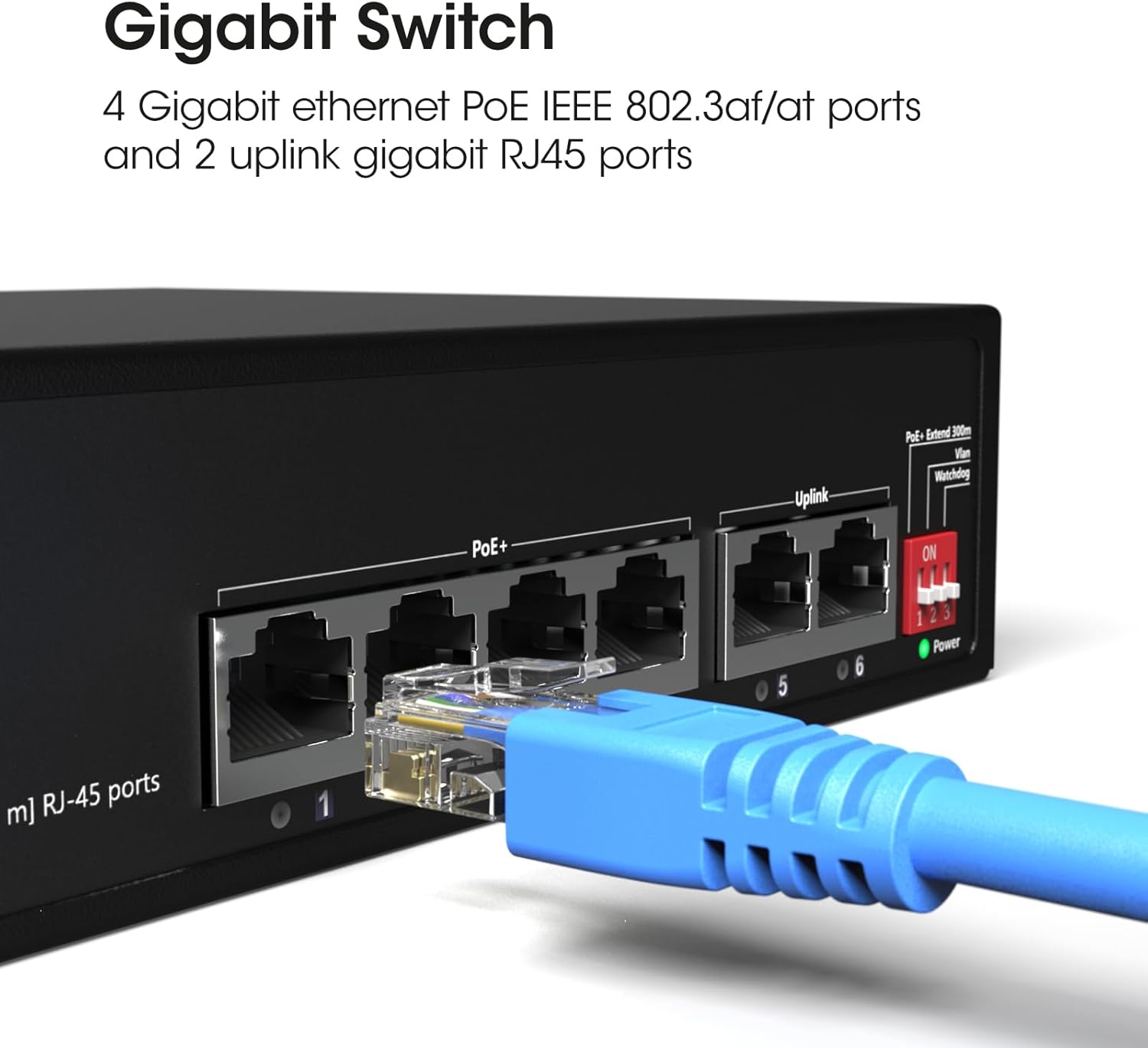
Figure 2.1: Front view of the Labgear 6-Port Gigabit PoE Network Switch, showing the six RJ45 ports and LED indicators.

Figure 2.2: A detailed view of the switch's ports, illustrating the 4 Gigabit Ethernet PoE ports (1-4) and 2 uplink Gigabit RJ45 ports (5-6). A blue Ethernet cable is shown connected to one of the ports.

Figure 2.3: This view highlights the side of the switch, featuring the DIP switches that control functions like PoE+ Extend 300m, VLAN, and Watchdog, which are crucial for configuring the device's operational mode.
3. Setup
3.1 Placement
- Place the switch on a stable, flat surface or mount it to a wall using appropriate hardware (not included).
- Ensure adequate ventilation around the device to prevent overheating.
- Keep the switch away from direct sunlight, heat sources, and moisture.
3.2 Connecting Power
- Connect the provided power cable to the power input port on the switch.
- Plug the other end of the power cable into a standard electrical outlet.
- Verify that the Power LED indicator on the switch illuminates, indicating that the device is receiving power.
3.3 Connecting Network Devices
- Connect your PoE-compatible devices (e.g., IP cameras, wireless access points) to ports 1-4 using standard Ethernet cables. These ports will provide both data and power.
- Connect your router, NVR, or other network backbone devices to the uplink ports (5-6) using standard Ethernet cables. These ports are for data transmission only.
- Ensure all cable connections are secure. The Link/Act LEDs for connected ports should illuminate, indicating an active connection.
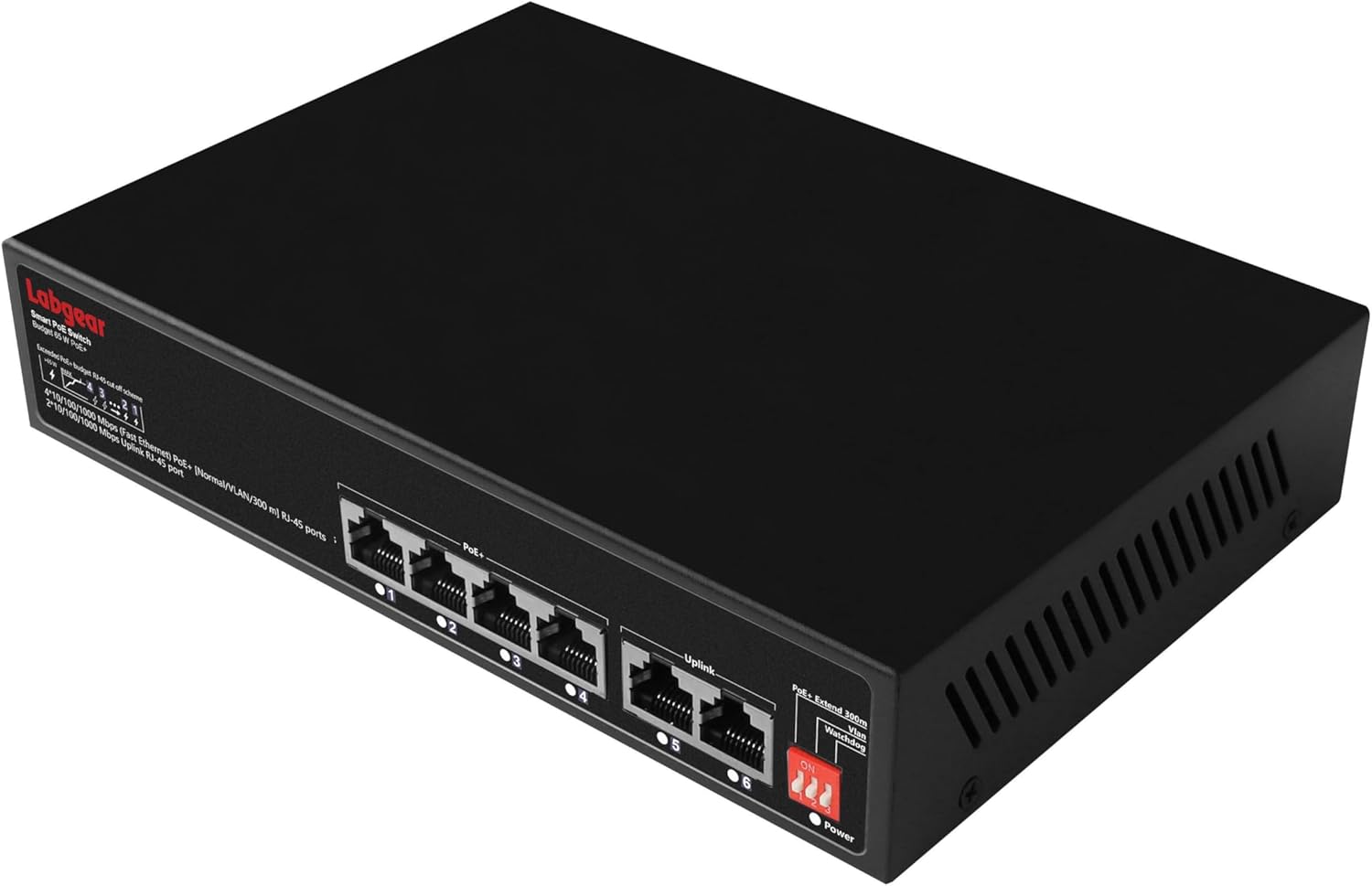
Figure 3.1: The Labgear switch with several network cables connected, indicating active Power Over Ethernet (PoE) connections and data transmission.
3.4 DIP Switch Configuration
The switch features DIP switches on its side panel to enable advanced functionalities. Configure these switches before powering on the device for the settings to take effect.
| Switch | Position | Function | Description |
|---|---|---|---|
| 1 | ON | PoE+ Extend 300m | Extends PoE transmission distance up to 300 meters at 10Mbps for ports 1-4. |
| OFF | Normal Mode | Standard PoE transmission up to 100 meters at Gigabit speeds for ports 1-4. | |
| 2 | ON | VLAN | Enables port isolation for ports 1-4, preventing direct communication between them while allowing communication with uplink ports. |
| OFF | Normal Mode | All ports can communicate freely. | |
| 3 | ON | Watchdog | Activates AI Watchdog feature for ports 1-4, automatically detecting and restarting unresponsive PoE devices. |
| OFF | Normal Mode | AI Watchdog feature is disabled. |
4. Operating Instructions
4.1 Basic Operation
Once powered on and connected, the Labgear 6-Port Gigabit PoE Network Switch operates automatically. It is an unmanaged switch, meaning it requires no software configuration. Data and power (for PoE devices) will be transmitted as soon as devices are connected to the appropriate ports.
4.2 LED Indicators
- Power LED: Illuminates when the switch is powered on.
- Link/Act LEDs (per port):
- Solid Green: A device is connected and active.
- Flashing Green: Data is being transmitted or received.
- Off: No device is connected or the connected device is inactive.
- PoE LEDs (ports 1-4):
- Solid Green: PoE power is being supplied to the connected device.
- Flashing Green: PoE power is being supplied, and data is being transmitted.
- Off: No PoE device is connected or no power is being supplied.
4.3 Advanced Features (DIP Switch Controlled)
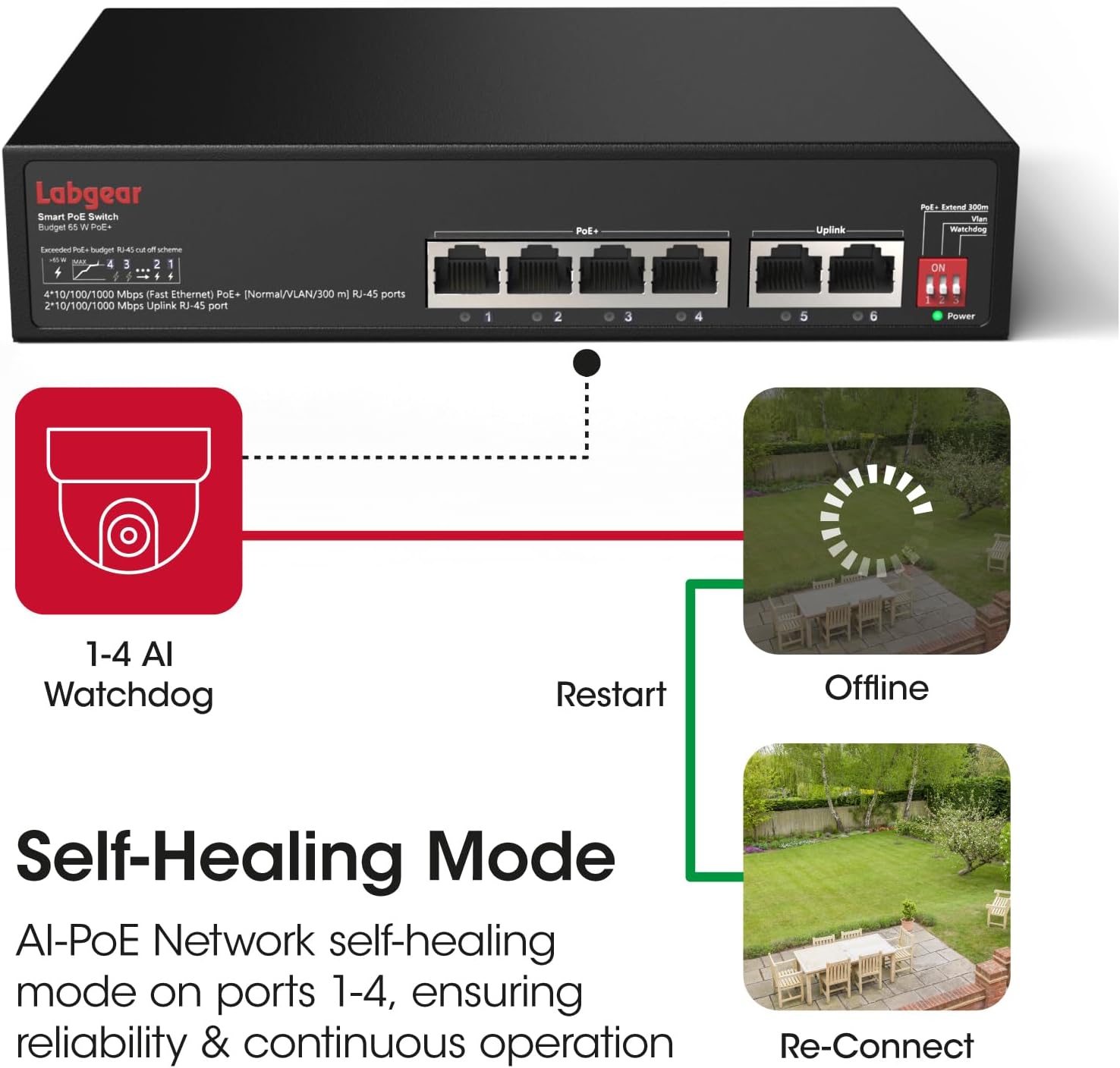
Figure 4.1: A visual representation of the AI Watchdog feature, demonstrating how the switch automatically detects and restarts unresponsive PoE devices, such as surveillance cameras, to ensure continuous operation.

Figure 4.2: This diagram illustrates the switch's VLAN support for network segmentation and its compatibility with a range of devices, including cameras, computers, printers, access points, extenders, and routers.
- PoE+ Extend 300m: When DIP switch 1 is ON, ports 1-4 operate in extended mode, allowing PoE devices to be placed up to 300 meters away. Note that in this mode, the data rate for these ports is reduced to 10Mbps. For distances up to 100 meters, keep DIP switch 1 OFF for full Gigabit speed.
- VLAN: With DIP switch 2 ON, ports 1-4 are isolated from each other. This means devices connected to ports 1-4 cannot communicate directly with each other but can still communicate with devices connected to the uplink ports (5-6). This feature is useful for enhancing security in surveillance systems or segmenting network traffic.
- Watchdog: When DIP switch 3 is ON, the AI Watchdog function is enabled for ports 1-4. The switch will continuously monitor the status of connected PoE devices. If a device becomes unresponsive, the switch will automatically cut and restore power to that port, effectively restarting the device to restore functionality.
5. Maintenance
5.1 Cleaning
- Ensure the switch is powered off and unplugged before cleaning.
- Use a soft, dry cloth to wipe the exterior of the device.
- Do not use liquid cleaners or aerosol sprays, as they may damage the device.
5.2 Environmental Considerations
- Operate the switch within its specified temperature and humidity ranges.
- Avoid placing the switch in areas with excessive dust, vibration, or electromagnetic interference.
6. Troubleshooting
Common Issues and Solutions:
- No Power:
- Ensure the power cable is securely connected to both the switch and the power outlet.
- Verify that the power outlet is functional.
- No Link/Activity on a Port:
- Check the Ethernet cable connection at both ends. Try a different cable.
- Ensure the connected device is powered on and functioning correctly.
- Verify that the DIP switches are configured appropriately for your network setup (e.g., if in extended mode, the connected device must support 10Mbps).
- PoE Device Not Receiving Power:
- Ensure the device is connected to a PoE port (1-4).
- Confirm the connected device is PoE-compatible (IEEE 802.3af/at standard).
- Check the total power budget (65W) and individual port power limits (up to 30W per port) to ensure it's not exceeded.
- If AI Watchdog is enabled, ensure it's not causing intermittent restarts if the device is stable.
- Slow Network Speed:
- If DIP switch 1 (Extend 300m) is ON, ports 1-4 will operate at 10Mbps. Turn it OFF for Gigabit speeds if the distance is within 100 meters.
- Ensure all connected devices and cables support Gigabit Ethernet for optimal performance.
7. Specifications
| Feature | Specification |
|---|---|
| Model Number | 60052PI |
| Ports | 4 x 10/100/1000Mbps PoE RJ45 Ports, 2 x 10/100/1000Mbps Uplink RJ45 Ports |
| PoE Standard | IEEE 802.3af/at |
| PoE Power Budget | 65W total, up to 30W per port |
| Data Transfer Rate | 10/100/1000 Mbps (Gigabit Ethernet) |
| Extended Transmission | Up to 300m at 10Mbps (DIP switch controlled) |
| Features | AI Watchdog, VLAN Support, Extend Mode |
| Interface Type | RJ45 |
| Case Material | Metal |
| Color | Black |
| Voltage | 48 Volts (DC) |
| Item Weight | 1.96 pounds (approx. 0.89 kg) |
| Package Dimensions | 10.04 x 8.27 x 1.77 inches (approx. 25.5 x 21 x 4.5 cm) |
8. Warranty and Support
8.1 Warranty Information
Labgear products are designed for reliability and performance. This product comes with a standard manufacturer's warranty. Please refer to the warranty card included in your package or visit the official Labgear website for specific terms and conditions regarding your product's warranty period and coverage.
8.2 Technical Support
If you encounter any issues or have questions regarding the installation or operation of your Labgear 6-Port Gigabit PoE Network Switch, please contact Labgear customer support. Support contact details can typically be found on the product packaging, the official Labgear website, or the warranty card.