
1. Introduction
Thank you for choosing the GJV Fingerprint Smart Lock. This manual provides detailed instructions for the installation, operation, and maintenance of your new keyless entry door lock. Designed for enhanced security and convenience, this smart lock offers multiple access methods including fingerprint, PIN code, and mechanical key. Please read this manual thoroughly before installation and use to ensure proper function and longevity of your device.
2. Product Overview and Features
The GJV Fingerprint Smart Lock is a state-of-the-art deadbolt designed to provide secure and convenient access control for various environments, including homes, offices, hotels, and Airbnb properties.

Figure 2.1: Front view of the GJV Fingerprint Smart Lock, showing the keypad and fingerprint sensor.
Key Features:
- Convenient Keyless Entry: Supports up to 50 unique fingerprints and 50 PIN codes. Easily generate one-time codes for temporary access.
- Rapid Fingerprint Recognition: Unlocks in under 0.5 seconds using advanced biometric technology.
- Multiple Security Functions: Features include instant one-touch locking, adjustable auto-lock (10-99 seconds), and a vacation mode for enhanced security during extended absences.
- Emergency Access Options: Equipped with a low-battery indicator. In case of complete power loss, access can be gained via mechanical key or emergency power supply through the hidden Type-C port.
- Durable Construction & Compatibility: Crafted from durable zinc alloy with a brass core. Compatible with standard US doors ranging from 1.37 inches to 2.17 inches thick. The lock automatically identifies left/right door orientation.
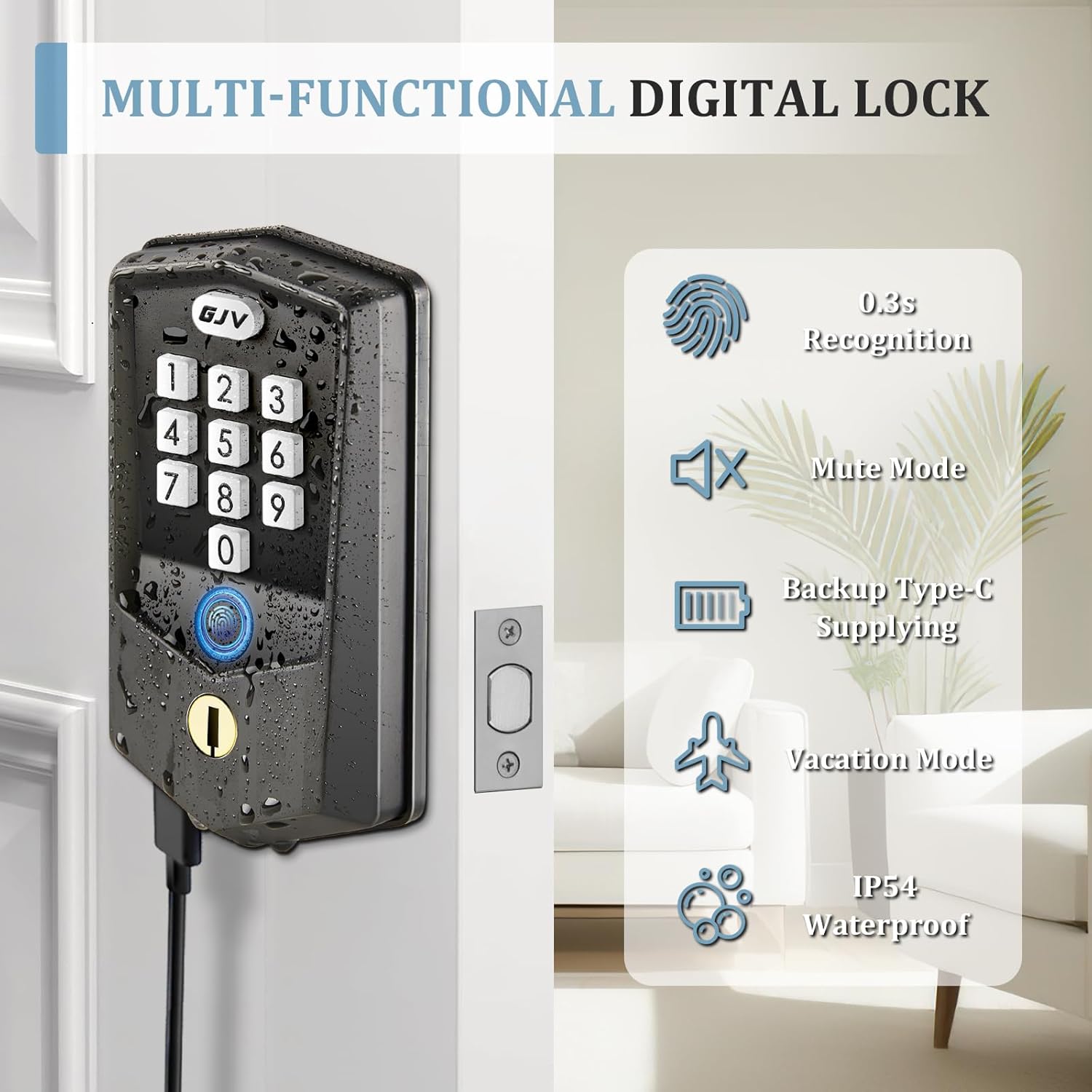
Figure 2.2: Illustration of multi-functional features including fingerprint recognition, mute mode, backup Type-C power, vacation mode, and IP54 waterproof rating.

Figure 2.3: Depiction of the lock's capacity for up to 100+ users, including 50 fingerprints, 50 PIN codes, 10 one-time codes, and 2 mechanical keys.
3. Package Contents
Please verify that all components are present and in good condition before beginning installation.
- 1 x GJV Fingerprint Smart Lock Assembly (Exterior and Interior Units)
- 1 x Latch Mechanism
- 2 x Mechanical Keys
- Mounting Accessories (Screws, Spindle, etc.)
- Installation Template
- User Manual (This document)
4. Installation Guide (Setup)
The GJV Smart Lock is designed for easy installation, typically requiring only a screwdriver. No additional drilling is needed for standard door preparations.
4.1 Preparation:
- Ensure your door thickness is between 1.37 inches (35mm) and 2.17 inches (55mm).
- Verify the backset (distance from door edge to center of bore hole) is either 2-3/8 inches (60mm) or 2-3/4 inches (70mm).
- Gather necessary tools: Phillips head screwdriver.
- Install 4 AA batteries (not included) into the interior unit. Ensure correct polarity.
4.2 Installation Steps:
- Install the Latch: Insert the latch into the door edge, ensuring the bolt faces the correct direction for your door swing. Secure with screws.
- Install the Exterior Assembly: Feed the cable and spindle through the bore hole. Align the exterior unit with the latch.
- Install the Interior Mounting Plate: Secure the mounting plate to the exterior assembly using the provided screws, ensuring the cable passes through the plate.
- Connect Cables and Install Interior Assembly: Connect the cable from the exterior unit to the interior unit. Align the interior unit with the spindle and mounting plate. Secure the interior unit with screws.
- Test Operation: After installation, test the mechanical key and the default unlock method (if any) to ensure smooth operation.
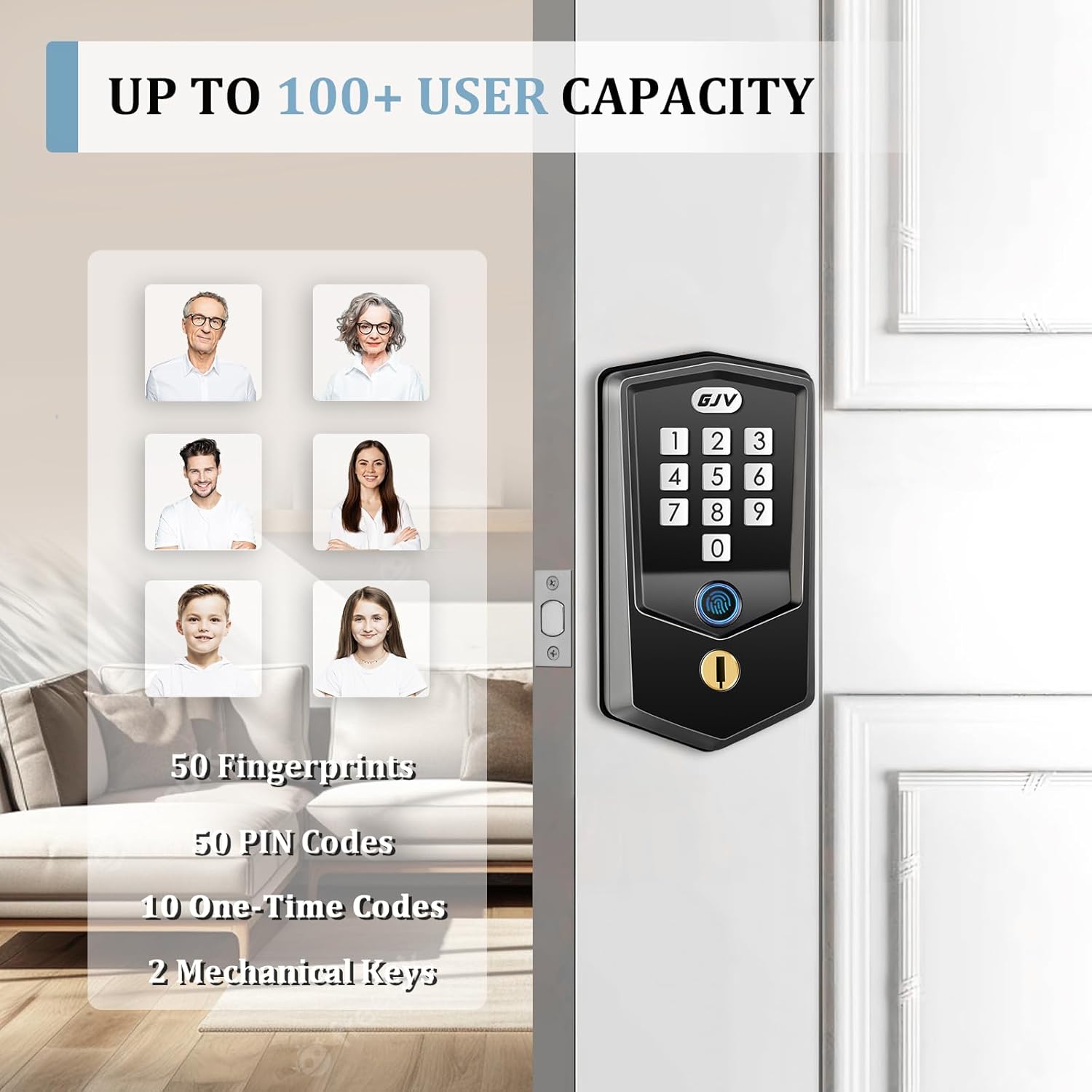
Figure 4.1: Side view of the GJV Smart Lock, illustrating its slim profile and how it fits into a door.

Figure 4.2: Back view of the GJV Smart Lock interior unit, showing the battery compartment and internal components.
5. Operation Guide
Your GJV Smart Lock offers multiple ways to unlock and secure your door.
5.1 Adding a Master PIN Code:
The first PIN code you set will be the Master PIN Code, used for programming and managing other users.
- Press the 'Program' button (usually located on the interior unit).
- Enter your desired 6-10 digit Master PIN Code.
- Press the 'Lock' button to confirm.
5.2 Adding User Fingerprints:
You can store up to 50 unique fingerprints.
- Press the 'Program' button.
- Enter your Master PIN Code, then press 'Lock'.
- Follow the voice prompts to place your finger on the sensor multiple times until successfully registered.
5.3 Adding User PIN Codes:
You can store up to 50 unique user PIN codes.
- Press the 'Program' button.
- Enter your Master PIN Code, then press 'Lock'.
- Enter the desired 6-10 digit User PIN Code.
- Press 'Lock' to confirm.
5.4 One-Time Codes:
Generate temporary codes for guests or service personnel. These codes expire after a single use.
Figure 5.1: Illustration of generating and using a temporary one-time password via the keypad.
5.5 Locking the Door:
- One-Touch Lock: Press and hold the 'GJV' button (or designated lock button) for 2 seconds.
- Auto-Lock: The lock can be configured to automatically lock after a set period (10-99 seconds) once the door is closed. Refer to programming instructions for setting auto-lock duration.
Figure 5.2: Demonstration of the auto-lock feature and the one-touch locking mechanism via the keypad.
5.6 Vacation Mode:
Activate vacation mode to restrict all access except for the Master PIN Code and mechanical key, ideal for extended periods of absence. Refer to programming instructions for activation.
5.7 Emergency Power:
If batteries are completely drained, connect a Type-C cable to the hidden port on the exterior unit to provide temporary power for unlocking.
6. Maintenance
Regular maintenance ensures optimal performance and longevity of your GJV Smart Lock.
- Battery Replacement: Replace all four AA batteries when the low-battery indicator activates. Do not mix old and new batteries.
- Cleaning: Wipe the lock's exterior with a soft, dry cloth. Avoid abrasive cleaners or solvents that could damage the finish or electronic components.
- Fingerprint Sensor: Keep the fingerprint sensor clean and dry for accurate readings.
7. Troubleshooting
If you encounter issues with your GJV Smart Lock, refer to the following common problems and solutions.
| Problem | Possible Cause | Solution |
|---|---|---|
| Lock does not respond. | Dead batteries. | Replace all four AA batteries. Use the mechanical key or Type-C emergency power for immediate access. |
| Fingerprint not recognized. | Finger is wet, dirty, or improperly placed; fingerprint not registered. | Ensure finger is clean and dry. Place finger flat on the sensor. Re-register fingerprint if necessary. |
| PIN code not working. | Incorrect code entered; code not registered; anti-peeping password feature active. | Verify the PIN code. Ensure the code is registered. When entering a PIN, you can include random digits before or after your actual code to prevent peeping. |
| Lock beeps continuously after multiple attempts. | Too many incorrect entries. | The lock has entered a 3-minute alarm mode. Wait for the alarm to clear before attempting entry again. |
| Difficulty with programming. | Instructions unclear or steps missed. | Carefully re-read the programming section (Section 5). Ensure each step is followed precisely, including pressing and holding buttons as indicated. If issues persist, contact customer support. |
8. Specifications
| Feature | Detail |
|---|---|
| Brand | GJV |
| Model Name | G-S2 |
| Color | Matte Black-S2 |
| Material | Metal (Zinc Alloy, Brass Core) |
| Item Dimensions (L x W x H) | 2 x 3 x 5 inches |
| Item Weight | 1.74 pounds |
| Special Features | Fingerprint, Anti-Peeping Password, Auto-Lock, One-Touch Lock, Battery Indicator |
| Recommended Uses | Home security, office security, hotel security, Airbnb rental security, maintenance worker access |
| Door Thickness Compatibility | 1.37 inches (35mm) - 2.17 inches (55mm) |
| Power Source | 4 x AA Batteries (not included) |
| Emergency Power | Type-C USB Port |
| Country of Origin | China |
9. Warranty and Support
GJV is committed to providing high-quality products and customer satisfaction.
- Return and Exchange Policy: Enjoy a 90-day free return and exchange policy for upgrades or if you are not completely satisfied.
- Customer Support: For any inquiries, technical assistance, or warranty claims, please contact GJV customer support. Our team is available to assist you.
For the most up-to-date contact information, please refer to the product packaging or the official GJV website.
