
Introduction
Thank you for choosing the CACOE X62 Foldable Bluetooth Keyboard. This ultra-slim, portable keyboard is designed for convenience and efficiency, featuring a dual-channel Bluetooth connection and an integrated stand. It is compatible with a wide range of devices, including smartphones, tablets, and computers running iOS, Android, and Windows operating systems. This manual provides essential information for setting up, operating, and maintaining your keyboard.
Setup
1. Charging the Keyboard
Before initial use, fully charge the keyboard. Connect the provided Type-C charging cable to the keyboard's charging port and the other end to a USB power source (e.g., computer, wall adapter). The charging indicator light will illuminate during charging and turn off when fully charged.

Image: The CACOE X62 keyboard connected to a Type-C charging cable. Icons indicate a battery capacity of >150mAh, use time of >80 hours, standby time of >100 days, and an operating range of 10 meters.
2. Bluetooth Pairing
The CACOE X62 keyboard supports dual-channel Bluetooth connectivity, allowing you to pair with two devices simultaneously and switch between them easily.
- Power On: Unfold the keyboard to power it on. The indicator light will flash.
- Enter Pairing Mode: Press and hold the Fn key and then press either the 1 key (for device 1) or the 2 key (for device 2) for 3-5 seconds until the corresponding indicator light flashes rapidly. This indicates the keyboard is in pairing mode.
- Enable Bluetooth on Your Device: On your smartphone, tablet, or computer, go to the Bluetooth settings.
- Select Keyboard: Look for "CACOE Keyboard" or a similar name in the list of available devices and select it to connect.
- Confirm Pairing: Follow any on-screen prompts to complete the pairing process. The indicator light on the keyboard will stop flashing and remain solid for a few seconds, then turn off, indicating a successful connection.
- Switching Devices: To switch between paired devices, simply press Fn + 1 or Fn + 2.

Image: The CACOE X62 keyboard connected to a smartphone, with a laptop in the background. An illustration shows how to press Fn and either '1' or '2' to pair with two devices simultaneously and switch between them.
Operating Instructions
1. System Compatibility
The CACOE X62 keyboard is designed to be compatible with multiple operating systems, including:
- iOS: For Apple iPhones and iPads.
- Android: For Android smartphones and tablets.
- Windows: For Windows laptops and PCs.

Image: The CACOE X62 keyboard with a smartphone in its stand, surrounded by a tablet and a laptop. Icons above indicate compatibility with Android, iOS, and Windows operating systems.
2. Using the Integrated Stand
The keyboard features a built-in stand that can hold your smartphone or tablet at an optimal viewing angle. Simply unfold the keyboard, and the stand will automatically deploy. The maximum adjustable angle for the stand is 150 degrees, allowing for comfortable viewing and typing.

Image: A person using the CACOE X62 keyboard with a smartphone in its integrated stand. An inset diagram illustrates the adjustable use angle from 0 to 150 degrees.
3. Key Functions
The keyboard features a standard QWERTY layout with 59 keys. It utilizes whisper-quiet scissor-switch keys, providing a comfortable and responsive typing experience with a lifespan of up to 3,000,000 keystrokes.

Image: A magnified view of the CACOE X62 keyboard's keys, showing the internal scissor-switch mechanism. Text indicates a lifespan of 3,000,000 keystrokes and whisper-quiet operation.
Maintenance
1. Cleaning
To clean the keyboard, gently wipe the surface with a soft, dry, or slightly damp cloth. Avoid using harsh chemicals, abrasive cleaners, or excessive moisture, as these can damage the keyboard.
2. Storage
When not in use, fold the keyboard to protect the keys and make it more compact for storage. Store it in a cool, dry place, away from direct sunlight and extreme temperatures. The keyboard's lightweight and foldable design makes it easy to carry in a bag or pocket.
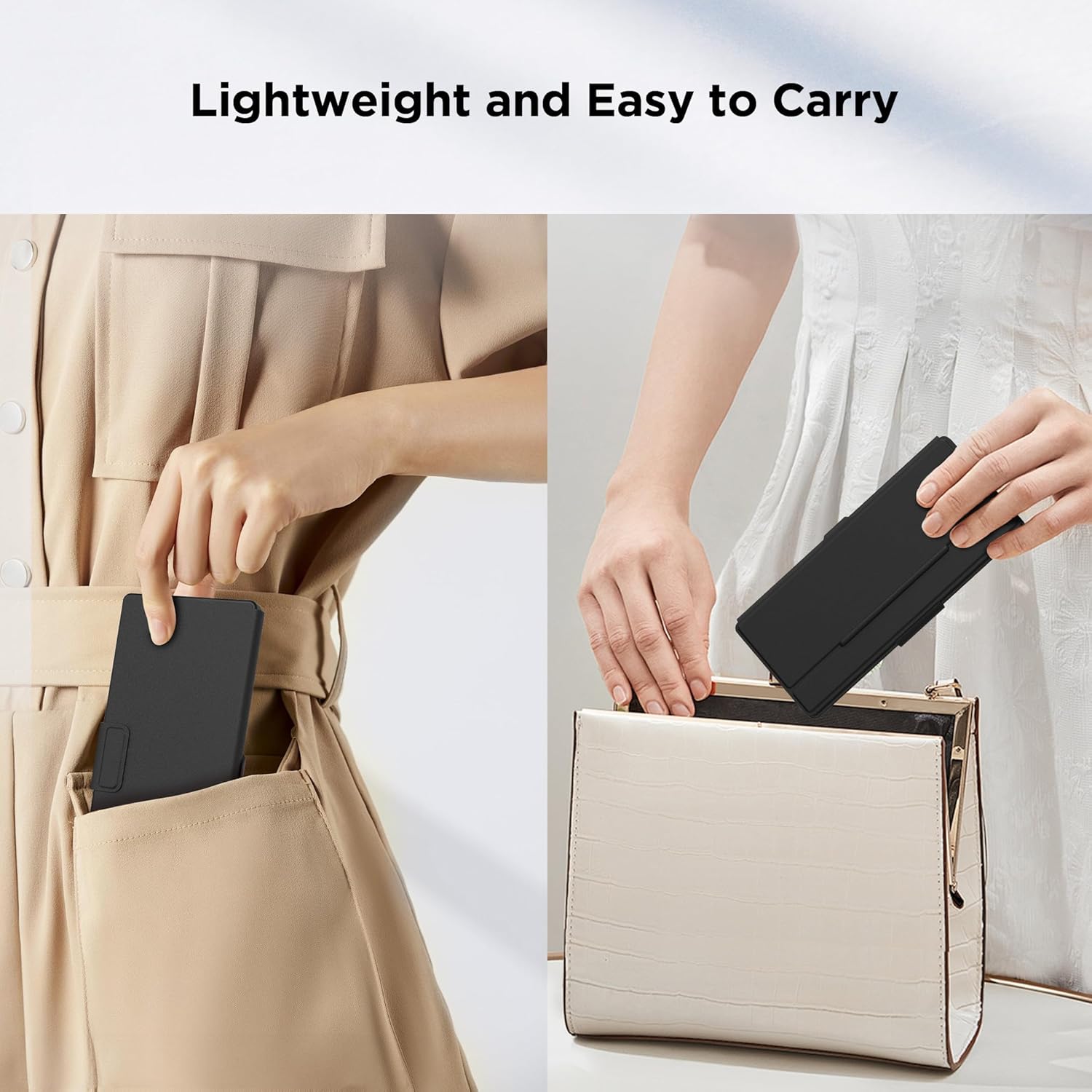
Image: The CACOE X62 keyboard, in its folded state, being placed into a pant pocket and a handbag, illustrating its compact and portable nature.
Troubleshooting
- Keyboard not connecting: Ensure the keyboard is charged and powered on. Verify Bluetooth is enabled on your device and the keyboard is in pairing mode. Try unpairing and re-pairing the keyboard.
- Keys not responding: Check if the keyboard battery is low. Recharge if necessary. Ensure the keyboard is within the 10-meter operating range of your device.
- Lag or delayed input: Ensure there are no strong electromagnetic interferences nearby. Try moving closer to your device.
- Incorrect key mapping (especially for UK users): On iOS/Android/Windows, ensure your device's hardware keyboard settings are configured for the correct language/region (e.g., English (UK) British - PCT for UK users).
Specifications
| Feature | Detail |
|---|---|
| Model Number | X62 |
| Connectivity Technology | Bluetooth |
| Compatible Devices | Laptop, PC, Smartphone, Tablet (iOS, Android, Windows) |
| Keyboard Layout | QWERTY |
| Number of Keys | 59 |
| Switch Type | Membrane (Scissor-Switch) |
| Keystroke Lifespan | 3,000,000 keystrokes |
| Special Features | Foldable, Integrated Stand, Dual-Channel Bluetooth |
| Power Source | Battery Powered (1 non-standard battery included) |
| Battery Capacity | >150mAh |
| Use Time | >80 hours |
| Standby Time | >100 days |
| Operating Range | 10 meters |
| Material | Plastic |
| Weight | 196 Grams |
| Dimensions (Folded) | 195mm (Length) x 85mm (Width) x 15mm (Thickness) |
| Included Components | Type-C Charging Cable, Carrying Case |

Image: The CACOE X62 keyboard in its folded, compact state, next to an iPhone 15 Pro Max for scale. Dimensions are indicated as 195mm length, 85mm width, and 15mm thickness.
Warranty and Support
For warranty information or technical support, please refer to the product packaging or contact CACOE customer service through the retailer where the product was purchased. Keep your purchase receipt for warranty claims.


