
Introduction
The PopSockets PowerPack is a MagSafe-compatible portable charger designed to provide reliable power for your iPhone or compatible devices. It features a 5,000 mAh battery, offering up to one full charge. Its compact design and secure magnetic alignment ensure consistent charging and ease of use, integrating seamlessly with other PopSockets magnetic accessories. The PowerPack also includes a built-in PopSocket grip for enhanced handling and a stand function.

Figure 1: Overview of the PopSockets PowerPack features and attachment to a smartphone.
Package Contents
- PopSockets PowerPack
- USB-C to USB-C Charging Cable
- Magnetic Adapter Ring (for non-MagSafe devices)
Setup
1. Charging the PowerPack
Before initial use, fully charge your PopSockets PowerPack. Connect the included USB-C to USB-C cable to the PowerPack's USB-C port and to a compatible USB-C power adapter (not included). The LED indicator lights on the side of the PowerPack will illuminate to show the charging status. All four LEDs will be solid when fully charged.
Video 1: The PopSockets PowerPack connected to a USB-C cable for charging, showing the LED indicator lights.
2. Attaching to Your Device
For MagSafe-compatible iPhones (iPhone 12 and newer) or MagSafe-compatible cases, simply align the PowerPack with the back of your phone or case. The strong magnets will securely snap it into place. For other Qi2 compatible phones or devices, use the included Magnetic Adapter Ring for secure attachment.
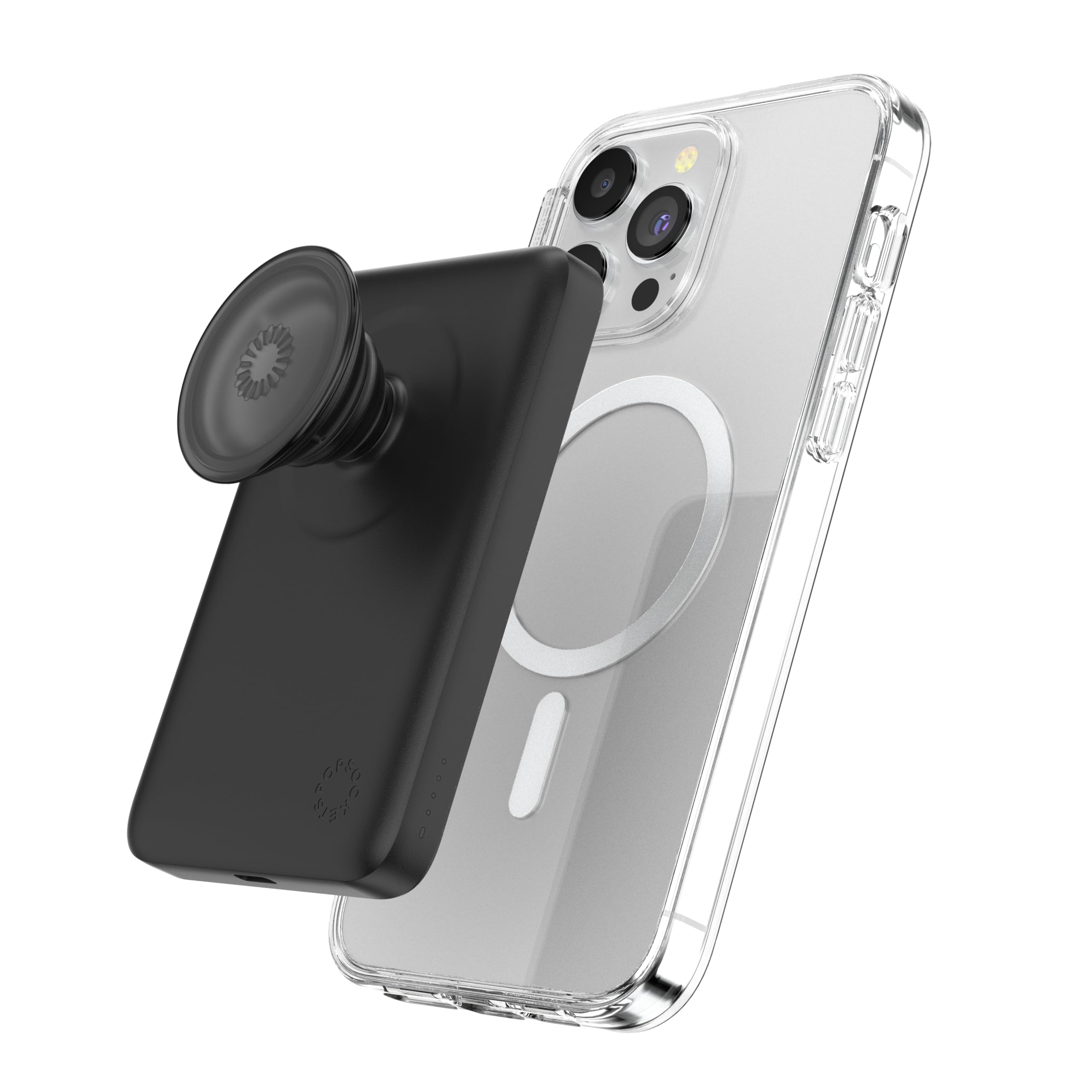
Figure 2: The PopSockets PowerPack magnetically attaching to the back of an iPhone, demonstrating the MagSafe connection.
Operating Instructions
1. Wireless Charging
Once the PowerPack is securely attached to your MagSafe-compatible device, it will automatically begin wireless charging. A charging animation or indicator will appear on your phone's screen. The PowerPack provides up to one full charge for most compatible smartphones.
Video 2: Demonstration of the PopSockets PowerPack wirelessly charging a smartphone. The phone displays a charging animation upon attachment.
2. Using the Integrated PopSocket Grip and Stand
The PowerPack features an integrated PopSocket grip. Extend the PopSocket to use it as a secure grip for holding your phone or as a convenient kickstand for hands-free viewing in landscape or portrait mode.

Figure 3: The PopSockets PowerPack with the PopSocket extended, functioning as a stand for the phone.
3. Wired Charging (USB-C)
The PowerPack also supports wired charging via its USB-C port. You can use this port to charge the PowerPack itself or to charge other devices that are not wirelessly compatible.
4. Power Button and LED Indicators
The PowerPack has a power button and LED indicators. Press the power button to check the battery level (indicated by the LEDs). To turn off the PowerPack, press and hold the power button. This allows you to control when the device charges, preventing unintended power drain.
Compatibility
The PopSockets PowerPack is compatible with:
- MagSafe-enabled iPhones (iPhone 12, 13, 14, 15, 16 Pro/Pro Max/Plus models).
- PopSockets Samsung cases.
- Qi2 compatible phones.
- Other devices using the included Magnetic Adapter Ring.
- Devices that can be charged via USB-C cable.
Note: The PowerPack is not compatible with non-MagSafe, silicone, or textured cases unless a Magnetic Adapter Ring is used.
Maintenance
- Keep the PowerPack clean and free from dust and debris. Use a soft, dry cloth for cleaning.
- Avoid exposing the PowerPack to extreme temperatures, direct sunlight, or moisture.
- Do not attempt to disassemble or repair the device yourself. Contact customer support for assistance.
- Store the PowerPack in a cool, dry place when not in use.
Troubleshooting
1. PowerPack Not Charging
- Ensure the USB-C cable is securely connected to both the PowerPack and the power adapter.
- Verify that the power adapter is functioning correctly and connected to a live power source.
- Check the LED indicators on the PowerPack; they should illuminate during charging.
2. Phone Not Charging Wirelessly
- Ensure your phone or case is MagSafe-compatible.
- Verify the PowerPack is fully charged.
- Ensure the PowerPack is properly aligned and securely attached to the back of your phone or MagSafe case.
- Remove any non-MagSafe cases or thick accessories that might interfere with the magnetic connection or wireless charging.
- Press the power button on the PowerPack to initiate charging if it doesn't start automatically.
3. Device Overheating During Charging
It is normal for the PowerPack and your phone to become slightly warm during wireless charging. If the device becomes excessively hot, disconnect the PowerPack immediately. Ensure proper ventilation and avoid charging in direct sunlight or confined spaces. If overheating persists, contact customer support.
4. PowerPack Turns On Automatically
If the PowerPack turns on automatically when attached to your phone, even when not intended, press and hold the power button to manually turn it off. This allows you to use the PopSocket grip without initiating charging.
Specifications
| Model Number | P5000A |
| Battery Capacity | 5000 mAh |
| Product Dimensions | 4 x 0.48 x 2.6 inches |
| Item Weight | 7 ounces |
| Connector Type | USB Type C |
| Special Features | Drop Protection, Ergonomic Design, Lightweight, Magnetic, Wireless Charging Compatible |
Warranty and Support
For warranty information and customer support, please refer to the official PopSockets website or contact their customer service directly. Keep your proof of purchase for any warranty claims.
Online Support: www.popsockets.com/support