
1. Introduction
Thank you for choosing the funomo 10.26" Wireless Smart Carplay Monitor. This device is designed to enhance your driving experience by integrating advanced features such as wireless Apple CarPlay and Android Auto, a comprehensive 3-channel dash camera system, GPS tracking, and versatile audio output options. This manual provides detailed instructions for setup, operation, maintenance, and troubleshooting to ensure optimal performance and safety.

Figure 1: The funomo 10.26" Wireless Smart Carplay Monitor and its components.
2. Key Features
- Wireless CarPlay / Android Auto with Voice Control: Seamlessly connect your smartphone via Bluetooth and Wi-Fi to access GPS navigation, music, calls, and more using Siri or Google Assistant. Supports Android 11 and up.
- Upgrade Android Mirror and AirPlay: Enjoy screen mirroring from your Android phone or iPhone (AirPlay) on the 10.26-inch 1600x1600 resolution display for enhanced viewing of media.
- 3-Channel Dash Cams and Split-Screen: Capture comprehensive footage with 2.5K front, 1080p inside, and 1080p rear cameras. Utilize split-screen functionality to view all three camera feeds simultaneously.
- GPS Speed Tracking and Elook App Control: Record driving routes, speed, location, and time data with the advanced GPS module. Manage and review videos easily via the Elook app on your phone.
- Upgraded G-Sensor and Loop Recording: Automatic emergency recording and video locking upon collision (G-sensor). Loop recording overwrites old footage when storage is full, preserving locked videos. A 64GB TF card is included for immediate use.
- Bluetooth / SPK / AUX / FM Transmission: Multiple audio output options allow you to play sound through the device's speaker, car's Bluetooth system, AUX connection, or FM transmission.
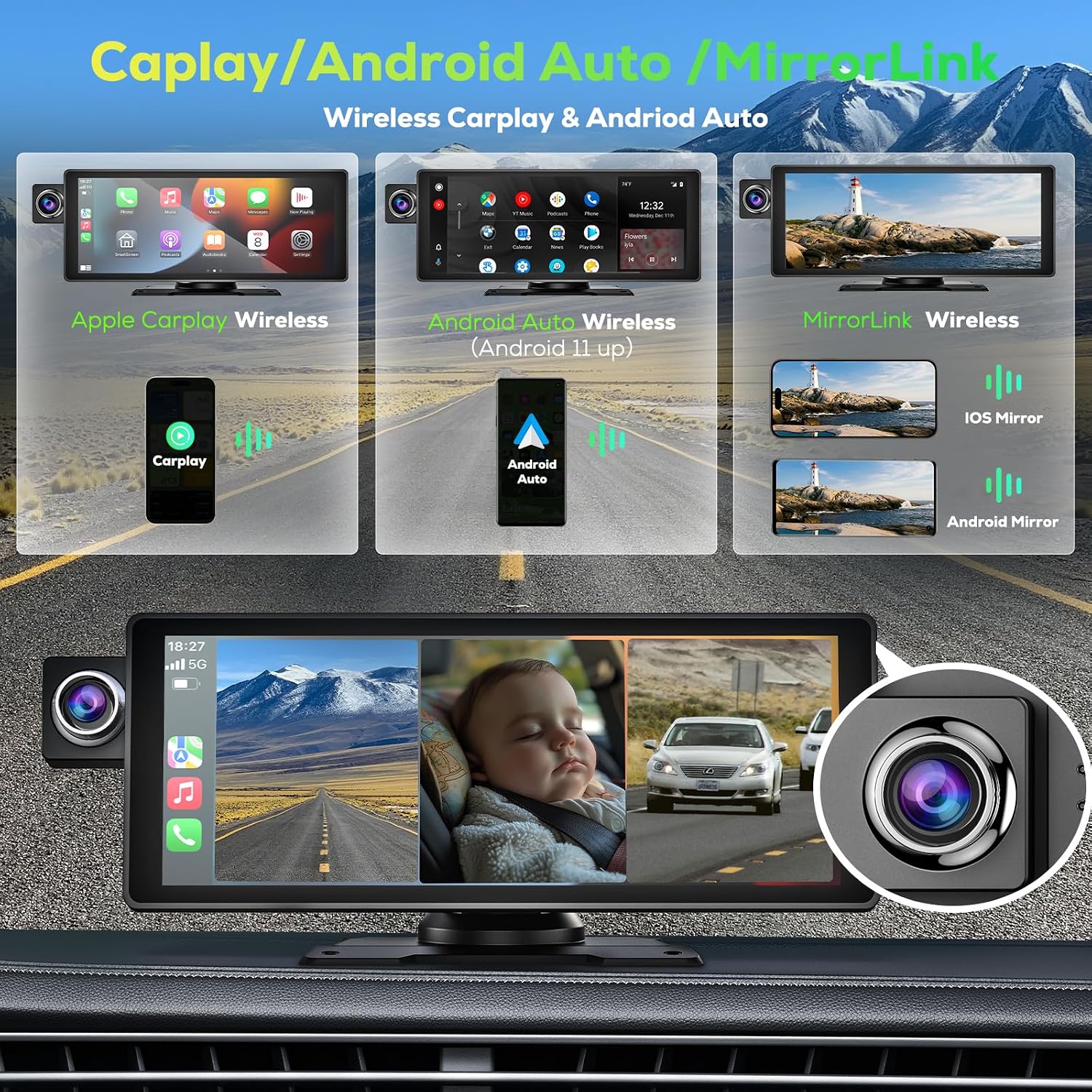
Figure 2: Wireless CarPlay, Android Auto, and MirrorLink capabilities.

Figure 3: Overview of the 3-channel dash camera system and split-screen display.

Figure 4: Various audio output options for the monitor.
Video 1: Demonstrates the Funomo 10.26 Inch Touchscreen for Car with Three Cameras, highlighting CarPlay connection, voice control, screen mirroring, split-screen display, and audio output options.
3. Package Contents
Please verify that all items listed below are included in your package:
- 1 x 10.26 Inch Carplay Screen
- 1 x 1080P Reverse Camera
- 1 x 64G TF Card
- 1 x Card Reader
- 1 x Manual (this document)
- 1 x AUX Cable
- 1 x Bracket Stand
- 2 x Stickers
- 1 x GPS with Cable
- 1 x Power Cable

Figure 5: All components included in the product package.
4. Setup Guide
Follow these steps to properly set up your funomo Carplay Monitor:
- Mounting the Monitor: Attach the bracket stand to the monitor. Choose a suitable location on your dashboard that does not obstruct your view or interfere with driving controls. Secure the bracket using the provided stickers. Ensure the monitor is stable.
- Connecting Power: Connect the power cable to the monitor and then to your vehicle's cigarette lighter socket.
- Installing Cameras:
- Front Camera: The main unit has an integrated front camera. Ensure its view is clear.
- Inner Camera: The main unit also has an integrated inner camera. Position the monitor to capture the cabin view effectively.
- Rear Camera: Install the 1080P reverse camera at the rear of your vehicle, typically near the license plate. Route the camera cable to the main monitor unit and connect it. If applicable, connect the reverse trigger wire to your vehicle's reverse light circuit for automatic display when reversing.
- Inserting TF Card: Insert the provided 64GB TF card into the designated slot on the monitor. The system will automatically begin recording once powered on.
- Connecting GPS Module: Connect the GPS module to the monitor using its cable. Place the module in a location with a clear view of the sky for optimal signal reception.
- Initial Power On: Start your vehicle. The monitor should power on automatically. Follow any on-screen prompts for initial setup.
5. Operating Instructions
5.1 Wireless CarPlay / Android Auto
To connect your smartphone:
- Ensure Bluetooth and Wi-Fi are enabled on your smartphone.
- On the monitor, navigate to the CarPlay or Android Auto icon.
- Pair your phone with the monitor via Bluetooth.
- Once paired, the monitor will automatically establish a Wi-Fi connection for CarPlay or Android Auto functionality.
5.2 Screen Mirroring (AirPlay / Android Mirror)
To mirror your phone's screen:
- Select the 'MirrorLink' or 'AirPlay' option on the monitor.
- Follow the on-screen instructions to connect your iOS device via AirPlay or Android device via Android Mirror.
5.3 Dash Camera Operation
The monitor continuously records footage from its three cameras:
- Recording: Recording starts automatically when the device is powered on.
- Split-Screen View: Tap the camera icon on the main screen to switch to the multi-camera split-screen display, allowing you to view all three camera feeds simultaneously.
- Video Playback: Access recorded videos through the 'Replay' or 'Video Playback' menu. Videos are categorized (Normal, Emergency, Parking).
5.4 GPS Speed Tracking
The integrated GPS module records your driving data. This information (route, speed, location, time) is embedded in your video files and can be reviewed during playback, serving as valuable evidence if needed.
5.5 G-Sensor and Loop Recording
- G-Sensor: In the event of a sudden shake or collision, the built-in G-sensor automatically triggers emergency recording and locks the current video file to prevent it from being overwritten.
- Loop Recording: When the TF card's storage limit is reached, the system automatically overwrites the oldest unlocked video files to continue recording. Locked emergency videos are protected from overwriting.
5.6 Audio Output Options
The monitor offers several ways to output audio:
- Built-in Speaker (SPK): Audio plays directly from the monitor's integrated speaker.
- Bluetooth: Connect your phone to the monitor via Bluetooth, and then connect the monitor to your car's Bluetooth system to play audio through your car speakers.
- AUX Connection: Use the provided AUX cable to connect the monitor's AUX output to your car's AUX input for direct audio transmission to your car speakers.
- FM Transmission: Select an unused FM frequency on the monitor and tune your car's radio to the same frequency to transmit audio wirelessly to your car speakers.
5.7 Voice Control
When connected to CarPlay or Android Auto, you can use voice commands (Siri/Google Assistant) for hands-free operation. Simply activate your phone's voice assistant and speak your commands for navigation, music playback, calls, and more.
6. Maintenance
To ensure the longevity and optimal performance of your funomo Carplay Monitor, follow these maintenance guidelines:
- Cleaning: Use a soft, dry cloth to clean the screen and exterior of the device. For stubborn smudges, slightly dampen the cloth with water or a screen-safe cleaner. Avoid abrasive materials or harsh chemicals.
- Temperature: Avoid exposing the device to extreme temperatures (very hot or very cold) for extended periods, as this can damage internal components.
- Storage: If storing the device for a long time, disconnect it from power and store it in a cool, dry place.
- Software Updates: Periodically check the manufacturer's website or the Elook app for any available firmware updates to ensure you have the latest features and bug fixes.
- TF Card Management: Regularly back up important video files from the TF card to another storage device. Format the TF card periodically (e.g., once a month) to maintain its performance and prevent data corruption.
7. Troubleshooting
If you encounter issues with your funomo Carplay Monitor, refer to the following common problems and solutions:
| Problem | Possible Cause / Solution |
|---|---|
| Device does not power on. | Check power cable connection. Ensure vehicle's cigarette lighter socket is functioning. Test with another power source if possible. |
| CarPlay/Android Auto not connecting or frequently disconnecting. | Ensure phone's Bluetooth and Wi-Fi are on. Forget the device on your phone and re-pair. Check for phone OS compatibility (Android 11+). Ensure strong Wi-Fi signal. |
| Screen freezes or lags. | Restart the device. Ensure TF card is not full or corrupted; try formatting it. Check for firmware updates. Reduce background apps on your phone if mirroring. |
| Dash cam not recording or footage is missing. | Ensure TF card is inserted correctly and is not full. Check TF card health; replace if necessary. Verify loop recording settings. |
| No audio or poor audio quality. | Check selected audio output mode (SPK, Bluetooth, AUX, FM). Adjust volume on both the monitor and your car stereo. If using FM, try a different frequency to avoid interference. Ensure AUX cable is fully inserted. |
| Time zone or time settings are incorrect. | Access system settings on the monitor to manually adjust time and date, or ensure GPS time synchronization is enabled if available. |
| Rear camera not displaying. | Check the physical connection of the rear camera cable to the main unit. Ensure the reverse trigger wire (if used) is correctly connected to the vehicle's reverse light. |
8. Specifications
| Feature | Detail |
|---|---|
| Model Name | Carplay Screen for Car with 3-Channel Dash Cams |
| Item Model Number | 1026C3 |
| Screen Size | 10.26 inches |
| Scanner Resolution | 1600x1600 |
| Cameras | 2.5K Front, 1080p Inner, 1080p Rear |
| Connectivity Technology | Bluetooth, Wi-Fi |
| Human Interface Input | Touchscreen |
| Control Method | App, Touch, Voice |
| Mounting Type | Dashboard Mount |
| Item Weight | 2.77 pounds |
| Color | Black |
| Manufacturer | funomo |

Figure 6: Visual representation of product dimensions and included accessories.
9. Warranty and Support
For warranty information, please refer to the warranty card included in your product packaging or visit the official funomo website. The warranty period and terms may vary by region and product.
If you require technical support, have questions about product functionality, or need assistance with troubleshooting beyond what is covered in this manual, please contact funomo customer support:
- Email: support@funomo.com (Example Email - please refer to actual product documentation for correct contact)
- Website: www.funomo.com (Example Website - please refer to actual product documentation for correct contact)
Please have your product model number (1026C3) and purchase details ready when contacting support.