
THOMSON 65UG5C14-2024
THOMSON 65-inch 4K UHD Google Smart TV User Manual
Model: 65UG5C14-2024
1. Product Overview
The THOMSON 65UG5C14-2024 is a 65-inch 4K Ultra High Definition (UHD) Google Smart TV designed to deliver an immersive viewing experience. It features a display with four times the detail and precision of Full HD, offering 8 million pixels for sharp and clear images. High Dynamic Range (HDR) technology enhances contrast and brightness for realistic color reproduction.
This television integrates Google TV, providing a personalized entertainment experience by organizing content from various applications and subscriptions. Users can create multiple profiles and receive tailored recommendations. Key smart features include access to a vast library of movies and TV shows, intelligent voice control via Google Assistant, and Google Cast for wireless streaming from compatible devices.
The TV boasts an elegant design with a 3-sided bezel-less frame, allowing for full focus on the screen. An integrated triple tuner supports reception via satellite, terrestrial antenna, or cable. Dynamic sound is delivered through Dolby Audio technology. The ergonomic, backlit remote control ensures ease of use even in low-light conditions.
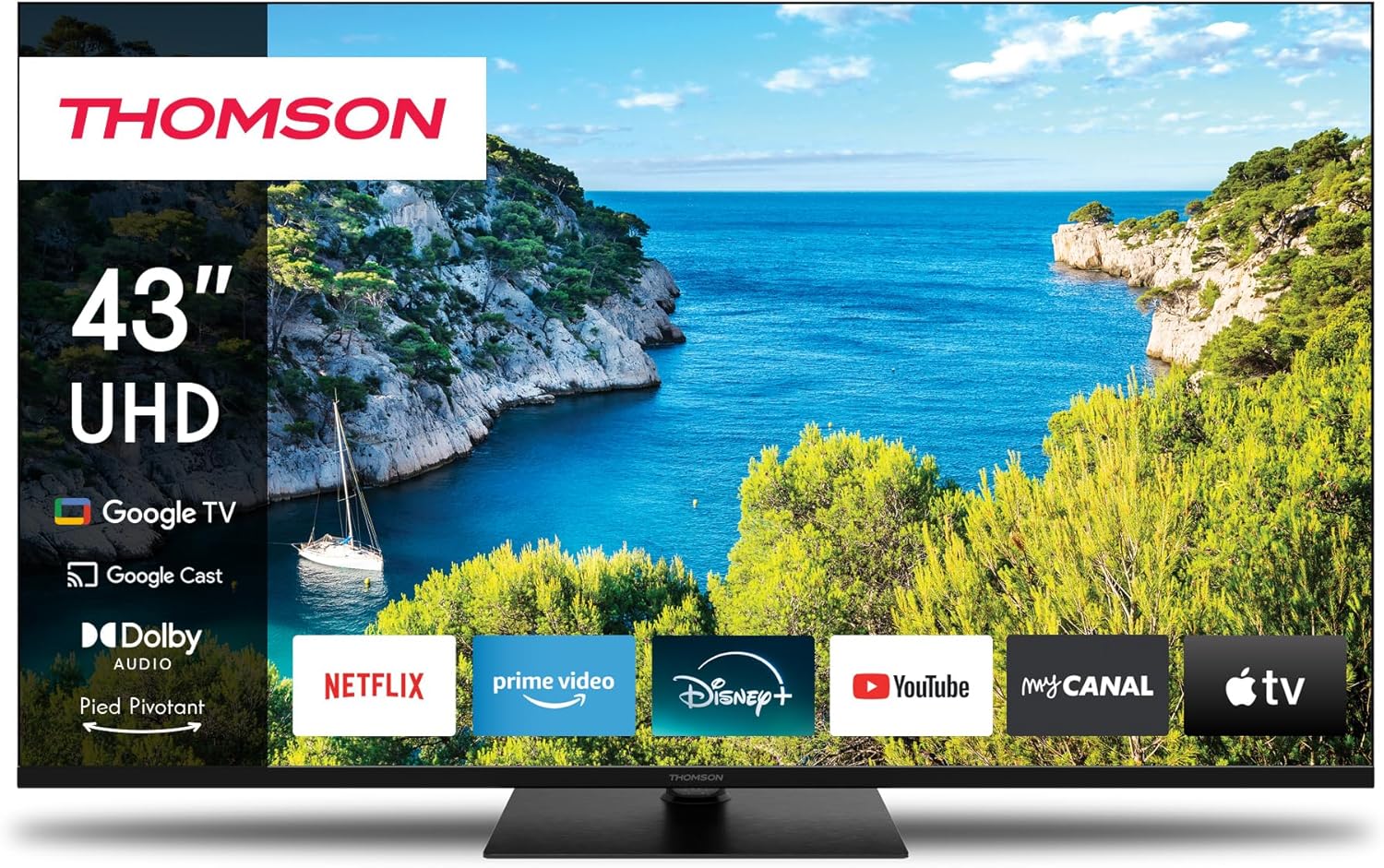
Figure 1.1: Front view of the THOMSON 65-inch 4K UHD Google Smart TV, showcasing its sleek design and the Google TV interface on screen.
2. Setup
2.1 Unboxing and Package Contents
Carefully remove the television and all components from the packaging. Ensure all items are present before proceeding with installation.
The package should include:
- THOMSON 65-inch 4K UHD Google Smart TV
- Remote Control (backlit)
- Power Cable
- Swivel Stand components
- Screws for stand assembly
- User Manual (this document)
2.2 Stand Installation
The TV comes with a central swivel stand for flexible placement. Follow these steps to attach the stand securely:
- Place the TV screen-down on a soft, flat surface to prevent damage.
- Align the stand base with the mounting holes on the bottom of the TV.
- Secure the stand using the provided screws. Ensure all screws are tightened firmly.
- Carefully lift the TV and place it on a stable, level surface.

Figure 2.1: Side profile of the television, illustrating its slim design and the central stand attachment point.
2.3 Connecting External Devices
The THOMSON 65UG5C14-2024 offers various ports for connecting external devices. Refer to the diagram below for port locations and types.

Figure 2.2: Rear panel connections, including HDMI, USB, LAN, and antenna inputs.
- HDMI Ports: Connect Blu-ray players, game consoles, soundbars, and other HDMI-enabled devices. The TV includes HDMI 2.1 with eARC for enhanced audio return channel functionality.
- USB Ports: Connect USB drives for media playback or software updates.
- LAN Port: For wired internet connection.
- Antenna/Cable Input (DVB-T2/C/S2): Connect your terrestrial, cable, or satellite antenna for broadcast TV.
- AV IN: For older analog devices.
- Digital Optical Audio Out: For connecting to external audio systems.
After connecting all desired devices, plug the power cable into the TV and then into a wall outlet.
3. Operating Instructions
3.1 Initial Setup and Google TV
Upon first power-on, the TV will guide you through the initial setup process, including network connection, Google account login, and channel scanning. Google TV organizes content from your applications and subscriptions, offering personalized recommendations.

Figure 3.1: The Google TV interface, showing personalized content suggestions and accessible streaming applications.
You can create multiple user profiles to ensure each household member receives tailored content suggestions.
3.2 Voice Control with Google Assistant
The TV features intelligent voice control through Google Assistant. To use this function, press the Google Assistant button on your remote control and speak your command into the remote's microphone.
- "Hey Google, open Netflix."
- "Find action movies."
- "What's the weather like?"
- "Turn up the volume."

Figure 3.2: Demonstrating voice control functionality with the Google Assistant button on the remote.
3.3 Google Cast Functionality
Google Cast allows you to wirelessly stream movies, music, and videos from compatible devices (smartphones, tablets, computers) directly to your TV. Look for the Cast icon within supported applications on your device.
3.4 Using the Backlit Remote Control
The ergonomic remote control features backlighting, making it easy to navigate and operate the TV even in dimly lit environments. Familiarize yourself with the button layout for quick access to functions like volume, channel, input selection, and smart TV features.
4. Key Features
4.1 4K UHD Display
Experience stunning visual clarity with the 4K Ultra High Definition display. With a resolution of 3840x2160 pixels, the TV delivers images that are four times more detailed and precise than Full HD, bringing every scene to life with exceptional sharpness.

Figure 4.1: Visual comparison highlighting the superior detail of 4K UHD over Full HD.
4.2 High Dynamic Range (HDR)
HDR technology significantly improves the rendering of each scene by providing richer contrast and balanced brightness. This results in precise color reproduction and an ultra-realistic image quality, enhancing both bright and dark areas of the picture.
4.3 Dolby Audio
Enjoy a dynamic sound experience with integrated Dolby Audio technology. It ensures crystal-clear dialogue, enhanced detail, and immersive surround sound, complementing the stunning visuals with powerful audio.
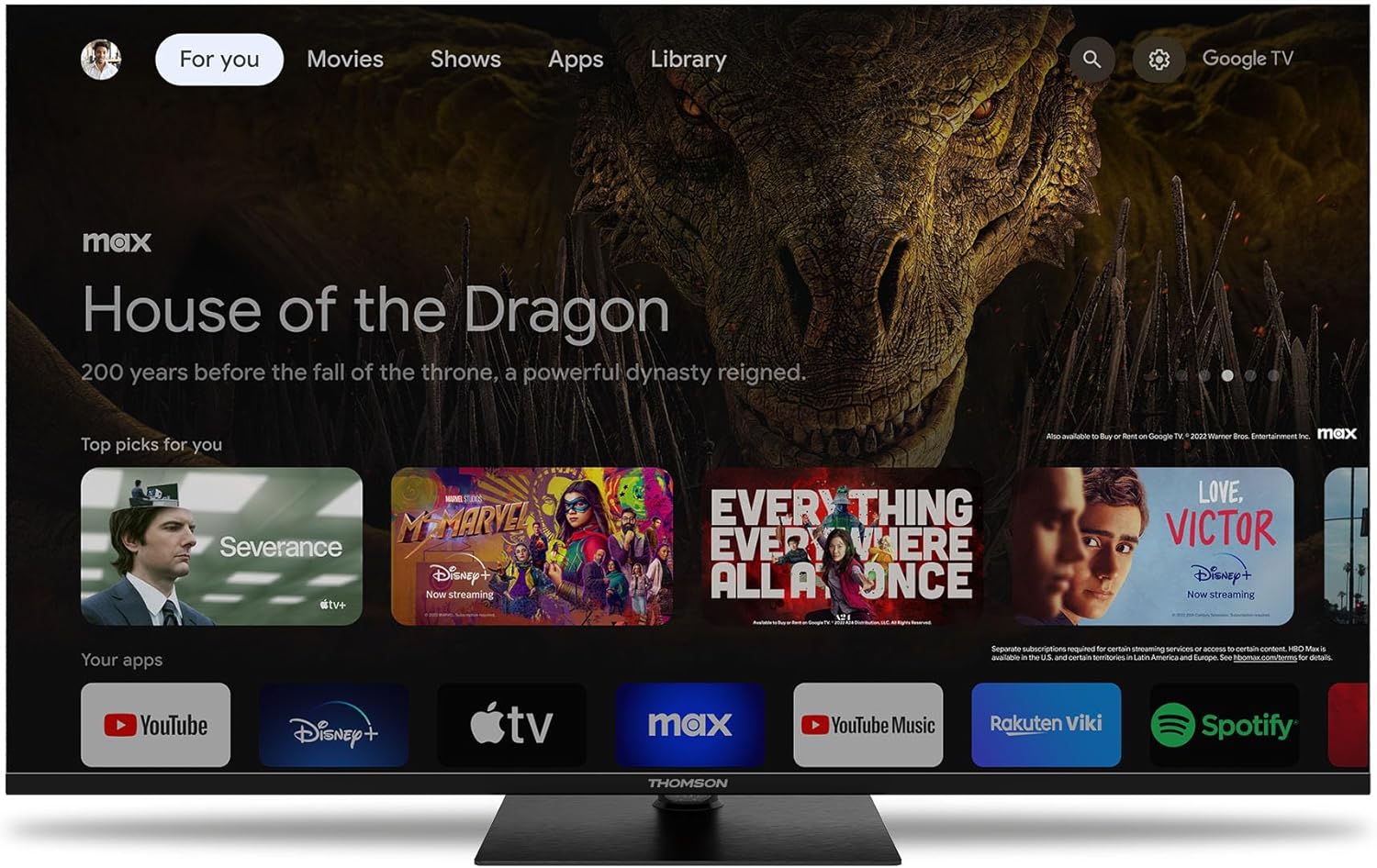
Figure 4.2: Illustration of the immersive audio experience provided by Dolby Audio.
4.4 Swivel Stand
The central swivel stand provides true installation flexibility, allowing you to adjust the viewing angle of your television to suit your room layout and seating position.

Figure 4.3: The swivel stand allows for flexible viewing angles.
4.5 Bezel-less Design
The TV features an elegant design with a 3-sided bezel-less frame, maximizing the screen area and allowing you to focus entirely on the content without distractions.

Figure 4.4: Detail of the TV's minimal bezel and THOMSON branding.
5. Maintenance
5.1 Cleaning the TV
To clean the screen, gently wipe it with a soft, lint-free cloth. For stubborn marks, slightly dampen the cloth with water or a screen-specific cleaning solution. Avoid using harsh chemicals, abrasive cleaners, or direct spraying onto the screen.
For the TV casing, use a soft, dry cloth. Do not use solvents or alcohol-based cleaners.
5.2 Software Updates
Your Google TV may receive periodic software updates to improve performance, add new features, or fix bugs. Ensure your TV is connected to the internet to receive these updates automatically. You can also manually check for updates through the TV's settings menu.
6. Troubleshooting
This section provides solutions to common issues you might encounter with your THOMSON TV. If the problem persists, please contact customer support.
| Problem | Possible Cause | Solution |
|---|---|---|
| No Power | Power cable disconnected; Power outlet issue. | Ensure power cable is securely plugged into TV and wall outlet. Test outlet with another device. |
| No Picture / No Sound | Incorrect input source; External device issue; Cable connection issue. | Press the "Input" or "Source" button on the remote to select the correct input. Check all cable connections to external devices. Ensure external devices are powered on. |
| Remote Control Not Working | Dead batteries; Obstruction between remote and TV; Remote not paired. | Replace batteries. Remove any obstructions. Re-pair the remote control if necessary (refer to TV's on-screen instructions). |
| Cannot Connect to Wi-Fi | Incorrect password; Router issue; TV too far from router. | Double-check Wi-Fi password. Restart your router. Move TV closer to router or use a wired LAN connection. |
| Picture Quality Issues (e.g., blurry, distorted) | Low-resolution source; Cable issue; TV settings. | Ensure you are watching high-resolution content (e.g., 4K). Check HDMI cables for damage. Adjust picture settings in the TV menu. |
7. Specifications
Below are the technical specifications for the THOMSON 65UG5C14-2024 TV.
| Feature | Specification |
|---|---|
| Brand | THOMSON |
| Model Number | 65UG5C14-2024 |
| Screen Size | 65 inches (165 cm) |
| Display Technology | LED |
| Resolution | 4K UHD (3840 x 2160p) |
| Operating System | Google TV |
| Refresh Rate | 60 Hz |
| Connectivity | HDMI, Wi-Fi, LAN |
| Special Features | Chromecast, Google Assistant Voice Control, HDR, Dolby Audio, Swivel Stand |
| Total USB Ports | 1 |
| Energy Efficiency Class | F |
| Product Dimensions (with stand) | 28.1D x 144.6W x 86.9H cm |
8. Warranty and Support
8.1 Manufacturer's Warranty
This THOMSON television comes with a 3-year manufacturer's warranty. This warranty covers defects in materials and workmanship under normal use. Please retain your proof of purchase for warranty claims.
For detailed terms and conditions of the warranty, please refer to the warranty card included with your product or visit the official THOMSON support website.
8.2 Customer Support
If you encounter any issues not covered in the troubleshooting section or require further assistance, please contact THOMSON customer support. Have your model number (65UG5C14-2024) and serial number ready when contacting support.
For the most up-to-date contact information and support resources, please visit the official THOMSON website or the Amazon product support page.
Related documents65UG5C14-2024


Ask a question about this manual
Ask about setup, troubleshooting, compatibility, parts, safety, or missing instructions. Manuals+ will review the question and use this page’s manual context to help answer it.