
Product Overview
The jindaaudio 4-Channel Audio Mixer is a comprehensive sound mixing solution designed for various audio applications, including live performances, studio recording, and streaming. This unit integrates a 4-channel mixer with a power amplifier, a USB audio interface, and a 99 DSP effects processor, offering extensive control over your audio signals.

Figure 1: Front view of the jindaaudio 4-Channel Audio Mixer, showcasing its control panel and input/output sections.
Key Features
- 4-Channel Input: Accommodates multiple audio sources with XLR, 1/4" TRS, and RCA inputs.
- Integrated Power Amplifier: Delivers 2x300W output for direct connection to passive speakers.
- 48V Phantom Power: Provides power for condenser microphones on all XLR inputs.
- USB Audio Interface: Enables direct connection to a computer for recording and playback.
- 99 DSP Effects: Offers a wide range of digital effects including reverb, delay, and chorus for sound enhancement.
- Bluetooth Connectivity: Allows wireless audio streaming from compatible devices.
- 7-Band Stereo Graphic Equalizer: Provides precise frequency control for the main output.
- Durable Construction: Robust build quality suitable for various environments.
Setup Guide
This section details the steps for setting up your jindaaudio 4-Channel Audio Mixer for optimal performance.
1. Unpacking and Inspection
Carefully remove the mixer from its packaging. Inspect the unit for any signs of damage that may have occurred during transit. Ensure all accessories are present.
2. Power Connection
- Ensure the mixer's power switch is in the OFF position.
- Connect the supplied power cable to the AC INPUT/FUSE socket on the rear panel of the mixer.
- Plug the other end of the power cable into a suitable AC power outlet.

Figure 2: Rear panel connections, including the power input and main outputs.
3. Connecting Audio Sources
The mixer supports various input types. Refer to the front panel for specific input configurations.
- Microphones: Connect dynamic or condenser microphones to the XLR inputs (LINE IN/MIC 1-4). For condenser microphones, activate 48V Phantom Power as described in the Operating section.
- Instruments: Connect instruments such as guitars or keyboards to the 1/4" TRS LINE IN inputs.
- External Playback Devices: Use RCA inputs for devices like CD players or media players.
4. Connecting Output Devices
- Passive Speakers: Connect passive speakers directly to the MAIN OUTPUT (RIGHT.A, LEFT.A, RIGHT.B, LEFT.B) on the rear panel. Ensure speaker impedance matches the mixer's output specifications (4Ω).
- Active Speakers/Monitors: Connect active speakers or external power amplifiers to the MAIN OUT XLR connectors on the front panel.
- Headphones: Connect headphones to the PHONES 1/4" TRS jack for monitoring.
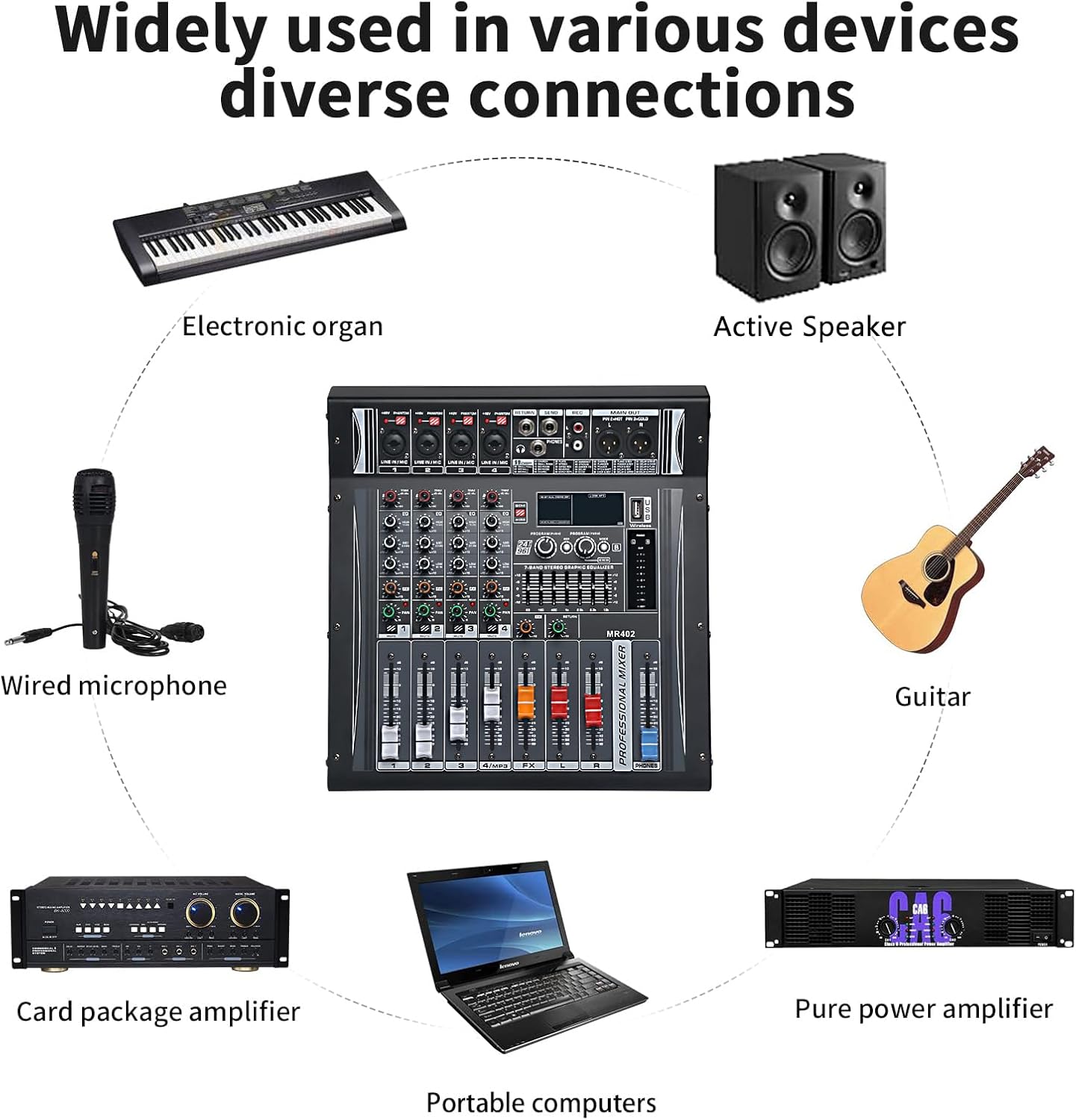
Figure 3: Example connections for various audio devices, including electronic organs, active speakers, wired microphones, guitars, card package amplifiers, portable computers, and pure power amplifiers.
Operating Instructions
1. Basic Channel Control
Each input channel (1-4) features dedicated controls:
- TRIM/GAIN: Adjusts the input sensitivity for the connected microphone or instrument. Start with this control at its minimum and gradually increase until a healthy signal level is achieved without clipping (indicated by the PEAK LED).
- EQ (HIGH, MID, LOW): Three-band equalizer for shaping the tone of each channel.
- HIGH: Adjusts treble frequencies.
- MID: Adjusts mid-range frequencies.
- LOW: Adjusts bass frequencies.
- FX: Controls the amount of the selected DSP effect sent from this channel.
- PAN: Adjusts the stereo position (left to right) of the channel's signal in the main mix.
- LEVEL FADER: Controls the overall volume of the channel in the main mix.
- MUTE: Silences the channel.
- ROUTE: Assigns the channel to the main mix or a sub-group (if applicable).
2. 48V Phantom Power Activation
To use condenser microphones, phantom power must be enabled:
- Connect the condenser microphone to the desired XLR input.
- Ensure the channel's gain is set to minimum and the fader is down.
- Locate the +48V PHANTOM switch on the top panel and press it to activate. The corresponding LED will illuminate.
- Gradually increase the channel's gain and fader to the desired level.
- Caution: Do not activate phantom power when dynamic microphones or other non-phantom powered devices are connected to XLR inputs, as this may cause damage.
3. Using DSP Effects (99 DSP FX)
The mixer includes 99 digital signal processing effects to enhance your audio.
- Effect Selection: Use the PROGRAM/99DSP knob to scroll through the available effects. The selected effect number will be displayed on the digital screen.
- Effect Level: Use the FX knob on each channel to send the desired amount of that channel's signal to the effects processor.
- Master FX Level: Adjust the main FX fader to control the overall output level of the effects.
4. Bluetooth Connectivity
Connect your Bluetooth-enabled device for wireless audio playback.
- Press the MODE button on the MP3/USB section until "Bluetooth" mode is selected.
- On your external device (e.g., smartphone, tablet), search for available Bluetooth devices and select "MR-402" (or similar name).
- Once paired, audio from your device will play through the mixer. Adjust the MP3/USB channel level fader to control its volume.

Figure 4: The mixer demonstrating wireless Bluetooth fast connection with a smartphone for audio playback.
5. USB Audio Interface Functionality
The mixer can function as a USB audio interface for recording and playback with a computer.
- Connect the mixer to your computer using a USB cable.
- Your computer should automatically detect the mixer as an audio device. You may need to select it as the input/output device in your operating system's sound settings or your Digital Audio Workstation (DAW) software.
- Audio from the mixer's main mix can be recorded to your computer, and audio from your computer can be played back through the mixer.
Maintenance
Proper maintenance ensures the longevity and optimal performance of your audio mixer.
- Cleaning: Use a soft, dry cloth to wipe down the mixer's surface. For stubborn dirt, a slightly damp cloth can be used, followed by a dry cloth. Avoid abrasive cleaners or solvents.
- Dust Protection: When not in use, cover the mixer with a dust cover to prevent dust and debris from entering the controls and internal components.
- Environmental Conditions: Operate and store the mixer in a cool, dry environment away from direct sunlight, excessive heat, humidity, and vibrations.
- Cable Management: Ensure all cables are neatly organized and not under strain to prevent damage to connectors and ports.
Troubleshooting
This section addresses common issues you might encounter with your audio mixer.
| Problem | Possible Cause | Solution |
|---|---|---|
| No sound output |
|
|
| No sound from a specific channel |
|
|
| Distorted sound |
|
|
| Bluetooth not connecting |
|
|
Specifications
| Feature | Detail |
|---|---|
| Model Number | 4Ch PA4Ω 2x300w 99DSP MR-402 |
| Brand | jindaaudio |
| Number of Channels | 4 |
| Power Output | 2 x 300W (into 4Ω) |
| Phantom Power | +48V (switchable) |
| DSP Effects | 99 presets (Reverb, Delay, Chorus, etc.) |
| Connectivity Technology | USB, Bluetooth |
| Inputs | XLR, 1/4" TRS, RCA |
| Outputs | XLR Main Out, 1/4" TRS Main Out, RCA, Headphone Out |
| Item Weight | 5.86 Kilograms (12.89 pounds) |
| Package Dimensions | 15.5 x 13.5 x 8 inches |

Figure 5: Physical dimensions and weight of the jindaaudio 4-Channel Audio Mixer.
Warranty and Support
jindaaudio products are designed for reliability and performance. For specific warranty details, please refer to the warranty card included with your product or visit the official jindaaudio website.
For technical support, troubleshooting assistance, or service inquiries, please contact jindaaudio customer support through the contact information provided on our official website or your purchase platform.
You can visit the jindaaudio Store on Amazon for more information and product updates.