
Introduction
This manual provides comprehensive instructions for the setup, operation, and maintenance of your AUSDOM 98Pro Wireless Mechanical Keyboard. Designed for versatility, this keyboard features tri-mode connectivity (Bluetooth, 2.4GHz wireless, and USB-C wired), hot-swappable switches, and adjustable backlighting, making it suitable for various computing environments and user preferences.
What's in the Box
Please verify that all items listed below are included in your package:
- Wireless Mechanical Keyboard x 1
- USB Receiver x 1
- Type-C Charging Cable x 1
- Instruction Manual x 1
- Mechanical Switch x 3
- Switch Puller x 1

Image: The complete packing list for the AUSDOM 98Pro Wireless Mechanical Keyboard, showing all included accessories.
Specifications
| Feature | Detail |
|---|---|
| Product Dimensions | 15.4 x 5.59 x 1.07 inches |
| Item Weight | 2.07 pounds |
| Item Model Number | Hola98 pro |
| Batteries | 1 Lithium Polymer battery (included) |
| Connectivity Technology | 2.4Ghz Wireless, Bluetooth, USB-C |
| Keyboard Description | Mechanical |
| Recommended Uses | Gaming |
| Special Features | Backlit, Ergonomic, Hot-Swappable, Rechargeable |
| Color | Black & Pink |
| Number of Keys | 97 |
| Backlighting | Single Color |
| Switch Type | Linear Switches (pre-lubed) |
| Battery Capacity | 3000 mAh |

Image: Detailed specifications of the linear switches used in the keyboard, highlighting their quiet operation and quick response.

Image: An internal diagram showcasing the keyboard's gasket structure, which contributes to its sound and feel.
Setup
Charging the Keyboard
Before first use, or when the battery is low, connect the keyboard to a USB power source using the provided Type-C charging cable. The keyboard features a 3000 mAh rechargeable battery.
Image: The keyboard being charged via its USB-C port, connected to a laptop.

Image: Visual representation of the keyboard's 3000 mAh battery capacity.
Connection Modes
The AUSDOM 98Pro supports three connection modes: USB-C wired, 2.4GHz wireless, and Bluetooth 5.0. You can switch between these modes using the switch located on the top right of the keyboard.

Image: The keyboard demonstrating its three connection modes: USB-C, 2.4GHz, and Bluetooth 5.0.

Image: The keyboard connected to various devices, illustrating its multi-mode connectivity options.
USB-C Wired Connection
- Ensure the mode switch on the keyboard is set to the wired mode (usually indicated by a cable icon).
- Connect the provided Type-C cable to the keyboard's port and the other end to your computer's USB port.
- The keyboard will be recognized automatically by your system.
2.4GHz Wireless Connection
- Locate the USB receiver included in the package.
- Plug the USB receiver into an available USB port on your computer.
- Set the mode switch on the keyboard to the 2.4GHz wireless mode (usually indicated by a wireless icon).
- The keyboard should connect automatically.
Bluetooth Connection
- Set the mode switch on the keyboard to the Bluetooth mode (indicated by a Bluetooth icon).
- On your computer or device, enable Bluetooth and search for new devices.
- The keyboard will appear as "AUSDOM 98Pro" or similar. Select it to pair.
- If prompted, enter the pairing code displayed on your screen using the keyboard and press Enter.
- The keyboard supports connecting to up to 5 Bluetooth devices. Use FN + Q/W/E/R/T to switch between paired Bluetooth devices.
Operating Instructions
Function Key Combinations (FN Key)
The FN key allows access to various secondary functions and shortcuts. Press and hold the FN key, then press the desired function key.
- FN + Q/W/E/R/T: Switch between 5 paired Bluetooth devices.
- FN + O/P: Switch between Mac and Windows layouts.
- FN + < or FN + >: Adjust backlight brightness levels (4 levels).
- FN + [ or FN + ]: Change backlight effects (16 lighting effects).
- FN + =: Check battery level (not supported in wired mode).
- FN + Win: Lock/Unlock the Windows key.

Image: Instructions for adjusting backlight levels and effects using FN key combinations.

Image: How to switch between Mac and Windows layouts using the FN + O/P key combination.

Image: Visual guide for checking the keyboard's battery level.

Image: How to lock the Windows key using FN + Win.
Hot-Swappable Switches
The AUSDOM 98Pro keyboard features hot-swappable sockets, allowing you to easily change mechanical switches without soldering. This supports both 3-pin and 5-pin switches.
- To remove a switch, use the provided switch puller. Gently grip the switch from the top and bottom, then pull upwards.
- To install a new switch, align the pins of the new switch with the holes on the PCB. Press down firmly until the switch clicks into place. Ensure the pins are not bent.

Image: The hot-swappable feature of the keyboard, showing switches being removed and replaced.

Image: A user demonstrating the removal of a mechanical switch using the provided tool.
Ergonomic Design and Adjustable Feet
The keyboard is designed with an ergonomic profile to reduce wrist strain during extended use. It features dual height adjustable feet, allowing you to set the tilt angle to your preferred comfort level.

Image: The ergonomic design and adjustable feet of the keyboard.

Image: Various keycap profiles and the adjustable feet, highlighting the ergonomic benefits.
N-Key Rollover
The AUSDOM 98Pro supports N-key rollover, ensuring that every key press is registered accurately, even when multiple keys are pressed simultaneously. This feature is particularly beneficial for fast-paced gaming and typing.
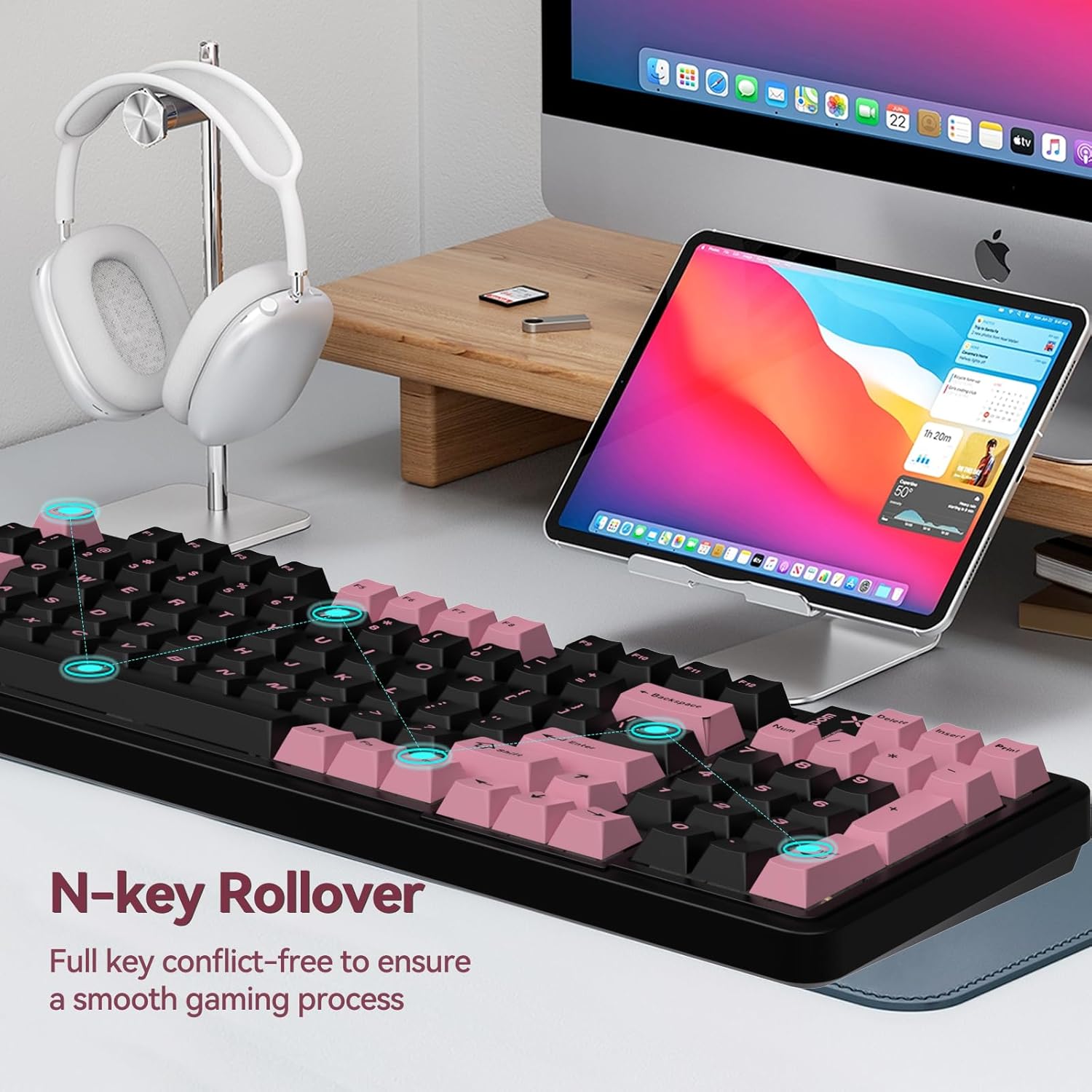
Image: The N-key rollover feature, showing multiple simultaneous key presses being registered.
Maintenance
Cleaning
To maintain the keyboard's performance and appearance, regular cleaning is recommended:
- Use a soft, lint-free cloth slightly dampened with water or a mild cleaning solution to wipe down the keycaps and chassis.
- For dust and debris between keycaps, use compressed air or a small brush.
- Avoid using harsh chemicals or abrasive materials, as they may damage the keyboard's finish.
Switch and Keycap Care
When replacing switches or keycaps, handle them gently to avoid damaging the pins on the switches or the stems on the keycaps. Store extra switches and the switch puller in a safe place.
Troubleshooting
Keyboard Not Responding
- Check Connection: Ensure the keyboard is properly connected via USB-C, the 2.4GHz receiver, or Bluetooth. Try re-plugging the cable/receiver or re-pairing Bluetooth.
- Battery Level: If in wireless mode, check the battery level (FN + =). Recharge if necessary.
- Mode Switch: Verify the mode switch on the keyboard is set to the correct connection type (wired, 2.4GHz, or Bluetooth).
- Restart Device: Sometimes, restarting your computer or device can resolve connectivity issues.
Backlight Not Working or Dim
- Adjust Brightness: Use FN + < or FN + > to increase backlight brightness.
- Change Effect: Use FN + [ or FN + ] to cycle through different lighting effects.
- Battery Level: Low battery can affect backlight performance. Charge the keyboard.
Keys Not Registering Correctly
- Check Switches: If a specific key is not working, the switch might be loose or faulty. Use the switch puller to remove and re-insert the switch, or replace it with one of the spare switches.
- Clean Under Keycap: Remove the keycap and check for any debris obstructing the switch.
- N-Key Rollover: Ensure no software conflicts are interfering with key registration.
Warranty and Support
The AUSDOM 98Pro Wireless Mechanical Keyboard comes with a manufacturer's warranty. For specific warranty terms and conditions, please refer to the warranty card included in your product packaging or visit the official AUSDOM website. For technical support, troubleshooting assistance, or inquiries about replacement parts, please contact AUSDOM customer service through their official channels.
You can find more information and support resources by visiting the AUSDOM Store on Amazon.

