
Oticon TV Adapter 3.0
Oticon TV Adapter 3.0 User Manual
Model: TV Adapter 3.0 | Brand: Oticon
Introduction
The Oticon TV Adapter 3.0 is a wireless device designed to stream high-quality audio directly from your television to your compatible Oticon hearing aids. This manual provides detailed instructions to help you set up, operate, and maintain your TV Adapter for an enhanced listening experience.

Image: The Oticon TV Adapter 3.0, a compact black rectangular device with indicator lights and the Oticon logo.
What's in the Box
Upon unboxing your Oticon TV Adapter 3.0, please ensure all the following components are present:
- Oticon TV Adapter 3.0
- Power Adapter
- Optical Audio Cable (TOSLINK)
- RCA Cable
- 3.5 mm Jack Cable
- User Manual (this document)
Compatibility
The Oticon TV Adapter 3.0 is compatible with the following Oticon hearing instruments and processors:
- Oticon Opn
- Oticon Engage
- Oticon More
- Oticon Siya
- Oticon Xceed hearing aids
- Ponto 4 & 5 processors
Note: This device is not compatible with Oticon Streamers. If you have a Streamer, you will need the TV Adapter 2.0. All Oticon Bluetooth hearing aids can be paired with up to four TV Adapters, except Oticon Opn and Oticon Siya, which can only be paired with a single TV Adapter.
Product Overview
Familiarize yourself with the Oticon TV Adapter 3.0's indicators and ports:

Image: Front view of the TV Adapter showing the Power indicator (left) and TV indicator (right).

Image: Back view of the TV Adapter showing the SelectMe button, Power input, RCA L+R audio inputs, TOSLINK In, and TOSLINK Out ports.
The TV Adapter features indicator lights that provide status information:
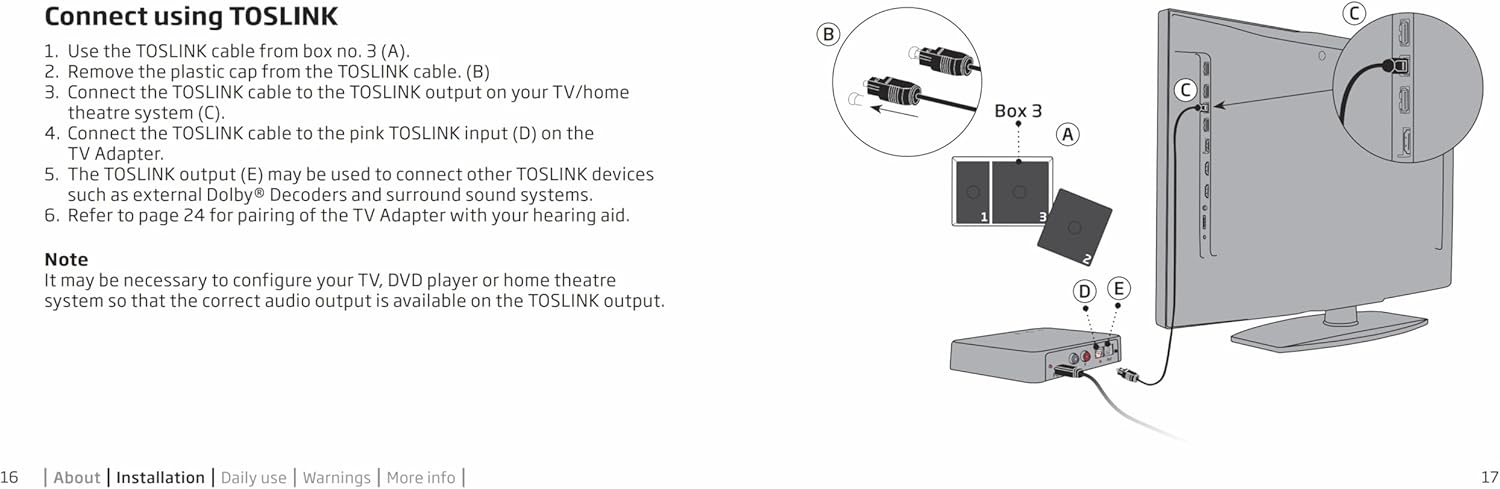
Image: A diagram illustrating the different states of the Power and TV indicator lights (No light, Blinking, Fading, Steady) corresponding to various modes and fault conditions.
Setup
1. Power Connection
- Connect the power adapter to the 'Power' port on the back of the TV Adapter.
- Plug the power adapter into a wall outlet. The Power indicator light on the TV Adapter will illuminate.
2. Audio Connection
The TV Adapter supports multiple audio input options. Choose the one that best suits your television or audio system.
Using RCA Cables
Connect your TV to the Oticon TV Adapter using the supplied RCA cables. This method is suitable for TVs with RCA audio output ports (red and white).
Video: Demonstrates how to connect the Oticon TV Adapter to a television using RCA cables, showing the connection points on both the adapter and the TV.
- Connect the red and white RCA plugs from the RCA cable to the corresponding red and white 'RCA L+R' input ports on the back of the TV Adapter.
- Connect the other end of the RCA cable to the red and white audio output ports on your television.
Using TOSLINK (Optical) Cable
For digital audio output, use the TOSLINK optical cable. This provides high-quality digital sound.

Image: A diagram illustrating the connection of the TOSLINK cable from the TV's optical output to the TV Adapter's TOSLINK input.
- Remove the plastic caps from both ends of the TOSLINK cable.
- Connect one end of the TOSLINK cable to the 'TOSLINK In' port on the back of the TV Adapter.
- Connect the other end of the TOSLINK cable to the optical audio output port on your television or home theatre system.
Note: It may be necessary to configure your TV, DVD player, or home theatre system so that the correct audio output is available on the TOSLINK port.
3. Pairing Hearing Aids
Pairing your Oticon hearing aids with the TV Adapter is a simple process:
Video: Demonstrates how to pair Oticon hearing aids with the TV Adapter by turning them off and on while placing them on the adapter.
- Ensure the TV Adapter is powered on and connected to your TV.
- Turn your Oticon hearing aids off and then on again.
- Place your hearing aids on top of the TV Adapter. They will automatically enter pairing mode.
- The pairing process should complete within 60 seconds. The TV indicator light on the adapter will turn steady blue, and you will hear a confirmation sound in your hearing aids.
An unlimited number of users with compatible hearing aids can listen to the sound from one TV Adapter. Just pair each hearing aid to the adapter.
Operating the TV Adapter
Once paired, the TV Adapter becomes an available program on your hearing aids. You can switch to this program to begin streaming audio from your TV.
- Volume Control: Adjust the volume of the streamed audio directly using the volume controls on your hearing aids.
- Interruption-Free Listening: The adapter provides a stable wireless connection, ensuring clear audio without dropouts.
- Environmental Awareness: You can choose to hear the TV only through your hearing instruments or keep your hearing aid microphones active to join in conversations while still hearing the TV audio.
- Switching Adapters: If you have multiple TV Adapters (e.g., in different rooms), you can easily switch between them using the Oticon ON app on your smartphone (for compatible hearing aids).
Maintenance
To ensure the longevity and optimal performance of your Oticon TV Adapter 3.0, follow these maintenance guidelines:
- Keep the device clean by wiping it with a soft, dry cloth. Avoid using harsh chemicals or abrasive materials.
- Protect the device from extreme temperatures, humidity, and direct sunlight.
- Ensure all cables are securely connected and not bent or crimped.
- Store the adapter in a safe place when not in use to prevent accidental damage.
Troubleshooting
If you experience issues with your Oticon TV Adapter 3.0, try the following steps before contacting support:
| Problem | Possible Solution |
|---|---|
| No sound from TV Adapter |
|
| Sound is intermittent or distorted |
|
| Hearing aids not pairing |
|
If the problem persists after attempting these solutions, please contact your hearing care professional or Oticon support for further assistance.
Specifications
| Feature | Detail |
|---|---|
| Package Dimensions | 7.52 x 5.51 x 2.52 inches |
| Item Weight | 1 pounds |
| Hardware Interface | Bluetooth |
| Color | Black |
| Compatible Devices | Oticon Opn, Engage, More, Siya, Xceed hearing aids, Ponto 4 & 5 processors |
| Data Link Protocol | Bluetooth |
Warranty and Support
For warranty information and technical support, please refer to the documentation provided with your purchase or visit the official Oticon website. Keep your proof of purchase for warranty claims.
Related documentsTV Adapter 3.0


Ask a question about this manual
Ask about setup, troubleshooting, compatibility, parts, safety, or missing instructions. Manuals+ will review the question and use this page’s manual context to help answer it.