
1. Introduction
1.1 Product Overview
The Formuler Z10 NEO is an Android 10-based streaming media player designed to deliver 4K resolution content. It features a single-band 2.4GHz Wi-Fi connection and 10/100M Ethernet for network connectivity. With 2GB RAM and 4GB ROM, it provides a stable platform for streaming applications. This manual provides detailed instructions for setting up, operating, and maintaining your device.

Image 1.1: Top view of the Formuler Z10 NEO Streaming Media Player, showcasing its compact design.
1.2 What's Included
Please verify that all items listed below are present in your package:
- Formuler Z10 NEO Streaming Media Player
- IR Remote Control
- HDMI Cable
- Power Cable
- Extra Air Remote Keyboard (Backlit)
- Extra Magnetic Mount

Image 1.2: All components included in the Formuler Z10 NEO package, including the device, remotes, and accessories.
2. Setup Guide
2.1 Connecting the Device
- Connect to TV: Plug one end of the HDMI cable into the HDMI port on the Formuler Z10 NEO and the other end into an available HDMI input on your television.
- Connect to Power: Connect the power adapter to the DC 12V/1A port on the device and then plug the adapter into a wall outlet.
- Connect to Network (Optional): For a wired internet connection, connect an Ethernet cable from your router to the LAN port on the Formuler Z10 NEO. Alternatively, you can use Wi-Fi after initial setup.

Image 2.1: Rear view of the Formuler Z10 NEO, showing the 12V/1A power input, LAN port, HDMI output, and USB port.
2.2 Initial Power On
- Ensure all cables are securely connected.
- Turn on your television and select the correct HDMI input source.
- The Formuler Z10 NEO will automatically power on and begin the boot process.
- Follow the on-screen instructions to complete the initial setup, including language selection, network configuration (if not using Ethernet), and Google account login.
3. Operating Instructions
3.1 Navigating the Interface
The Formuler Z10 NEO runs on Android 10, providing a user-friendly interface. Use the included remote controls to navigate through menus, select applications, and control media playback.
- Directional Pad: Use the up, down, left, and right buttons to move the cursor or highlight items.
- OK/Select Button: Press to confirm a selection or open an application.
- Back Button: Returns to the previous screen or menu.
- Home Button: Returns to the main home screen.
3.2 Basic Functions
- Launching Apps: From the home screen, navigate to the desired application icon and press OK to launch it.
- Adjusting Volume: Use the Volume Up/Down buttons on the remote control.
- Power On/Off: Press the Power button on the remote control to put the device into standby mode or power it off.
- Network Settings: Access network settings via the Android settings menu to configure Wi-Fi or check Ethernet status.
4. Remote Control Guide
4.1 Standard IR Remote Control
The standard IR remote control provides essential functions for navigating the Formuler Z10 NEO. It includes dedicated buttons for power, navigation, volume, channel control, and media playback.
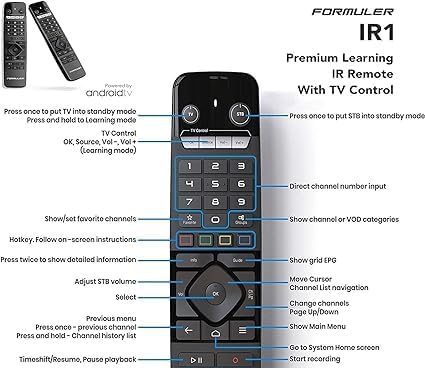
Image 4.1: Detailed layout of the Formuler Z10 NEO IR Remote Control, indicating the function of each button, including power, navigation, volume, and media controls.
4.2 Air Remote Keyboard (Backlit)
The included Air Remote Keyboard offers enhanced control with a full QWERTY keyboard and air mouse functionality, making text input and navigation more convenient. It also features backlighting for use in low-light conditions.

Image 4.2: The Formuler Z10 NEO Air Remote Keyboard, featuring a full QWERTY layout and an integrated USB dongle for wireless connectivity.
5. Maintenance
5.1 Cleaning
To maintain the device's appearance and functionality, regularly clean it with a soft, dry cloth. Avoid using liquid cleaners or abrasive materials, as these can damage the surface or internal components.
5.2 Software Updates
Periodically check for software updates to ensure optimal performance and access to the latest features. Updates can typically be found in the device's settings menu under 'About' or 'System Update'. Follow the on-screen prompts to download and install any available updates.
6. Troubleshooting
This section addresses common issues you might encounter with your Formuler Z10 NEO.
- No Power:
Solution: Ensure the power cable is securely connected to both the device and a working power outlet. Check if the power adapter is functioning correctly. - No Picture on TV:
Solution: Verify the HDMI cable is properly connected to both the device and the TV. Ensure your TV is set to the correct HDMI input source. Try a different HDMI port or cable. - No Internet Connection:
Solution: If using Wi-Fi, check your Wi-Fi settings in the device menu and ensure you are connected to the correct network with the right password. If using Ethernet, ensure the cable is securely connected to both the device and the router, and that your router is working. Restart your router and the Formuler Z10 NEO. - Remote Control Not Responding:
Solution: Replace the batteries in the remote control. Ensure there are no obstructions between the remote and the device. For the Air Remote Keyboard, ensure its USB dongle is plugged into the Formuler Z10 NEO. - Applications Crashing/Freezing:
Solution: Close and restart the application. Clear the app's cache and data through the Android settings menu (Settings > Apps > [App Name] > Storage). If the issue persists, try uninstalling and reinstalling the application. Ensure the device's software is up to date.
7. Specifications
| Feature | Specification |
|---|---|
| Output Resolution | 4K (3840 x 2160) |
| RAM | 2GB DDR @2400MHz |
| Storage | 4GB eMMC |
| Operating System | Android 10 |
| Wireless Connectivity | Single-Band 2.4Ghz Wi-Fi |
| Ethernet | 10/100M |
| Dimensions (Length / Width) | 88mm (3.46 inches) |
| Dimensions (Thickness) | 16mm (0.64 inches) |
| Color | Black |
| Item Weight | 1.43 pounds |
| Batteries (for remote) | 2 AA batteries (included) |
8. Warranty and Support
For warranty information and technical support, please refer to the documentation provided with your purchase or visit the official Formuler website. Keep your proof of purchase for warranty claims.


