
Keychron B1P-K8
Keychron B1 Pro Ultra-Slim Wireless ZMK Custom Keyboard User Manual
Introduction
The Keychron B1 Pro is an ultra-portable, lightweight wireless keyboard designed for versatility and performance. It supports multiple connectivity modes including 2.4GHz, Bluetooth, and wired USB-C, allowing seamless connection across various devices such as phones, tablets, PCs, and Macs. Featuring ZMK customization, the B1 Pro offers extensive personalization options for key remapping and macros, enhancing your typing experience.
Package Contents
Please verify that all items listed below are included in your package:
- 1x Keychron B1 Pro Keyboard
- 1x USB Type-C Cable
- 1x USB Type-A to Type-C Adapter
- 1x USB Type-A 2.4GHz Receiver
- 1x Silicone Key Skin

The package includes the Keychron B1 Pro keyboard, a USB Type-C cable for charging and wired connection, a USB Type-A to Type-C adapter, a 2.4GHz USB receiver for wireless connectivity, and a protective silicone key skin.
Setup
Charging the Keyboard
The Keychron B1 Pro is equipped with a long-lasting battery, offering up to 1200 hours of usage. To charge the keyboard, connect the provided USB Type-C cable to the keyboard's USB-C port and the other end to a power source (e.g., computer USB port, wall adapter). The charging indicator light will provide feedback on the battery status.
Connectivity Modes
The B1 Pro supports three primary connection modes: 2.4GHz wireless, Bluetooth 5.2, and wired USB Type-C. Use the physical switch located on the side of the keyboard to select your desired mode.
This image displays the side of the keyboard, highlighting the switches for selecting between Bluetooth (BT), Wired (Cable), 2.4GHz wireless, and Off modes, as well as the switch for Mac and Windows operating systems.
2.4GHz Wireless Connection
- Locate the 2.4GHz USB receiver included in the package.
- Plug the receiver into an available USB port on your computer.
- Slide the mode switch on the keyboard to the '2.4G' position.
- The keyboard should automatically connect to your device.
Bluetooth Connection
The B1 Pro can connect to up to three Bluetooth devices simultaneously.
- Slide the mode switch on the keyboard to the 'BT' position.
- On your device (phone, tablet, PC), enable Bluetooth and search for new devices.
- Select 'Keychron B1 Pro' from the list of available devices.
- Follow any on-screen prompts to complete the pairing process.
- To switch between paired Bluetooth devices, press the 'Fn' key along with '1', '2', or '3' (corresponding to the Bluetooth channels).
Wired Connection
- Connect the USB Type-C cable to the keyboard's USB-C port.
- Connect the other end of the cable to a USB port on your computer.
- Slide the mode switch on the keyboard to the 'Cable' position.
- The keyboard will function as a wired device and charge simultaneously.
Device Compatibility
The Keychron B1 Pro is designed to be compatible with both Mac and Windows operating systems. Use the dedicated OS switch on the side of the keyboard to select the appropriate layout for your system. This ensures optimal key mapping and functionality.
Operating
Keyboard Layout and Key Functions
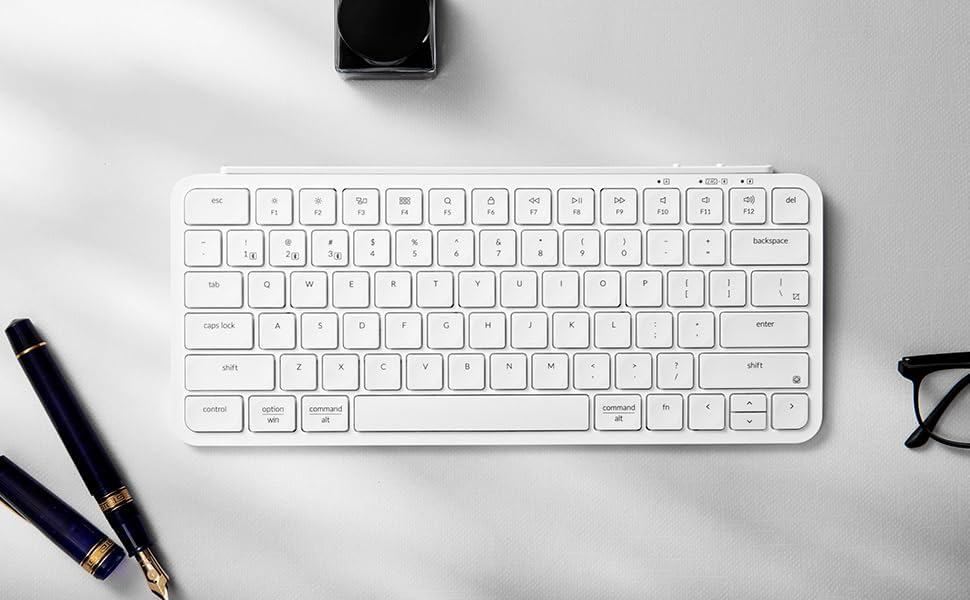
The Keychron B1 Pro features a compact layout with essential keys for productivity. Familiarize yourself with the standard alphanumeric keys, function row (F1-F12), and modifier keys (Control, Option/Alt, Command/Win, Shift, Fn).

This image provides a clear top-down view of the Ivory White Keychron B1 Pro keyboard, illustrating the arrangement of all keys, including the dual-labeled modifier keys for Mac and Windows compatibility, and the function row.
ZMK Customization with Keychron Launcher
Unlock the full potential of your Keychron B1 Pro by utilizing the Keychron Launcher web application. This powerful tool allows you to easily remap keys, create custom macros, set shortcuts, and manage firmware updates. The ZMK firmware provides a highly customizable experience.

The screenshot above illustrates the user interface of the Keychron Launcher web app, demonstrating its capabilities for key remapping and other customization features for the B1 Pro keyboard.
To access the Keychron Launcher, visit the official Keychron website and navigate to the support or downloads section for the B1 Pro model. The web app provides an intuitive graphical interface for programming your keyboard.
Maintenance
Cleaning the Keyboard
To maintain the longevity and appearance of your Keychron B1 Pro, regular cleaning is recommended. Use a soft, lint-free cloth slightly dampened with water or a mild cleaning solution to wipe down the keycaps and keyboard surface. Avoid using harsh chemicals or abrasive materials. For debris between keys, use compressed air.
Protective Silicone Skin
The included silicone key skin is designed to protect your keyboard from spills, dust, and general wear. It is washable and reusable, providing an extra layer of defense while enhancing the typing experience with its custom fit.

This image demonstrates the application of the transparent silicone key skin onto the keyboard, highlighting its precise molding for each key and its protective function.
Troubleshooting
If you encounter any issues with your Keychron B1 Pro keyboard, please refer to the following table for common problems and their solutions.
| Issue | Possible Cause | Solution |
|---|---|---|
| Keyboard not connecting via 2.4GHz/Bluetooth | Incorrect mode selected, low battery, receiver not plugged in (2.4GHz), not in pairing mode (Bluetooth), interference. | Ensure the mode switch is set correctly. Charge the keyboard. For 2.4GHz, ensure receiver is securely plugged in. For Bluetooth, put keyboard in pairing mode and re-pair. Move closer to the receiver/device. |
| Keys not responding or sticky keys | Debris under keycap, software glitch, low battery. | Clean under the keycap using compressed air. Restart the keyboard and device. Ensure keyboard is fully charged. Check for firmware updates via Keychron Launcher. |
| Keyboard not charging | Faulty cable, power source issue, damaged port. | Try a different USB-C cable and a different power source. Ensure the cable is fully inserted into the keyboard and power source. |
| ZMK customization not working | Incorrect use of Keychron Launcher, outdated firmware. | Ensure you are using the official Keychron Launcher web app. Follow the instructions carefully for key remapping and macro creation. Update keyboard firmware if available. |
| Keyboard frequently disconnects | Interference, distance from device, low battery. | Reduce distance between keyboard and device. Minimize other wireless devices nearby. Ensure keyboard is fully charged. |
Specifications
Below are the technical specifications for the Keychron B1 Pro Ultra-Slim Wireless ZMK Custom Keyboard:
| Feature | Detail |
|---|---|
| Model Number | B1P-K8 |
| Connectivity Technology | 2.4GHz Wireless, Bluetooth 5.2, USB Type-C Wired |
| Compatible Devices | Laptop, PC, Tablet, Smartphone (Mac/Windows compatible) |
| Keyboard Description | Multi Functional, Ultra-Slim |
| Special Feature | Low-Profile Key, ZMK Customization |
| Color | Ivory White (as per current product) |
| Number of Keys | 84 |
| Product Dimensions | 11.6"L x 5.1"W x 0.2"H (29.5 x 13 x 0.5 cm) |
| Item Weight | 1.39 pounds (0.63 kg) |
| Battery | 1 Lithium Polymer battery (included) |
| Battery Life | Up to 1200 hours (approximate) |
| Material | Silicone (for skin), likely plastic/aluminum body |
| Manufacturer | Keychron |
| Country of Origin | China |
Warranty and Support
Keychron products are designed for durability and performance. For information regarding warranty coverage, terms, and conditions, please refer to the official Keychron website or the warranty card included with your product. Warranty details may vary by region and retailer.
For technical support, troubleshooting assistance beyond this manual, or to inquire about replacement parts, please visit the official Keychron support page. You can typically find FAQs, driver downloads, firmware updates, and contact information for customer service on their website.
Visit the Keychron Store on Amazon for more product information and support resources.
Ask a question about this manual
Ask about setup, troubleshooting, compatibility, parts, safety, or missing instructions. Manuals+ will review the question and use this page’s manual context to help answer it.