
CHGeek RC02
CHGeek 15W MagSafe Car Mount Charger (Model: RC02) Instruction Manual
Wireless Magnetic Car Phone Holder with Fast Cooling for iPhone 12/13/14/15/16 Series
1. Introduction
This manual provides detailed instructions for the installation, operation, and maintenance of your CHGeek 15W MagSafe Car Mount Charger. Please read this manual thoroughly before use to ensure proper functionality and safety.
2. Package Contents
Verify that all items are present in the package:
- CHGeek 15W MagSafe Car Mount Charger Unit
- Air Vent Clip Attachment
- Suction Cup Mount Attachment
- USB-C Charging Cable
- User Manual (this document)

Image: The CHGeek 15W MagSafe Car Mount Charger, illustrating both the air vent and suction cup mounting options, with an iPhone magnetically attached and charging.
3. Product Overview
The CHGeek 15W MagSafe Car Mount Charger is designed to securely hold and wirelessly charge compatible iPhone models in your vehicle. It features a built-in cooling fan to maintain optimal charging efficiency and offers versatile mounting options.
Key Features:
- 15W Wireless Charging: Provides efficient power delivery for MagSafe-compatible iPhones.
- Integrated Cooling Fan: Prevents overheating during charging, ensuring consistent performance.
- Strong Magnetic Hold: 1,600gf holding force keeps your phone secure on various road conditions.
- Dual Mounting Options: Includes both an air vent clip and a suction cup for flexible placement.
- 360° Rotation: Allows for optimal viewing angles in both portrait and landscape orientations.
- Case-Friendly Design: Compatible with MagSafe cases up to 4mm (0.16 inches) thick.
- LED Indicator Light: Provides visual feedback on charging status and ambient lighting.
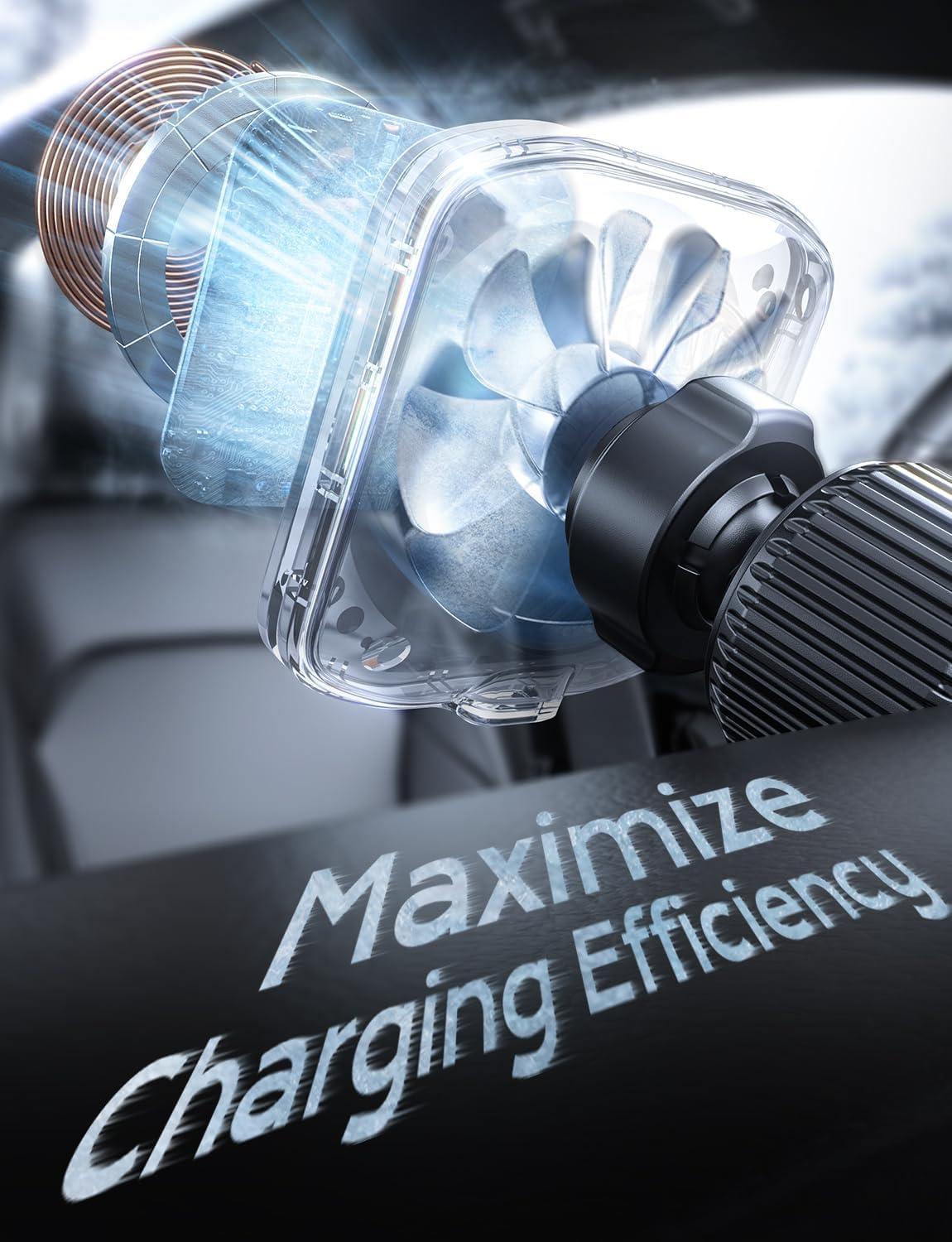
Image: An internal view of the charger highlighting the cooling fan and charging coil, designed to maximize charging efficiency.
4. Setup and Installation
The CHGeek car mount offers two primary installation methods: air vent mounting and suction cup mounting (for dashboard or windshield).
4.1 Air Vent Installation
- Attach the Air Vent Clip: Screw the air vent clip onto the back of the charger unit until secure.
- Insert into Vent: Carefully insert the clip's hook into one of your car's air vent blades.
- Secure the Clip: Twist the knob on the air vent clip to tighten it, ensuring a firm grip on the vent blade. The metal hook will secure it from behind.
- Adjust Angle: Adjust the charger unit to your desired viewing angle using the 360° rotatable ball joint.

Image: Visual instructions for installing the air vent mount, demonstrating the secure metal hook mechanism.
4.2 Suction Cup Installation (Dashboard/Windshield)
- Attach the Suction Cup Mount: Screw the suction cup mount onto the back of the charger unit until secure.
- Clean Surface: Choose a flat, clean surface on your dashboard or windshield. Ensure it is free of dust and grease.
- Position Mount: Press the suction cup firmly against the chosen surface.
- Secure Lock: Push down the locking lever on the suction cup base to create a vacuum seal, securing the mount in place.
- Adjust Angle: Adjust the charger unit to your desired viewing angle using the 360° rotatable ball joint and retractable bracket.
Note: If the suction cup loses adhesion over time, rinse it with warm water and let it air dry to restore its stickiness.

Image: The CHGeek car mount installed in various positions: windshield, dashboard, and air vent, illustrating its adaptability.

Image: Visual instructions for installing the suction cup mount, including how to clean and re-adhere it if needed.
5. Operating Instructions
5.1 Power Connection
- Connect the provided USB-C charging cable to the port on the car mount charger.
- Plug the other end of the USB-C cable into a QC 3.0 compatible car charger adapter (not included). A QC 3.0 adapter is required to achieve 15W fast charging.
- Once powered, the LED light on the charger will illuminate, indicating it is ready for use.
5.2 Attaching and Charging Your Phone
- Ensure your iPhone is MagSafe compatible (iPhone 12 series or newer) or is using a MagSafe-compatible case.
- Bring your iPhone close to the magnetic charging surface of the car mount. The strong magnets will automatically align and secure your phone in place.
- Wireless charging will begin automatically. The LED light may change color or pattern to indicate active charging.
- The built-in cooling fan will activate as needed to prevent your phone and charger from overheating, ensuring optimal charging speed.

Image: An iPhone snapping onto the magnetic car mount, demonstrating the strong magnetic connection and immediate charging.

Image: A visual representation of the powerful magnetic array within the charger, ensuring a stable and secure hold for the phone.
5.3 Adjusting Viewing Angle
The charger unit is equipped with a 360° rotatable ball joint. Loosen the collar behind the charging pad, adjust your phone to the desired portrait or landscape orientation, and then tighten the collar to secure the position.

Image: An iPhone mounted on the charger, illustrating its 360-degree rotation feature for flexible viewing angles.
6. Compatibility
6.1 Compatible Phone Models
This charger is compatible with MagSafe-enabled iPhones, including:
- iPhone 16, iPhone 16 Plus, iPhone 16 Pro, iPhone 16 Pro Max
- iPhone 15, iPhone 15 Plus, iPhone 15 Pro, iPhone 15 Pro Max
- iPhone 14, iPhone 14 Plus, iPhone 14 Pro, iPhone 14 Pro Max
- iPhone 13, iPhone 13 Pro, iPhone 13 Pro Max, iPhone 13 mini
- iPhone 12, iPhone 12 Pro, iPhone 12 Pro Max, iPhone 12 mini

Image: A display of iPhone 12, 13, 14, and 15 series phones, indicating their compatibility with the MagSafe charger.
6.2 Case Compatibility
The charger supports wireless charging through phone cases up to 4mm (0.16 inches) thick. For optimal magnetic hold and charging efficiency, it is recommended to use MagSafe-compatible cases.
Important Considerations:
- Metal cases or cases with metal plates may interfere with wireless charging and magnetic adhesion.
- Credit cards or other magnetic strips placed between the phone and charger may be damaged or interfere with charging.
- Cases thicker than 4mm may prevent proper magnetic connection and charging.

Image: A visual guide to case compatibility, showing that cases up to 4mm are supported, but ultra-thick, metal, or ring clasp cases are not recommended.
7. Maintenance
- Cleaning: Use a soft, dry cloth to clean the surface of the charger. Do not use abrasive cleaners or solvents.
- Suction Cup Rejuvenation: If the suction cup loses its grip, rinse it with warm water and allow it to air dry completely. This can restore its adhesive properties.
- Storage: When not in use for extended periods, store the charger in a cool, dry place away from direct sunlight.
8. Troubleshooting
| Problem | Possible Cause | Solution |
|---|---|---|
| Phone not charging |
|
|
| Phone falls off mount |
|
|
| Slow charging |
|
|
9. Specifications
- Model: RC02
- Input: Requires QC 3.0 Car Charger Adapter (not included)
- Output: Up to 15W Wireless Charging (7.5W for iPhone series)
- Connectivity: USB-C
- Mounting Types: Air Vent, Dashboard, Windshield
- Magnetic Holding Force: 1,600gf
- Case Compatibility: Up to 4mm (0.16 inches) thick (MagSafe compatible cases recommended)
- Dimensions: 7.13 x 4.45 x 2.4 inches (Package)
- Weight: 10.5 ounces (Item)
10. Warranty and Customer Support
CHGeek prioritizes customer satisfaction. This product comes with a comprehensive 2-year warranty.
For any questions, concerns, or assistance, please contact CHGeek customer support through the retailer where you purchased the product or visit the official CHGeek website for contact information.
Our dedicated team is ready to assist you, ensuring a hassle-free experience.
Related documentsRC02


Ask a question about this manual
Ask about setup, troubleshooting, compatibility, parts, safety, or missing instructions. Manuals+ will review the question and use this page’s manual context to help answer it.