
Genérico A28 (Model 0021)
Genérico A28 Dual Lens Outdoor Night Vision WiFi Security Camera User Manual
Model: 0021
Brand: Genérico
1. Introduction
Thank you for choosing the Genérico A28 Dual Lens Outdoor Night Vision WiFi Security Camera. This manual provides detailed instructions for the installation, operation, and maintenance of your new security camera. Please read this manual thoroughly before use to ensure proper functionality and to maximize the lifespan of your device. This camera is designed for both indoor and outdoor surveillance, offering advanced features such as dual lenses, night vision, motion tracking, and remote access via the ICSEE application.
2. Product Overview
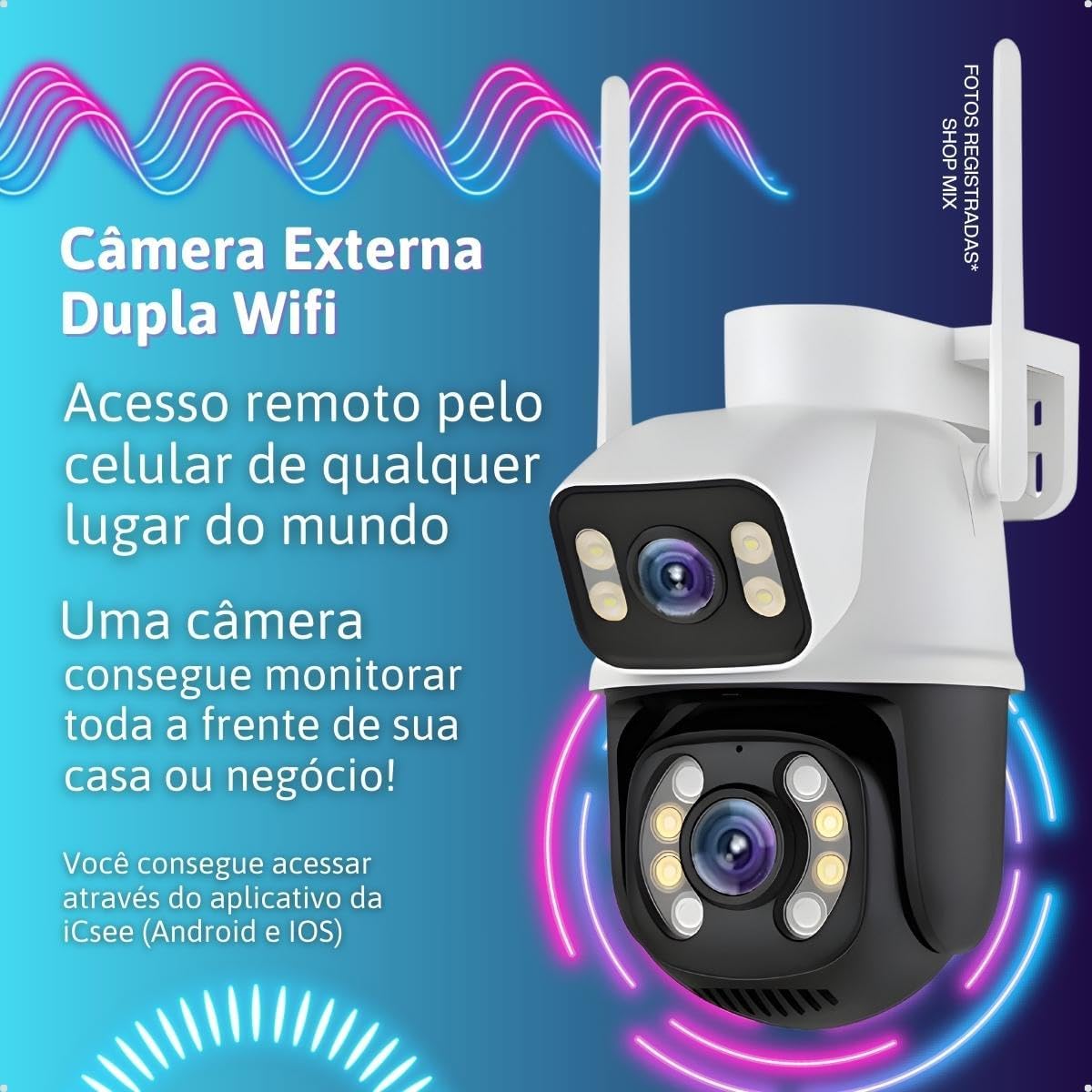
The Genérico A28 camera is a robust surveillance solution equipped with dual lenses for enhanced monitoring. It features advanced capabilities to keep your property secure.
Key Features:
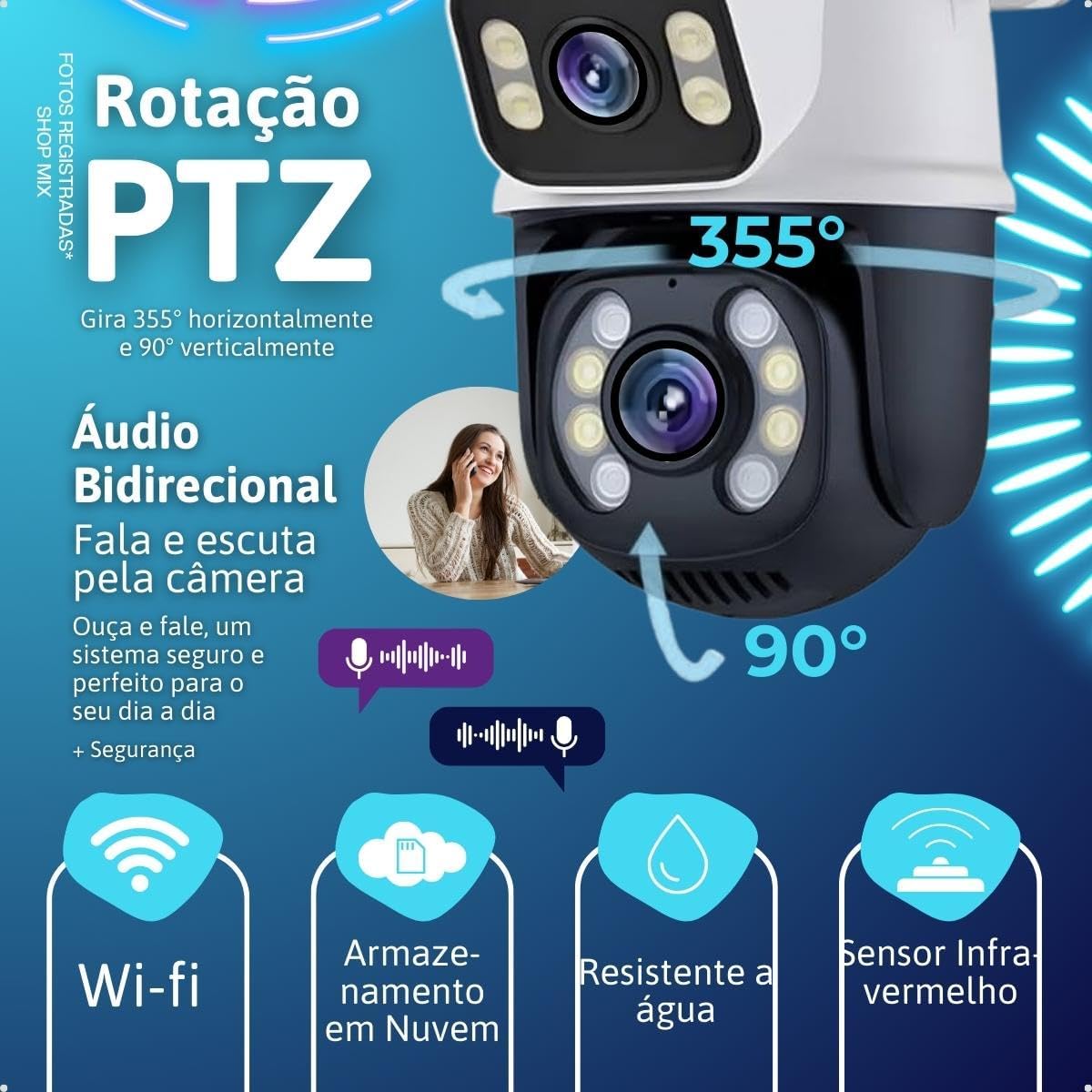
- Dual Lens System: Provides comprehensive coverage with two independent lenses.
- PTZ Functionality: Pan 355 degrees horizontally and tilt 100 degrees vertically for a wide viewing angle.
- Two-Way Audio: Built-in microphone and speaker allow for real-time communication.
- Advanced Motion Detection: Features human detection and auto-tracking, sending instant alerts to your mobile device.
- Night Vision: Offers clear night vision up to 15 meters, with both black & white and color options.
- Waterproof Design: IP66 rated for outdoor use, ensuring durability in various weather conditions.
- Multiple Storage Options: Supports MicroSD cards up to 128GB (Class 10 recommended) and cloud storage (subscription required).
- Remote Access: Monitor your property from anywhere using the ICSEE app on Android or iOS devices.
- Easy Installation: Simple setup via Wi-Fi or RJ45 network cable.
Product Components and Features Visuals:





3. Package Contents
Please check the box for the following items:
- 1 x Wifi Smart Camera Dual Lens A28
- 1 x Bivolt Power Supply (110V or 220V) 2-pin standard
- 1 x Screw and Bushing Kit
- 1 x Instruction Manual
4. Setup Guide
4.1 Powering the Camera
- Connect the provided Bivolt power supply (110V/220V) to the camera's DC12V input port.
- Plug the power supply into a suitable electrical outlet.
- Important: If installing outdoors, ensure the power supply connection is protected from water, as the power supply itself is not waterproof.
4.2 App Installation and Initial Configuration
- Download the ICSEE application from your mobile device's app store (available for Android 5.0+ and iOS 9.2+). You can also scan the QR code provided in the camera's packaging or manual.
- Open the ICSEE app and create a new account or log in if you already have one.
- Follow the in-app instructions to add your new camera. This typically involves scanning a QR code on the camera or manually entering its ID.
- Connect the camera to your Wi-Fi network (2.4 GHz only) or via an RJ45 Ethernet cable for a wired connection.
- Complete the network configuration within the app. The camera will indicate a successful connection.
4.3 Mounting the Camera
- Choose a suitable location for mounting, ensuring it provides the desired viewing angle and is within Wi-Fi range or near an Ethernet port.
- Use the provided screw and bushing kit to securely mount the camera to a wall or ceiling.
- Adjust the camera's physical orientation as needed before finalizing the mounting.
5. Operating Instructions
5.1 Remote Monitoring
- Open the ICSEE app on your smartphone or tablet.
- Select your camera from the device list to view the live feed.
- You can view up to 5 cameras simultaneously within the app.
- Share camera access with up to 5 other devices using login credentials.
5.2 PTZ Control
- On the live view screen in the ICSEE app, use the on-screen controls to pan the camera 355 degrees horizontally and tilt it 100 degrees vertically.
- Utilize the digital zoom (1.0-4.0x) feature to focus on specific details.
5.3 Two-Way Audio
- Tap the microphone icon in the app to speak through the camera's speaker.
- The camera's built-in microphone will pick up audio from the monitored area, allowing you to listen in.
5.4 Motion Detection and Tracking
- Enable motion detection in the app settings.
- The camera will automatically detect and track human movement (auto-tracking feature).
- Receive instant notifications and alarms on your mobile device when motion is detected.
- Recordings can be configured to start only when motion is detected, saving storage space.
5.5 Recording and Storage
- Insert a MicroSD card (8GB to 128GB, Class 10) into the designated slot for local storage.
- Configure recording settings (continuous, motion-activated) within the ICSEE app.
- Access recorded footage directly from the app.
- Optional cloud recording service is available through the ICSEE app (paid subscription).
5.6 Night Vision
- The camera automatically switches to night vision mode in low-light conditions.
- It provides clear visibility up to 15 meters, with options for both black & white infrared vision and color night vision.
6. Maintenance
6.1 Cleaning
- Regularly clean the camera lens with a soft, dry cloth to ensure clear image quality.
- Do not use harsh chemicals or abrasive cleaners.
6.2 Environmental Protection
- While the camera is IP66 waterproof, ensure the power adapter and connections are protected from direct exposure to rain or moisture, especially if installed outdoors.
- Avoid placing the camera in areas with extreme temperatures or direct sunlight for prolonged periods, as this may affect performance and lifespan.
7. Troubleshooting
| Problem | Possible Cause | Solution |
|---|---|---|
| Camera not powering on | No power, faulty adapter, loose connection | Check power outlet, ensure adapter is securely connected to camera and power source. Try a different outlet. |
| Cannot connect to Wi-Fi | Incorrect Wi-Fi password, 5GHz network, camera too far from router, network interference | Ensure correct 2.4GHz Wi-Fi password. Move camera closer to router. Reduce interference. Reset camera and try again. |
| No image/poor image quality | Lens dirty, network issues, insufficient light, protective film on lens | Clean the lens. Check network connection stability. Ensure adequate lighting or verify night vision is active. Remove any protective film. |
| Motion detection not working | Feature disabled, sensitivity too low, incorrect detection zone | Enable motion detection in ICSEE app settings. Adjust sensitivity. Configure detection zones correctly. |
| Two-way audio not working | Microphone/speaker muted in app, volume too low, network delay | Check audio settings in the ICSEE app. Increase volume. Ensure stable network connection. |
| SD card not recording | SD card full, faulty card, not formatted, incorrect recording settings | Check SD card capacity. Format the SD card via the app. Ensure recording settings are enabled. Try a different SD card. |
8. Specifications
| Feature | Detail |
|---|---|
| Model | 0021 |
| Brand | Genérico |
| Connectivity | Wi-Fi (2.4 GHz), RJ45 Ethernet Cable |
| App Compatibility | ICSEE (Android 5.0+ / iOS 9.2+) |
| Video Resolution | 1080p (Full HD) |
| PTZ Rotation | Horizontal 355°, Vertical 100° |
| Night Vision Range | Up to 15 meters |
| Storage | MicroSD Card (8GB-128GB, Class 10), Cloud Storage (paid service) |
| Power Supply | Bivolt (110V/220V) |
| Water Resistance | IP66 |
| Material | Acrylonitrile Butadiene Styrene (ABS) |
| Dimensions (L x W x H) | 17 x 16 x 10 cm |
| Weight | Approx. 530 g |
| Certification | ANATEL 004329/2024 |
9. Warranty and Support
For warranty information and technical support, please refer to the purchase documentation or contact your retailer. Keep your proof of purchase for any warranty claims. For app-related issues, please refer to the ICSEE application's help section or support channels.
Related documentsA28 (Model 0021)


Ask a question about this manual
Ask about setup, troubleshooting, compatibility, parts, safety, or missing instructions. Manuals+ will review the question and use this page’s manual context to help answer it.