
1. Introduction
This manual provides comprehensive instructions for the safe and efficient use of your Eurannit E50 Dual Nozzle Handheld Inkjet Printer. Please read this manual thoroughly before operating the device to ensure proper functionality and to prevent damage.
The Eurannit E50 is a portable inkjet printer designed for versatile coding and marking applications on various surfaces. It features a dual nozzle system, a 4.3-inch touch screen, and supports fast-drying ink for high-quality prints.
2. Package Contents
Verify that all components listed below are included in your package:
- Handheld Inkjet Printer (E50)
- Charger
- Metal Storage Box
- Ink Cartridge x 2
- Lithium Battery
- USB Driver & Touch Pen

3. Setup
3.1 Device Overview
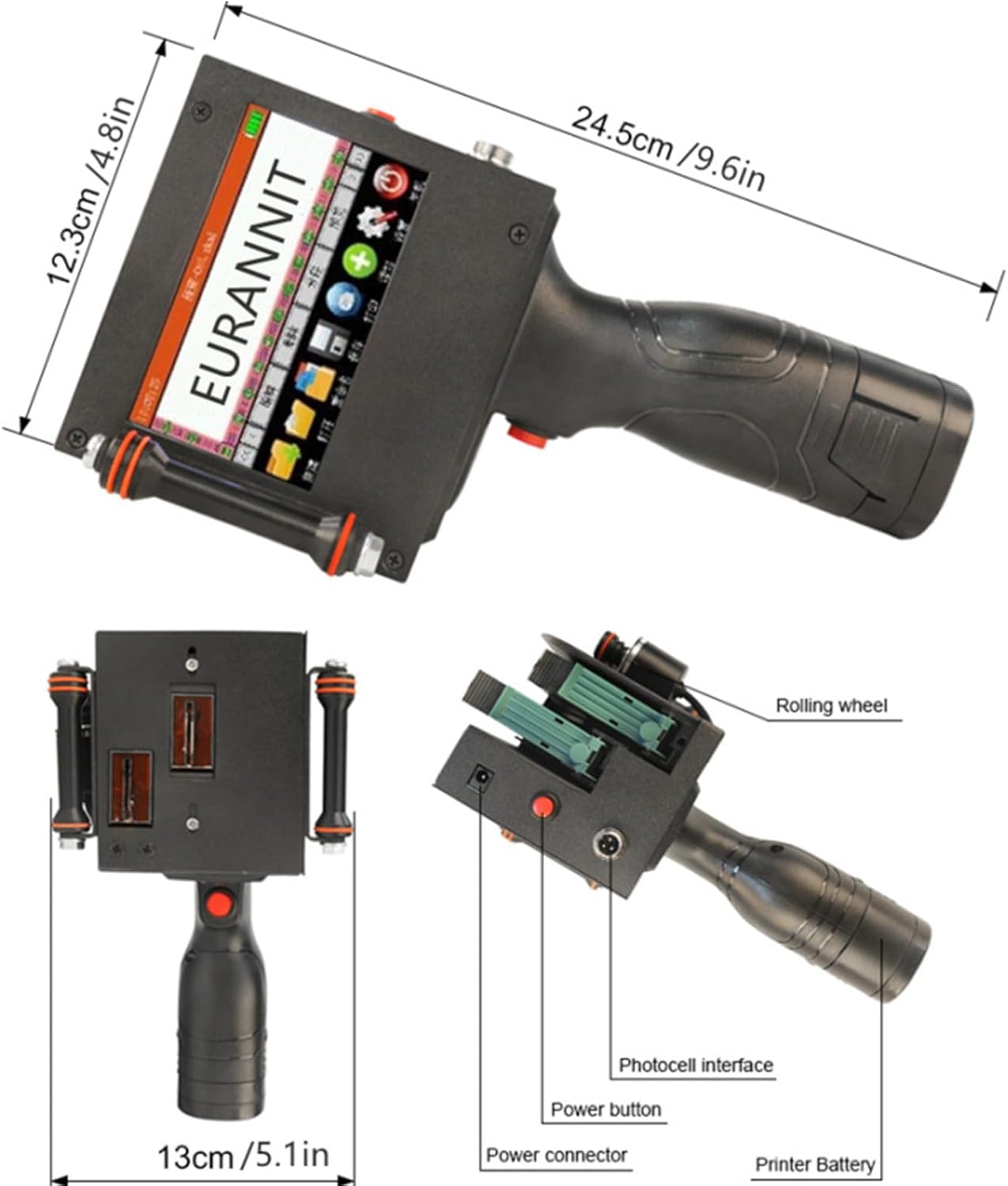
3.2 Battery Installation and Charging
The device is powered by a removable 2600mAh lithium battery, providing over 8 hours of continuous operation. Ensure the battery is fully charged before first use.
- Insert the lithium battery into the designated compartment on the printer.
- Connect the charger to the power connector on the printer and plug it into a power outlet.
- The charging indicator on the screen will show the charging status.

3.3 Ink Cartridge Installation
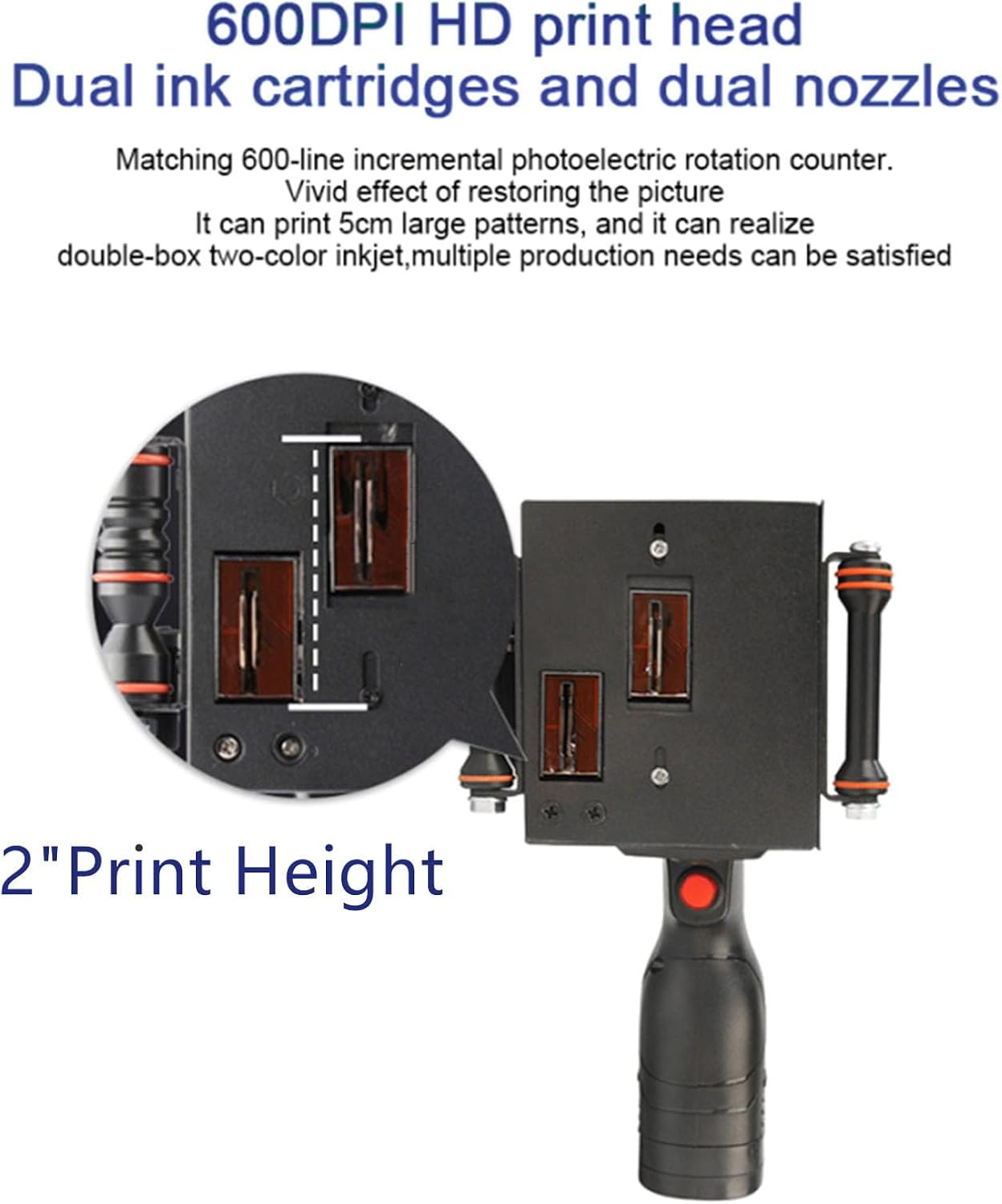
The Eurannit E50 supports dual ink cartridges and dual nozzles for versatile printing. Follow these steps to install the ink cartridges:
- Remove the protective cover from the ink cartridge.
- Insert the cartridge into the machine at a 45-degree angle into the cartridge slot.
- Gently push on the back of the cartridge to advance it forward until it clicks into place.
- Ensure the nozzle is flush with the shell and close the cartridge slot cover securely.

4. Operating Instructions
4.1 Powering On and User Interface
The Eurannit E50 features a 4.3-inch LCD capacitive touch screen for direct operation. Press and hold the power button to turn on the device.
- The high-sensitivity touch screen allows for intuitive navigation.
- The device operates independently; no external app, computer, or mobile phone connection is required for basic printing.
- Templates can be created and edited directly on the built-in touchscreen.

4.2 Creating and Editing Print Content
The printer supports 25 languages and allows for diverse content creation:
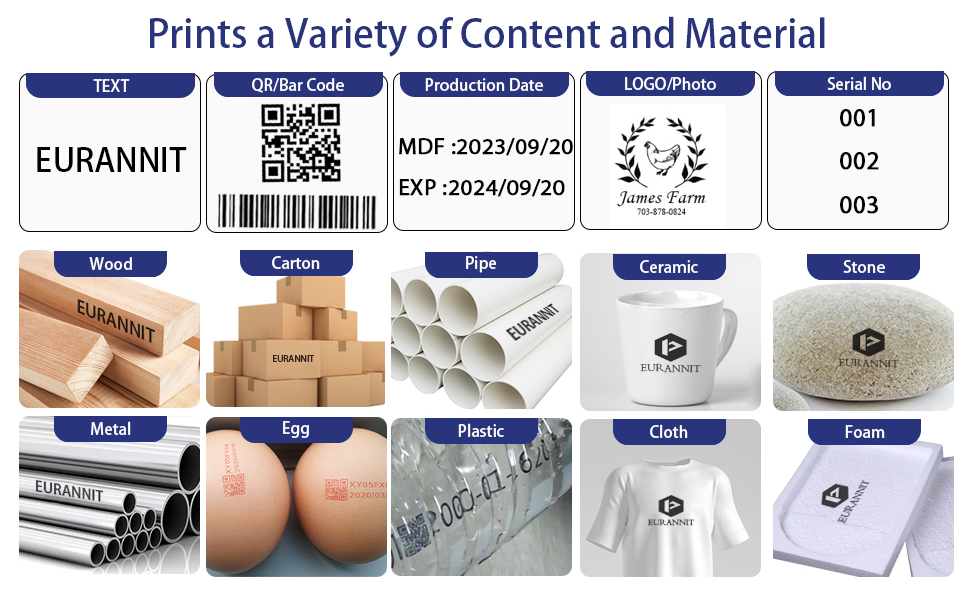
- Direct Input: Use the touchscreen and touch pen to enter text, QR codes, barcodes, lot/batch numbers, production dates, expiration dates, and counters.
- Image Import: Import pictures (PNG, JPEG, BMP) and logos via a U disk.
- Variable Data: Supports variable database printing for dynamic content.
4.3 Printing Process
After creating your desired printing template, proceed with printing:
- Ensure the print template is selected and ready on the screen.
- When starting to print, press the red coding button.
- Move the printer across the desired surface. The coding synchronization wheel ensures precise coding and prevents errors from uneven motion.
- The printer supports 360-degree printing, allowing for versatile application.
The printer supports a printing distance of 2mm-5mm and a print height of 2mm-12.7mm (1 to 5 lines).

4.4 Automatic Coding Integration
The Eurannit E50 can be integrated into an assembly line for automatic coding, enhancing production efficiency.

5. Maintenance
5.1 Ink Cartridge Care
The printer uses 42ml quick-drying original ink cartridges. Proper handling and storage are crucial for optimal performance and longevity.
- Always ensure the cartridge cover is closed when not in use to prevent ink drying.
- If the printer will not be used for an extended period, remove the ink cartridge and store it in its original packaging or a sealed container to prevent drying.
- Regularly check the nozzle for any blockages. If a blockage occurs, gently wipe the nozzle with a lint-free cloth moistened with a small amount of cleaning solution (if provided by the manufacturer) or distilled water.
- Avoid touching the nozzle directly with bare hands.
5.2 General Cleaning
- Wipe the exterior of the printer with a soft, dry cloth.
- Do not use abrasive cleaners or solvents, as these can damage the device.
- Keep the touch screen clean and free of dust and debris. Use the provided touch pen for interaction to avoid scratches.
6. Troubleshooting
This section addresses common issues you might encounter with your Eurannit E50 printer. For problems not listed here, please contact customer support.
| Problem | Possible Cause | Solution |
|---|---|---|
| No print output or faint print | Ink cartridge empty or clogged nozzle. Incorrect printing distance. | Replace ink cartridge. Clean the nozzle. Adjust printing distance (2-5mm). |
| Printer does not power on | Battery discharged or not properly installed. | Charge the battery. Ensure battery is correctly inserted. |
| Print quality is poor/streaky | Nozzle partially clogged. Ink drying out. Surface not suitable. | Clean the nozzle. Ensure cartridge cover is sealed when not in use. Use on recommended surfaces. |
| Touch screen unresponsive | Software glitch. Screen dirty. | Restart the printer. Clean the screen with a soft cloth. |
7. Specifications
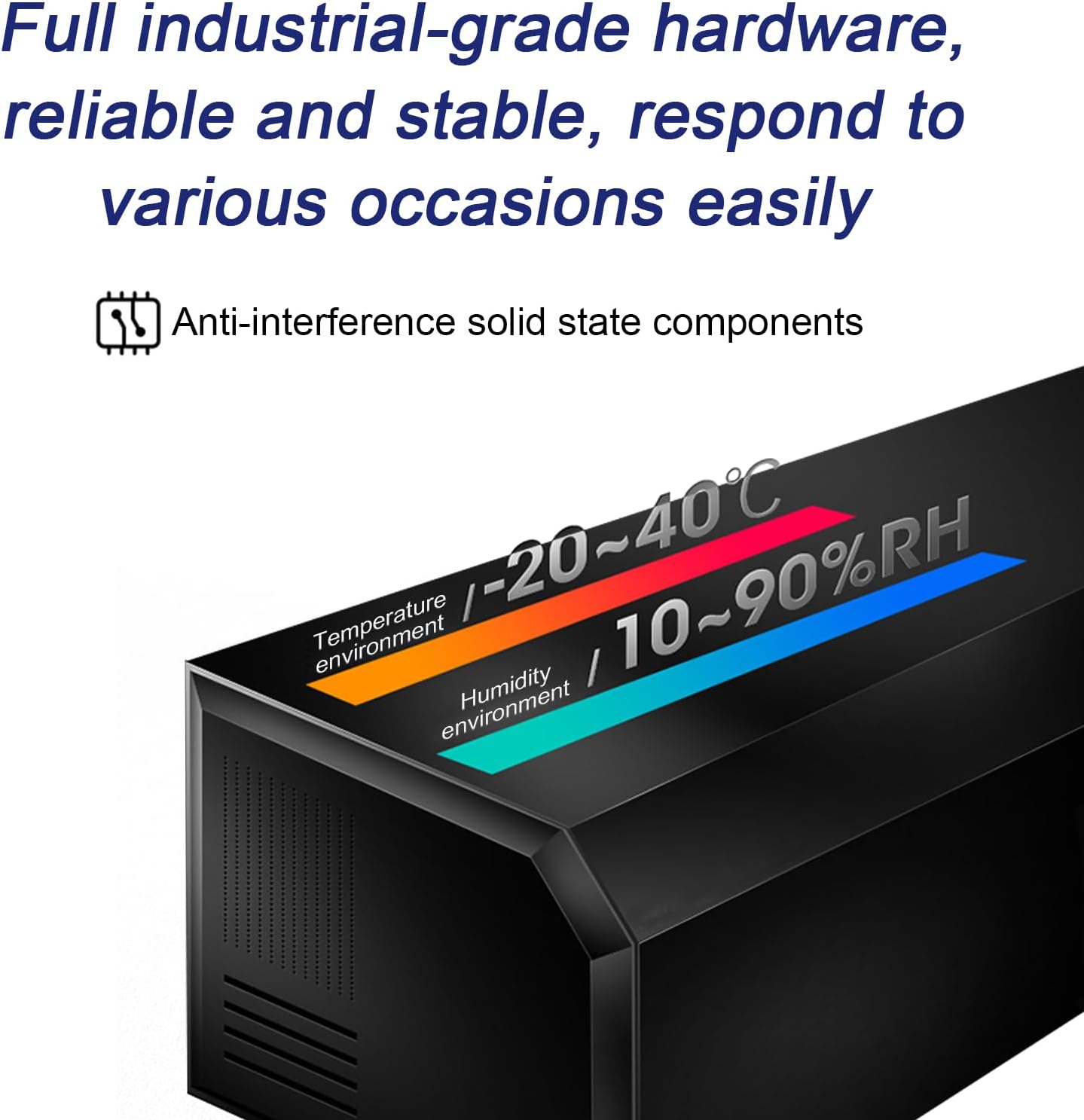
The Eurannit E50 Handheld Inkjet Printer is built with industrial-grade hardware for reliable performance in various environments.

- Model: E50
- Print Height: 2" / 50.8mm (supports 2mm-12.7mm)
- Print Resolution: 600 DPI (600 x 600 dpi max)
- Printing Distance: 2mm-5mm
- Display: 4.3-inch LCD Capacitive Touch Screen
- CPU: Cortex-A9 Quad Core
- Ink Cartridge Capacity: 42ml
- Supported Ink Colors: Black, White, Yellow, Red, Blue, Green, Invisible, UV
- Battery: 2600mAh Lithium Battery (included), >8h continuous working
- Connectivity: USB (for U disk input)
- Supported Languages: 25 languages
- Product Dimensions: 24.38 x 11.43 x 20.32 cm (9.6 x 4.5 x 8 inches)
- Item Weight: 0.7 kg (1.54 lb)
- Operating Environment: Temperature -20 to 40°C, Humidity 10-90% RH
8. Warranty and Support
Eurannit is committed to providing quality products and customer satisfaction. Your Eurannit E50 Handheld Inkjet Printer comes with a manufacturer's warranty. Please refer to the warranty card included in your package for specific terms and conditions.
For any questions, technical assistance, or support needs, please contact Eurannit customer service. Our experienced team in the inkjet printing technology industry is available to provide assistance and ensure you receive the help you need.
You can typically find contact information on the Eurannit official website or through the retailer where you purchased the product.