
1. Introduction
Thank you for choosing the Uciefy V19 Wireless Mouse. This manual provides detailed instructions for setting up, operating, and maintaining your new wireless mouse. Please read this manual thoroughly before use to ensure optimal performance and longevity of your device.

Image: The Uciefy V19 Wireless Mouse, highlighting its unique mecha-style design and LED lighting.
2. Package Contents
Ensure all items are present in the package:
- 1 x V19 Wireless Mouse
- 1 x USB Receiver
- 1 x Type-C Adapter
- 1 x Type-C Charging Cable
- 1 x User Manual (this document)
Video: An unboxing demonstration of the Uciefy V19 Wireless Mouse, showing all included components.
3. Product Overview
The Uciefy V19 Wireless Mouse features a mecha-style design with cool LED lights and convenient storage for its components. It is designed for comfortable use and efficient performance.
Key Features:
- Mecha-Style Design: Classical color scheme with LED lighting and magnetic, detachable parts for the cover and nano receiver.
- Battery Indicator: LED indicator to monitor battery status and remind you when to charge.
- Convenient Storage: Detachable magnetic case for secure storage of the USB receiver inside the mouse.
- 2.4GHz Wireless: Reliable 2.4GHz wireless transmission optical technology.
- Rechargeable: Built-in rechargeable battery with Type-C charging.
- Adjustable DPI: Three adjustable DPI settings (1000, 1200, 1600) for precise control.
- Multi-Type USB Connectivity: Includes a USB receiver and a Type-C adapter for broad compatibility.

Image: The ergonomic design of the Uciefy V19 Wireless Mouse, illustrating a comfortable fit for the hand.
4. Getting Started (Setup)
Follow these steps to connect your Uciefy V19 Wireless Mouse to your computer:
- Retrieve the USB Receiver: The USB receiver is stored magnetically inside the mouse. Gently remove the magnetic top cover of the mouse to access and retrieve the USB receiver.
- Connect to your Device:
- For USB-A Port: Plug the USB receiver directly into an available USB-A port on your computer.
- For USB-C Port: First, plug the included Type-C adapter into your computer's USB-C port. Then, plug the USB receiver into the Type-C adapter.
- Power On: Locate the ON/OFF switch on the bottom of the mouse and slide it to the "ON" position.
- Automatic Connection: The mouse will automatically connect to your device. No additional drivers are typically required.

Image: Step-by-step guide on connecting the mouse using both USB-A and USB-C ports.
Video: A demonstration of connecting the Uciefy V19 Wireless Mouse via its USB-C port connection.
Video: A quick guide on how to easily use the Uciefy Wireless Mouse after connection.
5. Operating Instructions
DPI Adjustment:
The Uciefy V19 mouse offers three adjustable DPI (Dots Per Inch) settings to suit your preference for cursor speed and precision. To change the DPI:
- Press the button located behind the scroll wheel.
- Each press cycles through the DPI settings: 1000 DPI, 1200 DPI, and 1600 DPI.
- Select the DPI that best fits your task, whether it's precise graphic design or fast-paced browsing.
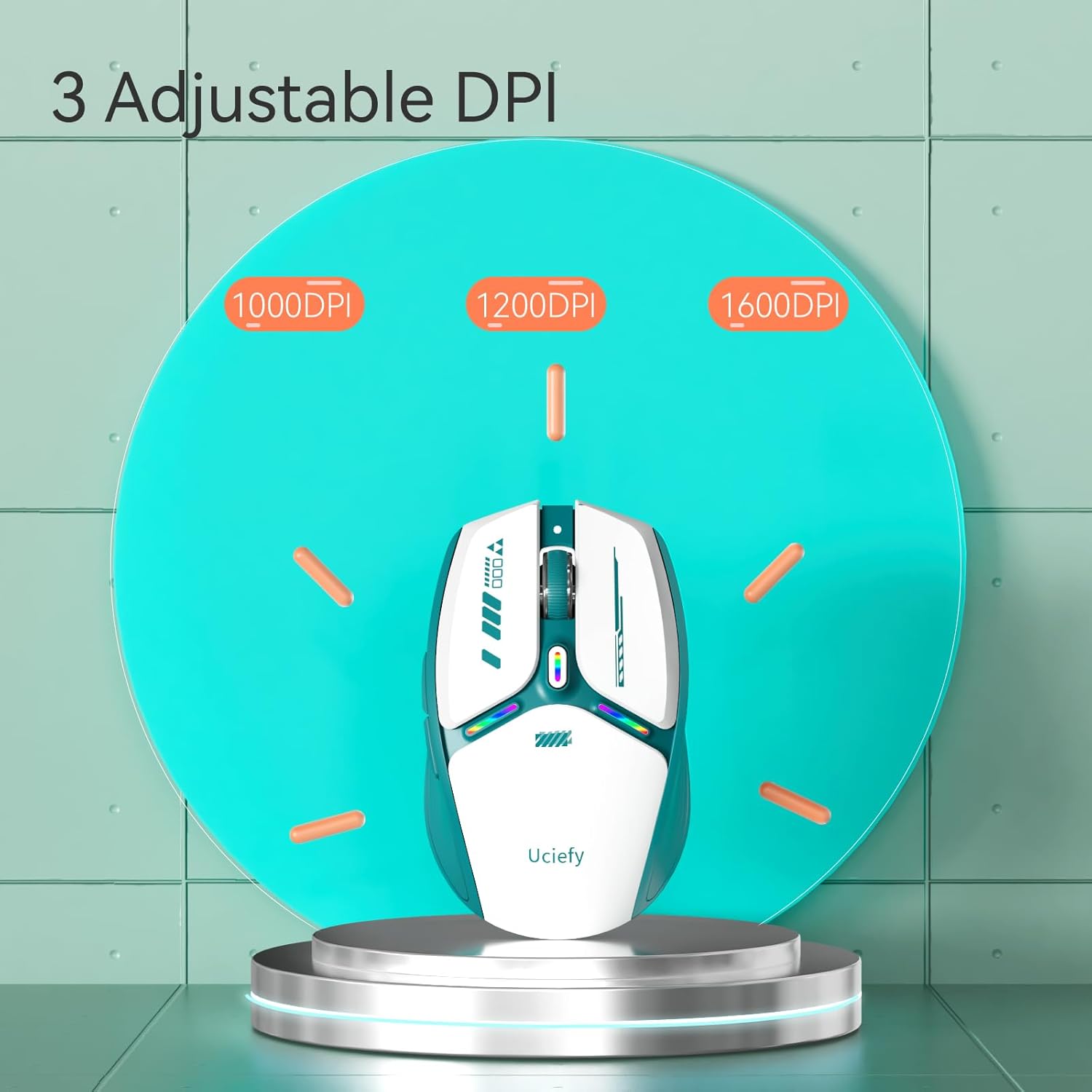
Image: Visual representation of the three adjustable DPI settings and the button to change them.
Magnetic Cover and USB Receiver Storage:
The mouse features a detachable magnetic top cover. This design allows for convenient storage of the USB receiver directly inside the mouse when not in use, preventing loss and making it portable.
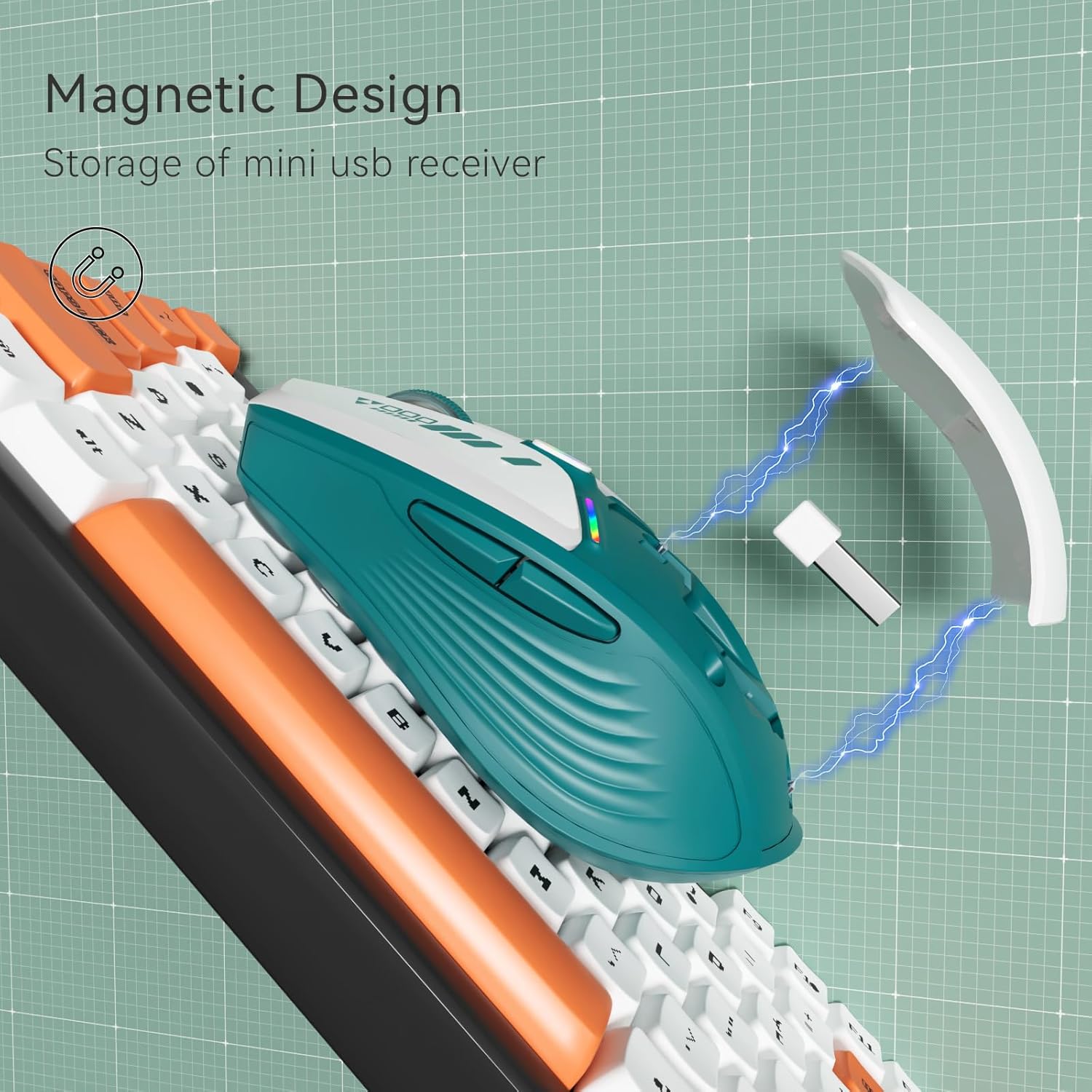
Image: The magnetic design of the mouse, illustrating how the USB receiver is stored securely inside.
6. Charging the Mouse
The Uciefy V19 Wireless Mouse is equipped with a built-in rechargeable battery. To charge your mouse:
- Connect the provided Type-C charging cable to the Type-C port on the front of the mouse.
- Plug the other end of the cable into a USB power source (e.g., computer USB port, USB wall adapter).
- A blue charging indicator light (located at the front near the scroll wheel) will illuminate, indicating that the mouse is charging.
- The mouse also features a battery indicator on its underside to show the current power level, helping you know when a charge is needed.

Image: The Uciefy V19 Wireless Mouse being charged via its Type-C port, with the charging indicator visible.

Image: The bottom of the mouse, highlighting the battery indicator lights.
7. Maintenance
To ensure the longevity and optimal performance of your Uciefy V19 Wireless Mouse, follow these maintenance guidelines:
- Cleaning: Use a soft, dry cloth to clean the mouse. For stubborn dirt, a slightly damp cloth can be used, but ensure no moisture enters the device. Avoid harsh chemicals or abrasive cleaners.
- Storage: When not in use, especially during travel, store the USB receiver inside the mouse's magnetic compartment to prevent loss.
- Battery Care: Avoid fully discharging the battery frequently. Charge the mouse when the battery indicator shows low power.
- Environment: Keep the mouse away from extreme temperatures, direct sunlight, and high humidity.
8. Troubleshooting
If you encounter issues with your Uciefy V19 Wireless Mouse, please refer to the following common problems and solutions:
| Problem | Solution |
|---|---|
| Mouse not responding |
|
| Cursor movement is erratic or slow |
|
| Mouse not charging |
|
| Mouse frequently disconnects |
|
9. Specifications
| Feature | Detail |
|---|---|
| Brand | Uciefy |
| Model | V19 |
| Connectivity Technology | 2.4GHz Wireless (USB Receiver) |
| Movement Detection Technology | Optical |
| DPI Settings | 1000, 1200, 1600 (Adjustable) |
| Buttons | 6 |
| Hand Orientation | Ambidextrous |
| Power Source | Rechargeable Battery (1 included) |
| Charging Port | Type-C |
| Compatible Devices | Computers, Laptops, iPads |
| Operating System Compatibility | Windows, macOS, Linux |
| Item Weight | 76 g |
| Special Features | LED Lights, Portable, Rechargeable, Side Buttons, Wireless, Magnetic Storage |
10. Warranty and Support
Warranty Information:
The Uciefy V19 Wireless Mouse comes with a standard manufacturer's warranty. Please refer to the product packaging or the official Uciefy website for specific warranty terms and conditions, including duration and coverage details.
Customer Support:
For any technical assistance, troubleshooting not covered in this manual, or warranty claims, please contact Uciefy customer support through the following channels:
- Email: Refer to the contact information provided on the product packaging or the official Uciefy website.
- Website: Visit the official Uciefy website for FAQs, support resources, and contact forms.
Please have your product model (V19) and purchase details ready when contacting support.