Introduction
Thank you for choosing the Uciefy V19 Wireless Mouse. This manual provides detailed instructions for setting up, operating, maintaining, and troubleshooting your new device. Please read this manual thoroughly before use to ensure optimal performance and longevity of your mouse.
What's in the Box
- 1 x V19 Wireless Mouse
- 1 x USB Receiver
- 1 x Type-C Charging Cable
- 1 x Type-C Adapter
- 1 x User Manual
Product Features
Mecha-Style Design
The Uciefy V19 Wireless Mouse features a distinctive mecha-style design with a classical color scheme and cool LED lighting. Its unique aesthetic is complemented by functional, detachable parts, including a magnetic case and a nano receiver, offering a blend of style and practicality.
Battery Indicator
A visible battery level indicator allows you to monitor the mouse's power status, ensuring you are aware when charging is needed and preventing unexpected power interruptions during use.
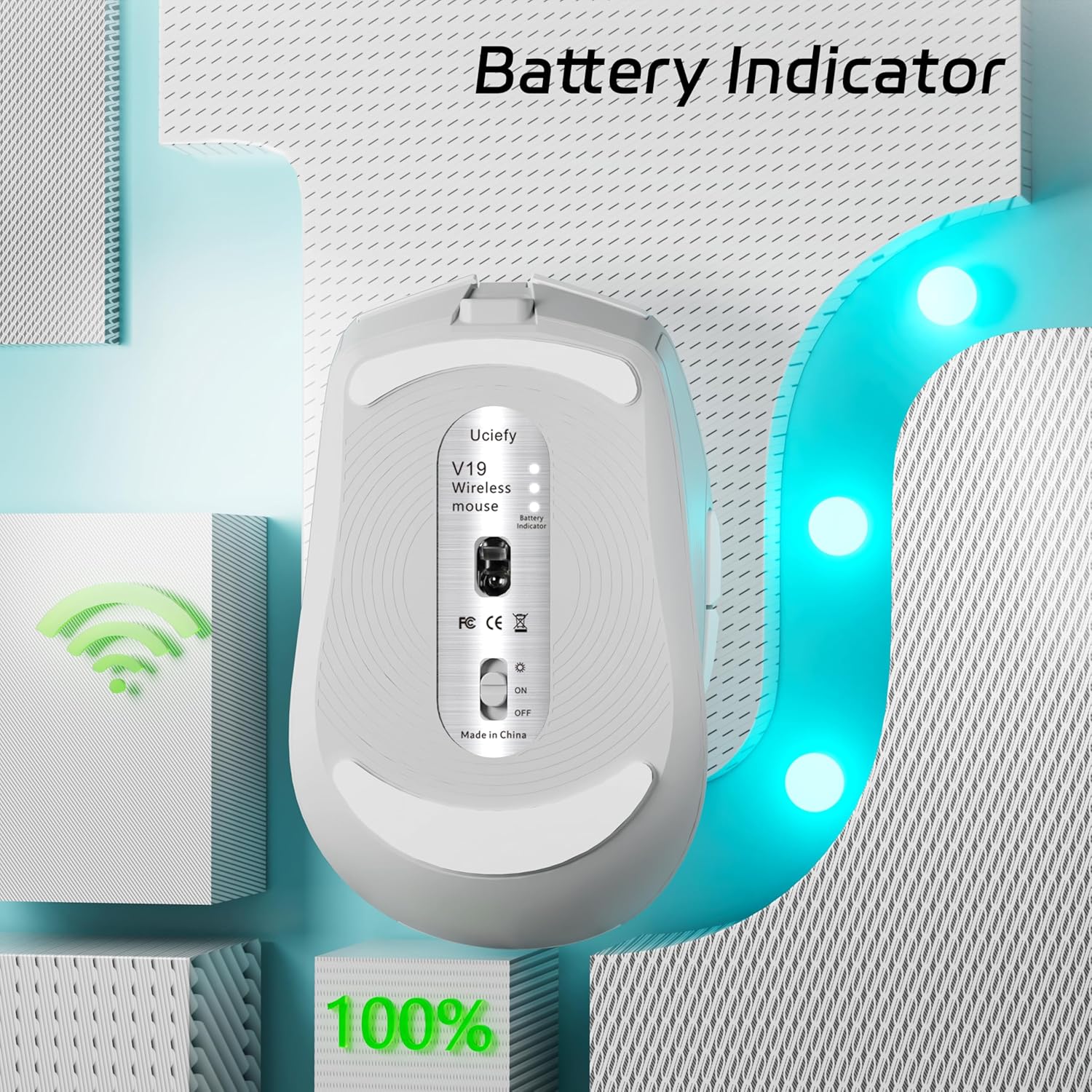
Image: Bottom view of the Uciefy V19 Wireless Mouse highlighting the battery indicator lights.
Convenient Storage Design
The mouse incorporates a detachable magnetic case that securely stores the USB receiver inside. This design facilitates easy retrieval and prevents loss of the receiver, making the mouse highly portable and convenient for travel.
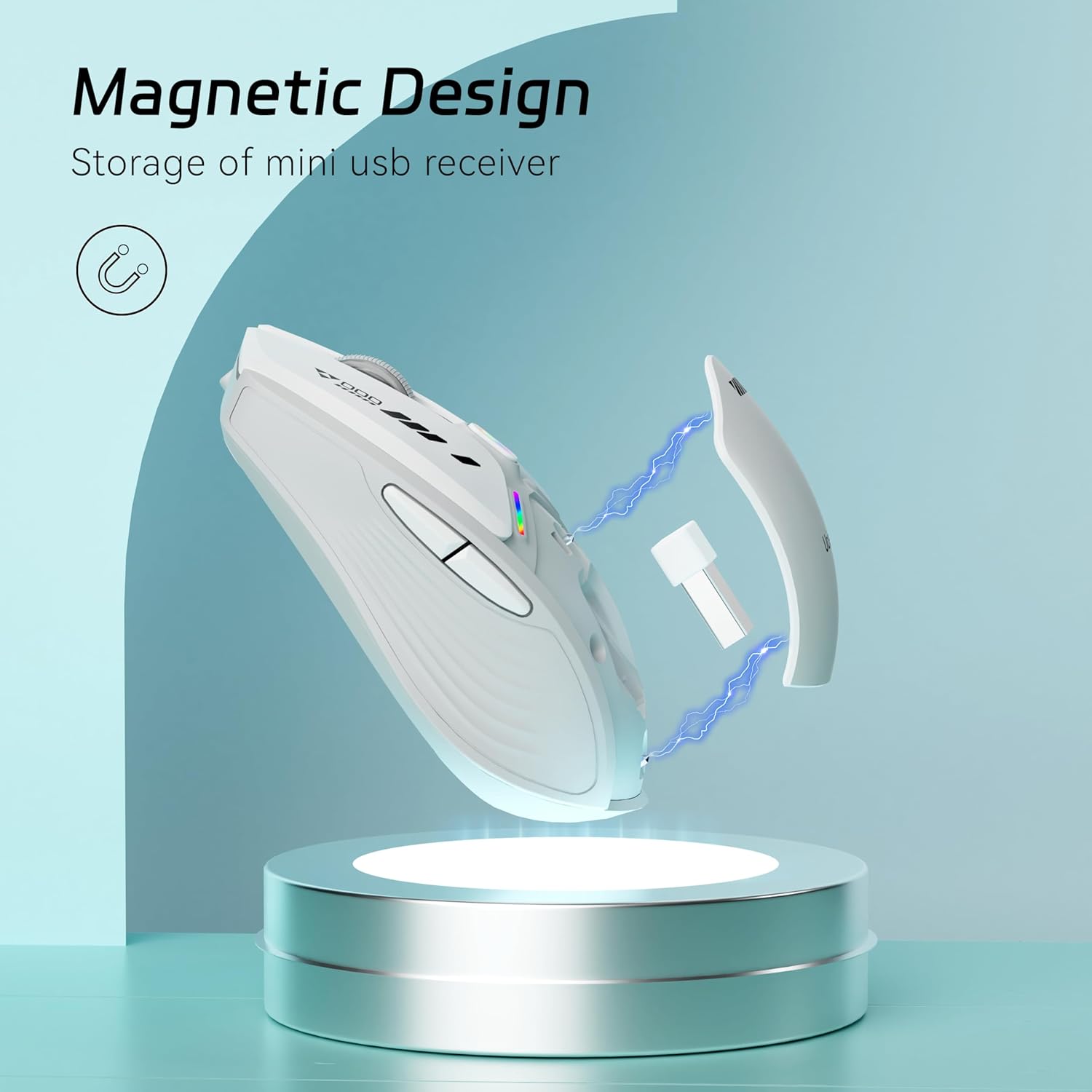
Image: The Uciefy V19 Wireless Mouse with its magnetic top cover removed, showing the internal storage for the USB receiver.
2.4GHz Wireless & Rechargeable
Utilizing 2.4GHz wireless transmission optical technology, the mouse provides a stable and precise connection. It features a built-in rechargeable battery, which can be charged using the included Type-C cable. A blue charging indicator at the front of the scroll wheel illuminates during charging.

Image: The Uciefy V19 Wireless Mouse being charged via its Type-C port, with the blue charging indicator illuminated.
3 Adjustable DPI Settings
The mouse offers three adjustable DPI settings (1000, 1200, and 1600) for customized cursor sensitivity. These settings ensure a powerful, reliable, and high-precision wireless connection, allowing for smoother navigation without obstruction.
Universal Compatibility
The Uciefy V19 Wireless Mouse is compatible with a wide range of operating systems, including Win XP, Win Vista, Win 11/10/8/7, Vista 8/7, Chromebook, Mac OS, and Linux. It connects to laptops, desktops, PCs, Macbooks, and other devices with USB or Type-C ports.
Setup Instructions
1. Connecting the USB Receiver
- Gently remove the magnetic top cover of the mouse to access the USB receiver.
- Take out the USB receiver from its storage slot.
- If your device has a standard USB-A port, plug the USB receiver directly into an available port.
- If your device only has Type-C ports (e.g., newer MacBooks), attach the included Type-C adapter to the USB receiver, then plug the assembly into a Type-C port on your device.

Image: The Uciefy V19 Wireless Mouse in use, connected to a laptop via its USB receiver.
Video: Demonstrates the easy setup process of the Uciefy V19 Wireless Mouse.
2. Powering On the Mouse
Locate the ON/OFF switch on the bottom of the mouse. Slide the switch to the 'ON' position. The mouse should automatically connect to your device. If it does not connect immediately, ensure the receiver is properly inserted and try restarting your device.
Operating Instructions
DPI Adjustment
To adjust the mouse sensitivity (DPI), press the button located behind the scroll wheel. Each press will cycle through the three available DPI settings: 1000, 1200, and 1600. Select the setting that best suits your preference for precision and speed.
Side Buttons
The mouse is equipped with forward and back side buttons for enhanced navigation, particularly useful when browsing web pages or navigating folders.
LED Lighting
The Uciefy V19 features colorful breathing LED lights. These lights enhance the aesthetic appeal of the mouse. The lighting can typically be controlled via a switch on the bottom of the mouse, allowing you to turn it on or off as desired.

Image: The Uciefy V19 Wireless Mouse displaying its vibrant, colorful breathing LED lights.
Charging
Charging the Mouse
When the battery indicator shows low power, connect the provided Type-C charging cable to the mouse's charging port (located at the front) and the other end to a USB power source (e.g., computer USB port, wall adapter). The blue charging indicator will light up, confirming that the mouse is charging.
Video: Demonstrates the USB-C port connection for charging the Uciefy V19 Wireless Mouse.
Battery Status
The battery indicator lights on the bottom of the mouse provide a visual representation of the remaining battery life. Monitor these lights to ensure your mouse is always ready for use.
Maintenance
Cleaning
To clean your Uciefy V19 Wireless Mouse, use a soft, dry cloth. For stubborn dirt, a slightly damp cloth can be used, ensuring no moisture enters the internal components. Avoid using harsh chemicals or abrasive materials.
Storage
When not in use, store the mouse in a cool, dry place. Utilize the magnetic storage compartment for the USB receiver to prevent loss, especially during travel.
Troubleshooting
Connectivity Issues
- Mouse not responding: Ensure the USB receiver is securely plugged into your device's USB or Type-C port. Check that the mouse is switched to the 'ON' position.
- Intermittent connection: Try plugging the USB receiver into a different port or a different device to rule out port issues. Ensure there are no significant obstructions between the mouse and the receiver.
Power Issues
- Mouse not turning on: Check the battery indicator. If low, charge the mouse using the provided Type-C cable.
- Charging indicator not lighting up: Ensure the charging cable is properly connected to both the mouse and the power source. Try a different charging cable or USB port.
Specifications
| Feature | Detail |
|---|---|
| Product Dimensions | 4.05 x 2.48 x 0.1 inches |
| Item Weight | 2.68 ounces |
| Item Model Number | Uciefy V19 |
| Batteries | 1 Product Specific battery required (included) |
| Connectivity Technology | USB (2.4GHz Wireless) |
| Special Features | LED Lights, Portable, Rechargeable, Side Buttons, Wireless |
| Movement Detection Technology | Optical |
Warranty & Support
For warranty information or technical support, please refer to the contact details provided on the product packaging or visit the official Uciefy website. Keep your purchase receipt as proof of purchase for any warranty claims.