
1. Introduction
This manual provides essential instructions for the setup, operation, and maintenance of your Jectse 13 Inch Portable Monitor. Please read this manual thoroughly before using the device to ensure proper functionality and to prevent damage.
The Jectse 13 Inch Portable Monitor is designed to enhance productivity and entertainment with its 1080P FHD display, versatile connectivity, and responsive touchscreen. It supports various display modes, including duplicate and extend, making it suitable for business, office work, and gaming.
2. Package Contents
Verify that all items listed below are present in your package. If any items are missing or damaged, please contact customer support.
- 1 x Jectse 13 Inch Portable Monitor
- 1 x HD Multimedia Interface Cable
- 1 x Type-C to Type-C Cable
- 2 x USB to Type-C Cable
- 2 x Instruction Manual (this document)

Image: The Jectse 13 Inch Portable Monitor displayed alongside its included accessories: an HD Multimedia Interface cable, a Type-C to Type-C cable, and two USB to Type-C cables.
3. Product Overview
Familiarize yourself with the physical components and connection ports of your portable monitor.

Image: Rear view of the Jectse 13 Inch Portable Monitor, highlighting the integrated stand and various connection ports. Labels indicate power input (5V, 2A), external power, and touch functionality.
Ports and Controls:
- Type-C Ports (x2): For power input, video signal, and touch data transmission. Supports PD reverse charging.
- HD Multimedia Interface Port: For video signal input from compatible devices.
- Power Button/OSD Menu Button: Used to power the monitor on/off and navigate the On-Screen Display menu.
- Volume/Brightness Control: Adjusts audio volume and screen brightness.
4. Setup
Follow these steps to connect and power on your Jectse portable monitor.
4.1 Power Connection
- Connect one end of a USB to Type-C cable to a power adapter (not included) or a powered USB port on your device.
- Connect the other end of the USB to Type-C cable to one of the Type-C ports on the monitor labeled for power input.
- Press the power button to turn on the monitor.
4.2 Video and Touch Connection
The connection method depends on your source device's available ports.
Option A: Full-Featured Type-C Connection (Single Cable Solution)
If your laptop or smartphone has a full-featured USB-C port that supports video output (DisplayPort Alternate Mode) and power delivery:
- Connect one end of the Type-C to Type-C cable to your device's USB-C port.
- Connect the other end of the Type-C to Type-C cable to one of the Type-C ports on the monitor. This single cable will provide power, video, and touch functionality.
Option B: HD Multimedia Interface + USB-C (for Touch) Connection
If your device has an HD Multimedia Interface port for video and a USB-A or USB-C port for touch data:
- Connect one end of the HD Multimedia Interface cable to your device's HD Multimedia Interface port.
- Connect the other end of the HD Multimedia Interface cable to the HD Multimedia Interface port on the monitor.
- For touch functionality, connect one end of a USB to Type-C cable to your device's USB-A or USB-C port.
- Connect the other end of the USB to Type-C cable to one of the Type-C ports on the monitor.
5. Operating Instructions
Learn how to utilize the various features of your portable monitor.
5.1 Display Modes
The monitor supports two primary display modes when connected to a computer:
- Duplicate Mode: The monitor displays the same content as your primary screen. Ideal for presentations or sharing content.
- Extend Mode: The monitor acts as a secondary display, extending your desktop workspace. This allows for multitasking and increased productivity.
To switch between modes, use your operating system's display settings (e.g., Windows Display Settings, macOS System Preferences).
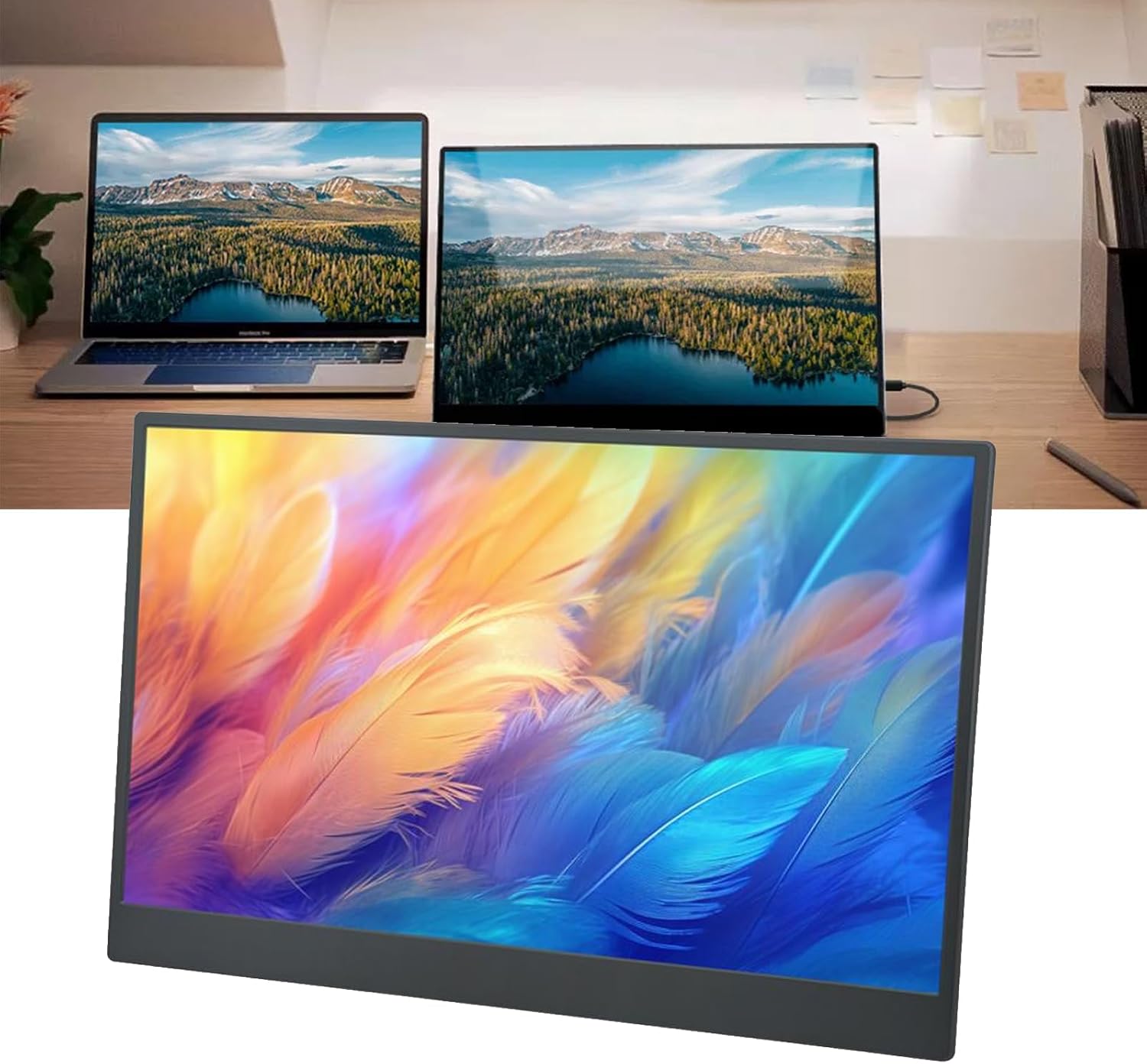
Image: The Jectse 13 Inch Portable Monitor positioned next to a laptop, functioning as an extended display to expand the user's workspace.
5.2 Touchscreen Functionality
The 10-point capacitive touchscreen allows for intuitive interaction with your device. Ensure the touch cable (USB to Type-C or full-featured Type-C) is properly connected for this feature to work.

Image: A hand touching the screen of the Jectse 13 Inch Portable Monitor, demonstrating its interactive touchscreen capability.
5.3 On-Screen Display (OSD) Menu
The OSD menu allows you to adjust various display settings. Typically, the power button or a dedicated menu button is used to access and navigate the OSD.
- Brightness/Contrast: Adjust the display's luminance and contrast levels.
- Volume: Control the audio output from the built-in stereo speakers.
- Color Settings: Modify color temperature, hue, and saturation.
- Input Source: Manually select the video input (Type-C or HD Multimedia Interface).
- HDR Mode: Enable or disable High Dynamic Range for enhanced visual quality.
6. Maintenance
Proper care and maintenance will prolong the life of your portable monitor.
6.1 Cleaning the Screen
- Turn off the monitor and disconnect all cables before cleaning.
- Use a soft, lint-free cloth lightly dampened with water or a non-abrasive screen cleaner.
- Do not spray liquid directly onto the screen.
- Avoid using harsh chemicals, alcohol, or ammonia-based cleaners, as these can damage the screen surface.
6.2 General Care
- Avoid placing heavy objects on the monitor.
- Keep the monitor away from direct sunlight, excessive heat, and moisture.
- Store the monitor in a protective sleeve or case when traveling to prevent scratches and impacts.
7. Troubleshooting
If you encounter issues with your monitor, refer to the following common problems and solutions.
| Problem | Possible Solution |
|---|---|
| No display/"No Signal" message |
|
| Touchscreen not responding |
|
| Monitor not powering on |
|
| Image flickering or distorted |
|
8. Specifications
Detailed technical specifications for the Jectse 13 Inch Portable Monitor.
| Feature | Specification |
|---|---|
| Brand | Jectse |
| Model Number | Jectse6tokq3id4y |
| Screen Size | 13 Inches |
| Resolution | 1920 x 1080 (FHD 1080p) |
| Refresh Rate | 60Hz (Note: JSON data states 1 MHz, but 60Hz is standard for 1080p displays and more plausible for a portable monitor) |
| Aspect Ratio | 16:9 |
| Display Type | LCD |
| Screen Surface Description | Glossy |
| Contrast Ratio | 1000:1 |
| Response Time | 1 Milliseconds |
| Connectivity Technology | USB-C, HDMI |
| Total Number of HDMI Ports | 1 |
| Total USB Ports | 2 (Type-C) |
| Voltage | 5 Volts |
| Picture Quality Enhancement | Adaptive Noise Reduction, HDR |
| Additional Features | Adjustable Stand, Built-in Speakers, 10-point Capacitive Touchscreen |
9. Warranty and Support
For warranty information and technical support, please refer to the documentation included with your purchase or contact Jectse customer service. Keep your proof of purchase for warranty claims.