
1. Introduction
Thank you for purchasing the HAMTYSAN 10.1'' HDMI Monitor. This monitor is designed to provide a clear and vibrant display for various applications, including computers, gaming consoles, and other HDMI-compatible devices. This manual provides essential information for the proper setup, operation, and maintenance of your new monitor. Please read it thoroughly before use and retain it for future reference.
2. Safety Information
To ensure safe operation and prolong the life of your monitor, please observe the following safety precautions:
- Do not expose the monitor to rain, moisture, or extreme temperatures.
- Avoid placing the monitor in direct sunlight or near heat sources.
- Ensure proper ventilation; do not block ventilation openings.
- Use only the power adapter supplied with the monitor.
- Do not attempt to open the monitor casing. Refer all servicing to qualified personnel.
- Clean the screen with a soft, lint-free cloth. Avoid abrasive cleaners.
- Keep the monitor away from strong magnetic fields.
3. Package Contents
Please check the package contents upon unboxing. If any items are missing or damaged, contact your retailer.
- HAMTYSAN 10.1'' HDMI Monitor
- Power Adapter
- HDMI Cable
- User Manual (this document)
- (Additional accessories may vary by model or region)
4. Product Overview
Familiarize yourself with the various parts and connections of your HAMTYSAN 10.1'' HDMI Monitor.
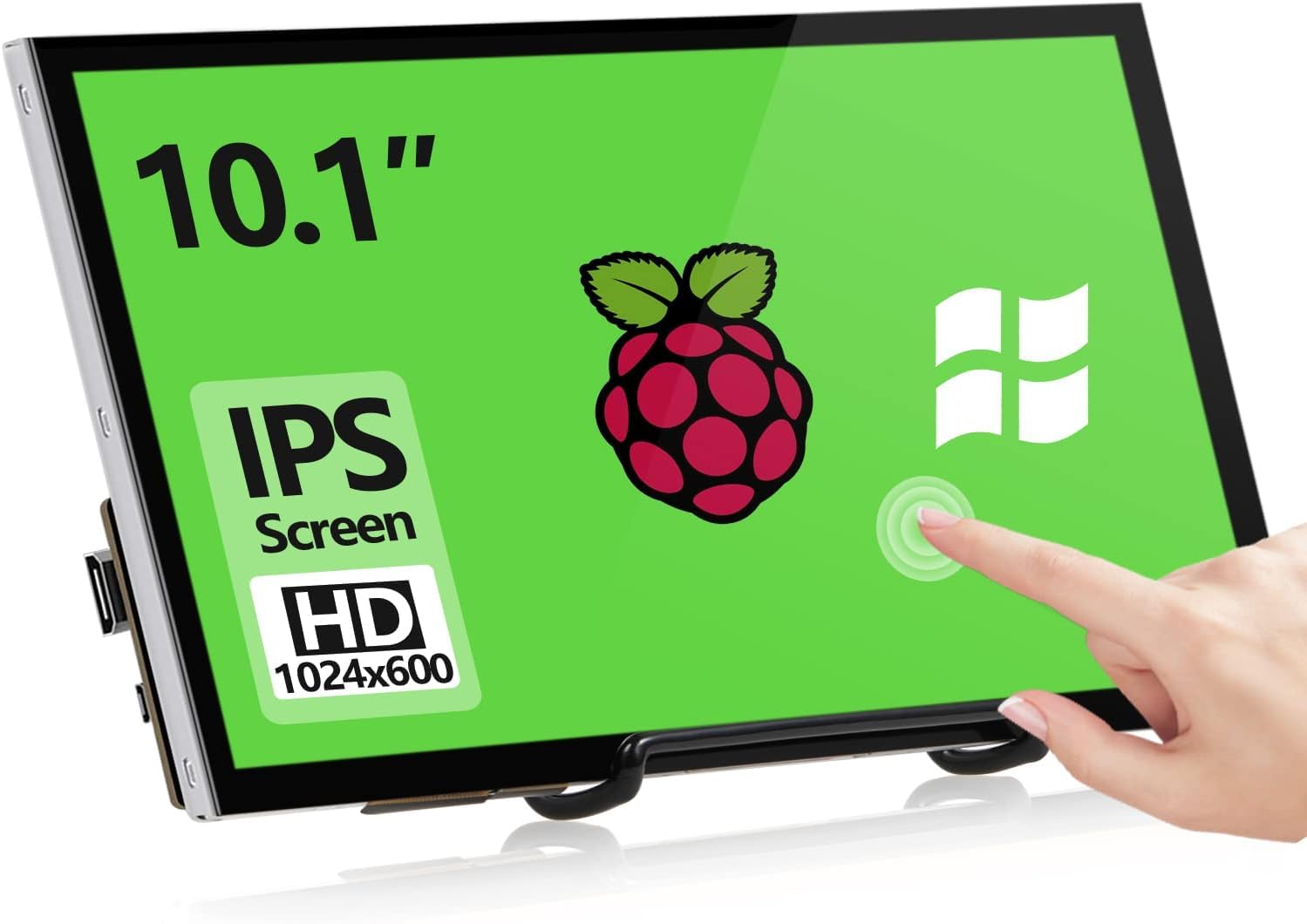
Figure 4.1: Front view of the HAMTYSAN 10.1'' HDMI Monitor, showing the display panel and integrated stand. This image illustrates the compact design suitable for various desktop or portable setups.
4.1 Front Panel
- Display Screen: 10.1-inch LCD panel.
- Control Buttons: (Typically located on the side or back) Power, Menu, Up, Down, Input Select.
4.2 Rear Panel / Side Connections
- HDMI Input: Connects to HDMI source devices.
- Power Input (DC IN): Connects to the provided power adapter.
- Audio Output (3.5mm Jack): For connecting external speakers or headphones.
- USB Port: (If present) For power or data, depending on model. Refer to specific model features.
5. Setup Instructions
5.1 Connecting the Monitor
- Placement: Place the monitor on a stable, flat surface. Ensure adequate space for ventilation.
- Connect HDMI Cable: Connect one end of the HDMI cable to the HDMI input port on the monitor and the other end to the HDMI output port of your source device (e.g., computer, game console).
- Connect Power Adapter: Plug the DC output of the power adapter into the DC IN port on the monitor. Then, plug the AC input of the power adapter into a wall outlet.
5.2 Powering On/Off
- Power On: Press the Power button on the monitor. The power indicator light will illuminate.
- Power Off: Press the Power button again to turn off the monitor. For complete power disconnection, unplug the power adapter from the wall outlet.
6. Operating Instructions
6.1 Basic Functions
- Input Selection: Use the "Input" or "Source" button to cycle through available input sources (e.g., HDMI 1, HDMI 2).
- Menu Navigation: Press the "Menu" button to open the On-Screen Display (OSD) menu. Use the "Up" and "Down" buttons to navigate through options and "Menu" or "Enter" to select.
- Adjusting Brightness/Contrast: Within the OSD menu, navigate to "Picture Settings" to adjust brightness, contrast, color temperature, and other display parameters.
- Volume Control: If the monitor has built-in speakers or an audio output, volume controls may be available in the OSD menu or via dedicated buttons.
7. Maintenance
7.1 Cleaning the Monitor
- Always power off the monitor and unplug the power adapter before cleaning.
- Use a soft, lint-free cloth slightly dampened with water to clean the screen. Do not spray liquid directly onto the screen.
- For stubborn marks, a mild, non-abrasive screen cleaner designed for LCD displays can be used sparingly.
- Wipe the exterior casing with a soft, dry cloth.
7.2 Storage
When storing the monitor for an extended period, ensure it is powered off, unplugged, and stored in a cool, dry place away from direct sunlight and extreme temperatures. It is recommended to use the original packaging for protection.
8. Troubleshooting
If you encounter issues with your monitor, refer to the following common problems and solutions:
| Problem | Possible Cause | Solution |
|---|---|---|
| No power | Power cable not connected; Power adapter faulty; Power outlet not working. | Ensure power cable is securely connected. Test power adapter with another device if possible. Try a different power outlet. |
| No signal / Black screen | HDMI cable not connected properly; Incorrect input source selected; Source device not outputting signal. | Check HDMI cable connections at both ends. Use the "Input" button to select the correct source. Ensure your source device is powered on and configured to output video. |
| Flickering or distorted image | Faulty cable; Interference; Incorrect resolution/refresh rate. | Try a different HDMI cable. Move monitor away from other electronic devices. Adjust resolution/refresh rate on your source device to match monitor specifications. |
| Buttons not responding | Monitor frozen; Buttons physically stuck. | Unplug the monitor from power for 30 seconds, then plug back in. Check for any physical obstructions on buttons. |
If the problem persists after trying these solutions, please contact customer support.
9. Specifications
The following are the technical specifications for the HAMTYSAN 10.1'' HDMI Monitor (Model: HCIK101V.CN):
| Feature | Detail |
|---|---|
| Model Number | HCIK101V.CN |
| Screen Size | 10.1 Inches |
| Resolution | 1920 x 1080 (Native, though product title mentions 1024*600. User should verify actual resolution.) |
| Aspect Ratio | 16:9 |
| Screen Surface | Glossy |
| Product Dimensions | 11.14 x 7 x 2.23 inches |
| Item Weight | 1.5 pounds |
| Manufacturer | HAMTYSAN |
| Date First Available | May 30, 2024 |
Note: Specifications are subject to change without notice. Please refer to the product packaging or manufacturer's website for the most up-to-date information. There is a discrepancy between the product title (1024*600) and the detailed specifications (1920x1080) regarding resolution. Users should confirm the actual resolution of their specific unit.
10. Warranty and Support
10.1 Warranty Information
This HAMTYSAN monitor comes with a standard manufacturer's warranty. Please refer to the warranty card included in your product packaging or visit the official HAMTYSAN website for detailed warranty terms and conditions. Keep your purchase receipt as proof of purchase for warranty claims.
10.2 Customer Support
For technical assistance, troubleshooting beyond this manual, or warranty inquiries, please contact HAMTYSAN customer support. Contact information can typically be found on the manufacturer's website or on the product packaging.
Online Support: Visit the HAMTYSAN Store on Amazon