
j Junsun JS-US-XT892CSpark315-HS19
j Junsun Android 13 Car Radio Stereo Instruction Manual
For Chevy Spark 2013-2015 (Model: JS-US-XT892CSpark315-HS19)
1. Introduction
This manual provides detailed instructions for the installation, operation, and maintenance of your j Junsun Android 13 Car Radio Stereo. This unit is specifically designed for Chevy Spark models from 2013, 2014, and 2015. Please read this manual thoroughly before installation and use to ensure proper function and safety.
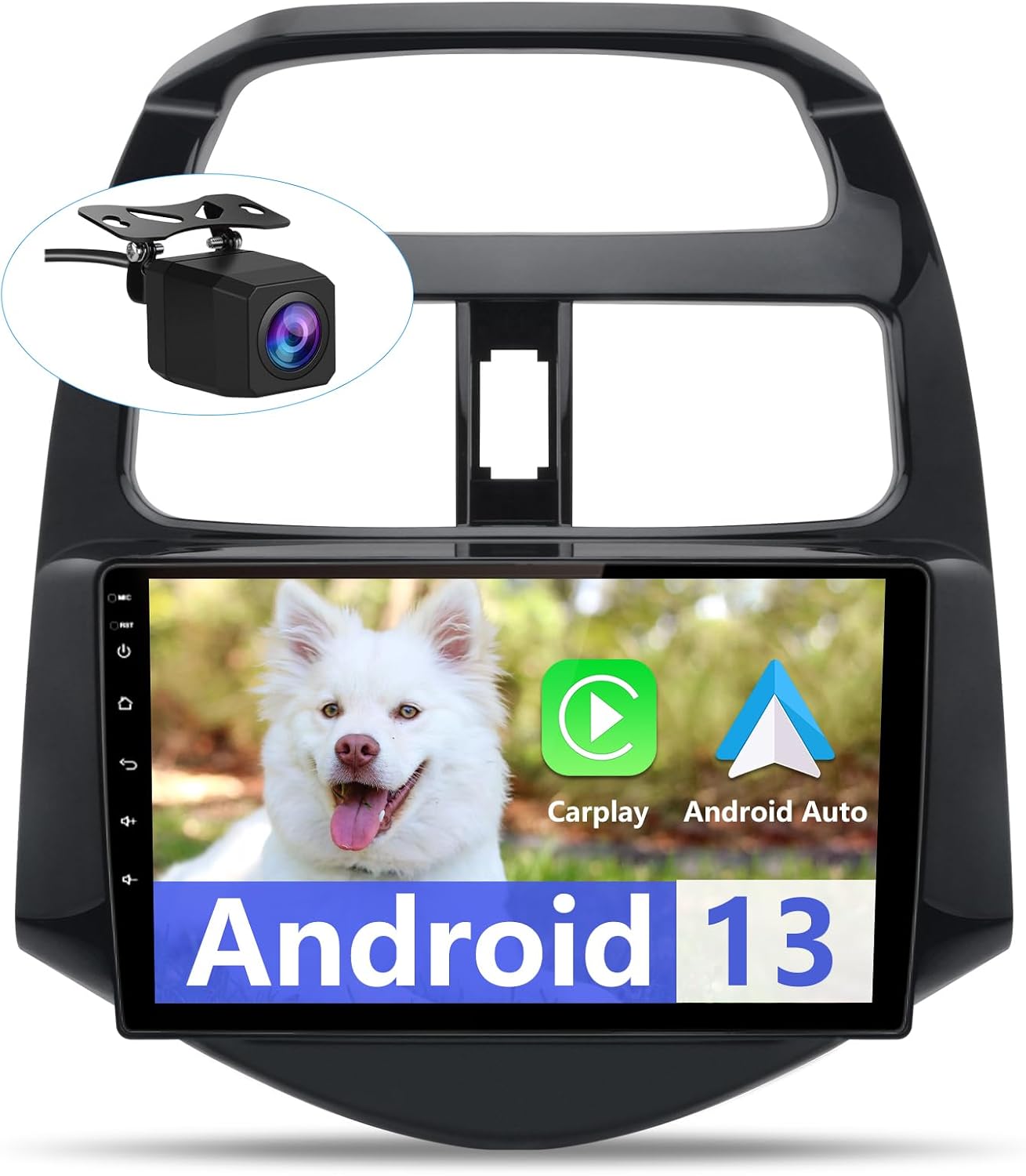
Image 1.1: The j Junsun Android 13 Car Radio Stereo unit with included backup camera.
2. Package Contents
Before beginning installation, verify that all components are present in the package:
- Head Unit (9-inch Android 13 Touch Screen)
- Power Cable (Plug and Play harness)
- Antenna
- CANBUS Decoder
- Screwdriver & Crowbar (for installation)
- Gift Camera (Backup Camera)
- RCA Cable
- Antenna Adapter Cable
- Microphone
- GPS Antenna
- Speaker
- Reversing Line
- USB Cables (x2)

Image 2.1: All components included in the j Junsun Car Radio Stereo package.
3. Setup and Installation
The unit is designed for plug-and-play installation. However, professional installation is recommended if you are unfamiliar with car audio systems.
3.1. Pre-Installation Check
Ensure the vehicle's ignition is off and the battery is disconnected before starting installation.
3.2. Removing the Original Unit
Carefully remove the existing car stereo unit and dashboard trim. Use the provided crowbar tool to prevent damage to interior surfaces.

Image 3.1: Visual comparison of the dashboard before and after installing the new stereo unit.
3.3. Wiring Diagram
Connect the provided wiring harness to the new head unit and the vehicle's existing wiring. Ensure all connections are secure.

Image 3.2: Comprehensive wiring diagram illustrating connections for power, speakers, and accessories.
3.4. Backup Camera Installation
The unit supports both OEM and aftermarket backup cameras. Follow the appropriate connection method below:
Method 1: OEM Backup Camera (if applicable)
If your original radio has a compatible 10-pin jack on the back, use this method.

Image 3.3: Connection method for existing OEM backup cameras.
Method 2: Aftermarket Backup Camera (Included)
Connect the included backup camera as shown. The red cable connects to the backup light's positive (+) terminal, and the black cable connects to ground (GND).

Image 3.4: Connection method for the included aftermarket backup camera.
3.5. Steering Wheel Control (SWC)
The unit supports existing steering wheel controls via the CANBUS decoder. After installation, you may need to configure the buttons in the unit's settings menu.

Image 3.5: Steering wheel control integration for convenient operation.
4. Operating Instructions
4.1. Power On/Off
Press the power button on the unit or use the vehicle's ignition to turn the unit on or off.
4.2. Wireless CarPlay & Android Auto
Connect your iPhone wirelessly via Bluetooth for CarPlay. For Android phones, use the original data cable for wired Android Auto. This feature allows access to navigation, music, calls, and messages through the unit's interface.

Image 4.1: Wireless CarPlay and Android Auto functionality.
4.3. GPS Navigation
The unit features a built-in GPS module supporting both online and offline navigation applications from the Google Play Store. Ensure the GPS antenna is properly installed for optimal signal reception.

Image 4.2: On-line and off-line GPS navigation capabilities.
4.4. Bluetooth Connectivity
Pair your mobile device via Bluetooth for hands-free calling and audio streaming. The built-in microphone facilitates clear call quality.

Image 4.3: Bluetooth calling and music playback features.
4.5. FM/AM Radio
Access FM and AM radio stations. The unit supports RDS (Radio Data System) for enhanced information display where available.

Image 4.4: FM Radio Functionality.
4.6. Digital Signal Processing (DSP)
Utilize the built-in DSP for advanced audio customization, including equalizer settings and soundstage adjustments, to optimize your in-car audio experience.
Image 4.5: DSP Function for audio customization.
4.7. Split Screen Functionality
The split-screen feature allows you to run two applications simultaneously, such as navigation and music playback, enhancing multitasking while driving.

Image 4.6: Split screen mode displaying navigation and phone functions simultaneously.
4.8. DIY Boot Logo
You can customize the boot logo of your unit. Prepare a USB drive with a .png image (same resolution as the display) named "zxdzlogo.png" in the root directory. Connect the USB drive, then navigate to Settings >> System >> About Car Vehicle >> Local Upgrade >> Start Upgrade.

Image 4.7: Customizing the unit's boot logo.
5. Maintenance
To ensure the longevity and optimal performance of your car radio stereo, follow these general maintenance guidelines:
- Screen Cleaning: Use a soft, lint-free cloth to gently wipe the touchscreen. Avoid abrasive cleaners or solvents that may damage the screen.
- Software Updates: Periodically check for software updates to ensure you have the latest features and bug fixes. Updates can usually be found on the manufacturer's website or through the unit's system settings.
- Environmental Conditions: Avoid exposing the unit to extreme temperatures, direct sunlight for prolonged periods, or excessive moisture.
- Connection Checks: Occasionally check all wiring connections to ensure they are secure and free from corrosion.
6. Troubleshooting
This section addresses common issues you might encounter. For more complex problems, please contact customer support.
| Problem | Possible Cause | Solution |
|---|---|---|
| Unit does not power on. | Loose power connection, blown fuse, vehicle battery issue. | Check power cable connections. Inspect vehicle fuses. Ensure vehicle battery is charged. |
| No sound from speakers. | Speaker wires disconnected, volume too low, mute activated, incorrect audio settings. | Verify speaker wire connections. Increase volume. Check mute status. Adjust audio settings (e.g., balance, fader). |
| GPS signal is weak or inaccurate. | GPS antenna improperly installed or obstructed. | Ensure GPS antenna is mounted in a clear location with an unobstructed view of the sky. Check antenna connection. |
| Bluetooth connection issues. | Device not discoverable, incorrect pairing process, interference. | Ensure Bluetooth is enabled on both devices. Delete previous pairings and re-pair. Move closer to the unit. |
| Android Auto not connecting. | Phone software version incompatibility, faulty USB cable. | Ensure your phone's Android version is compatible. Use the original data cable. Check for phone software updates. |
| Steering Wheel Controls not working. | CANBUS connection issue, controls not configured. | Verify CANBUS decoder connection. Access the unit's settings to configure steering wheel buttons. |
6.1. Customer FAQs
Common questions and answers:
- Q: What are the CANBUS car type options?
A: Go to Car Settings >> Factory >> Code 000000 >> SimpleSoft - BUICK/GMC-GM_XP01 - Q: What is the Factory setting code?
A: Factory setting Pin: 000000

Image 6.1: Frequently Asked Questions regarding CANBUS and factory settings.
7. Specifications
| Feature | Detail |
|---|---|
| Model Number | JS-US-XT892CSpark315-HS19 |
| Operating System | Android 13 |
| Display Size | 9 Inches |
| Connectivity | Bluetooth, USB, Wi-Fi |
| Special Features | Wireless CarPlay, Wired & Wireless Android Auto, GPS Navigation, DSP, Touchscreen, Steering Wheel Control Support |
| Audio Output Mode | Stereo |
| Mounting Type | Dashboard Mount |
| Item Weight | 4.6 pounds |
| Package Dimensions | 15.71 x 12.05 x 4.96 inches |
8. Warranty Information
The j Junsun Car Radio Stereo comes with a 1-year warranty from the date of purchase. This warranty covers manufacturing defects and malfunctions under normal use. Please retain your proof of purchase for warranty claims.
For detailed warranty terms and conditions, please refer to the warranty card included in your package or contact customer support.
9. Customer Support
For technical assistance, troubleshooting, or warranty inquiries, please contact j Junsun customer support. You can typically find contact information on the manufacturer's website or through the seller's page where you purchased the product.
When contacting support, please provide your product model number (JS-US-XT892CSpark315-HS19) and a detailed description of the issue.

Image 9.1: Guide on how to contact technical support through the seller's platform.
Ask a question about this manual
Ask about setup, troubleshooting, compatibility, parts, safety, or missing instructions. Manuals+ will review the question and use this page’s manual context to help answer it.