
1. Introduction
This manual provides essential information for the setup, operation, and maintenance of your TITAN ARMY P2510S 24.5-inch 240Hz 1440p Gaming Monitor. This monitor features a Fast IPS panel with a 1ms GTG response time, a 240Hz refresh rate, QHD (2560x1440p) resolution, Adaptive Sync technology, HDR10 support, and Low Blue Light functionality for an optimized viewing experience. Please read this manual thoroughly before using the product.
2. Safety Information
- Ensure the monitor is placed on a stable, level surface to prevent accidental falls.
- Use only the power cable and adapter provided with the monitor. Using incompatible power sources may cause damage or fire.
- Do not expose the monitor to rain, moisture, or extreme temperatures.
- Avoid blocking ventilation openings on the monitor to prevent overheating.
- Do not attempt to disassemble or repair the monitor yourself. Refer all servicing to qualified personnel.
- Unplug the monitor from the power outlet before cleaning.
3. Package Contents
Verify that all items are present in the package:
- 1 x TITAN ARMY P2510S Gaming Monitor
- 1 x Base + Bracket
- 1 x Power Cord
- 1 x DisplayPort (DP) Cable
- 1 x User Manual (this document)
4. Setup
4.1. Monitor Assembly
To assemble the monitor stand:
- Carefully remove the monitor and stand components from the packaging.
- Attach the bracket to the monitor panel. Ensure it clicks securely into place.
- Attach the base to the bracket, securing it with the provided screw if applicable.
- Place the assembled monitor on a stable desk.
VESA Mounting: The monitor supports VESA 100x100mm mounting. If using a VESA-compatible arm or wall mount, remove the stand and attach the VESA mount using appropriate screws (not included).

Figure 4.1: Monitor Dimensions and VESA Mount
4.2. Connecting Cables
Connect the monitor to your computer or other devices:
- Power Connection: Connect the provided power cord to the monitor's power input and then to a power outlet.
- DisplayPort (DP) Connection: For optimal performance (2560x1440 at 240Hz), connect one end of the provided DP cable to the monitor's DP input and the other end to your computer's graphics card DP output.
- HDMI Connection: Alternatively, or for additional devices, connect an HDMI cable (not included) to one of the monitor's HDMI 2.0 inputs and the other end to your device's HDMI output. Note that HDMI 2.0 may support lower refresh rates at 1440p compared to DP 1.4.
- Audio Output: If desired, connect external speakers or headphones to the monitor's 3.5mm audio output jack.
Important: Always use the power cable, adapter, and DP cable provided by TITAN ARMY. Do not use other incompatible power cables or adapters.
5. Operating Instructions
5.1. Power On/Off
Press the power button (usually located on the back or bottom of the monitor) to turn the monitor on or off. The power indicator light will illuminate when the monitor is on.
5.2. On-Screen Display (OSD) Menu Navigation
The monitor's settings are adjusted via the OSD menu, typically controlled by a joystick or buttons on the back or bottom of the monitor. Press the OSD button/joystick to activate the menu, then use the controls to navigate through options and confirm selections.
5.3. Display Settings
- Resolution: Ensure your computer's display settings are configured to 2560 x 1440 (QHD) for the sharpest image.
- Refresh Rate: Set your computer's display refresh rate to 240Hz for the smoothest motion.
- Adaptive Sync: Enable Adaptive Sync in the OSD menu and your graphics card control panel to eliminate screen tearing and stuttering during gameplay.
- HDR (High Dynamic Range): The monitor supports HDR10. Enable HDR in your operating system settings for compatible content. The OSD may offer pre-set HDR modes (e.g., HDR Auto, HDR Gaming, HDR Movie).
- Color Settings: Adjust brightness, contrast, color temperature, hue, and saturation via the OSD menu to suit your preference. The monitor offers 126% sRGB and 95% DCI-P3 color gamut coverage.
- Low Blue Light & Flicker-Free: Activate the Low Blue Light mode in the OSD to reduce eye strain. The monitor utilizes DC dimming for flicker-free operation.
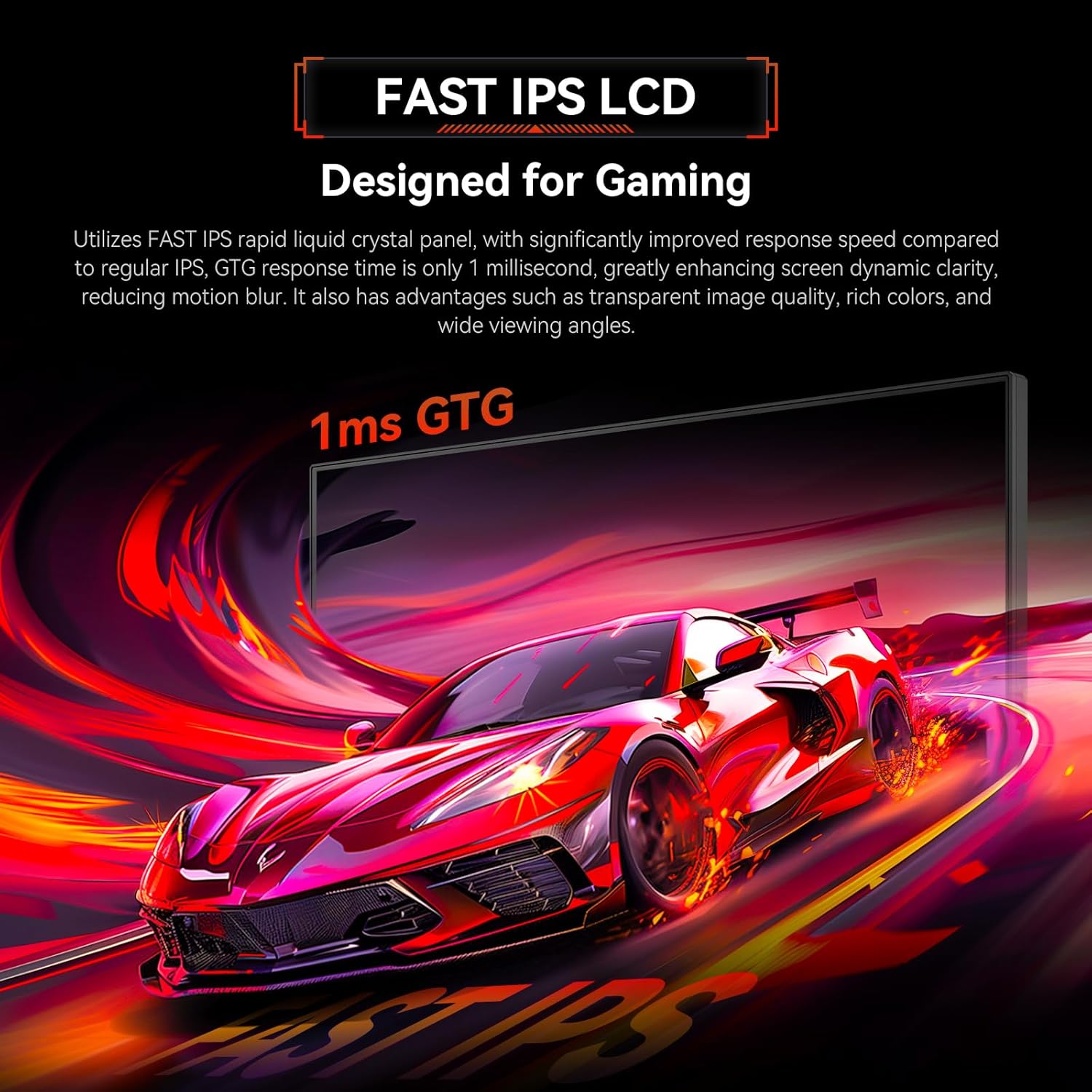
Figure 5.1: Fast IPS Panel with 1ms GTG Response Time

Figure 5.2: 240Hz High Refresh Rate for Smooth Visuals
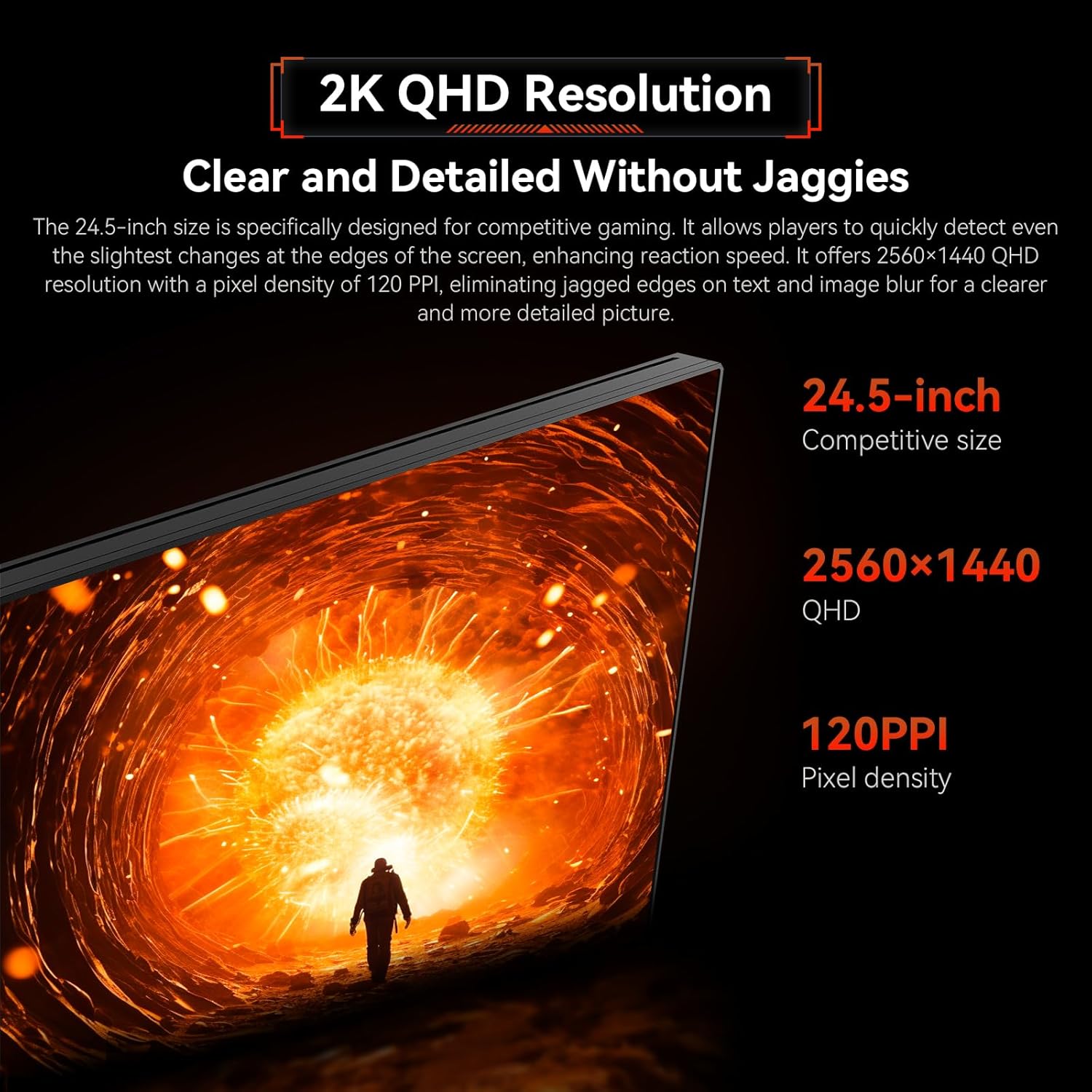
Figure 5.3: 2K QHD Resolution for Clear and Detailed Images

Figure 5.4: HDR500 High Dynamic Range

Figure 5.5: Hardware Low Blue Light and Flicker-Free Technology
5.4. Input Selection
Use the OSD menu or a dedicated input selection button (if available) to switch between the DisplayPort and HDMI inputs.
6. Maintenance
6.1. Cleaning the Monitor
To clean the monitor screen and casing:
- Turn off the monitor and unplug it from the power outlet.
- Gently wipe the screen with a soft, lint-free cloth. For stubborn marks, lightly dampen the cloth with water or a specialized screen cleaner (do not spray directly onto the screen).
- Wipe the casing with a soft, dry cloth. Avoid using abrasive cleaners or solvents.
6.2. Storage
If storing the monitor for an extended period, ensure it is clean, dry, and stored in a cool, well-ventilated area. Use the original packaging for best protection.
7. Troubleshooting
If you encounter issues with your monitor, refer to the following common problems and solutions:
| Problem | Possible Cause | Solution |
|---|---|---|
| No display / Power light off | Power cable disconnected; Monitor off | Check power cable connection; Press power button to turn on. |
| No signal / Blank screen | Video cable disconnected; Incorrect input selected; Computer not outputting signal | Ensure DP/HDMI cable is securely connected; Select correct input via OSD; Check computer's display output. |
| Screen flickering / Tearing | Adaptive Sync not enabled; Incorrect refresh rate | Enable Adaptive Sync in OSD and graphics card settings; Set refresh rate to 240Hz in OS display settings. |
| Colors appear incorrect / Too warm | Incorrect color profile; OSD color settings need adjustment | Adjust color temperature, hue, and saturation in the OSD menu. Some color profiles may reset after power cycle. |
| OSD menu difficult to navigate | Unfamiliarity with controls | Familiarize yourself with the joystick/button controls. Practice navigating the menu. |
| Monitor wobbles on desk | Stand not fully secured; Desk unstable | Ensure stand components are tightly assembled; Place monitor on a sturdy, stable desk. Consider VESA mounting for increased stability. |
8. Specifications
The following table lists the technical specifications for the TITAN ARMY P2510S monitor:
| Feature | Specification |
|---|---|
| Model Number | P2510S |
| Screen Size | 24.5 Inches |
| Panel Type | Fast IPS |
| Resolution | 2560 x 1440 Pixels (QHD Wide 1440p) |
| Refresh Rate | 240Hz |
| Response Time | 1ms GTG |
| Aspect Ratio | 16:9 |
| Image Brightness | 300 cd/m2 |
| HDR Support | HDR10 |
| Color Gamut | 126% sRGB, 95% DCI-P3 |
| Connectivity | 2 x HDMI 2.0, 2 x DisplayPort 1.4, 1 x Audio Out |
| VESA Compatibility | 100x100mm |
| Product Dimensions (L x W x H) | 21.95 x 8.6 x 16.64 inches (557.7 x 218.7 x 422.7 mm) |
| Item Weight | 8.88 pounds |
| Screen Surface Description | Matte |
9. Warranty and Support
TITAN ARMY provides a 3-year product quality service for this monitor. For any product or order-related issues, please contact TITAN ARMY customer support. They are available 7 days a week, 24 hours a day, to assist you.
For support, please refer to the contact information provided on the official TITAN ARMY website or your purchase documentation.


