
1. Introduction
This manual provides essential information for setting up, operating, maintaining, and troubleshooting your Acer Swift Go 14" Touch Slim Laptop. Please read this guide thoroughly to ensure proper use and to maximize the performance and longevity of your device.

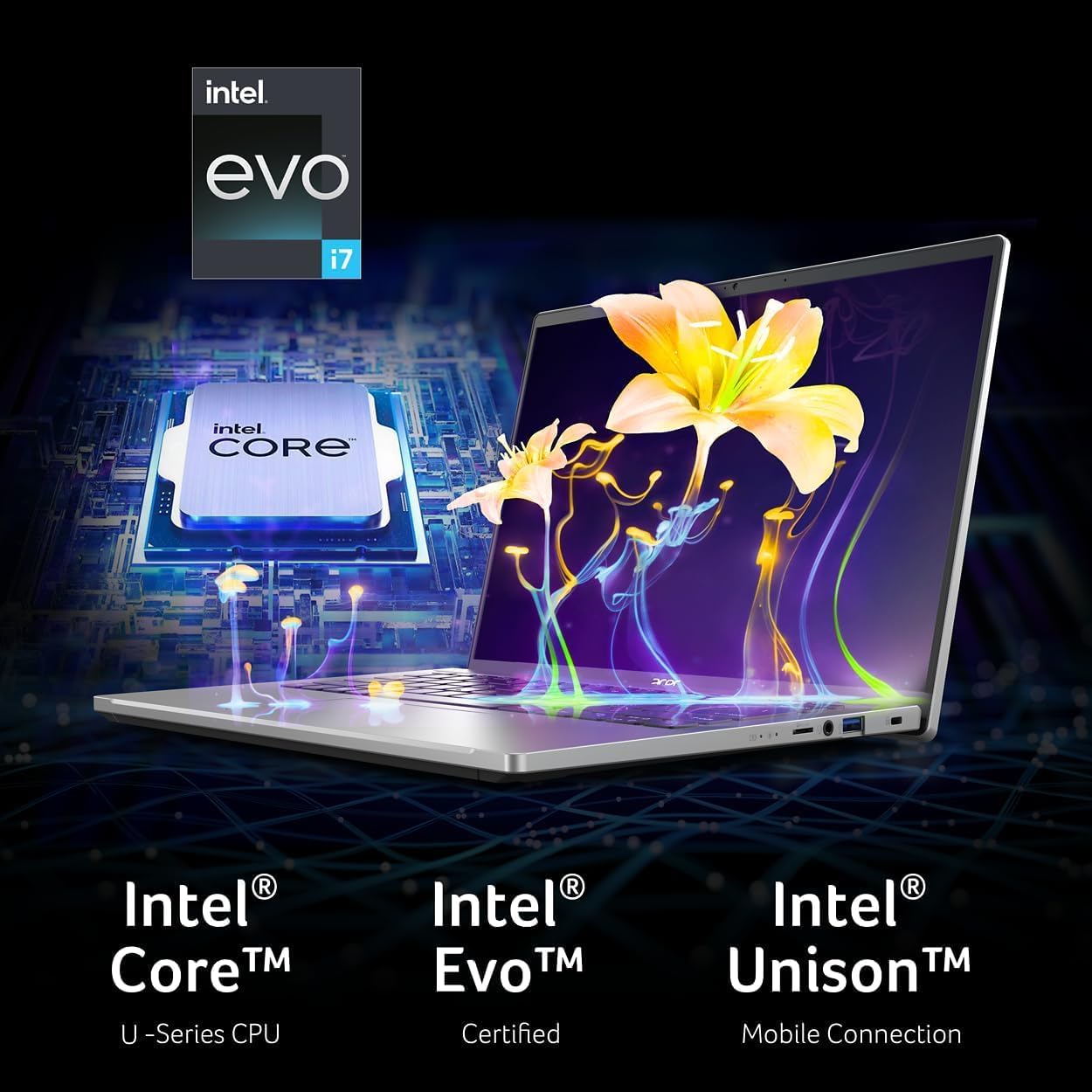
The Acer Swift Go 14 is a portable laptop designed for productivity and entertainment, featuring a 14-inch touchscreen display, Intel EVO Core i7 processor, Intel Iris Xe Graphics, and Windows 11 Home operating system.
2. Setup
2.1 Unpacking and Initial Inspection
Carefully remove the laptop and all accessories from the packaging. Verify that all components are present and undamaged. The package should include the laptop, power adapter, and this instruction manual.
2.2 Connecting the Power Adapter
Before first use, connect the power adapter to the laptop's USB-C port (Thunderbolt 4 compatible) and then to a power outlet. Allow the battery to charge fully before initial use, though you can begin using the laptop while it charges.
2.3 First Power On and Windows Setup
Open the laptop lid. The laptop may power on automatically, or you may need to press the power button located on the keyboard. Follow the on-screen instructions to complete the Windows 11 Home setup process. This includes selecting your region, connecting to a Wi-Fi network, and creating a user account.
2.4 Fingerprint Reader Setup
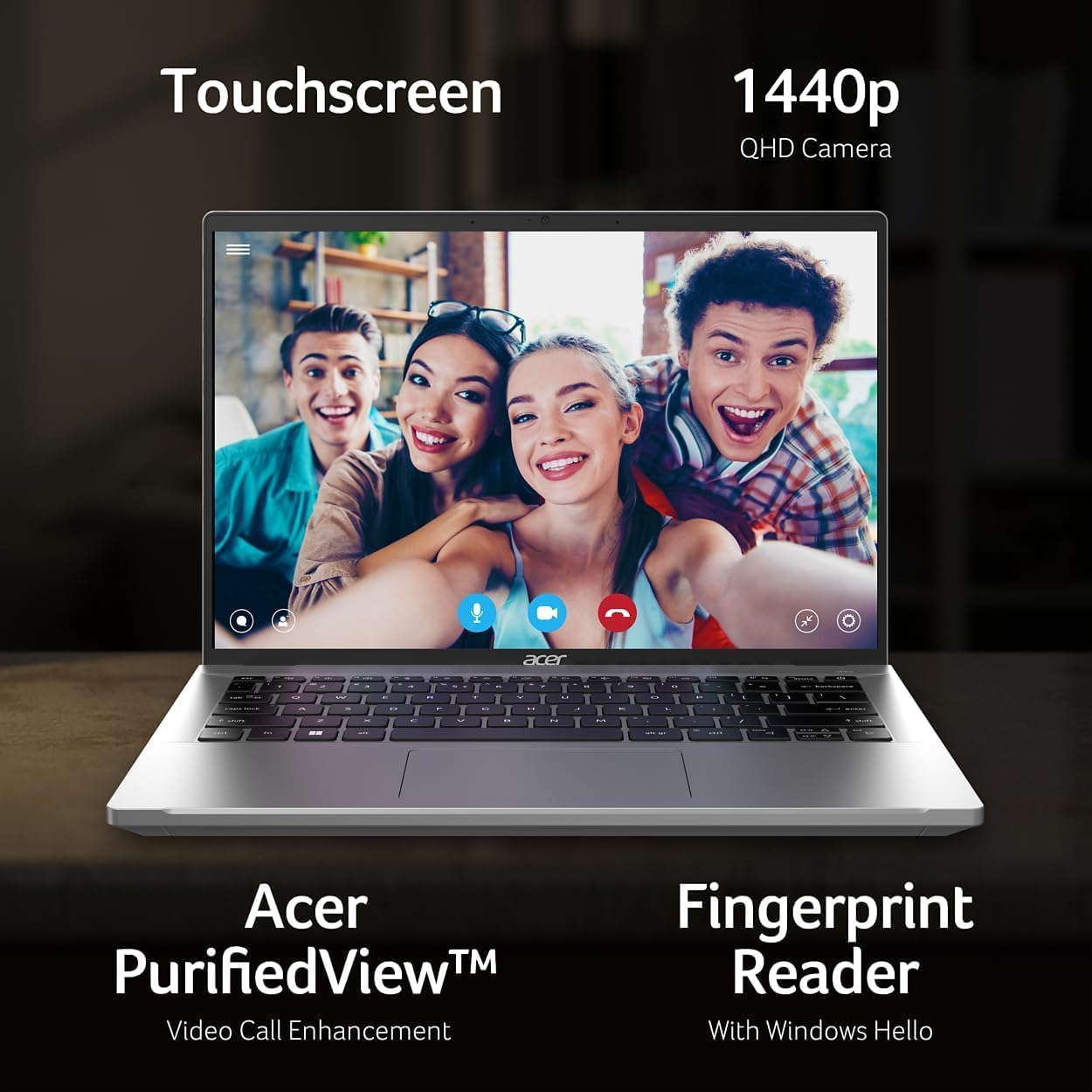
During or after the initial Windows setup, you can configure the fingerprint reader for secure login using Windows Hello. Navigate to Settings > Accounts > Sign-in options to set up your fingerprint.
2.5 Wi-Fi 6E Connection
To connect to a wireless network, click the Wi-Fi icon in the taskbar, select your desired network, and enter the password if prompted. The laptop supports Wi-Fi 6E for faster and more reliable wireless connectivity.
3. Operating Your Laptop
3.1 Using the Touchscreen
The 14-inch WUXGA (1920 x 1200) touchscreen allows for intuitive interaction with Windows 11. Use gestures such as tap, swipe, pinch-to-zoom, and scroll directly on the display.

3.2 Keyboard and Touchpad
The laptop features a backlit keyboard for comfortable typing in various lighting conditions. The OceanGlass Touchpad provides precise cursor control and supports multi-touch gestures. Refer to Windows settings for customizing touchpad gestures.
3.3 Connecting External Devices
Your laptop is equipped with various ports for connecting peripherals:
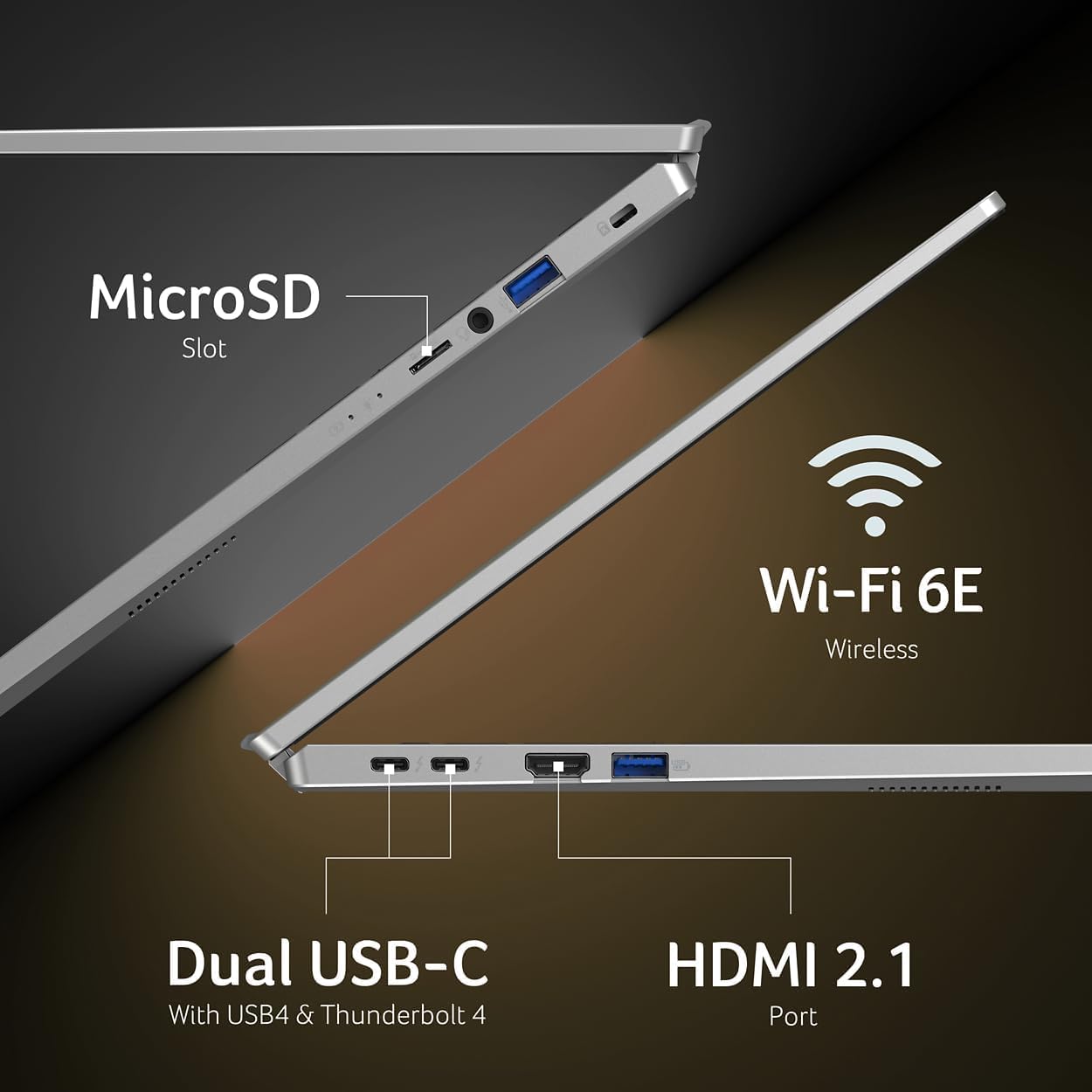
- USB Type-C (Thunderbolt 4): Two ports supporting USB4 (up to 40 Gbps), Thunderbolt 4, USB Charging, and Power Delivery (Up to 100W). Use these for high-speed data transfer, external displays, and charging.
- USB 3.2 Gen 1: Two ports, one with power-off charging capability.
- HDMI 2.1: For connecting to external monitors or TVs.
- Headphone/Microphone-in Jack: For audio input/output.
- MicroSD Slot: For expanding storage or transferring files from memory cards.

3.4 Using the Webcam
The integrated 1440p QHD Webcam is suitable for video calls and online meetings. Acer PurifiedView™ technology enhances video call quality. Ensure proper lighting for best results.
4. Maintenance
4.1 Cleaning Your Laptop
- Screen: Use a soft, lint-free cloth lightly dampened with water or a screen-cleaning solution. Avoid harsh chemicals.
- Keyboard and Chassis: Use a soft cloth. For dust, use compressed air. Do not spray liquids directly onto the keyboard.
4.2 Battery Care
To prolong battery life, avoid extreme temperatures. It is recommended to occasionally discharge the battery below 20% and then fully recharge it. If storing the laptop for an extended period, charge it to about 50%.
4.3 Software Updates
Regularly check for and install Windows updates and Acer driver updates to ensure optimal performance and security. Go to Settings > Windows Update to check for OS updates.
5. Troubleshooting
5.1 Power Issues
- Laptop not turning on: Ensure the power adapter is securely connected and the battery has sufficient charge. Try holding the power button for 10-15 seconds to perform a hard reset.
- Battery not charging: Verify the power adapter and cable are not damaged. Try a different power outlet.
5.2 Display Problems
- No display: Connect an external monitor to check if the issue is with the laptop's screen. If the external monitor works, the laptop screen may require service.
- Flickering screen: Update your graphics drivers. Adjust display refresh rate in Windows settings.
5.3 Connectivity Issues
- Wi-Fi not connecting: Restart your router and laptop. Ensure Wi-Fi is enabled in Windows settings. Update wireless drivers.
- Bluetooth device not pairing: Ensure the device is in pairing mode and within range. Restart Bluetooth on your laptop.
5.4 System Performance
- Slow performance: Close unnecessary applications. Check for malware. Ensure sufficient free storage space.
- Overheating: Ensure ventilation vents are clear. Use the laptop on a hard, flat surface.
6. Specifications
| Feature | Specification |
|---|---|
| Brand | Acer |
| Model Name | Acer Swift Go |
| Screen Size | 14 Inches |
| Display Resolution | 1920 x 1200 (WUXGA) |
| Processor | Intel EVO Core i7-1355U (13th Gen, 10 Cores, 1.5 GHz up to 2.01 GHz) |
| Graphics | Intel Iris Xe Graphics (Integrated) |
| RAM Memory | 16 GB LPDDR5 |
| Storage | 512 GB SSD |
| Operating System | Windows 11 Home |
| Ports | 2x USB Type-C (Thunderbolt 4), 2x USB 3.2 Gen 1, 1x HDMI 2.1, 1x Headphone/Microphone Jack, 1x MicroSD Slot |
| Wireless Connectivity | Wi-Fi 6E (IEEE 802.11ax), Bluetooth 5.1 |
| Webcam | 1440p QHD Webcam |
| Special Features | Touchscreen, Fingerprint Reader, Backlit Keyboard |
| Item Weight | 2.76 Pounds |
| Battery | Lithium Ion, 43 Watt Hours |
7. Warranty and Support
7.1 Product Warranty
Your Acer Swift Go 14" Touch Laptop comes with a 1-year limited warranty from the date of purchase. This warranty covers manufacturing defects and hardware malfunctions under normal use. Please retain your proof of purchase for warranty claims.
7.2 Technical Support
For technical assistance, driver downloads, or further support, please visit the official Acer support website. You can typically find support resources by searching for "Acer Support" and your specific model name (Swift Go 14) online.
When contacting support, have your laptop's serial number and proof of purchase readily available.


