
1. Introduction
This user manual provides essential information and instructions for operating your new ZTE Blade A75 smartphone. Please read this manual thoroughly before using your device to ensure proper functionality and to maximize its features. Keep this manual for future reference.
2. Safety Information
To prevent injury or damage to your device, please observe the following safety precautions:
- Do not expose the device to extreme temperatures, direct sunlight, or high humidity.
- Avoid dropping or subjecting the device to severe impact.
- Use only ZTE-approved chargers and accessories.
- Do not attempt to disassemble or repair the device yourself. Refer to authorized service personnel.
- Keep the device away from medical devices, as it may interfere with their operation.
- Dispose of the device and its battery responsibly according to local regulations.
3. Package Contents
Ensure all items are present in your product package:
- ZTE Blade A75 Smartphone
- USB Cable
- Quick Start Guide (may vary by region)
- SIM Ejector Tool (may vary by region)
4. Device Overview
Familiarize yourself with the physical components of your ZTE Blade A75.
4.1 Front View

Figure 4.1: Front View of ZTE Blade A75. This image displays the smartphone's large 6.6-inch screen, ideal for media consumption, and the discreet front-facing camera.
4.2 Rear View
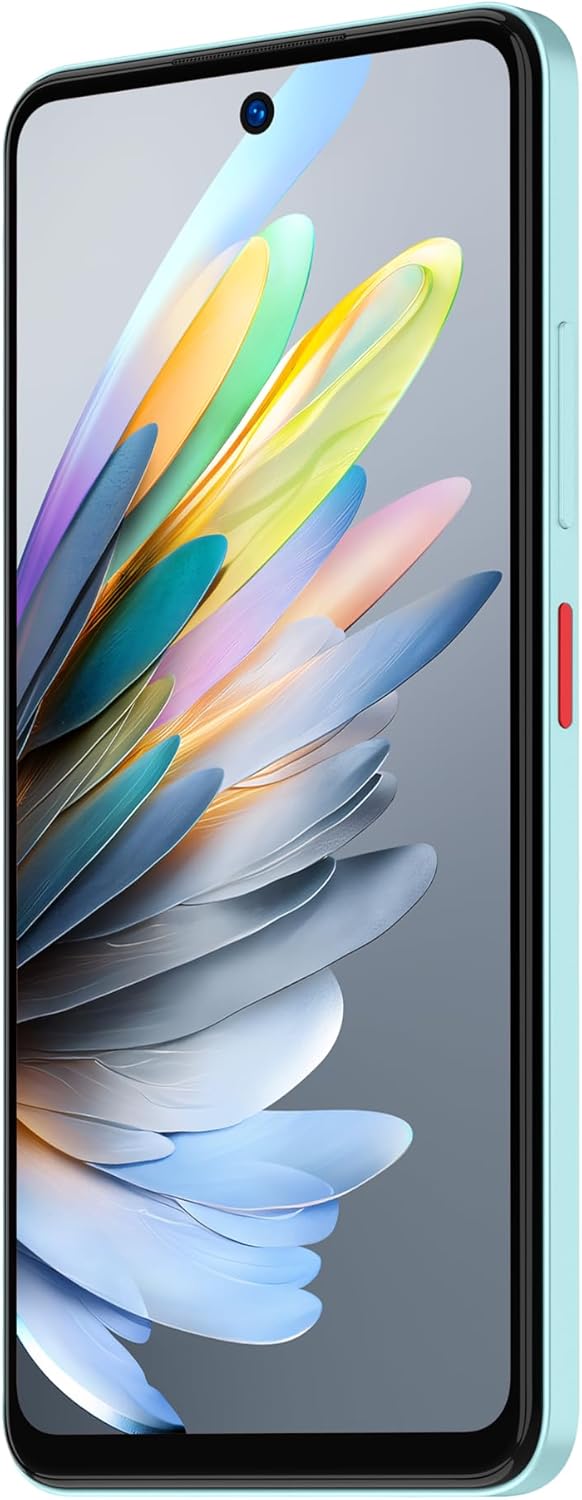
Figure 4.2: Rear View of ZTE Blade A75. The back of the phone features the prominent 50MP main camera system and the ZTE logo, showcasing its Aqua Green color.
4.3 Side View

Figure 4.3: Side View of ZTE Blade A75. This image highlights the side-mounted power button, which also functions as a fingerprint sensor, and the volume control buttons.
4.4 Bottom View

Figure 4.4: Bottom View of ZTE Blade A75. The bottom edge of the device shows the USB-C charging port and the speaker grille.
5. Setup
5.1 Initial Setup
Upon first power-on, the device will guide you through the initial setup process. This includes selecting your language, connecting to a Wi-Fi network, and setting up your Google account.
5.2 SIM Card and microSD Card Installation
To install your SIM card(s) and an optional microSD card:
- Locate the SIM card tray on the side of the device.
- Insert the SIM ejector tool into the small hole next to the tray and push gently until the tray pops out.
- Place your Nano-SIM card(s) and/or microSD card into the designated slots on the tray, ensuring correct orientation.
- Carefully push the tray back into the slot until it is flush with the device.
5.3 Power On/Off
- To Power On: Press and hold the Power button (located on the side) until the ZTE logo appears.
- To Power Off: Press and hold the Power button until the power options menu appears, then tap "Power off".
- To Restart: From the power options menu, tap "Restart".
6. Operating Your Device
6.1 Basic Navigation
The ZTE Blade A75 uses a touchscreen for navigation. Common gestures include:
- Tap: To select an item or open an application.
- Touch and Hold: To access contextual menus or move items.
- Swipe: To scroll through screens or lists.
- Pinch: To zoom in or out on images or web pages.
6.2 Calls and Messaging
- Making Calls: Open the Phone app, enter the number, and tap the call icon.
- Sending Messages: Open the Messages app, tap "Start chat", enter recipient and message, then send.
6.3 Camera
Your device features a 50MP AF rear camera and an 8MP front camera.
- Open the Camera app.
- Select photo or video mode.
- Tap the shutter button to capture.
- Switch between front and rear cameras using the camera switch icon.
6.4 Connectivity
- Wi-Fi: Go to Settings > Network & internet > Wi-Fi to connect to available networks.
- Bluetooth: Go to Settings > Connected devices > Bluetooth to pair with other Bluetooth devices.
- Mobile Data (5G): Ensure your SIM card has an active data plan. Enable mobile data in Quick Settings or Settings > Network & internet > Mobile network.
6.5 Fingerprint Recognition
The ZTE Blade A75 features a side-mounted fingerprint sensor for secure and convenient unlocking.
- Go to Settings > Security & privacy > Device unlock > Fingerprint.
- Follow the on-screen instructions to register your fingerprint.
- Ensure your finger covers the entire sensor area during registration.
6.6 Audio (DTS Sound Effect)
Experience immersive audio with the built-in DTS sound effect. This feature enhances sound quality for media playback.
- Access DTS settings through the Sound & vibration menu in Settings, or through compatible media applications.
- Adjust audio profiles to suit your listening preference.
7. Maintenance
7.1 Cleaning Your Device
To clean your smartphone:
- Use a soft, lint-free cloth.
- Do not use abrasive cleaners, solvents, or aerosol sprays.
- For stubborn marks, slightly dampen the cloth with water or a screen cleaner designed for electronics.
7.2 Software Updates
Regular software updates provide performance improvements, new features, and security enhancements. It is recommended to keep your device's software up to date.
- Go to Settings > System > System update to check for and install available updates.
- Ensure your device has sufficient battery and a stable internet connection before starting an update.
7.3 Battery Care
The ZTE Blade A75 is equipped with a 5000mAh battery supporting 22.5W fast charging. To prolong battery life:
- Avoid fully discharging the battery frequently.
- Do not leave the device charging for extended periods after it reaches 100%.
- Avoid exposing the device to extreme heat or cold.
- Use the original charger and cable for optimal charging performance.
8. Troubleshooting
If you encounter issues with your device, try the following common solutions:
| Problem | Solution |
|---|---|
| Device not turning on | Ensure the battery is charged. Connect to charger for at least 10 minutes before attempting to power on. |
| Apps crashing or freezing | Restart the device. Clear app cache (Settings > Apps > [App Name] > Storage & cache > Clear cache). |
| Poor Wi-Fi connection | Restart your Wi-Fi router. Forget and reconnect to the Wi-Fi network on your phone. |
| Fingerprint sensor not working | Ensure your finger is clean and dry. Re-register your fingerprint if the issue persists. |
| Battery draining quickly | Close background apps. Reduce screen brightness. Disable unnecessary features like GPS or Bluetooth when not in use. |
If the problem persists, contact ZTE customer support or an authorized service center.
9. Specifications
Key technical specifications for the ZTE Blade A75 smartphone:
| Feature | Detail |
|---|---|
| Model Name | Z2359 ZTE Blade A75 |
| Operating System | Android 15 |
| Display | 6.6-inch, 90Hz Refresh Rate |
| Processor | Snapdragon CPU model |
| RAM | 4 GB |
| Internal Storage | 256 GB |
| Rear Camera | 50MP AF |
| Front Camera | 8MP |
| Battery Capacity | 5000mAh |
| Charging | 22.5W Fast Charging Support |
| Connectivity | 5G, Wi-Fi, Bluetooth, GPS |
| Security | Fingerprint Recognition |
| Audio Features | DTS Sound Effect |
| Dimensions | 17.77 x 8.84 x 5.62 cm |
| Weight | 400 g |
| Color | Aqua Green |
10. Warranty and Support
For warranty information and technical support, please refer to the warranty card included with your product or visit the official ZTE website. Keep your proof of purchase for warranty claims.
For further assistance, you may contact ZTE customer service through their official channels.


