
1. Product Overview
The Redragon BS8772 is a wireless keyboard and mouse combo designed for enhanced productivity and comfort. The keyboard features a compact 75% layout with 78 low-profile mechanical keys and a single blue backlight. The accompanying mouse offers 5 adjustable DPI levels and an ergonomic design for extended use. Both devices connect wirelessly via a shared 2.4GHz dongle.

Image 1.1: The Redragon BS8772 Wireless Keyboard and Mouse Combo, featuring the keyboard and mouse in a Bean Red color scheme, along with the compact USB dongle.

Image 1.2: Visual representation of the key features of the Redragon BS8772 combo, including 2.4G wireless connection, 78-key compact keyboard, 2400 Max DPI mouse, ergonomic design, ultra-thin keyboard profile, and decent blue backlight.
2. Setup Guide
2.1 Unboxing and Components
Upon opening the package, you will find the Redragon BS8772 wireless keyboard, the wireless mouse, a USB-C to USB-A charging cable for the keyboard, and a 2.4GHz USB dongle. The mouse requires one AA battery (not included).
2.2 Connecting the Devices
- Locate the 2.4GHz USB dongle. This dongle is typically stored in a compartment on the mouse for safekeeping.
- Insert the USB dongle into an available USB-A port on your computer (PC or laptop).
- For the keyboard, ensure it is charged. The keyboard has a built-in rechargeable battery and can be charged using the provided USB-C cable.
- Locate the power switch on the back of the keyboard and slide it to the 'ON' position. The keyboard's backlight will illuminate, indicating it is powered on.
- For the mouse, insert one AA battery into the battery compartment on the underside of the mouse.
- Turn on the mouse using its power switch, usually located on the underside.
- The keyboard and mouse should automatically connect to your computer via the 2.4GHz dongle. If connection issues occur, refer to the Troubleshooting section.
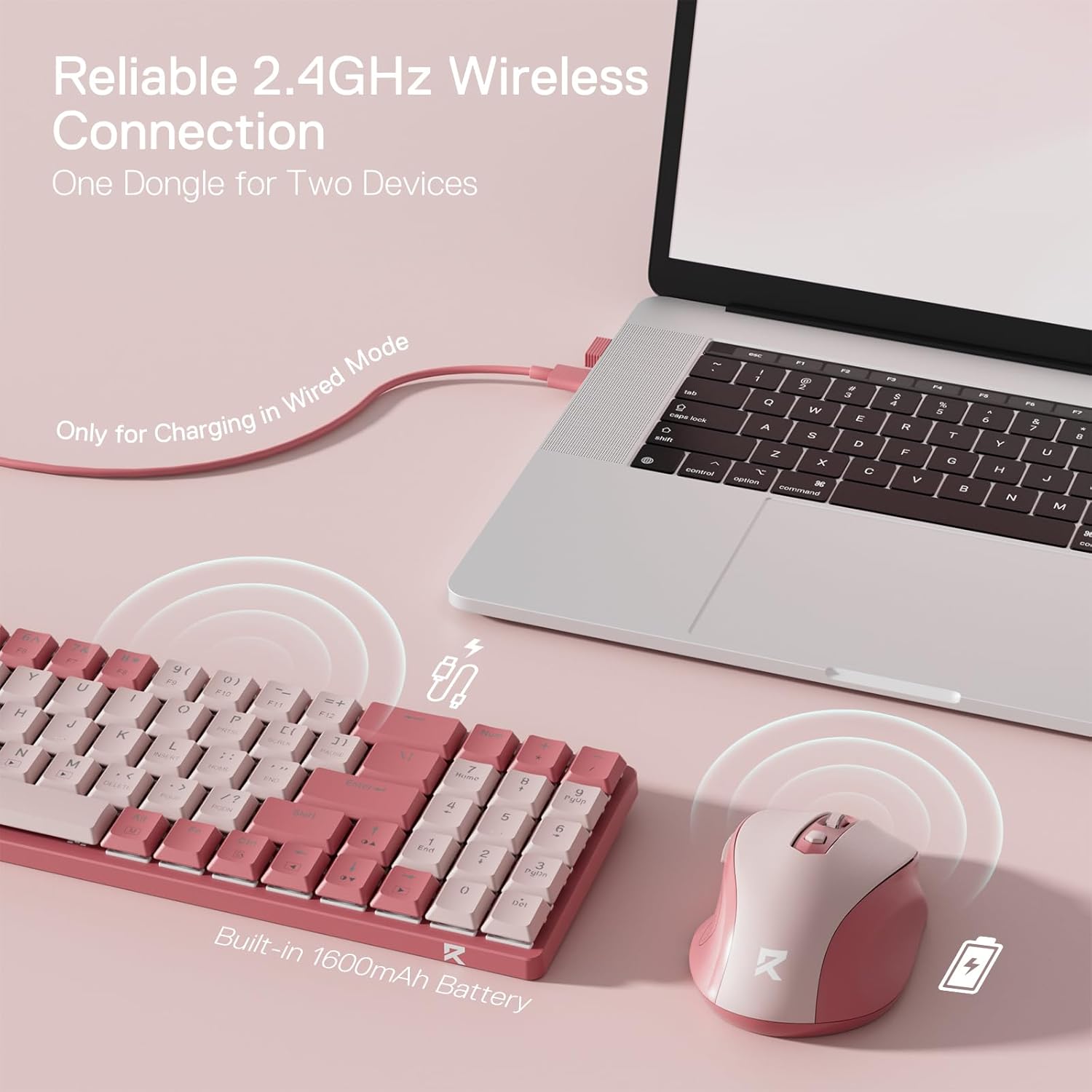
Image 2.1: The Redragon BS8772 keyboard and mouse wirelessly connected to a laptop via the 2.4GHz dongle. The image also highlights that the keyboard is rechargeable and can be used in wired mode for charging.
3. Operating Instructions
3.1 Keyboard Operation
The BS8772 keyboard features a 75% compact layout with 78 low-profile mechanical keys, designed for a comfortable and efficient typing experience. It includes dedicated arrow keys and a numeric pad for convenience.

Image 3.1: A comparison showing the compact 75% layout of the Redragon BS8772 keyboard (top) with its dimensions, and a side view illustrating the low-profile 4mm keycaps versus traditional 11mm keycaps (bottom).
Backlight Control
The keyboard features a single blue backlight. You can adjust its brightness and patterns using the function (Fn) key combinations. Refer to the user manual for specific key combinations to cycle through lighting modes and adjust brightness.
Function (Fn) Key Combinations
The keyboard utilizes an Fn key for accessing secondary functions printed on the keycaps. Common combinations include:
- Fn + F1-F12: Multimedia controls (e.g., play/pause, volume up/down, mute).
- Fn + Ins/Home/PgUp/Del/PgDn/End: Navigation and editing shortcuts.
- Fn + Scroll Lock: Change backlight mode.
- Fn + Up/Down Arrow: Adjust backlight brightness.
3.2 Mouse Operation
The Redragon BS8772 mouse is designed for ergonomic comfort and precise control, featuring a lightweight contoured shape.

Image 3.2: The underside of the Redragon BS8772 mouse, highlighting the 5 adjustable DPI levels (800, 1200, 1600, 2000, 2400) and the AA battery compartment.
DPI Adjustment
The mouse offers 5 adjustable DPI levels: 800, 1200, 1600, 2000, and 2400 DPI. You can switch between these settings using the dedicated DPI switch button located on the top of the mouse, typically below the scroll wheel. This allows you to tailor sensitivity for different tasks, from precise work to faster navigation.
Buttons
The mouse includes standard left and right click buttons, a scroll wheel (which also functions as a middle click), and two side buttons for additional functionality, often used for forward/back navigation in web browsers.
4. Maintenance
4.1 Cleaning
- Keyboard: Use a soft, lint-free cloth slightly dampened with water or a mild cleaning solution to wipe down the keycaps and chassis. Avoid excessive moisture. For debris between keys, use compressed air.
- Mouse: Wipe the surface with a soft, dry cloth. Clean the optical sensor on the underside with a cotton swab if tracking issues occur.
4.2 Battery Management
- Keyboard: The keyboard has a built-in rechargeable Lithium Polymer battery. Connect the provided USB-C cable to the keyboard and a USB-A port on your computer or a compatible charger to recharge.
- Mouse: The mouse requires one AA battery. Replace the battery when performance degrades or the mouse stops responding. Ensure correct polarity when inserting the new battery.
5. Troubleshooting
5.1 Connectivity Issues
- No Connection: Ensure the USB dongle is securely plugged into a working USB port. Try a different USB port.
- Intermittent Connection: Ensure the keyboard and mouse are within the effective range of the 2.4GHz dongle (typically up to 10 meters). Avoid placing the dongle near strong interference sources like other wireless devices or large metal objects.
- Re-pairing: If devices lose connection, try re-pairing. Turn off both the keyboard and mouse. Unplug the USB dongle, then plug it back in. Turn on the keyboard and mouse. They should re-establish connection automatically. If not, refer to the detailed user manual for specific re-pairing instructions.
5.2 Keyboard Specific Issues
- Keys Not Responding: Check keyboard battery level and recharge if necessary. Ensure the keyboard is turned on.
- Backlight Not Working: Ensure the backlight is enabled via Fn key combinations. Check battery level.
5.3 Mouse Specific Issues
- Mouse Not Tracking: Ensure the optical sensor is clean and free of obstructions. Try the mouse on a different surface. Replace the AA battery.
- DPI Not Changing: Press the DPI switch button firmly. Cycle through all DPI settings to confirm functionality.
6. Specifications
| Feature | Detail |
|---|---|
| Brand | Redragon |
| Model Number | BS-8772 |
| Connectivity Technology | 2.4GHz Wireless (Radio Frequency) |
| Keyboard Layout | 75% (78 Keys) |
| Keyboard Type | Low-Profile Mechanical |
| Keyboard Backlight | Single Blue Blacklight |
| Keyboard Battery | 1 Lithium Polymer battery (Rechargeable) |
| Mouse DPI Levels | 800/1200/1600/2000/2400 DPI |
| Mouse Battery | 1 AA Battery (Not Included) |
| Product Dimensions | 17.72 x 5.12 x 1.97 inches |
| Item Weight | 1.37 pounds |
| Compatible Devices | PC, Laptop |
7. Warranty and Support
For warranty information and technical support, please refer to the official Redragon website or contact their customer service directly. Keep your purchase receipt as proof of purchase for any warranty claims.


