
1. Introduction
This manual provides comprehensive instructions for the setup, operation, maintenance, and troubleshooting of your Andoer 4K 60FPS Action Camera. Please read this manual thoroughly before using the camera to ensure optimal performance and longevity.
The Andoer 4K 60FPS Action Camera is designed to capture high-quality video and photos in various environments, including underwater. Key features include 4K video recording at 60 frames per second, 24MP photo resolution, a 170° wide-angle lens, dual screens (2.0-inch touch and 1.4-inch IPS), built-in WiFi, anti-shake stabilization, and a body waterproof rating of up to 21 meters.

2. Package Contents
Verify that all items are present in the package:
- Andoer 4K 60FPS Action Camera (with built-in battery)
- Set of Mounting Accessories
- USB Charging Cable
- User Manual (this document)
Note: A memory card (Class 10, up to 128GB) is required for recording and is not included in the package.
3. Camera Overview
Familiarize yourself with the camera's components and controls.

- Main Display: 2.0-inch HD touch screen for settings, playback, and live view.
- Front Display: 1.4-inch IPS screen for quick status checks and selfie framing.
- Lens: 170° wide-angle lens.
- Power/Mode Button: Turns the camera on/off and switches between modes.
- Shutter/Record Button: Initiates photo capture or video recording.
- Navigation Buttons: For menu navigation and zoom (if applicable).
- USB Port: For charging and data transfer.
- Microphone/Speaker: Built-in for audio input and output.
4. Setup
4.1. Charging the Battery
The camera comes with a built-in 3.7V 1000mAh rechargeable battery. Before first use, fully charge the camera.
- Connect the camera to a USB power source (e.g., computer, wall adapter) using the provided USB Charging Cable.
- The charging indicator light will illuminate.
- Once fully charged, the indicator light will change or turn off.
4.2. Inserting a Memory Card
A Class 10 or higher MicroSD card (up to 128GB) is required for storing photos and videos.
- Locate the memory card slot on the camera.
- Insert the MicroSD card with the contacts facing the correct direction until it clicks into place.
- To remove, gently push the card until it springs out.
4.3. Powering On/Off
- To Power On: Press and hold the Power/Mode button for a few seconds.
- To Power Off: Press and hold the Power/Mode button again until the camera shuts down.
5. Operating the Camera
5.1. Basic Operation
- Switching Modes: Press the Power/Mode button repeatedly to cycle through Video, Photo, and Playback modes.
- Recording Video: In Video mode, press the Shutter/Record button to start recording. Press again to stop.
- Taking Photos: In Photo mode, press the Shutter/Record button to capture a photo.
- Using Dual Screens: The 2.0-inch main screen is touch-enabled for menu navigation. The 1.4-inch front IPS screen is useful for framing selfies or quick status checks.
5.2. Video and Photo Settings
Access the camera settings via the touch screen to adjust resolution, frame rate, and other parameters.
- Video Resolution Options: 4K (3840x2160p) at 60/30fps, 2.7K at 30fps, 1080P at 60/30fps, 720P at 120fps.
- Image Resolution Options: 24M, 20M, 16M, 12M, 10M.
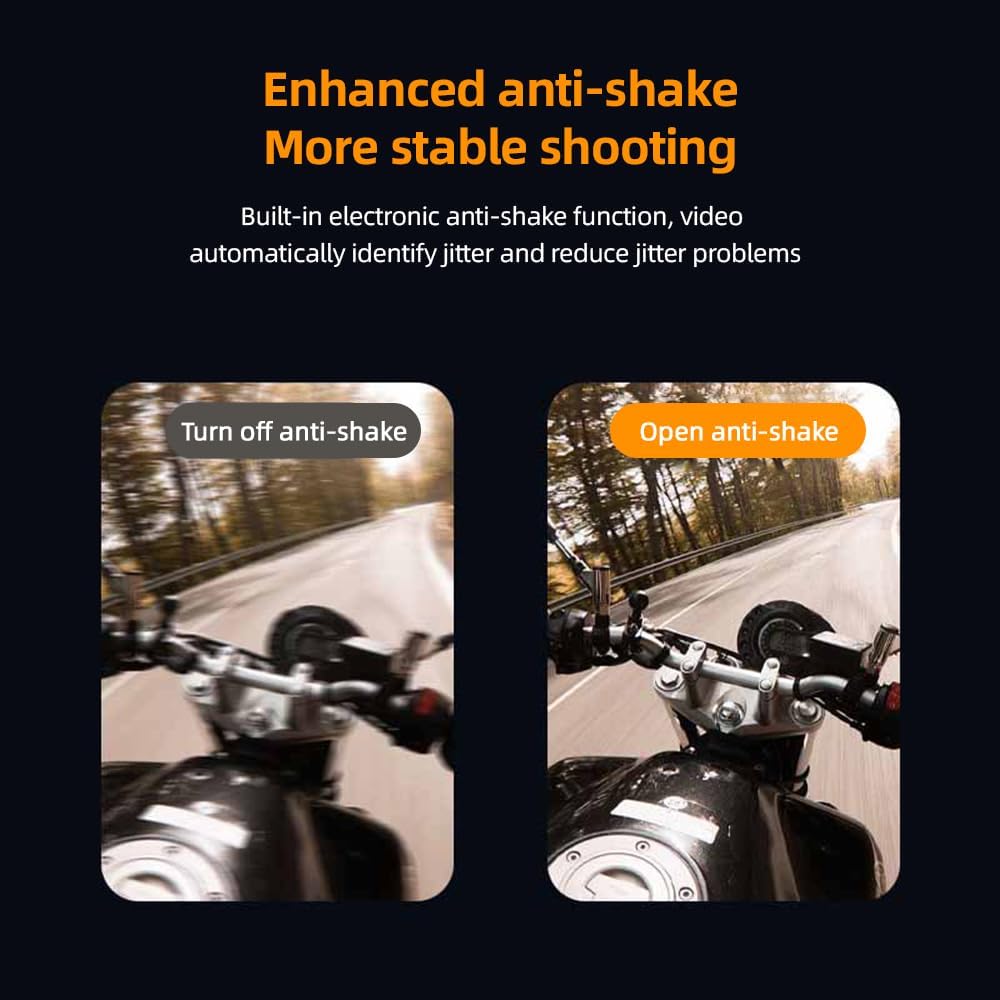
- Anti-Shake Function: The built-in electronic anti-shake function helps stabilize footage, reducing blur from camera movement. Enable this feature in the settings for smoother videos.

5.3. WiFi Connectivity
The camera features built-in WiFi for seamless control and sharing via a smartphone app.
- Download the official Andoer app from your smartphone's app store.
- Enable WiFi on your camera through the settings menu.
- On your smartphone, connect to the camera's WiFi network.
- Open the app to control the camera, view real-time footage, and transfer files.
5.4. Waterproof Operation
The camera body is waterproof up to 21 meters (69 feet) without an additional housing, making it suitable for various water sports.
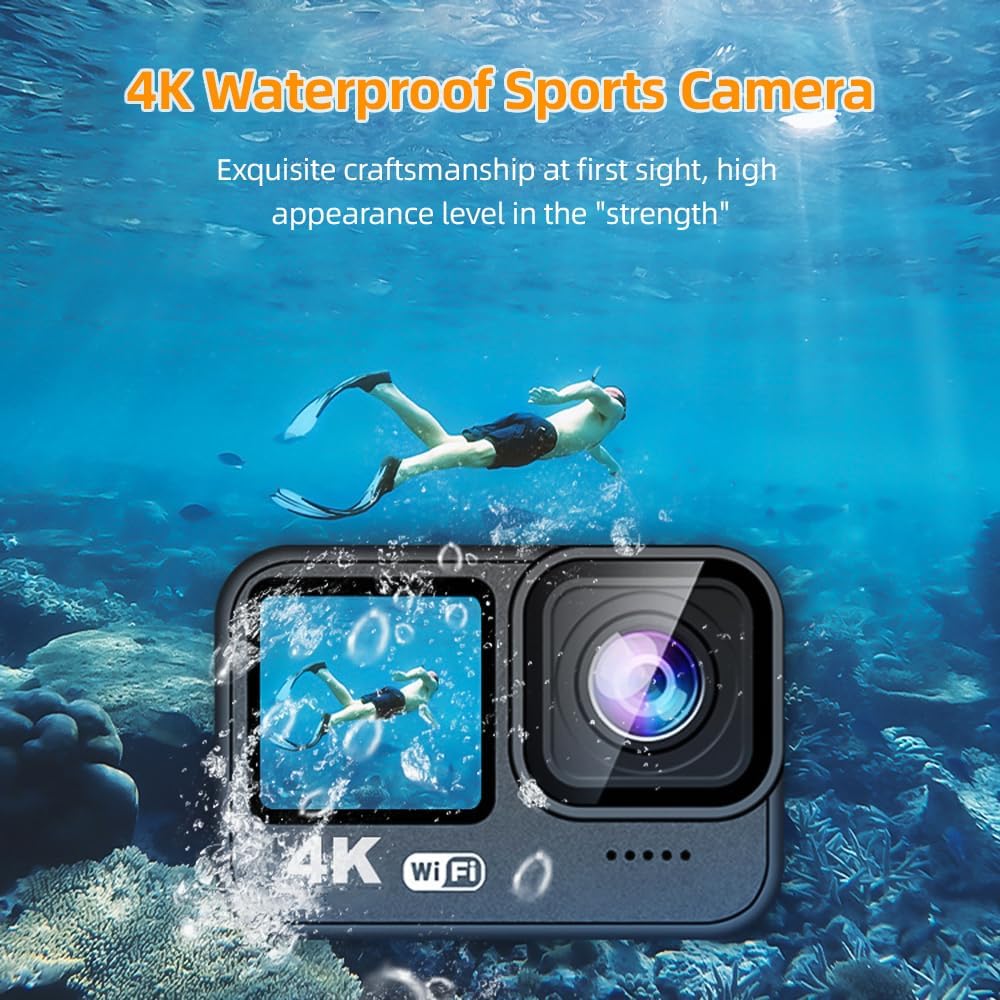

Important: Ensure all ports are securely closed before submerging the camera in water. After use in saltwater, rinse the camera with fresh water and dry thoroughly.
5.5. Using Mounting Accessories
The included mounting accessories allow for versatile attachment to helmets, bicycles, selfie sticks, and more.
- Refer to the accessory guide for specific attachment instructions for each mount.
- Always ensure the camera is securely fastened to prevent accidental detachment during activity.

5.6. Wide Angle Lens
The 170° wide-angle lens captures a broad field of view, ideal for expansive landscapes and immersive action shots.

6. Maintenance
6.1. Cleaning the Camera
- Use a soft, lint-free cloth to clean the camera body and screens.
- For the lens, use a specialized lens cleaning cloth and solution to avoid scratches.
- Do not use harsh chemicals or abrasive materials.
6.2. Battery Care
- Avoid exposing the battery to extreme temperatures.
- Charge the battery regularly, even if not in use, to maintain its lifespan.
- If storing for extended periods, charge the battery to approximately 50%.

6.3. Storage
- Store the camera in a cool, dry place away from direct sunlight and dust.
- Ensure the camera is dry before storage, especially after underwater use.
7. Troubleshooting
If you encounter issues with your camera, refer to the following common problems and solutions:
| Problem | Possible Cause | Solution |
|---|---|---|
| Camera does not power on. | Low battery; battery not charged. | Charge the camera fully using the USB cable. |
| Cannot record video/take photos. | No memory card; memory card full; memory card error. | Insert a compatible memory card; delete files or replace card; format the memory card (this will erase all data). |
| Blurry images/videos. | Lens is dirty; anti-shake is off; insufficient lighting. | Clean the lens; enable anti-shake in settings; ensure adequate lighting. |
| WiFi connection issues. | WiFi not enabled on camera; incorrect app settings. | Ensure camera WiFi is on; restart camera and phone; check app instructions. |
| Camera freezes. | Software glitch. | Press and hold the Power button to force a shutdown, then restart. If issue persists, remove and reinsert the memory card. |
8. Specifications
| Feature | Detail |
|---|---|
| LCD Displays | 2.0-inch HD (main, touch) + 1.4-inch IPS (front) |
| Lens | 170° Wide Angle |
| Storage | MicroSD, Class 10, up to 128GB (not included) |
| Audio Input | Built-in Microphone |
| Audio Output | Built-in Speaker |
| Connectivity | WiFi, USB |
| Battery | 3.7V 1000mAh Rechargeable |
| Remote Control | Yes |
| Waterproof Depth | 21 Meters (69 feet) |
| Video Resolution | 4K (3840x2160p) 60/30fps, 2.7K 30fps, 1080P 60/30fps, 720P 120fps |
| Video Format | MP4 |
| Image Resolution | 24M, 20M, 16M, 12M, 10M |
| Image File Format | JPG |
| Special Features | Anti-Shake, Dual Screen, Touch Control |
| Dimensions | 65 x 45 x 34 mm (2.56 x 1.77 x 1.34 inches) |
| Weight | Approximately 1.03 pounds (467 grams) |
| Model Number | 4c2828b6-5e16-4500-aa01-3e011079010a |
9. Safety Information

Warning: Store the product separately from children's toys and other items to avoid accidental ingestion or choking hazards.
10. Warranty and Support
Your Andoer 4K 60FPS Action Camera is covered by a manufacturer's warranty. Please refer to the warranty card included in your package or visit the official Andoer website for detailed warranty terms and conditions.
For technical support, troubleshooting assistance, or inquiries about replacement parts, please contact Andoer customer service through their official channels. Contact information can typically be found on the product packaging or the brand's official website.
Andoer Official Store: Visit Andoer Store on Amazon