
Introduction
This manual provides comprehensive instructions for the safe and effective use of your Andoer 4K 60FPS Action Camera. Please read this manual thoroughly before operating the device and retain it for future reference. This camera is designed to capture high-quality video and photos in various environments, including underwater, with its robust features and included accessories.
Important Safety Information

Image Description: A red warning triangle with an exclamation mark, accompanied by text in multiple languages. The English text reads: "Warning: If you find the product damaged, deformed or abnormal performance, please stop using it immediately and contact us."
Warning: If you find the product damaged, deformed, or exhibiting abnormal performance, immediately cease use and contact customer support. Failure to do so may result in damage to the device or personal injury.
- Do not attempt to disassemble or modify the camera.
- Keep the camera away from extreme temperatures, direct sunlight, and strong magnetic fields.
- Ensure all ports are securely closed before using the camera in wet conditions.
- Use only specified charging cables and power adapters.
- Keep out of reach of children.
Package Contents
Please check the package contents upon unboxing. If any items are missing or damaged, contact customer support.
- Andoer Action Camera (with battery inside)
- Set of Mounting Accessories
- USB Charging Cable
- User Manual (this document)

Image Description: The Andoer Action Camera displayed alongside a comprehensive set of mounting accessories, including various clips, adhesive mounts, and straps, indicating a complete kit.
Camera Overview
Familiarize yourself with the camera's components and controls.

Image Description: A close-up front view of the Andoer Action Camera, highlighting its main lens, the smaller front display screen showing an underwater scene, and the "4K WiFi" branding. Control buttons are visible on the top and side.

Image Description: A composite image showing four distinct angles of the Andoer Action Camera: front, back (main touch screen), top (mode and shutter buttons), and side (power/menu button and port cover). This provides a comprehensive view of the camera's physical layout.
Key Components:
- Main Lens: 170° wide-angle lens for expansive shots.
- Rear Display: 2.0-inch HD touch control screen for navigation and playback.
- Front Display: 1.3-inch IPS screen for easy framing, especially for selfies.
- Mode Button: Located on top, typically cycles through video, photo, and playback modes.
- Shutter/Record Button: Located on top, initiates recording or takes a photo.
- Power/Menu Button: Located on the side, powers the camera on/off and accesses menu settings.
- Up/Down Buttons: Located on the side, used for navigation in menus or digital zoom.
- Microphone/Speaker: Built-in for audio capture and playback.
- USB Port: For charging and data transfer.
- MicroSD Card Slot: For storage (supports up to 128GB, Class 10 recommended).
Setup
1. Charging the Battery
- Connect the camera to a USB power source using the provided USB charging cable.
- The charging indicator light will illuminate.
- Once fully charged, the indicator light will change or turn off. A full charge typically takes approximately 2-3 hours.
2. Inserting a MicroSD Card
A MicroSD card (not included) is required to store photos and videos. Use a Class 10 or higher MicroSD card, up to 128GB capacity.
- Locate the MicroSD card slot on the side of the camera.
- Gently insert the MicroSD card with the gold contacts facing the front of the camera until it clicks into place.
- To remove, push the card in again until it springs out.
3. Formatting the MicroSD Card
It is recommended to format the MicroSD card before first use and periodically to ensure optimal performance.
- Power on the camera.
- Navigate to the camera settings menu (usually by pressing the Power/Menu button repeatedly or swiping on the touch screen).
- Locate the "Format" option and confirm to format the card. This will erase all data on the card.
4. Attaching Mounting Accessories
The camera comes with a variety of mounting accessories for different activities. Refer to the accessory kit for specific attachment methods. Ensure all mounts are securely fastened before use.
Operating the Camera
Power On/Off
- To Power On: Press and hold the Power/Menu button for a few seconds until the screen illuminates.
- To Power Off: Press and hold the Power/Menu button for a few seconds until the screen turns off.
Mode Switching
Press the Mode button (usually on top) to cycle through available modes: Video Recording, Photo Mode, Playback Mode, and Settings.
Video Recording

Image Description: The Andoer Action Camera's rear screen shows a vibrant video of children playing on a beach, emphasizing its capability for "True 4K/60FPS Video" capture.
- Switch to Video Recording mode.
- Press the Shutter/Record button to start recording. A red indicator light or on-screen icon will confirm recording is active.
- Press the Shutter/Record button again to stop recording.
- Video Resolution options include 4K (3840x2160p) at 60/30fps, 2.7K at 30fps, 1080P at 120/60/30fps, and 720P at 120/60/30fps. Adjust settings in the menu.
Taking Photos
- Switch to Photo Mode.
- Frame your shot using either the front or rear screen.
- Press the Shutter/Record button to take a photo.
- Image Resolution options include 24M, 20M, 16M, 12M, and 10M. Adjust settings in the menu.
Using Dual Screens

Image Description: Two Andoer Action Cameras are shown, one from the back revealing its main screen and another from the front showing its smaller display. Both screens depict a skier, highlighting the camera's "Dual Color Screens" feature for versatile framing.
The camera features a 2.0-inch rear touch screen and a 1.3-inch front IPS screen. The front screen is particularly useful for framing selfies or vlogs. You can switch between the screens or use them simultaneously for different perspectives, depending on the camera's firmware and settings.
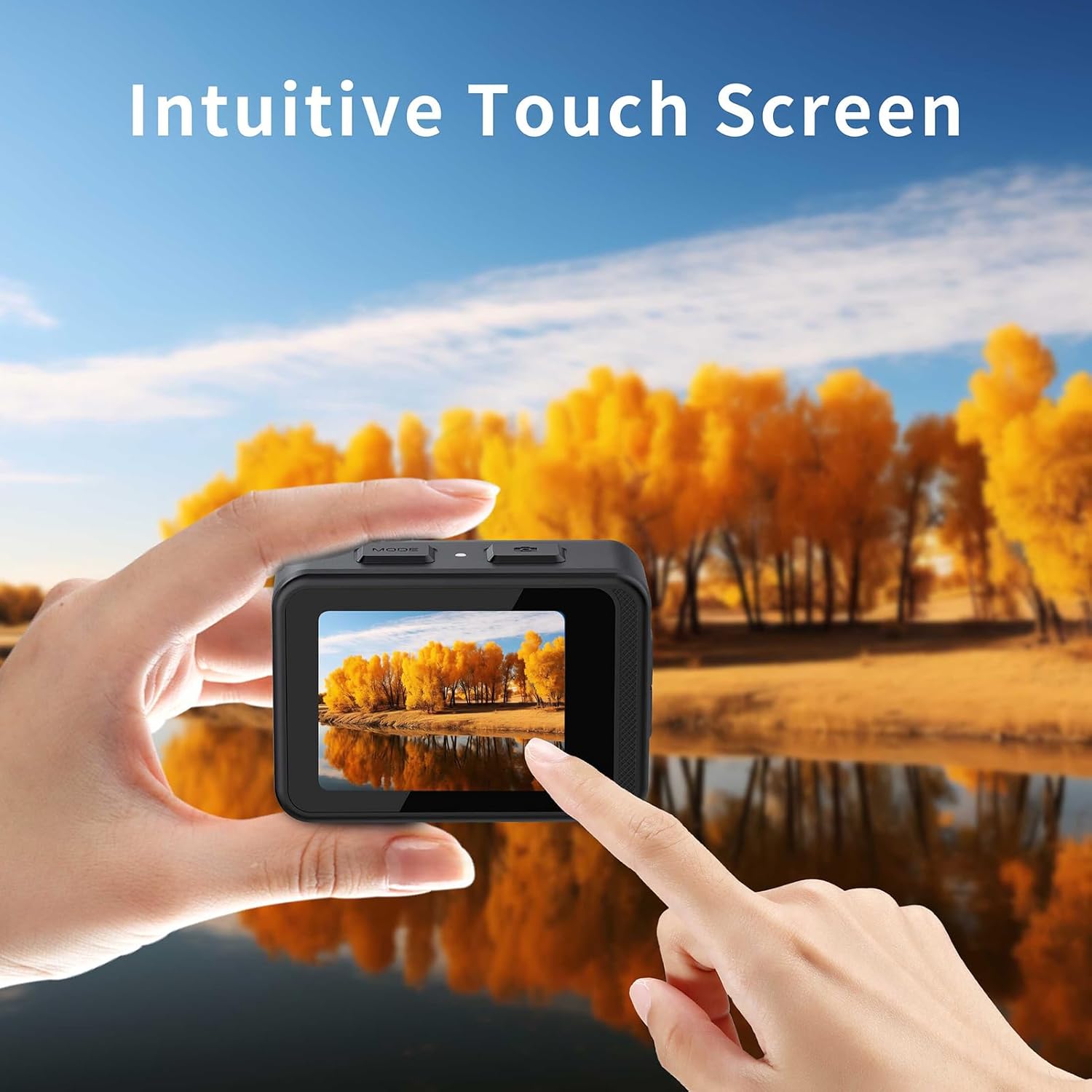
Image Description: A hand is shown tapping the rear touch screen of the Andoer Action Camera, which displays a vibrant autumn landscape. The image emphasizes the "Intuitive Touch Screen" functionality for easy control.
WiFi Connectivity (XDV PRO App)
Connect your camera to a smartphone or tablet via Wi-Fi for remote control, live preview, and file transfer using the XDV PRO app.
- Download the "XDV PRO" app from your device's app store.
- On the camera, enable Wi-Fi (usually found in the settings menu or by a dedicated button/swipe gesture). The camera's Wi-Fi name and password will be displayed.
- On your smartphone/tablet, go to Wi-Fi settings and connect to the camera's Wi-Fi network.
- Open the XDV PRO app. You should now be able to control the camera remotely.
Waterproof Usage

Image Description: Two Andoer Action Cameras are depicted fully submerged in water, surrounded by bubbles. Their screens display vibrant underwater scenes, illustrating the camera's "Body Waterproof 21m" capability.
The camera body is waterproof up to 21 meters (69 feet) without an additional housing. Before submerging the camera, ensure all port covers (USB, MicroSD) are securely closed and sealed. After use in saltwater, rinse the camera with fresh water and allow it to dry completely.
Anti-Shake Function

Image Description: An action shot of a person mountain biking, with the Andoer Action Camera mounted and displaying a stable, clear image on its screen. The text "Super strong anti shake" highlights the camera's image stabilization feature.
The camera features an anti-shake function to ensure smooth and clear video recording, even during motion-intensive activities. This feature can typically be enabled or disabled in the camera's settings menu.
170° Wide Angle Lens

Image Description: A snowboarder is captured on a snowy mountain, with an overlay graphic demonstrating the expansive 170° wide-angle field of view of the Andoer Action Camera, showing how much more of the scene is included.
The 170° wide-angle lens allows for capturing a broader perspective, ideal for landscapes, action shots, and immersive video. Be aware that wide-angle lenses can introduce some barrel distortion at the edges of the frame.
Maintenance
Cleaning the Camera
- Use a soft, lint-free cloth to clean the camera body and screens.
- For the lens, use a specialized lens cleaning cloth and solution. Avoid touching the lens with your fingers.
- After underwater use, rinse the camera with fresh water and dry thoroughly with a soft cloth.
- Do not use harsh chemicals or abrasive materials for cleaning.
Battery Care
- Avoid fully discharging the battery frequently.
- Store the camera with the battery partially charged (around 50%) if not used for extended periods.
- Do not expose the battery to extreme heat or cold.
Storage
Store the camera in a cool, dry place, away from dust and direct sunlight. If storing for a long time, remove the MicroSD card and ensure the battery is at a moderate charge level.
Troubleshooting
| Problem | Possible Solution |
|---|---|
| Camera does not power on. | Ensure the battery is charged. Connect to a power source and try again. |
| Cannot record video or take photos. | Check if a MicroSD card is inserted and properly formatted. Ensure there is sufficient storage space. |
| Wi-Fi connection issues. | Ensure Wi-Fi is enabled on the camera and your mobile device. Restart both devices. Verify the correct Wi-Fi password. |
| Poor image/video quality. | Clean the camera lens. Check resolution settings. Ensure adequate lighting. |
| Camera freezes or becomes unresponsive. | Press and hold the Power button for 10 seconds to force a restart. If issues persist, try formatting the MicroSD card. |
Specifications
| LCD Display | 2.0 inch HD (Rear) + 1.3 inch IPS (Front) |
| Lens | 170° Wide Angle |
| Storage | MicroSD Card, Class 10 or higher, up to 128GB (not included) |
| Audio Input | Built-in Microphone/Speaker |
| Wi-Fi | Supported (APP: XDV PRO) |
| Battery | 3.7V 1000mAh rechargeable battery |
| Remote Control | Yes |
| Waterproof Depth | 21 Meters (69 feet) |
| Video Resolution | 4K (3840x2160p) 60/30fps, 2.7K 30fps, 1080P 120/60/30fps, 720P 120/60/30fps |
| Video Format | MP4 |
| Image Resolution | 24M/ 20M/ 16M/ 12M/ 10M |
| Image File Format | JPG |
| Camera Dimensions | 66 x 35 x 46.3 mm |
| Camera Weight | 116g |
| Special Features | Anti-Shake, Body Waterproof, Dual Screens, Touch Control |
Warranty and Support
For warranty information, technical support, or service inquiries, please contact Andoer customer support through your retailer or the official Andoer website. Please have your product model (B0D5HNT5M) and purchase details ready when contacting support.
For the latest information and updates, visit the Andoer Store on Amazon.