
1. Introduction
This manual provides essential instructions for the safe and efficient operation of your Zebra ZQ610 Mobile Barcode Label Printer. Please read this manual thoroughly before using the device to ensure proper setup, usage, and maintenance. The Zebra ZQ610 is a portable thermal printer designed for printing barcode labels with wireless connectivity options including Bluetooth 4.1 and WiFi 802.11ac.
2. Safety Information
Observe the following safety precautions to prevent injury and damage to the printer:
- Do not expose the printer to extreme temperatures, direct sunlight, or high humidity.
- Use only approved power adapters and batteries.
- Keep the printer away from water and other liquids.
- Do not attempt to disassemble or repair the printer yourself. Refer to qualified service personnel.
- Ensure proper ventilation during operation and charging.
- Avoid touching the print head immediately after printing, as it may be hot.
3. Package Contents
Verify that all items are present in the package:
- 1x Zebra ZQ610 Mobile Printer
- User Documentation
- Battery (may be pre-installed or separate)
- Power Adapter/Charging Cable (not explicitly listed but implied for a mobile device)

Figure 3.1: Zebra ZQ610 printer and included documentation as found in the package.
4. Product Overview
The Zebra ZQ610 is a robust and portable thermal label printer designed for various mobile printing applications. It features a durable construction, wireless connectivity, and a user-friendly interface.

Figure 4.1: Front view of the Zebra ZQ610 Mobile Barcode Label Printer, showing the display and control buttons.
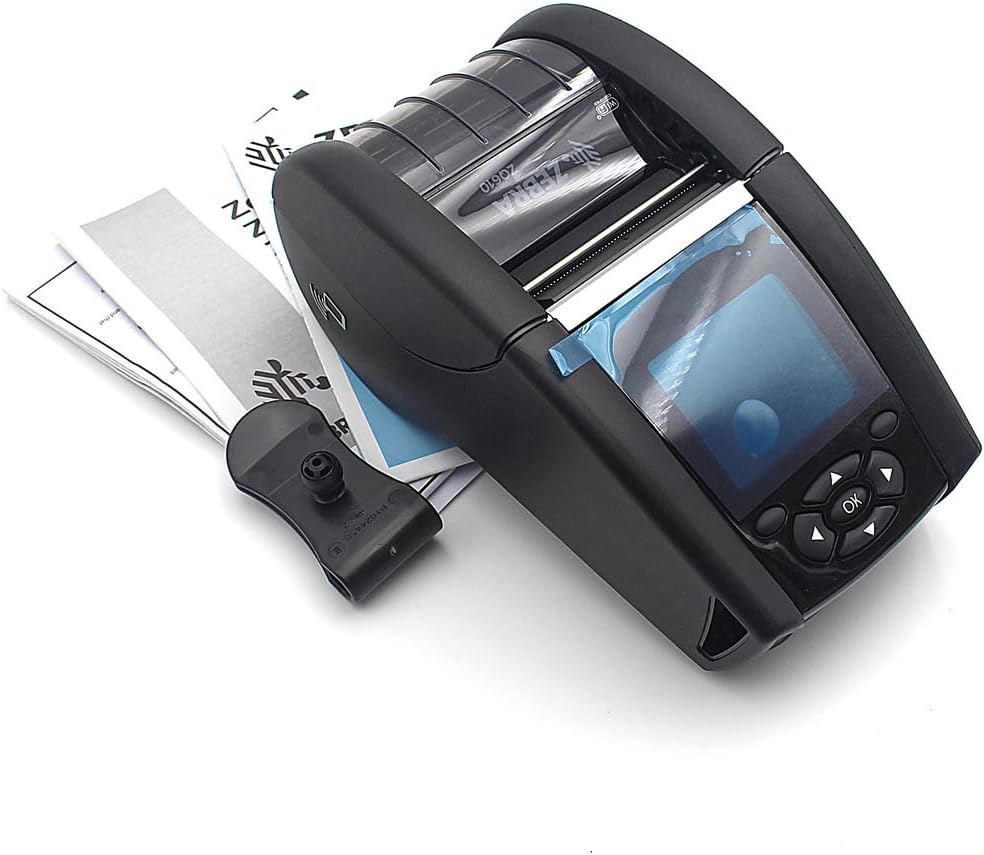
Figure 4.2: Top-down view of the Zebra ZQ610, illustrating its compact design alongside user manuals.
5. Setup
5.1 Battery Installation and Charging
The printer uses a rechargeable battery. Ensure the battery is fully charged before initial use.
- Open the battery compartment cover, typically located at the rear or bottom of the printer.
- Insert the battery, ensuring the contacts align correctly.
- Close the battery compartment cover securely.
- Connect the power adapter to the printer's charging port and then to a power outlet. The charging indicator will illuminate.

Figure 5.1: Detailed view of the battery compartment, showing where the battery is inserted.
5.2 Media Loading
The Zebra ZQ610 supports thermal labels with a print width of up to 2.8 inches.
- Open the media cover by pressing the release latches, usually on the sides of the printer.
- Place the roll of labels into the media compartment, ensuring the labels feed correctly under the print head.
- Pull a small length of labels past the print head and close the media cover until it latches securely.
- The printer may automatically calibrate or require a test print to align the labels.

Figure 5.2: The printer with its media cover open, revealing the label roll spindle and path.

Figure 5.3: The printer with a label roll correctly inserted into the media compartment.
6. Operating Instructions
6.1 Powering On/Off
- To power on, press and hold the power button until the display illuminates.
- To power off, press and hold the power button until the shutdown prompt appears, then confirm.
6.2 Connectivity (Bluetooth & WiFi)
The ZQ610 supports both Bluetooth 4.1 and 802.11ac WiFi for wireless printing.
- Bluetooth Pairing:
- Ensure Bluetooth is enabled on the printer via the settings menu.
- On your host device (e.g., smartphone, tablet, computer), search for available Bluetooth devices.
- Select "ZQ610" (or similar name) from the list and follow the pairing instructions, entering a PIN if prompted (default is usually 0000 or 1234).
- WiFi Connection:
- Access the WiFi settings on the printer's display.
- Scan for available networks and select your desired network.
- Enter the network password if required.
- Once connected, the WiFi status indicator will confirm the connection.
6.3 Printing Labels
After connecting the printer to your host device, you can send print jobs using compatible applications or drivers.
- Ensure the correct label format and size are selected in your printing application.
- Send the print command from your host device.
- The printer will feed and print the labels.
7. Maintenance
7.1 Cleaning the Print Head
Regular cleaning of the print head ensures optimal print quality and extends the life of the printer.
- Turn off the printer and disconnect it from any power source.
- Open the media cover.
- Gently wipe the print head surface with a lint-free cloth moistened with isopropyl alcohol.
- Allow the print head to dry completely before closing the cover and powering on the printer.
7.2 General Cleaning
Wipe the exterior of the printer with a soft, damp cloth. Do not use harsh chemicals or abrasive cleaners.
8. Troubleshooting
If you encounter issues with your printer, refer to the following common problems and solutions:
| Problem | Possible Cause | Solution |
|---|---|---|
| Printer not powering on | Low battery; Battery not installed correctly; Power button not pressed long enough | Charge the battery; Reinstall battery; Press and hold power button for 3-5 seconds |
| Poor print quality | Dirty print head; Incorrect media; Low battery | Clean print head; Ensure correct thermal labels are used; Charge battery |
| Cannot connect via Bluetooth/WiFi | Bluetooth/WiFi off; Out of range; Incorrect pairing/network credentials | Enable wireless features; Move closer to host device/router; Re-pair or re-enter credentials |
| Labels not feeding | Media cover not closed; Labels incorrectly loaded; Empty roll | Close media cover securely; Reload labels correctly; Replace label roll |
9. Specifications
Key technical specifications for the Zebra ZQ610 Mobile Barcode Label Printer:
| Feature | Detail |
|---|---|
| Model Name | ZQ610 |
| Part Number | ZQ61-AAWAA00-RB |
| Printing Technology | Thermal |
| Maximum Print Resolution | 203 dpi (203 x 203 DPI) |
| Maximum Media Size | 2.8 inches |
| Connectivity Technology | Wireless (Bluetooth 4.1, WiFi 802.11ac) |
| Hardware Interface | Bluetooth |
| Printer Output | Monochrome |
| Max Print Speed (Monochrome) | 10 ppm |
| Product Dimensions | 10"D x 5"W x 5"H |
| Durability | IP43 dustproof and waterproof level, withstands 6-foot drops |
| Control Method | App |
| Compatible Devices | Printer (iOS controller type mentioned, implying app control) |
10. Warranty and Support
This product is manufactured by GETPARTS. For warranty claims and technical support, please refer to the following information:
- Warranty: All customers enjoy a 30-Day Money Back guarantee. This product also comes with a limited warranty.
- Customer Support: If you encounter any product problems or have questions, please contact GETPARTS customer service. They are committed to resolving issues promptly.
- Contact Information: Refer to the contact details provided with your purchase documentation or visit the GETPARTS store on Amazon for support options.