
OKIOLABS OKL-S2U
OKIOCAM S2-4K Ultra HD 8MP USB Document Camera User Manual
Brand: OKIOLABS | Model: OKL-S2U
1. Introduction
The OKIOCAM S2-4K is an advanced Ultra HD 8MP USB Document Camera designed for educational and professional environments. It offers crystal-clear imaging, smooth streaming, and a durable, flexible design, making it ideal for presentations, distance learning, and web conferencing. This manual provides detailed instructions for setting up, operating, and maintaining your OKIOCAM S2-4K.
Key Features:
- Ultra HD Imaging: Equipped with an 8MP Exmor R CMOS sensor from Sony, capturing live images up to 3264 x 2448 pixels with lag-free streaming at 30 fps.
- Durable Multi-Joint Design: Taiwan-made with a glass-fiber reinforced, extendable arm and a metal-weighted base, tested for over 10,000 rotations.
- Exceptional Low-Light Clarity: Back-illuminated sensor design doubles light sensitivity and reduces noise, providing vibrant colors and sharp images without supplemental LED lighting.
- AI-Powered OKIOPoint: Utilizes AI-tracking on OKIOCAM Live software to zoom in and follow your pointer in real-time, enhancing engagement.
- Feature-Rich Software: Offers up to 10x digital zoom, image annotation, video recording, snapshots, and picture-in-picture (PIP).
- Plug-and-Play Compatibility: Works effortlessly with Windows, Mac, iOS (via included USB-C adapter), Chromebook, and interactive displays. Supports popular platforms like Google Meet, Zoom, Teams, and Canvas.
- Integrated Microphone: Built-in microphone for seamless audio capture.
- Compact and Portable: Designed for easy storage and transport, ideal for clutter-free desks and mobile use.
2. What's in the Box
Upon unboxing your OKIOCAM S2-4K, please ensure all components are present:
- OKIOCAM S2-4K Document Camera
- OKIOPoint Smart Pointer
- USB-C Adapter (for iOS compatibility)

Image: The OKIOCAM S2-4K document camera in white, shown with its extendable arm and stable base, alongside the included OKIOPoint Smart Pointer.
3. Setup Guide
3.1 Physical Setup
- Unfold the Camera: Gently unfold the multi-joint arm of the OKIOCAM S2-4K until it is in an upright position. The weighted base provides stability.
- Position the Camera: Place the camera on a stable, flat surface. Adjust the extendable arm to position the camera head directly above the document or object you wish to display. The camera can capture an area of 15.1 x 11.2 inches, suitable for letter-size and near-Ledger documents.

Image: The OKIOCAM S2-4K positioned over an iPad, demonstrating its adjustable arm for optimal viewing angles.
3.2 Connecting to Your Device
The OKIOCAM S2-4K is designed for plug-and-play functionality across various platforms.
- USB Connection: Connect the USB cable from the OKIOCAM S2-4K directly to an available USB port on your computer (Windows, Mac, Chromebook) or interactive display.
- iOS Devices: For iPad or other iOS devices, use the included USB-C adapter to connect the camera.
- Power Indicator: Note that the OKIOCAM S2-4K does not have a visible power indicator LED. The camera is active once connected and recognized by your device.

Image: The OKIOCAM S2-4K connected to a laptop, showing a live feed of a document on the screen, illustrating its use in a teaching or presentation setup.
3.3 Software Installation (Optional but Recommended)
While the camera works as a standard webcam without additional software, installing the OKIOCAM Live software unlocks its full potential, including AI-tracking and advanced features.
- Download: Visit the official OKIOLABS website to download the latest version of OKIOCAM Live software for your operating system (Windows, Mac, Chrome extension, iOS app).
- Installation: Follow the on-screen instructions to install the software. For iOS, download the OKIOCAM Live app from the App Store.
4. Operating Instructions
4.1 Basic Camera Controls
The OKIOCAM S2-4K features four physical buttons on the camera head for quick adjustments:
- Exposure (Sun Icon): Cycles through 6 levels of exposure/brightness.
- Zoom (Magnifying Glass Icon): Adjusts digital zoom through 5 levels (up to 10x digital zoom available via software).
- Autofocus (Outline Icon): Triggers a re-focus of the image. The camera also features fast and reliable continuous autofocus.
- Image Flip (Side Button): Flips the image 180 degrees.

Image: A close-up view of the OKIOCAM S2-4K camera head, highlighting the four control buttons for exposure, zoom, autofocus, and image flip.
4.2 Using OKIOPoint AI-Tracking
The OKIOPoint AI-tracking feature, available through the OKIOCAM Live software, enhances presentations by automatically following your pointer.
- Activate: Open the OKIOCAM Live software and enable the OKIOPoint AI-tracking feature.
- Use Smart Pointer: Place the included OKIOPoint Smart Pointer (a pencil with a QR code) on the document. The software will automatically zoom in and track the pointer's movement, keeping the focus on specific details.
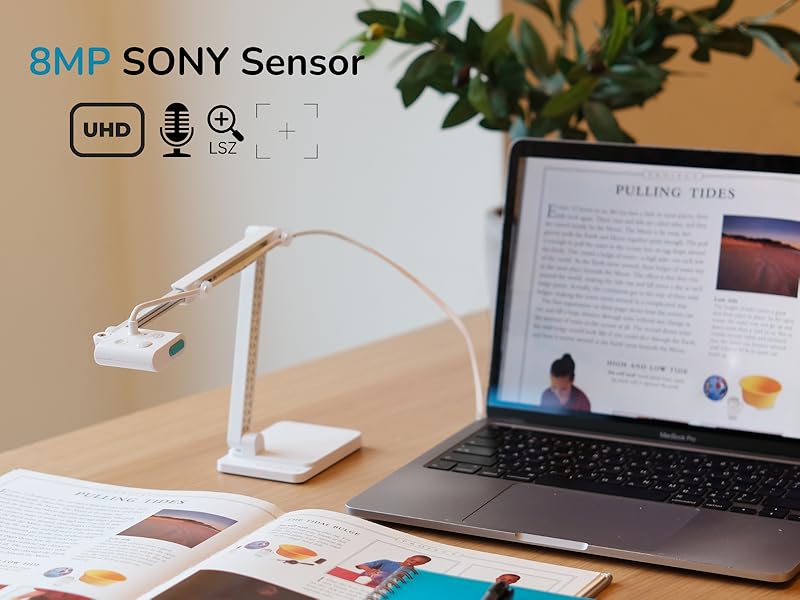
Image: A laptop screen displaying the OKIOCAM Live software with OKIOPoint AI-tracking active, showing the camera automatically zooming and following a pointer on a document.
4.3 Software Features (OKIOCAM Live)
The OKIOCAM Live software provides a suite of tools to enhance your camera's functionality:
- Digital Zoom: Fine-tune your zoom up to 10x beyond the physical button controls.
- Image Annotation: Draw, highlight, and add text directly onto the live image.
- Video Recording: Capture high-quality video of your presentations or lessons.
- Snapshots: Take still images at any time during your session.
- Picture-in-Picture (PIP): Display a second webcam feed alongside your document camera feed.
- Exposure and Focus Adjustments: Access more granular controls for exposure, white balance, and focus settings.
5. Software and Compatibility
The OKIOCAM S2-4K is highly compatible with various operating systems and communication platforms, ensuring seamless integration into your existing setup.
Supported Operating Systems:
- Windows
- macOS
- iOS (via USB-C adapter and OKIOCAM Live app)
- Chromebook
Supported Platforms:
The camera functions effectively with popular conferencing and learning platforms:
- Google Meet
- Zoom
- Microsoft Teams
- Canvas
- And many more standard webcam-compatible applications.

Image: A graphic displaying logos of various compatible platforms, including Google Meet, Zoom, Teams, and Canvas, indicating broad software support.
6. Maintenance
To ensure the longevity and optimal performance of your OKIOCAM S2-4K, follow these simple maintenance guidelines:
- Cleaning: Use a soft, dry cloth to clean the camera body. For the lens, use a specialized lens cleaning cloth and solution if necessary, avoiding abrasive materials.
- Storage: When not in use, fold the camera flat for compact storage. Store it in a cool, dry place away from direct sunlight and extreme temperatures.
- Handling: Handle the camera by its base and arm. Avoid applying excessive force to the joints or camera head.
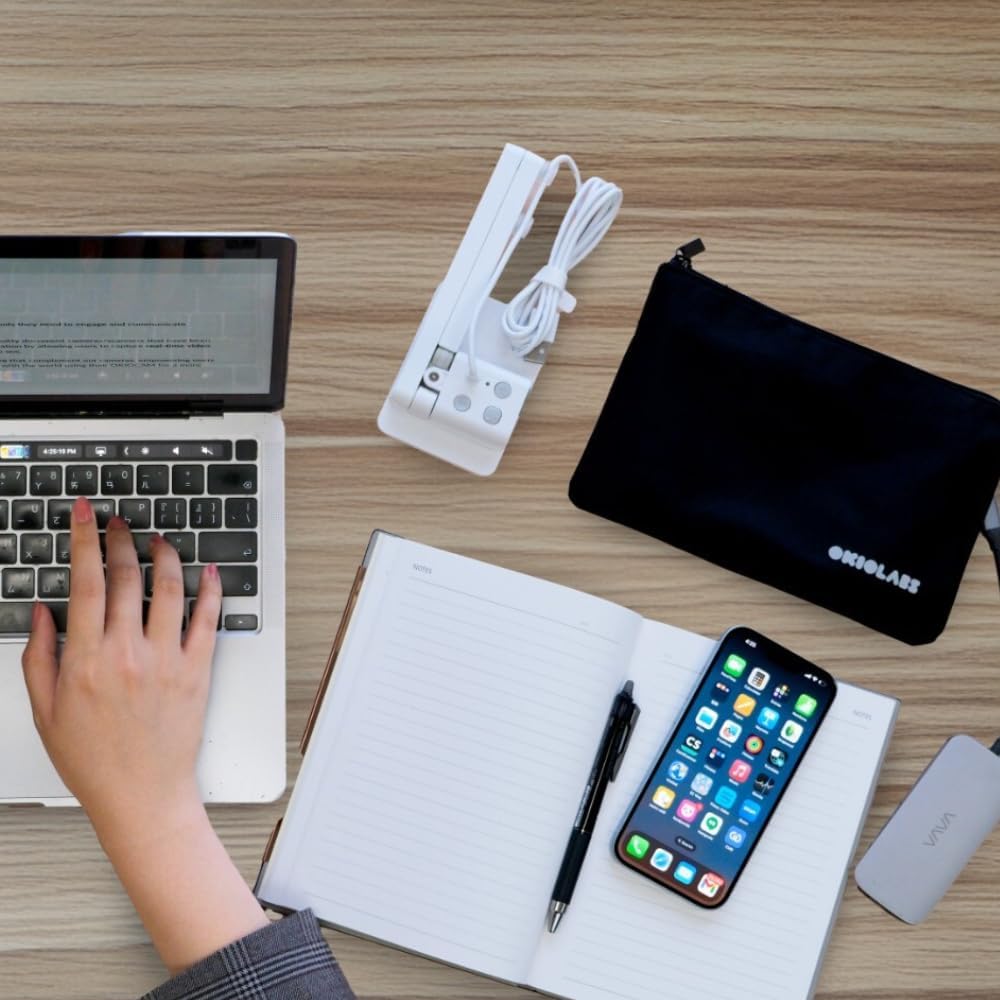
Image: The OKIOCAM S2-4K folded into a compact form, demonstrating its portability and ease of storage alongside a carrying pouch and other accessories.
7. Troubleshooting
If you encounter issues with your OKIOCAM S2-4K, refer to the following common troubleshooting steps:
7.1 No Image/Video Output
- Check Connection: Ensure the USB cable is securely connected to both the camera and your device. Try a different USB port.
- Device Recognition: Verify that your operating system recognizes the camera. Check Device Manager (Windows) or System Information (Mac) for the camera entry.
- Software Selection: In your conferencing or camera application, ensure the OKIOCAM S2-4K is selected as the active video input device.
- Restart Application/Device: Close and reopen the application, or restart your computer/device.
7.2 Poor Image Quality
- Lighting: Ensure adequate ambient lighting. While the S2-4K performs well in low light, optimal lighting improves clarity. Avoid direct glare on the document.
- Focus: Press the autofocus button on the camera head or use the autofocus function in the OKIOCAM Live software to re-focus.
- Resolution Settings: Check the resolution settings in your camera application or OKIOCAM Live software. Ensure it is set to a high resolution (e.g., 3264x2448p UHD).
- Clean Lens: Gently clean the camera lens with a soft, lint-free cloth.
7.3 OKIOPoint AI-Tracking Not Working
- Software Active: Ensure the OKIOCAM Live software is running and the AI-tracking feature is enabled within the software.
- Pointer Visibility: Make sure the QR code on the OKIOPoint Smart Pointer is clearly visible to the camera and not obscured.
- Software Update: Check for and install any available updates for the OKIOCAM Live software.
8. Specifications
Detailed technical specifications for the OKIOCAM S2-4K Document Camera:
| Feature | Specification |
|---|---|
| Product Dimensions | 6.9 x 7.01 x 14.17 inches |
| Item Weight | 1.1 pounds |
| Item Model Number | OKL-S2U |
| Video Capture Resolution | Up to 3264x2448p UHD, 1944p, 1536p, 1440p, 1200p, 1080p, 720p |
| Color | White |
| Exposure Control Type | Automatic and Manual |
| Shooting Modes | Landscape, Portrait |
| Macro Focus Range | 2 Inches (5 cm) |
| Manufacturer | OKIOLABS |
9. Warranty and Support
For warranty information, technical support, and further assistance, please refer to the official OKIOLABS website or contact their customer service directly. Keep your purchase receipt as proof of purchase for any warranty claims.
Online Resources: Visit the OKIOLABS support page for FAQs, software downloads, and additional guides.
Contact Support: Refer to the contact information provided on the OKIOLABS website for direct assistance.
Ask a question about this manual
Ask about setup, troubleshooting, compatibility, parts, safety, or missing instructions. Manuals+ will review the question and use this page’s manual context to help answer it.