
Introduction
The Leopold FC630MBT is a compact 60% mechanical keyboard designed for both wired and wireless connectivity. It features durable double-shot PBT keycaps and the new Cherry MX2A switches, providing a reliable and responsive typing experience. Enhanced acoustics are achieved through the inclusion of a sound-absorbing pad and foam within the keyboard's structure.
This manual provides detailed instructions for setting up, operating, maintaining, and troubleshooting your FC630MBT keyboard.
What's in the Box
- Leopold FC630MBT Keyboard
- USB-C Cable
- 3x AAA Batteries
Setup
Wired Connection
To connect your keyboard via USB-C:
- Locate the USB-C port on the back of the keyboard.
- Connect one end of the provided USB-C cable to the keyboard.
- Connect the other end of the USB-C cable to an available USB port on your computer.
- Ensure the power switch on the keyboard is in the 'ON' position. The keyboard will be recognized automatically by your operating system.

Image: USB-C port and connection diagram. This image illustrates how to connect the keyboard using the USB-C cable for wired operation and power.
Bluetooth Connection
The FC630MBT supports Bluetooth 5.1 connectivity and can pair with up to three devices.
- Ensure the 3x AAA batteries are correctly installed in the battery compartment.
- Turn the power switch on the keyboard to the 'ON' position.
- Press the Bluetooth pairing button (usually a small button located near the battery compartment or on the underside of the keyboard). The blue Bluetooth indicator light will begin to flash.
- While the blue light is flashing, press and hold Fn + Z, Fn + X, or Fn + C for approximately 2 seconds to assign the keyboard to one of the three Bluetooth profiles (Z, X, or C).
- On your device (computer, laptop, etc.), navigate to the Bluetooth settings and search for new devices.
- Select 'FC630MBT' from the list of available devices to complete the pairing process. The blue indicator light will stop flashing and remain solid once connected.
- To switch between paired Bluetooth devices, press the corresponding Fn + Z, Fn + X, or Fn + C combination for the desired device.

Image: Keyboard layout. This image shows the compact 60% layout of the keyboard, which is useful for understanding key positions for Bluetooth pairing combinations.
Operating Instructions
Key Functions and Layout
The FC630MBT features a 60% layout, which means some functions are accessed via the Fn (Function) key in combination with other keys. The keyboard utilizes Cherry MX2A switches, known for their smooth and consistent keystrokes.

Image: Leopold FC630MBT Keyboard with Cherry MX2A Switch. This image displays the overall aesthetic of the keyboard and highlights the Cherry MX2A switch type.

Image: Cherry MX2A Switches. This image emphasizes the new Cherry MX2A switch technology used in the keyboard, which contributes to its typing feel and acoustics.
DIP Switch Configuration
The FC630MBT includes DIP switches on the underside of the keyboard, allowing for hardware-level remapping of certain keys. This provides flexibility for users who prefer alternative key layouts without software.
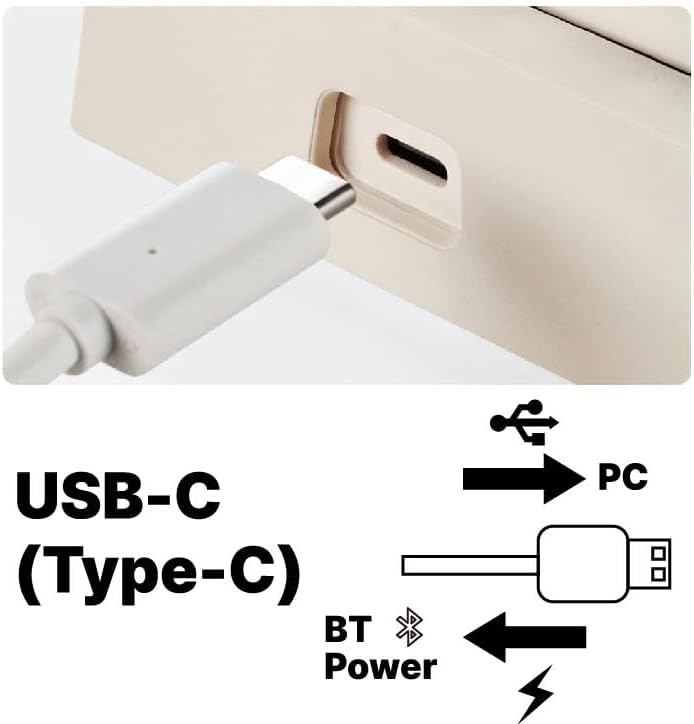
Image: DIP Switches and Function Table. This image shows the physical DIP switches on the keyboard and a table detailing how each switch alters key assignments.
Refer to the table below for DIP switch functions:
| SW No. | Key Position | OFF (Initial State) | ON |
|---|---|---|---|
| SW1 | Left Ctrl | Left Ctrl | CapsLock |
| SW2 | Fn + Number Key | F1~F12 | Number Key |
| SW3 | Fn + CapsLock | Left Windows | CapsLock |
| SW4 | Fn + \ | | \ | | Delete |
| SW5 | Right Ctrl | Right Ctrl | Fn |
| SW6 | Left Ctrl | Left Ctrl | Fn |
| SW7 | Left Space | Left Space | Fn |
| SW8 | Right Space | Right Space | Fn |
Note: Ensure the keyboard is disconnected or powered off before changing DIP switch settings to prevent unintended behavior.
Maintenance
Cleaning
To maintain the performance and appearance of your keyboard:
- Disconnect the keyboard from your computer before cleaning.
- Use a soft, lint-free cloth slightly dampened with water or a mild cleaning solution to wipe the keycaps and casing.
- Avoid spraying liquids directly onto the keyboard.
- For dust and debris between keycaps, use compressed air or a small brush.
Battery Replacement
The FC630MBT uses three AAA batteries for Bluetooth operation. When the battery indicator light (if present) signals low power, or if Bluetooth connectivity becomes unreliable, replace the batteries:
- Turn off the keyboard using the power switch.
- Locate the battery compartment on the underside of the keyboard.
- Open the compartment cover.
- Remove the old AAA batteries and dispose of them properly.
- Insert three new AAA batteries, ensuring correct polarity (+/-).
- Close the battery compartment cover.
- Turn the keyboard back on.

Image: Internal Components. This image provides an exploded view of the keyboard, highlighting the sound-absorbing pads and foam that contribute to its enhanced acoustics.
Troubleshooting
- Keyboard not responding (Wired):
Ensure the USB-C cable is securely connected to both the keyboard and the computer. Try a different USB port or cable. Restart your computer. - Keyboard not connecting (Bluetooth):
Check if the batteries are installed correctly and have sufficient charge. Ensure the keyboard is in pairing mode (blue light flashing). Remove previous pairings from your device's Bluetooth settings and try pairing again. Ensure your device's Bluetooth is enabled. - Keys not functioning as expected:
Check the DIP switch settings on the underside of the keyboard. Incorrect DIP switch configurations can alter key assignments. Refer to the 'DIP Switch Configuration' section for details. - Intermittent connection issues:
This may be due to interference from other wireless devices. Try moving the keyboard closer to your device or reducing other wireless activity in the area. For Bluetooth, ensure batteries are not low.
Specifications
| Feature | Detail |
|---|---|
| Model | FC630MBT |
| Connectivity Technology | Bluetooth 5.1, USB-C |
| Keyboard Description | Mechanical |
| Switch Type | Cherry MX2A Black |
| Keycaps | Double Shot PBT |
| Power Source | Battery Powered (3x AAA), USB Powered |
| Compatible Devices | Laptop, PC |
| Item Weight | 2.42 pounds |
| Package Dimensions | 12.76 x 4.8 x 2.83 inches |
| Manufacturer | Leopold |
| First Available | June 12, 2024 |
Warranty and Support
Leopold products are manufactured to high-quality standards. For specific warranty terms and conditions, please refer to the warranty information provided at the time of purchase or contact Leopold customer support directly. Keep your proof of purchase for warranty claims.
For further assistance or technical support, please visit the official Leopold website or contact their customer service department.