
Introduction
This CHUYI Wireless Keyboard and Mouse Combo offers versatile connectivity with both 2.4GHz wireless and Bluetooth 5.1 modes, allowing connection to up to three devices. Designed for comfort and efficiency, it features a full-size keyboard with concave keycaps and a silent mouse with adjustable DPI. This manual provides instructions for proper setup, operation, and maintenance of your device.
Product Overview
Familiarize yourself with the components and features of your CHUYI Wireless Keyboard and Mouse Combo.

Image: The CHUYI Wireless Keyboard and Mouse Combo, showcasing its beige color and full-size layout.

Image: A user operating the keyboard and mouse, highlighting the stylish design and concave keycaps.

Image: Detailed dimensions of the keyboard (390mm x 130mm x 16mm/11mm) and mouse (105mm x 15mm).
Setup Instructions
1. Locating the USB Receiver
The USB receiver for 2.4GHz wireless mode is stored at the bottom of the mouse. Gently open the battery compartment cover to access it.

Image: A close-up view of the mouse's underside, indicating the storage location for the USB receiver.
2. 2.4GHz Wireless Mode Connection
- Remove the USB receiver from the mouse's storage compartment.
- Plug the USB receiver into an available USB-A port on your computer or device.
- Turn on both the keyboard and mouse. They should automatically connect to your device.
3. Bluetooth Mode Connection
- Ensure both the keyboard and mouse are powered on.
- On the keyboard, press FN + 1 or FN + 2 to select a Bluetooth channel. The indicator light will flash, indicating pairing mode.
- On your device (PC, Mac, tablet, phone), go to Bluetooth settings and search for new devices.
- Select "CHUYI Keyboard" or similar from the list of available devices to pair.
- For the mouse, press the Bluetooth pairing button on its underside until the indicator light flashes.
- In your device's Bluetooth settings, select "CHUYI Mouse" or similar to pair.
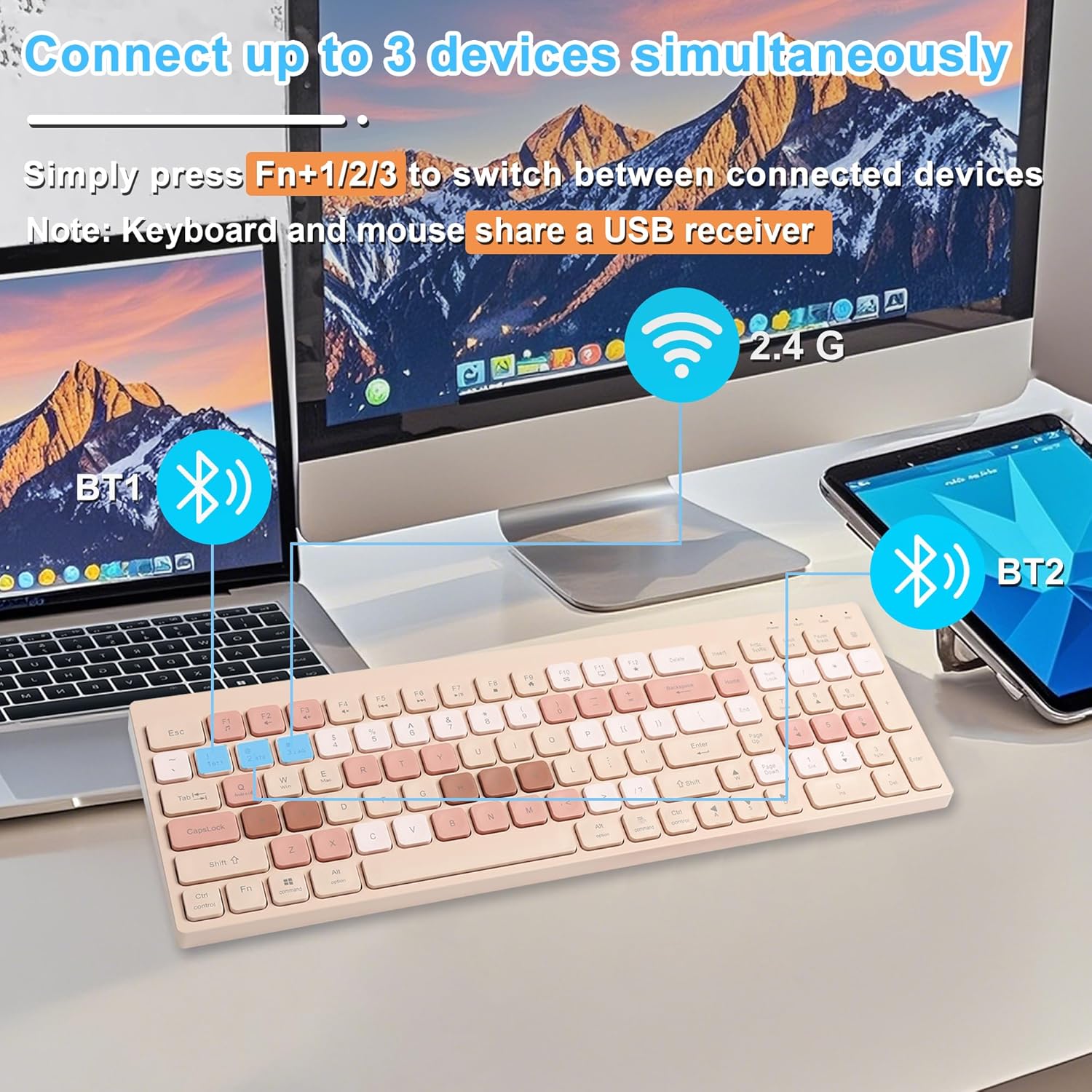
Image: Diagram illustrating the dual-mode connectivity options (2.4GHz and Bluetooth) and how to switch between devices.
Operating Instructions
1. Switching Between Connected Devices
The keyboard and mouse combo supports connection to up to three devices simultaneously. To switch between them:
- For 2.4GHz mode: The keyboard and mouse share one USB receiver.
- For Bluetooth mode: Press FN + 1, FN + 2, or FN + 3 on the keyboard to switch to the corresponding paired device.

Image: A user working with the keyboard and mouse, demonstrating multi-device connectivity.
2. Adjusting Mouse DPI
The mouse features 3 adjustable DPI settings (800-1200-1600 DPI). Press the DPI button located on the top of the mouse to cycle through the sensitivity levels.
3. Multimedia Hotkeys
The keyboard includes multimedia hotkeys for quick access to functions such as music, volume, and email. These are typically accessed by pressing the FN key in combination with the corresponding function key (F1-F12).

Image: A visual representation of the keyboard's FN key combinations for various shortcut functions.
Charging and Battery
Both the keyboard and mouse are equipped with built-in rechargeable batteries.
- Keyboard Battery Capacity: 200mAh
- Mouse Battery Capacity: 500mAh
- Charging Time: Approximately 1 hour for a full charge.
- Standby Time: Up to 3 months on a single charge.
The mouse features a power indicator to show the current battery level, allowing you to charge it in a timely manner.
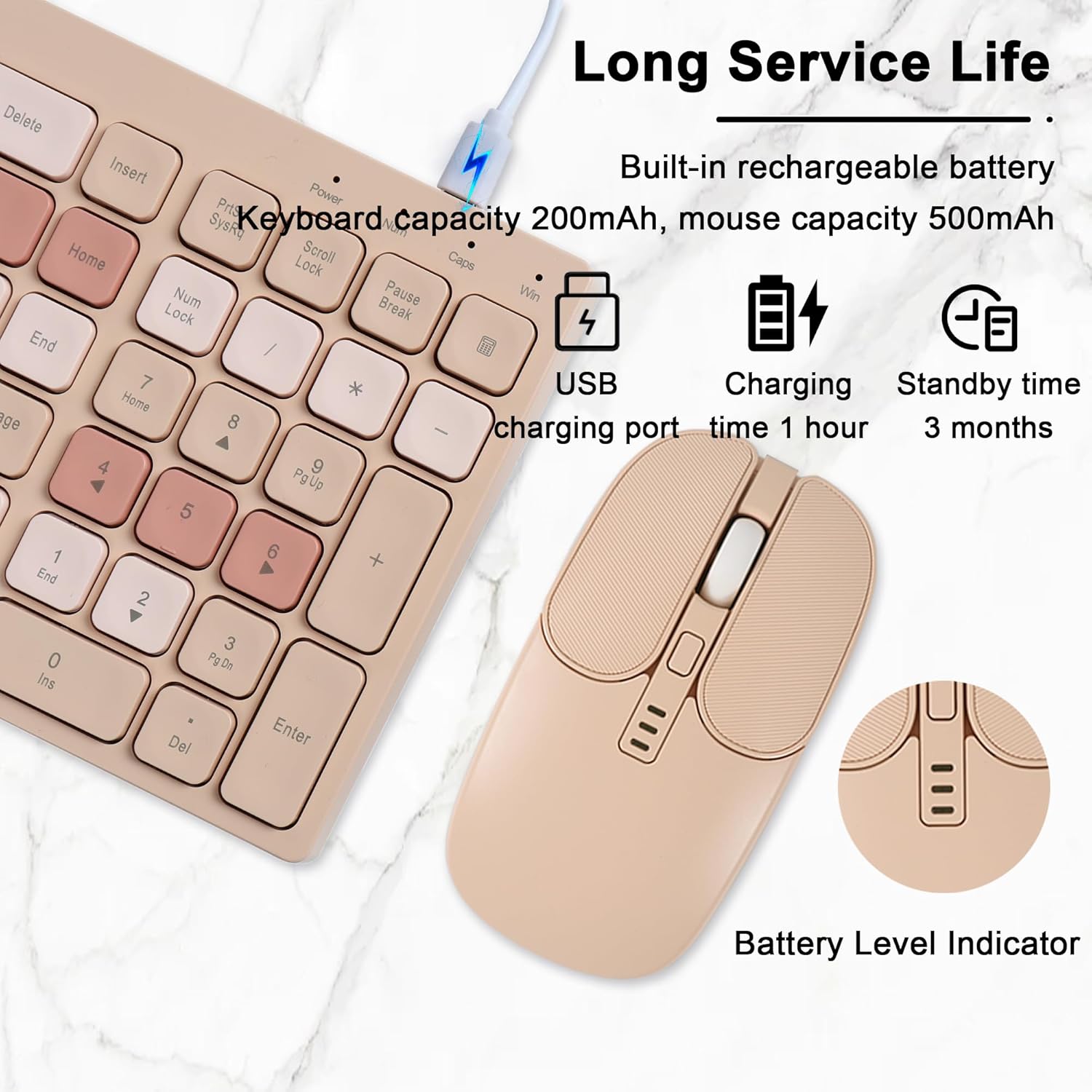
Image: Visual details on charging via USB, battery capacities, charging time, standby time, and the mouse's battery level indicator.
Compatibility
This keyboard and mouse combo is compatible with a wide range of operating systems and devices:
- Operating Systems: Windows (2000/WinXP/ME/Win7/Win8/Win10/Vista/Linux), Android, and Mac OS.
- Compatible Devices: PC, Mac, desktop computers, laptops, notebooks, and other devices equipped with a USB port (for 2.4GHz mode) and Bluetooth 5.1 (for Bluetooth mode).

Image: An illustration showing the keyboard and mouse connected to various devices, including tablets, laptops, and desktop PCs, highlighting Bluetooth 5.1 and 2.4GHz USB modes.
Maintenance
To ensure the longevity and optimal performance of your keyboard and mouse combo, follow these maintenance guidelines:
- Keep the devices clean by wiping them with a soft, dry cloth.
- Avoid exposing the devices to excessive moisture or extreme temperatures.
- Do not use harsh chemicals or abrasive cleaners.
- Store the USB receiver securely in the mouse when not in use to prevent loss.
Troubleshooting
- Q: Where is the USB receiver for the mouse?
- A: The USB receiver is located at the bottom of the mouse, typically within a dedicated storage compartment. You may need to open a small cover to access it.
- Q: Are these devices compatible with MacBook or Chromebook?
- A: Yes, the combo is compatible with Mac OS and Chrome OS. For 2.4GHz wireless mode, the mouse uses a standard USB-A receiver. If your MacBook or Chromebook only has USB-C ports, you will need a USB-A to USB-C adapter (not included) to use the 2.4GHz mode. Bluetooth connectivity is also available for compatible devices.
- Q: The keyboard/mouse is not connecting.
- A: Ensure both devices are fully charged and powered on. For 2.4GHz mode, verify the USB receiver is securely plugged in. For Bluetooth mode, ensure the device is in pairing mode (indicator light flashing) and selected correctly in your device's Bluetooth settings. Try restarting your computer or device.
- Q: The mouse cursor is erratic or unresponsive.
- A: Check the battery level of the mouse and recharge if necessary. Ensure the mouse sensor is clean and free from obstructions. Try adjusting the DPI settings to see if it improves responsiveness.
Specifications
| Feature | Detail |
|---|---|
| Brand | CHUYI |
| Model Number | Wireless Keyboard and Mouse Combo |
| Color | Beige |
| Connectivity Technology | Bluetooth 5.1, 2.4GHz USB Wireless |
| Keyboard Layout | QWERTY, Full-size, 105 keys, Concave keycaps |
| Mouse DPI | 800-1200-1600 DPI (Adjustable) |
| Keyboard Battery Capacity | 200mAh |
| Mouse Battery Capacity | 500mAh |
| Charging Time | Approx. 1 hour |
| Standby Time | Approx. 3 months |
| Compatible Operating Systems | Windows, Android, Mac OS |
| Item Weight | 371 Grams |
Official Product Video
Video: An official product video from CHUYI showcasing the Wireless Keyboard and Mouse Combo in use, highlighting its features and design.
Warranty and Support
This CHUYI Wireless Keyboard and Mouse Combo comes with a 1-year warranty from the date of purchase.
For technical support, warranty claims, or any inquiries regarding your product, please contact CHUYI customer service through the retailer where you purchased the item or visit the official CHUYI website for contact information.
