
Introduction
The ANTELA Matter Smart Plug (Model F1MWs202-EU) is a versatile smart home device designed to integrate seamlessly into your connected ecosystem. This smart plug supports the Matter protocol, enabling compatibility with major smart home platforms such as Apple HomeKit, Amazon Alexa, Google Home, and SmartThings. It features energy monitoring, remote control capabilities, and programmable schedules and timers, all operating on a 2.4 GHz Wi-Fi network. This manual provides essential instructions for setting up, operating, and maintaining your smart plug.
Setup Instructions
1. Initial Setup and Wi-Fi Connection
To begin, plug the ANTELA Matter Smart Plug into a standard Type F wall outlet. Ensure your Wi-Fi network is operating on the 2.4 GHz frequency band, as the smart plug does not support 5 GHz networks.
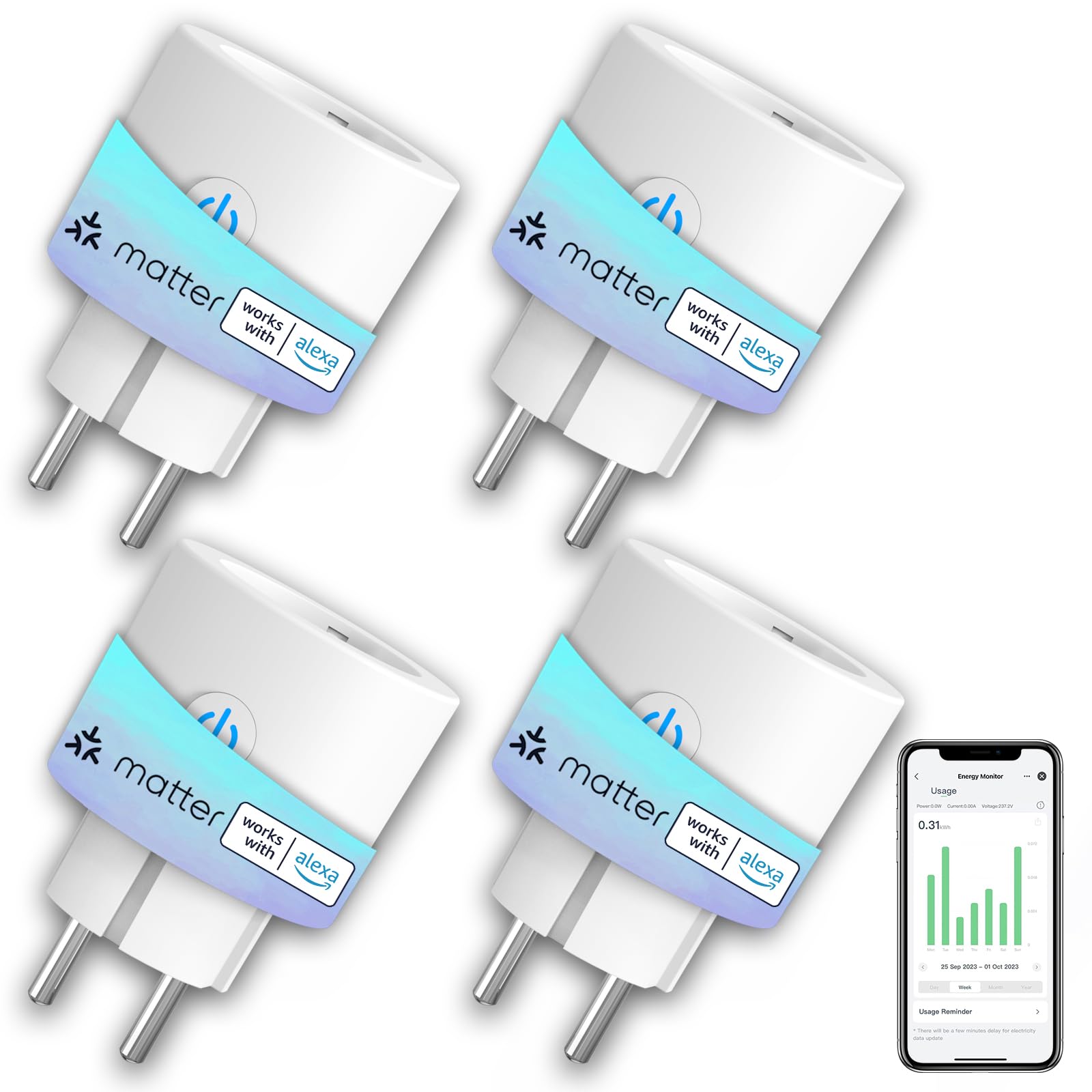
Image Description: A smartphone screen displaying a QR code scanning interface next to an ANTELA smart plug connected to a coffee maker, illustrating quick setup. The image highlights the 'Easy Setup' process.
Download the Smart Life or Tuya Smart application from your device's app store. Open the app and follow the on-screen instructions to add a new device. The smart plug can often be added by scanning a QR code located on the product or its packaging.
2. Matter Protocol and Smart Home Platform Integration
The ANTELA Matter Smart Plug is compatible with the Matter protocol, allowing integration with various smart home ecosystems. For Matter functionality, a compatible Matter controller (often referred to as a hub) is required. This hub facilitates communication between your smart plug and platforms like Apple HomeKit, Amazon Alexa, Google Home, and SmartThings.

Image Description: An ANTELA smart plug with the Matter logo, showcasing its compatibility with HomeKit, Google Home, Smart Life, Tuya Smart, SmartThings, and Alexa. The image also displays the plug's dimensions: 5.5 cm width and 8.2 cm height.
Ensure your Matter controller is set up and connected to your 2.4 GHz Wi-Fi network. Follow the specific instructions provided by your smart home platform (e.g., Apple Home app, Alexa app, Google Home app) to add a Matter-compatible device. You may need to scan a Matter pairing code or enter a numerical code.

Image Description: A grid illustrating various compatible Matter hubs, including Amazon Echo devices (5th Gen, 4th Gen, Show 8, Pop, Show 5), Apple HomePod, HomePod mini, Apple TV 4K, Google Nest Wi-Fi Pro, Google Home, Nest Audio, and Nest Hub. This image clarifies that a hub is required for Matter device integration.
Operating Instructions
1. Remote Control via App
Once connected, you can control your smart plug from anywhere using the Smart Life or Tuya Smart app on your smartphone or tablet. This allows you to turn connected appliances on or off remotely.

Image Description: A split image depicting a person outdoors interacting with a smartphone on the left, and an indoor scene on the right showing an ANTELA smart plug connected to a lamp. This illustrates the convenience of remote control via a mobile application.
2. Energy Monitoring
The smart plug includes an energy monitoring feature. Through the Smart Life or Tuya Smart app, you can view the power consumption of devices connected to the smart plug. This allows for tracking and managing energy usage.

Image Description: A smartphone screen displaying the 'Energy Monitor Usage' interface, which includes a graph illustrating electricity consumption over a period. The background shows a room with a hanging lamp, emphasizing the energy tracking capability of the smart plug.
3. Scheduling and Timers
Utilize the app to set schedules and timers for your connected devices. You can program the smart plug to automatically turn appliances on or off at specific times, enhancing convenience and energy efficiency.
4. Voice Control
With Matter compatibility and a connected hub, you can control the smart plug using voice commands through Apple HomeKit (Siri), Amazon Alexa, or Google Home. Simply use your voice assistant to turn devices on or off.

Image Description: A bedroom setting featuring an ANTELA smart plug connected to a bedside lamp. Speech bubbles illustrate common voice commands for controlling the light, such as 'Hey Siri, turn on my bedroom light,' 'Alexa, turn on my bedroom light,' and 'Hey Google, turn on my bedroom light,' highlighting the voice control feature.
5. Family Sharing
The Smart Life or Tuya Smart app allows you to share control of your smart plug with family members, enabling multiple users to manage connected devices.
Maintenance
To ensure optimal performance and longevity of your ANTELA Matter Smart Plug, follow these maintenance guidelines:
- Cleaning: Disconnect the smart plug from the power outlet before cleaning. Use a soft, dry cloth to wipe the exterior. Do not use liquid cleaners or abrasive materials, as these can damage the device.
- Environment: Avoid exposing the smart plug to extreme temperatures, humidity, or direct sunlight. Ensure it is used in a dry indoor environment.
- Safety: Do not attempt to disassemble or repair the smart plug yourself. Refer to qualified personnel for any issues beyond basic troubleshooting.
Troubleshooting
Common Issues and Solutions:
- Device not connecting to Wi-Fi:
- Ensure your Wi-Fi network is 2.4 GHz. The smart plug does not support 5 GHz.
- Check if the smart plug is within range of your Wi-Fi router.
- Verify your Wi-Fi password is entered correctly in the app.
- Restart your router and try connecting again.
- Device not responding to app/voice commands:
- Check the smart plug's power status.
- Ensure your smartphone or voice assistant device is connected to the internet.
- For Matter control, confirm your Matter controller (hub) is online and properly configured.
- Restart the smart plug by unplugging it for 10 seconds and plugging it back in.
- Energy monitoring data is inaccurate or not updating:
- Ensure the Smart Life or Tuya Smart app is updated to the latest version.
- Check your internet connection. Data updates may have a slight delay.
Resetting the Smart Plug:
If you encounter persistent issues, you may need to reset the smart plug to its factory settings. Typically, this involves pressing and holding the power button on the smart plug for approximately 5-10 seconds until the indicator light flashes rapidly. Refer to the app's instructions for specific reset procedures, as they may vary slightly.
Technical Specifications
| Feature | Specification |
|---|---|
| Model Number | F1MWs202-EU |
| Brand | ANTELA |
| Dimensions (L x W x H) | 12.1 x 8.7 x 6 cm |
| Weight | 400 grams |
| Color | Black |
| Material | Plastic |
| Voltage | 240 Volts (Operating Voltage: 250 Volts) |
| Power | 3680 Watts |
| Current Rating | 16 A |
| Wi-Fi Frequency | 2.4 GHz |
| Electrical Plug Type | Type F (Surface Mount) |
| Switch Style | Push-button |
| Certifications | CE, RoHS |
| Included Components | Smart Plug |
| Batteries Required | No |
Warranty Information
ANTELA products are manufactured to high-quality standards. For specific warranty details, including coverage period and terms, please refer to the warranty card included with your product packaging or contact ANTELA customer support. Keep your proof of purchase for warranty claims.
Customer Support
If you require further assistance, have questions about your ANTELA Matter Smart Plug, or need technical support, please contact ANTELA customer service. Contact information can typically be found on the product packaging, the official ANTELA website, or within the Smart Life/Tuya Smart application's help section.
Please have your product model number (F1MWs202-EU) and purchase details ready when contacting support.


