
1. Introduction
This manual provides detailed instructions for setting up, operating, maintaining, and troubleshooting your NIMO Mini PC N100. Please read this manual thoroughly before using the device to ensure proper functionality and to maximize its lifespan. The NIMO Mini PC N100 is a compact and powerful desktop computer designed for various applications, from home entertainment to office productivity.
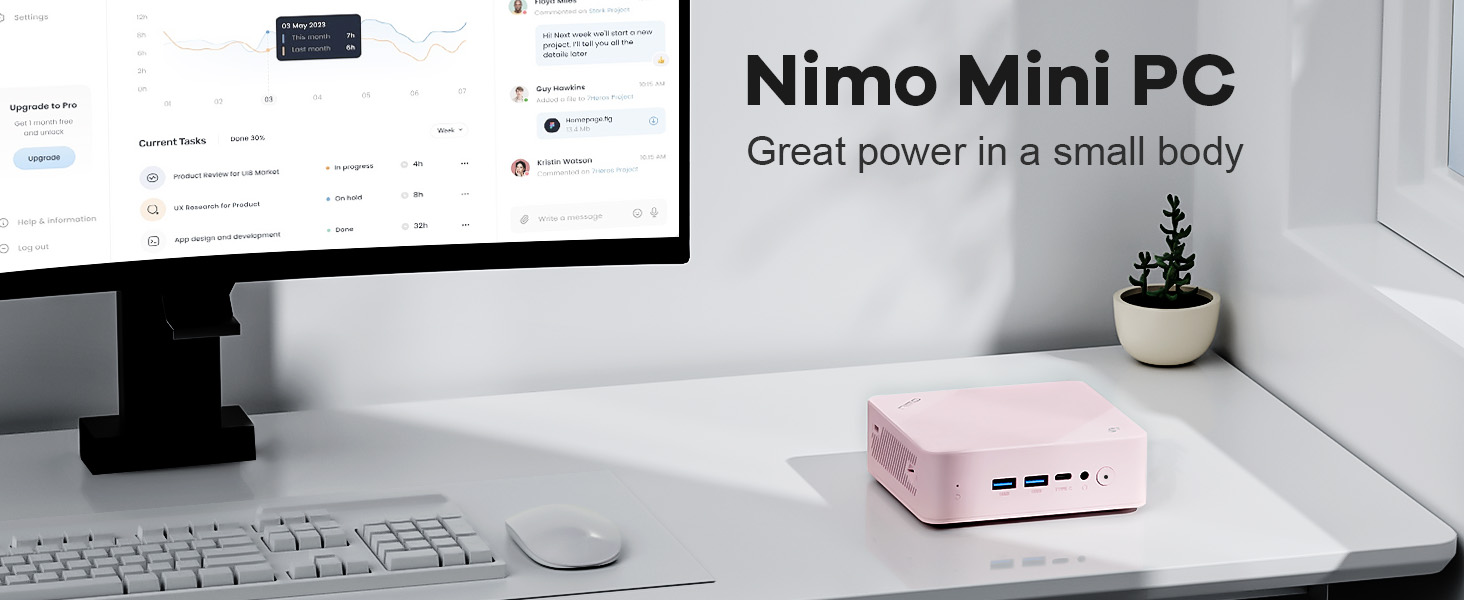
Image: The NIMO Mini PC N100, a compact computing solution for various environments.
2. Product Overview
The NIMO Mini PC N100 is engineered for efficiency and versatility. It features a compact design with a comprehensive array of ports for seamless connectivity.
2.1. Physical Features and Ports
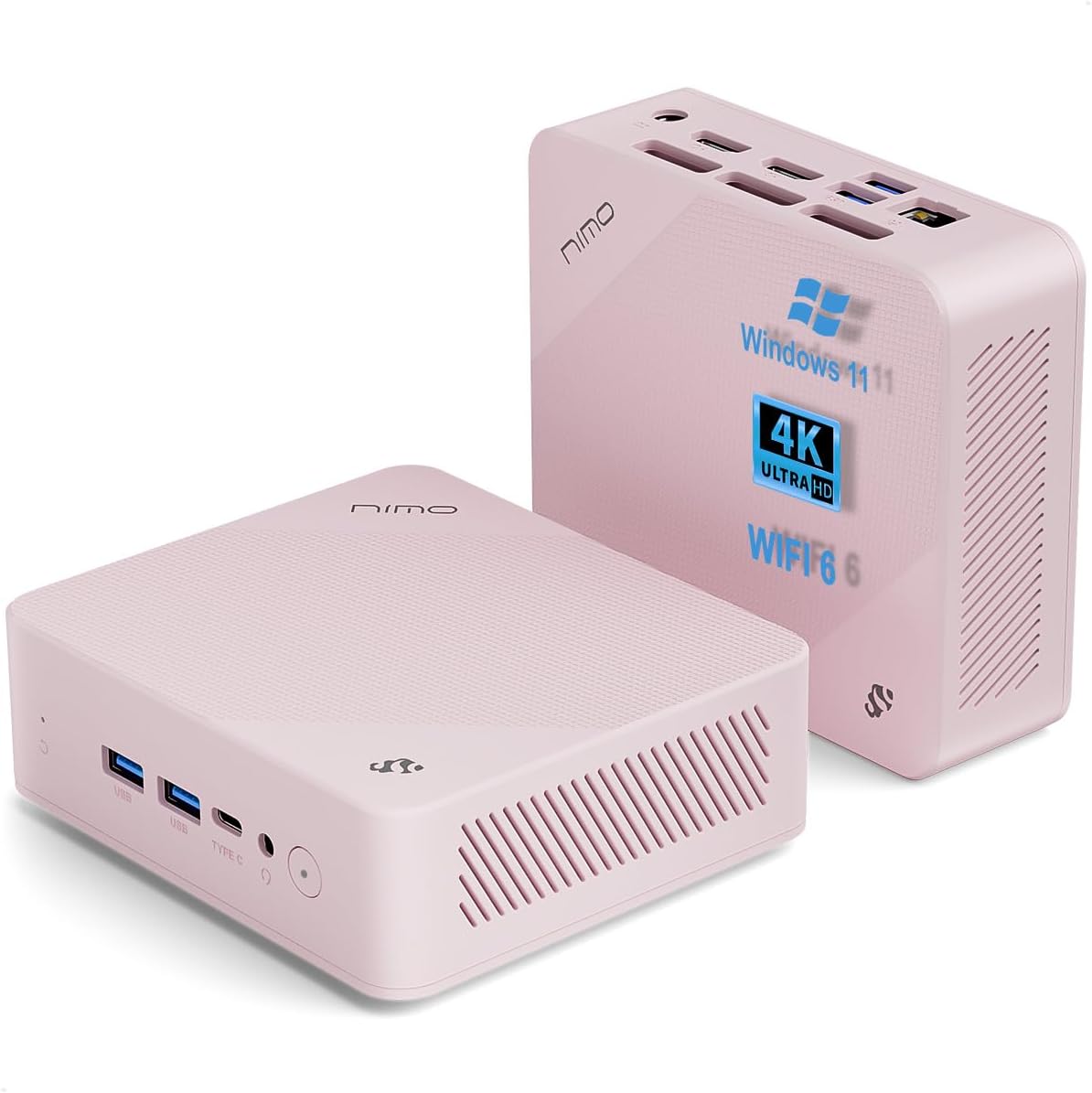
Image: Front and rear views of the NIMO Mini PC N100, showcasing its compact form factor and port layout.

Image: A detailed diagram illustrating the various ports available on the NIMO Mini PC N100, including USB, HDMI, LAN, and Type-C.
- Front Panel: Power Button, 2x USB Type-A Ports, 1x Type-C Port (multifunction), 1x Audio Port, 1x Reset Button.
- Rear Panel: 1x Giga LAN Port, 2x HDMI 2.0 Ports, 2x USB Type-A Ports, 1x DC-IN Port, Security Slot, SD Card Reader.
2.2. Key Features

Image: A visual summary of the NIMO Mini PC N100's core features, such as Windows 11, WiFi 6, and 4K display support.
- Operating System: Windows 11 Home
- Processor: 12th Gen Intel N100 Processor
- Memory: 8GB DDR4 RAM
- Storage: 1TB PCIe SSD
- Connectivity: WiFi 6, Bluetooth 5.2, Gigabit LAN
- Display Output: Dual HDMI 2.0 and Type-C for up to 4K triple-monitor display
- Cooling: 15W Efficient Cooling System

Image: The NIMO Mini PC N100 in a desktop setup, emphasizing its Intel N100 processor, WiFi 6, Bluetooth 5.2, and efficient cooling capabilities.
3. Setup
Follow these steps to set up your NIMO Mini PC N100.
3.1. Package Contents
Verify that all items are present in the package:

Image: The NIMO Mini PC N100 package contents, including the Mini PC unit, mounting bracket, power adapter, and instruction manual.
- 1x NIMO Mini PC N100 Unit
- 1x Mounting Bracket
- 1x Power Adapter
- 1x Instruction Manual
3.2. Initial Connection
- Connect Display: Connect your monitor(s) to the HDMI 2.0 ports or the Type-C port on the Mini PC using appropriate cables.
- Connect Peripherals: Plug in your keyboard, mouse, and any other USB devices into the available USB Type-A ports.
- Connect Power: Insert the power adapter into the DC-IN port on the Mini PC, then plug the adapter into a power outlet.
- Network Connection: For a wired connection, connect an Ethernet cable to the Giga LAN port. For wireless, ensure your WiFi network is available.
3.3. Placement Options
The NIMO Mini PC N100 offers flexible placement options:

Image: A visual comparison of VESA mounting and traditional desktop placement for the NIMO Mini PC N100.
- Desktop Placement: Place the Mini PC on a flat, stable surface with adequate ventilation.
- VESA Installation: Use the included mounting bracket to attach the Mini PC to the back of a VESA-compatible monitor or TV. This helps create a clutter-free workspace.

Image: The NIMO Mini PC N100 discreetly mounted behind a monitor, illustrating its space-saving VESA capability.
4. Operating Instructions
Learn how to operate your NIMO Mini PC N100 effectively.
4.1. Powering On/Off
- Power On: Press the Power Button on the front panel. The power indicator light will illuminate.
- Power Off: In Windows, click the Start button, then select Power > Shut down. Alternatively, you can press and hold the Power Button for a few seconds to force a shutdown (not recommended for regular use).
- Restart: In Windows, click the Start button, then select Power > Restart.
4.2. Display Configuration
The NIMO Mini PC N100 supports up to three displays simultaneously.

Image: The NIMO Mini PC N100 demonstrating its capability to support a triple display setup for enhanced multitasking.
- Connecting Multiple Monitors: Use the two HDMI 2.0 ports and the Type-C port to connect up to three 4K displays.
- Windows Display Settings: Right-click on the desktop and select 'Display settings' to configure display resolution, orientation, and arrangement (extend, duplicate, or show only on one display).
4.3. Expanding Storage
The Mini PC includes an SD card reader for additional storage expansion.

Image: The NIMO Mini PC N100 featuring an SD card slot, allowing for easy storage expansion up to 512GB.
- Insert an SD card into the dedicated slot on the rear panel to expand storage capacity for files and applications.
4.4. Usage Scenarios

Image: The NIMO Mini PC N100 being used in different environments: home entertainment, office work, and classroom learning.
- Home Entertainment: Connect to a TV for streaming, media playback, or light gaming.
- Office Work: Ideal for productivity tasks, document editing, and video conferencing.
- Classroom Learning: Suitable for educational applications and online courses.
5. Maintenance
Proper maintenance ensures the longevity and optimal performance of your NIMO Mini PC N100.
- Cleaning: Regularly clean the exterior of the Mini PC with a soft, dry cloth. Use compressed air to clear dust from ventilation grilles. Do not use liquid cleaners directly on the device.
- Ventilation: Ensure the Mini PC is placed in a well-ventilated area. Do not block the air vents.
- Software Updates: Keep your Windows 11 operating system and drivers updated to ensure security and performance.
- Data Backup: Regularly back up important data to an external drive or cloud storage to prevent data loss.
- Avoid Extreme Conditions: Do not expose the Mini PC to extreme temperatures, humidity, or direct sunlight.
6. Troubleshooting
This section addresses common issues you might encounter with your NIMO Mini PC N100.
| Problem | Possible Cause | Solution |
|---|---|---|
| No power | Power adapter not connected; power outlet issue; faulty adapter. | Check power cable connection; try a different outlet; ensure adapter is working. |
| No display on monitor | Monitor off or incorrect input; display cable loose or faulty. | Ensure monitor is on and set to correct input (HDMI/Type-C); check display cable connections; try a different cable or monitor. |
| No internet connection (Wi-Fi) | Wi-Fi disabled; incorrect password; router issue. | Ensure Wi-Fi is enabled in Windows settings; verify Wi-Fi password; restart router. |
| No internet connection (LAN) | Ethernet cable loose or faulty; router issue. | Check Ethernet cable connection; try a different cable; restart router. |
| Peripherals (keyboard/mouse) not working | Loose USB connection; driver issue. | Reconnect USB device; try a different USB port; check device manager for driver issues. |
| System slow or unresponsive | Too many applications running; low disk space; malware. | Close unnecessary applications; free up disk space; run antivirus scan; restart the PC. |
7. Specifications
Detailed technical specifications for the NIMO Mini PC N100.

Image: Diagram highlighting the Intel 12th Gen N100 Processor, the core of the NIMO Mini PC N100's performance.
| Feature | Specification |
|---|---|
| Model Number | N100 |
| Operating System | Windows 11 Home |
| Processor | Intel 12th Gen N100 (3.4 GHz Intel_Mobile_CPU, 4 Cores) |
| RAM | 8 GB DDR4 SDRAM |
| Storage | 1 TB Solid State Drive (PCIe SSD) |
| Max Screen Resolution | 3840 x 2160 pixels (4K) |
| Graphics | Intel UHD Graphics (Integrated) |
| Connectivity | WiFi 6, Bluetooth 5.2, Gigabit LAN |
| Ports | 2x HDMI 2.0, 4x USB Type-A (USB3.2), 1x Type-C (multifunction), 1x Giga LAN, 1x DC-IN, 1x Audio, 1x SD Card Reader, 1x Security Slot |
| Dimensions (LxWxH) | 4.8 x 4.4 x 1.53 inches |
| Hardware Platform | PC |
| First Available Date | November 1, 2024 |
8. Warranty and Support
NIMO is committed to providing excellent after-sales service and support for your Mini PC N100.

Image: An overview of NIMO's commitment to after-sales excellence, including support, returns, and customer service.
8.1. Warranty Information
- Warranty Period: The NIMO Mini PC N100 is covered by a two-year warranty from the date of purchase.
- Return Policy: You may return any NIMO product for any reason within 90 days of purchase.
8.2. Customer Support
NIMO provides professional and high-quality customer service. If you have any product-related questions or require assistance, please contact us:
- Email: service@nimopc.com
- Online: Visit the official NIMO website or product page for contact options and support resources.
Our team of professional technicians is ready to help resolve any issues you may encounter. We aim to reply to all inquiries promptly.


