
1. Introduction
This manual provides detailed instructions for the setup, operation, maintenance, and troubleshooting of your InnoView 15.6" Portable Touchscreen Monitor. Designed for flexibility and enhanced productivity, this monitor offers a 1080P FHD IPS display with 10-point touch functionality, making it an ideal companion for various devices and environments.
Video Description: An overview of the InnoView 15.6-inch FHD Touchscreen Portable Monitor, showcasing its features and portability.
2. What's in the Box
Upon unboxing your InnoView Portable Monitor, please ensure all the following items are present:
- Portable Monitor x 1
- User Manual x 1
- Standard HDMI cable x 1
- USB-C (Fully functional) cable x 1
- USB-A to USB-B cable x 1
- Protective Case x 1
Note: A power adapter is not included in the accessories.

Image Description: A visual representation of the items included in the InnoView Portable Monitor packaging, showing the monitor, various cables, a user manual, and a protective sleeve.
3. Key Features
- 10-Point Touchscreen: Compatible with Windows and macOS systems, offering intuitive navigation.
- FHD IPS Portable Display: 15.6-inch 1080P screen with a 178° viewing angle, 1200:1 contrast ratio, HDR technology, low blue light, and flicker-free functions for enhanced visual comfort.
- Diverse and Durable Ports: Features 2 full-function Type-C ports and 1 standard HDMI port for wide compatibility.
- Protective Sleeve & Built-in Stand: Comes with a lightweight, durable protective sleeve and a built-in 0-90° adjustable stand for portability and versatile viewing angles.
- Ultra-Slim Design: Weighing 1.37 kg and with a slim profile, it's easy to carry for travel or daily commute.

Image Description: A visual highlighting the display features of the InnoView monitor, including its 15.6-inch FHD IPS touch screen, 178° viewing angle, 1200:1 contrast ratio, 300 Nits brightness, HDR support, and low blue light technology.
4. Setup
4.1 Connecting to Devices
The InnoView Portable Monitor supports various connection methods:
- Single Full-Featured Type-C Connection: For devices with Type-C 3.1 DP ALT-MODE or Thunderbolt 3/4 ports, use the included USB-C to USB-C cable for power, video, and touch functionality.
- HDMI + USB-A to USB-C Connection: For devices without full-featured Type-C ports, use an HDMI cable for video and a USB-A to USB-C cable for touch functionality. A separate power cable (15W or higher adapter recommended, not included) is required for power.

Image Description: A diagram illustrating how to connect a laptop to the InnoView portable monitor using a single USB-C 3.1 port, which handles both signal and touch input.

Image Description: A diagram showing the connection method for a laptop to the InnoView portable monitor using an HDMI cable for video, a USB-A to USB-C cable for touch, and a separate 15W power cable for power.
4.2 Touchscreen Calibration (Windows)
If the touch effect is displayed on your main screen instead of the portable monitor, you may need to calibrate the touchscreen:
- Open the Control Panel on your Windows computer.
- Select Hardware and Sound.
- Under Tablet PC Settings, click Calibrate the screen for pen or touch input.
- In Display Options, select InnoView (or the corresponding portable monitor display).
- Click Setup... and follow the on-screen prompts to tap the portable monitor screen to identify it as the touchscreen.
Video Description: A step-by-step guide on how to correct the touch screen effect of the monitor when it incorrectly displays on the main screen, including navigating Windows Control Panel settings.
4.3 Adjustable Stand
The monitor features a built-in 0-90° adjustable stand, allowing you to set the tilt angle for optimal viewing comfort and to reduce neck, back, and eye strain. It can also be used with a monitor arm for more space-saving installations.

Image Description: A collage of images demonstrating the built-in adjustable stand of the InnoView portable monitor, highlighting its integrated design, stability, flexible angle adjustment, and portability.
5. Operating
5.1 Basic Controls
Brightness and volume can be quickly adjusted using the upgraded 4-button controls or via the touchscreen interface.
5.2 Display Modes
The monitor supports both landscape and portrait modes, allowing for versatile use cases such as coding, document review, or extended desktop space.
5.3 Compatibility Notes
- Some devices cannot support touch due to system protection. This includes PS3/4/5, Nintendo Switch, Xbox, Steam-Deck, Fire TV Stick/Cube, iPhone, and iPad. This is a system limitation, not a monitor issue.
- iOS devices (iPhone, iPad) only support single-touch, not 10-point multi-touch.
- The Nintendo Switch 2 display supports HDMI only (no USB-C). Please check compatibility before purchase.
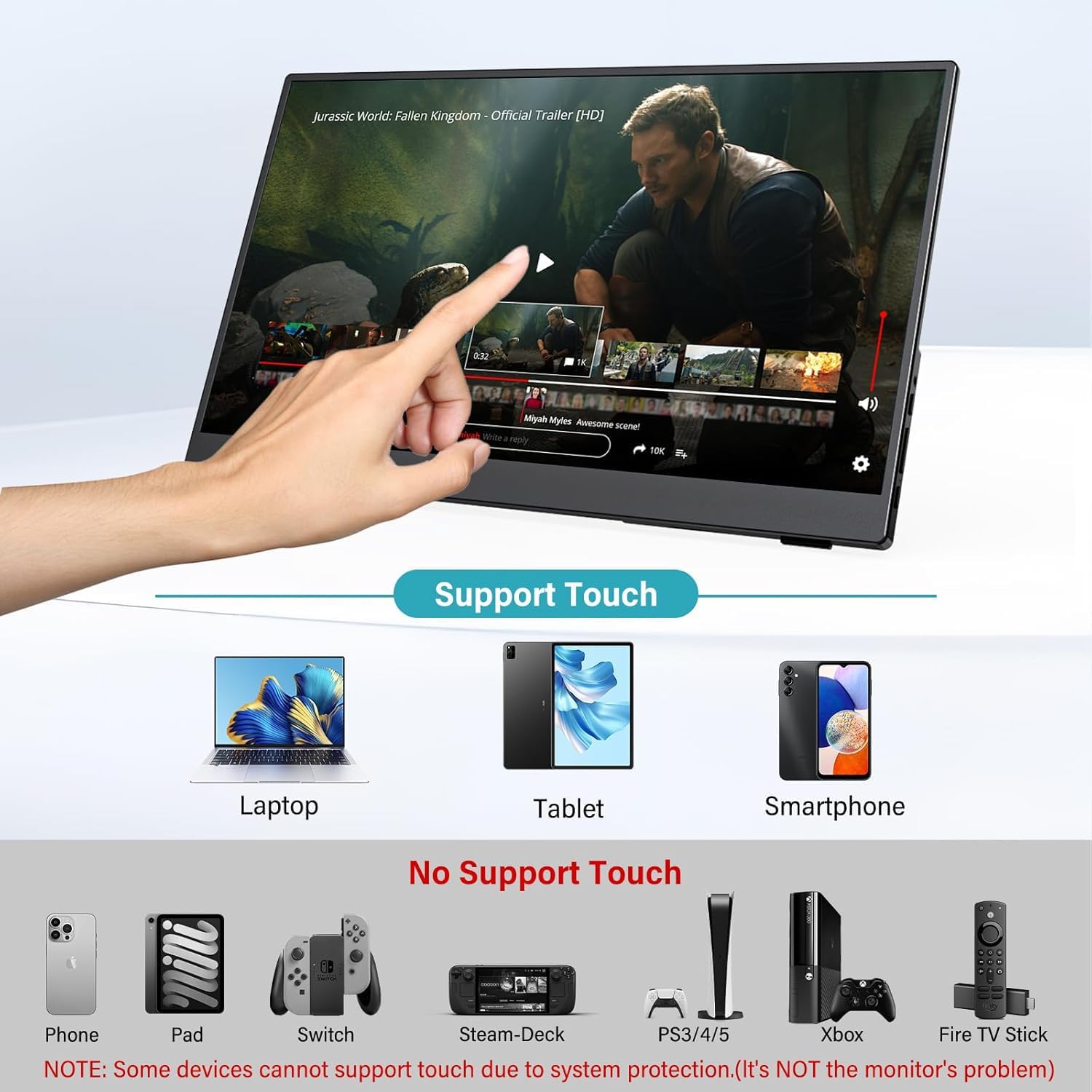
Image Description: A visual guide indicating which devices support touch functionality with the InnoView portable monitor (Laptop, Tablet, Smartphone) and which do not (Phone, Pad, Switch, Steam-Deck, PS3/4/5, Xbox, Fire TV Stick), noting system protection as the reason for non-support on certain devices.

Image Description: A detailed compatibility chart for the InnoView portable monitor, categorizing devices by their touch support: Click Touch (Macbook, iMac, Mac mini), Multi-Touch (Laptop, Smartphone, Tablet, Desktop PC), and No Support Touch (Phone, Pad, Switch, Capacitive Stylus Pen, Steam-Deck, Fire TV Stick, PS3/4/5, Xbox). It also notes that iOS only supports single-touch.
6. Maintenance
To ensure the longevity and optimal performance of your InnoView Portable Monitor, follow these maintenance guidelines:
- Cleaning: Gently wipe the screen with a soft, lint-free cloth. For stubborn smudges, use a screen-specific cleaning solution applied to the cloth, not directly to the screen.
- Storage: When not in use, store the monitor in its protective sleeve to prevent scratches and dust accumulation.
- Environment: Avoid exposing the monitor to extreme temperatures, direct sunlight, or high humidity.
- Handling: Handle the monitor with care to prevent drops or impacts, which can damage internal components or the screen.
7. Troubleshooting
- Low Brightness or Volume: If the display brightness or volume is low, please use a 15W or higher power adapter. (Adapter not included in the accessories).
- Touch Effect on Main Screen: If the touch effect is displayed on your main computer screen instead of the portable monitor, refer to section 4.2 for calibration steps.
- Screen Flickers or Turns Off When Adjusting Brightness/Volume: Each device has different output power. Please power your monitors individually for optimal performance.
- Cursor on PC Screen Instead of Portable Display When Touched: Calibration is required (Windows only). Go to Control Panel > Hardware and Sound > Tablet PC Settings. Press ENTER, then click the portable monitor screen.
- Why can't some devices have touch screens? Because your device's system has protection restrictions, it cannot support touch. For example, PS3/4/5, Switch, X-box, Steam-Deck, Fire TV Stick/Cube and Apple devices. This is not a problem with the monitor; it is common to any touch portable monitor. Other functions are not affected.

Image Description: A frequently asked questions (FAQ) section covering topics such as how to enable touch functionality, important considerations before purchase, reasons for lack of touch support on certain devices, troubleshooting screen flickering, and resolving cursor placement issues during touch input.
8. Specifications
| Feature | Specification |
|---|---|
| Brand | InnoView |
| Screen Size | 15.6 inches |
| Resolution | FHD 1080p (1920 x 1080) |
| Aspect Ratio | 16:9 |
| Screen Surface Description | Matte |
| Contrast Ratio | 1200:1 |
| Refresh Rate | 60 Hz |
| Display Type | LED |
| Display Technology | IPS |
| Viewing Angle | 178 Degrees |
| Picture Quality Enhancement | HDR, Low Blue Light, Flicker-Free |
| Item Dimensions (D x W x H) | 21"D x 0.64"W x 12.69"H |
| Item Weight | 1.37 Kilograms |
| Response Time | 3 Milliseconds |
| Connectivity Technology | HDMI, USB Type C |
| Hardware Connectivity | HDMI, USB Type C |
| Adaptive Sync | FreeSync, G-Sync Compatible |
| Additional Features | 10-Point Touch Screen, Frameless Eye-Care, Ultra-Slim Lightweight, With Protective Sleeve & Stand |
| Color | Black |
| Model Number | InnoView |
| Manufacturer | InnoView |
9. Warranty & Support
InnoView provides the following support for your product:
- Warranty: 18-month warranty (excluding external force damage).
- Return Policy: 30-day return policy.
- Customer Support: If you have any concerns or require assistance, please contact InnoView customer support. Contact information is typically found on the back of the monitor or in the included documentation.

Image Description: An image detailing the warranty and return policies, including an 18-month warranty, 30-day money-back guarantee, and 60-day free returns.


