
1. Introduction
This manual provides detailed instructions for the setup, operation, maintenance, and troubleshooting of your TouchWo 17.3-inch Touchscreen Industrial Computer Monitor. This versatile device is designed for various applications, including office, classroom, retail, and industrial environments, offering a responsive 10-point touch display with robust performance.

Figure 1.1: TouchWo 17.3-inch Touchscreen Industrial Computer Monitor in use, demonstrating its touch capabilities.
1.1 Product Overview
The TouchWo TD173 is a 17.3-inch industrial-grade touchscreen monitor featuring a 1080P display, powered by a Core i7 processor with 8GB RAM and a 512GB SSD, running Windows 11 Pro. Its 10-point capacitive touch screen allows for intuitive interaction, similar to a tablet. The monitor is designed with a true flat seamless design and an IP65 standard touch screen, making it suitable for demanding environments. It supports various connectivity options including USB, VGA, HDMI, LAN, and WiFi, and includes built-in speakers.
1.2 Package Contents
Please verify that all items listed below are present in your package:
- 1 x Touchscreen Smart PC
- 1 x Power Adapter
- 1 x Power Line (1.5m)
- 1 x Product Manual (this document)
- 1 x Wall-Mounted Bracket (standard)
- 1 x WiFi Antenna

Figure 1.2: Contents included in the product packaging.
1.3 Safety Information
To ensure safe operation and prevent damage, please read and adhere to the following safety guidelines:
- Do not expose the monitor to extreme temperatures or humidity.
- Use only the provided power adapter and power line.
- Avoid blocking ventilation openings.
- Do not attempt to disassemble or repair the device yourself. Refer to qualified service personnel.
- Clean the screen with a soft, lint-free cloth. Avoid abrasive cleaners.
2. Setup
2.1 Installation Methods
The TouchWo TD173 monitor offers flexible installation options to suit various environments. The standard package includes a wall-mounted bracket. Other bracket types (Simple Bracket, VESA Bracket, Desktop Folding Bracket, Desktop Stand) may need to be purchased separately.
- Wall Mount: Use the included wall-mounted bracket for secure installation on a vertical surface.
- VESA Mount: The monitor features 100x100 VESA holes, allowing compatibility with various VESA-compliant arms and stands.
- Desktop Stand: For desktop use, a compatible stand can be attached to the monitor.

Figure 2.1: Available installation methods for the monitor.
2.2 Connecting Peripherals
The monitor is equipped with multiple interfaces for connecting external devices:
- USB Ports (4x): Connect keyboards, mice, external storage, or other USB devices.
- VGA & HDMI: For video input from external sources if using the monitor as a display only.
- LAN (Ethernet): For wired network connectivity.
- WiFi & Bluetooth: Built-in wireless connectivity for internet access and pairing Bluetooth devices.
- 3.5mm Audio & Mic Jack: For connecting external headphones, speakers, or microphones.
To connect the WiFi antenna, screw it into the designated port on the back of the monitor until secure.
2.3 Initial Power-On
- Connect the power adapter to the monitor's power input port.
- Plug the power line into a suitable electrical outlet.
- Press the power button, usually located on the side or back of the monitor.
- The monitor will boot up, displaying the Windows 11 Pro operating system. Follow the on-screen prompts for initial Windows setup if this is the first use.
3. Operating Instructions
3.1 Touchscreen Functionality
The TouchWo monitor features advanced 10-point capacitive touch technology, allowing for precise and responsive interaction. No additional drivers are required for basic touch functionality.
- Single Tap: Functions like a mouse click to select items or open applications.
- Double Tap: Opens files or folders, similar to a double-click.
- Drag: Touch and hold an item, then move your finger to drag it across the screen.
- Pinch-to-Zoom: Use two fingers to pinch in (zoom out) or spread out (zoom in) on images, maps, or documents.
- Multi-finger Gestures: The 10-point touch supports various multi-finger gestures for navigation and control within Windows 11 and compatible applications.

Figure 3.1: Demonstrating 10-point touch screen interaction.

Figure 3.2: Common touchscreen gestures for interaction.
3.2 Usage Scenarios
The TouchWo TD173 is a versatile smart PC suitable for a wide range of applications:
- Industrial Control: Ideal for factory automation, monitoring systems, and interactive displays in industrial settings.
- Retail & POS: Can be integrated into Point-of-Sale (POS) systems, interactive kiosks, or menu screens in restaurants and bars.
- Office & Classroom: Functions as a smart board for presentations, collaborative work, or general computing tasks.
- Security Monitoring: Can serve as a CCTV monitor for security camera systems.
- Self-Service Kiosks: Suitable for interactive information points or self-service terminals.

Figure 3.3: Examples of multiple usage scenarios for the monitor.

Figure 3.4: Diverse applications of the TouchWo monitor in different environments.
4. Maintenance
4.1 Cleaning the Monitor
Regular cleaning helps maintain the monitor's performance and appearance. The IP65 standard touch screen offers protection against dust and water splashes.
- Screen: Gently wipe the screen with a soft, lint-free cloth. For stubborn smudges, slightly dampen the cloth with water or a screen-specific cleaning solution. Do not spray liquid directly onto the screen.
- Body: Use a soft, dry cloth to wipe the aluminum alloy frame and back-shell.
- Avoid: Do not use abrasive cleaners, alcohol, ammonia, or benzene-based solvents, as these can damage the screen or finish.
4.2 General Care
- Ensure proper ventilation around the monitor to prevent overheating.
- Avoid placing heavy objects on the monitor or its cables.
- Protect the monitor from direct sunlight and heat sources.
- When moving the monitor, handle it carefully to avoid drops or impacts.
5. Troubleshooting
This section provides solutions to common issues you might encounter. If the problem persists, please contact customer support.
| Problem | Possible Cause | Solution |
|---|---|---|
| Monitor does not power on. | No power, faulty power adapter/cable, or power button issue. |
|
| Touchscreen is unresponsive or inaccurate. | Screen dirty, calibration needed, or software issue. |
|
| No display/black screen. | Power issue, input source not selected (if external), or system crash. |
|
| No sound from speakers. | Volume too low, muted, or audio driver issue. |
|
6. Specifications
Detailed technical specifications for the TouchWo 17.3-inch Touchscreen Industrial Computer Monitor (Model TD173):
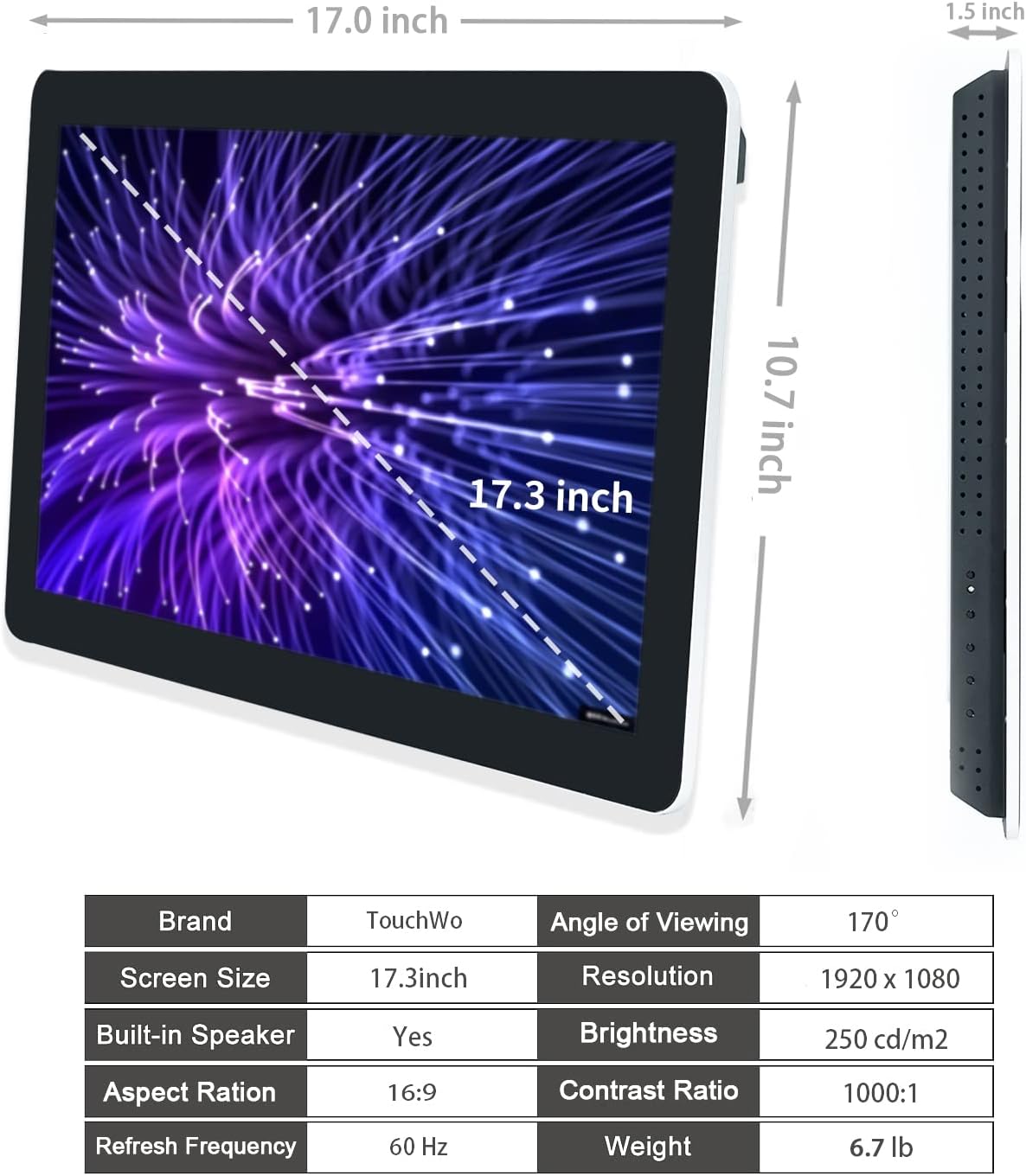
Figure 6.1: Dimensions and key specifications of the monitor.

Figure 6.2: Overview of TD Series Touchscreen HD Monitor features.

Figure 6.3: Performance and durability features of the monitor.
| Feature | Specification |
|---|---|
| Model Number | TD173 |
| Screen Size | 17.3 Inches |
| Resolution | 1920 x 1080 Pixels (FHD 1080p) |
| Aspect Ratio | 16:9 |
| Brightness | 250 cd/m² (250 lm) |
| Contrast Ratio | 1000:1 |
| Viewing Angle | 178° |
| Touch Technology | 10 Points Capacitive Touch |
| Operating System | Windows 11 Pro (Core i7, 8GB RAM, 512GB SSD configuration) |
| Connectivity | 4x USB, VGA, HDMI, LAN, WiFi, Bluetooth, 3.5mm Audio & Mic Jack |
| Built-in Speakers | Yes |
| IP Rating | IP65 (Front Panel) |
| Product Dimensions | 1.5 x 17 x 10.7 inches |
| Item Weight | 6.7 pounds |
| Voltage | 12 Volts (DC) |
| Certifications | FCC, CE, RoHS |
7. Warranty and Support
7.1 Warranty Policy
TouchWo offers a one-year warranty for this touchscreen monitor, covering manufacturing defects and malfunctions under normal use. The factory holds ISO9001 quality management certification, ensuring product quality.
For warranty claims, please retain your proof of purchase. The warranty does not cover damage caused by misuse, accidents, unauthorized repairs, or natural disasters.
7.2 Customer Support
For any assistance, technical support, or inquiries, please feel free to reach out to TouchWo customer service. We are committed to providing 24/7 online customer support.
- Official Email: touchwoamz@outlook.com
- Amazon Seller Page: For more information or to contact the seller directly, visit the TouchWo Seller Page on Amazon.
- Bulk or Custom Orders: Please reach out to the provided email for inquiries regarding bulk purchases or custom orders.

Figure 7.1: Contact information for customer assistance.


