
KLIM KLIM Blaze
KLIM Blaze Y RGB Rechargeable Wireless Gaming Mouse User Manual
Model: KLIM Blaze
1. Introduction
Thank you for choosing the KLIM Blaze Y RGB Rechargeable Wireless Gaming Mouse. This manual provides detailed instructions for setting up, operating, and maintaining your new gaming mouse. The KLIM Blaze Y offers versatile connectivity options (wireless 2.4GHz, Bluetooth, wired), customizable RGB lighting, and a high-precision sensor for an optimal gaming experience.

Image 1.1: The KLIM Blaze Y RGB Rechargeable Wireless Gaming Mouse shown with its charging dock and USB receiver.

Image 1.2: The KLIM Blaze Y gaming mouse available in both black and white color options.
2. Package Contents
Please check the package for the following items:
- KLIM Blaze Y RGB Wireless Gaming Mouse
- Charging Dock
- USB Wireless Receiver (2.4GHz dongle)
- USB-C Charging Cable
- User Manual (this document)
3. Setup
3.1. Charging the Mouse
Before first use, it is recommended to fully charge the mouse. The KLIM Blaze Y features a built-in rechargeable battery.
- Connect the USB-C charging cable to the charging dock and a power source (e.g., computer USB port, USB wall adapter).
- Place the KLIM Blaze Y mouse onto the charging dock. Ensure the charging contacts on the mouse align with those on the dock.
- The mouse's RGB lighting or an indicator light will show charging status.
Alternatively, you can connect the USB-C cable directly to the mouse for charging and wired operation.
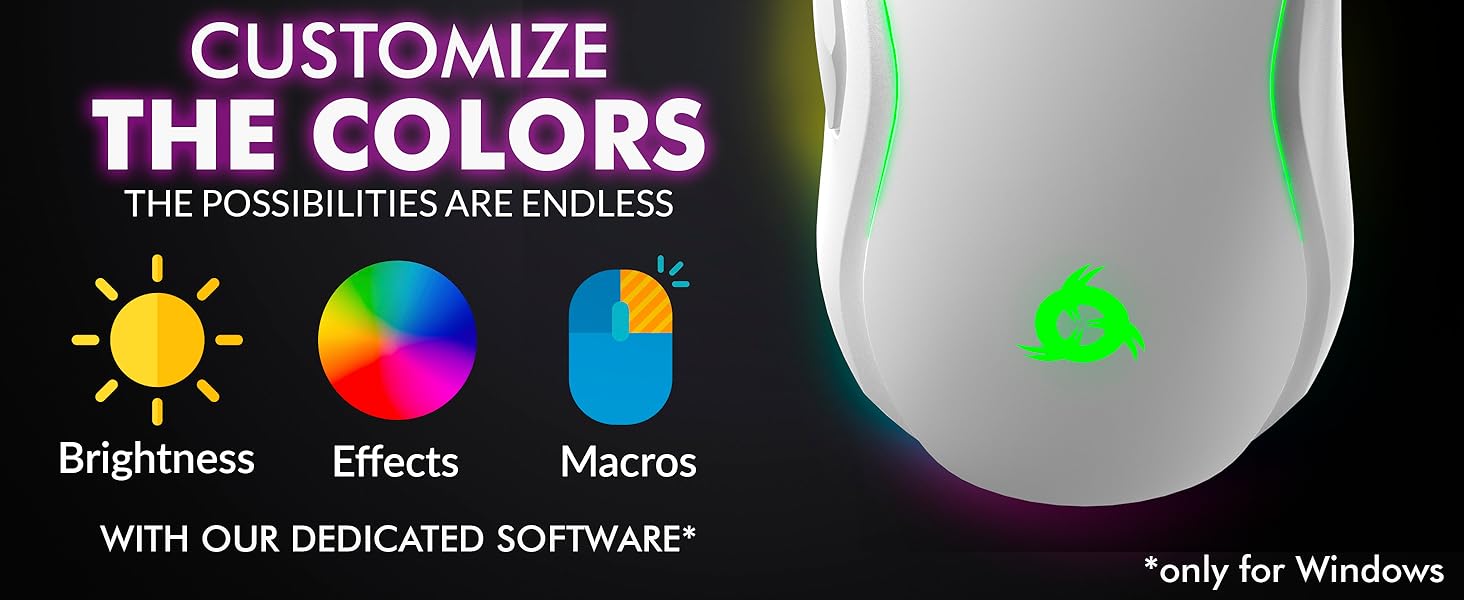
Image 3.1: The KLIM Blaze Y mouse positioned on its charging dock, highlighting its extended battery life.
3.2. Connection Modes
The KLIM Blaze Y supports three connection modes: 2.4GHz Wireless, Bluetooth, and Wired.
Image 3.2: Visual representation of the three available connection modes: 2.4GHz Wireless, Bluetooth, and Wired.

Image 3.3: The mouse offers flexible connectivity, allowing users to choose between wireless, Bluetooth, or wired connections.
3.2.1. 2.4GHz Wireless Connection
- Locate the USB wireless receiver (dongle) in the package.
- Plug the USB receiver into an available USB port on your computer or gaming console.
- Turn on the mouse using the switch on its underside. The mouse should automatically connect to the receiver.
- The mouse is ready for use.
3.2.2. Bluetooth Connection
- Ensure your device has Bluetooth enabled.
- Switch the mouse to Bluetooth mode using the selector switch on its underside (if available, or follow pairing instructions).
- On your device, go to Bluetooth settings and search for new devices.
- Select "KLIM Blaze Y" from the list of available devices to pair.
- Once paired, the mouse is ready for use.
3.2.3. Wired Connection
- Connect the USB-C charging cable directly from the mouse to a USB port on your computer.
- The mouse will function as a wired mouse and will also charge its internal battery.
4. Operating Instructions
4.1. DPI Adjustment
The KLIM Blaze Y features a high-precision sensor with adjustable DPI (Dots Per Inch) settings, allowing you to change cursor sensitivity on the fly. The mouse supports up to 6000 DPI.
- Use the dedicated DPI button(s) on the mouse to cycle through preset DPI levels.
- The RGB lighting on the mouse may change color to indicate the current DPI level.
- For advanced DPI customization and additional stages, refer to the dedicated software section.
4.2. RGB Lighting Customization
The mouse features customizable RGB lighting effects around its base and on the logo. You can personalize the effects, color, and brightness.
- Out of the box, the mouse will display default RGB lighting patterns.
- To fully customize the RGB effects, including specific colors for DPI levels, download and install the dedicated KLIM software (Windows only).
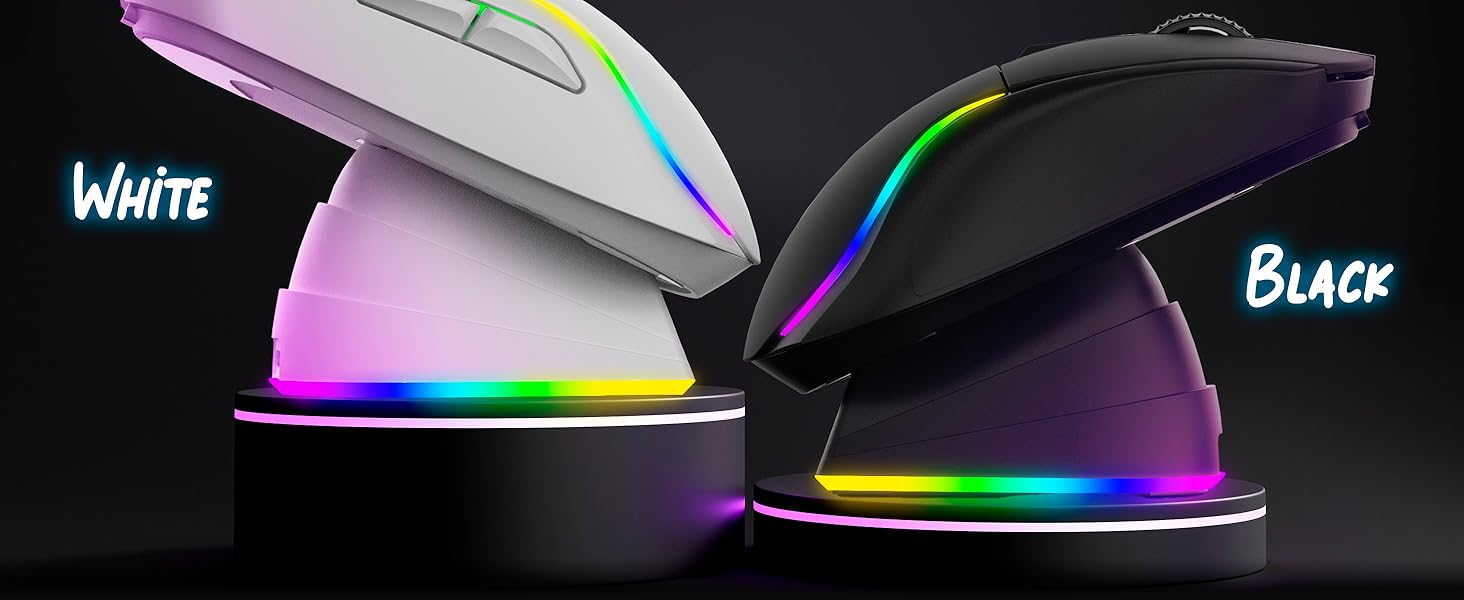
Image 4.1: The KLIM Blaze Y mouse features vibrant RGB lighting and an ergonomic design.
4.3. Dedicated Software (Windows Only)
For advanced customization, including DPI settings, polling rate, macros, and RGB effects, download the KLIM dedicated software from the official KLIM website.
- The software allows you to fine-tune sensor parameters and assign custom functions to buttons.
- Create and save profiles for different games or applications.
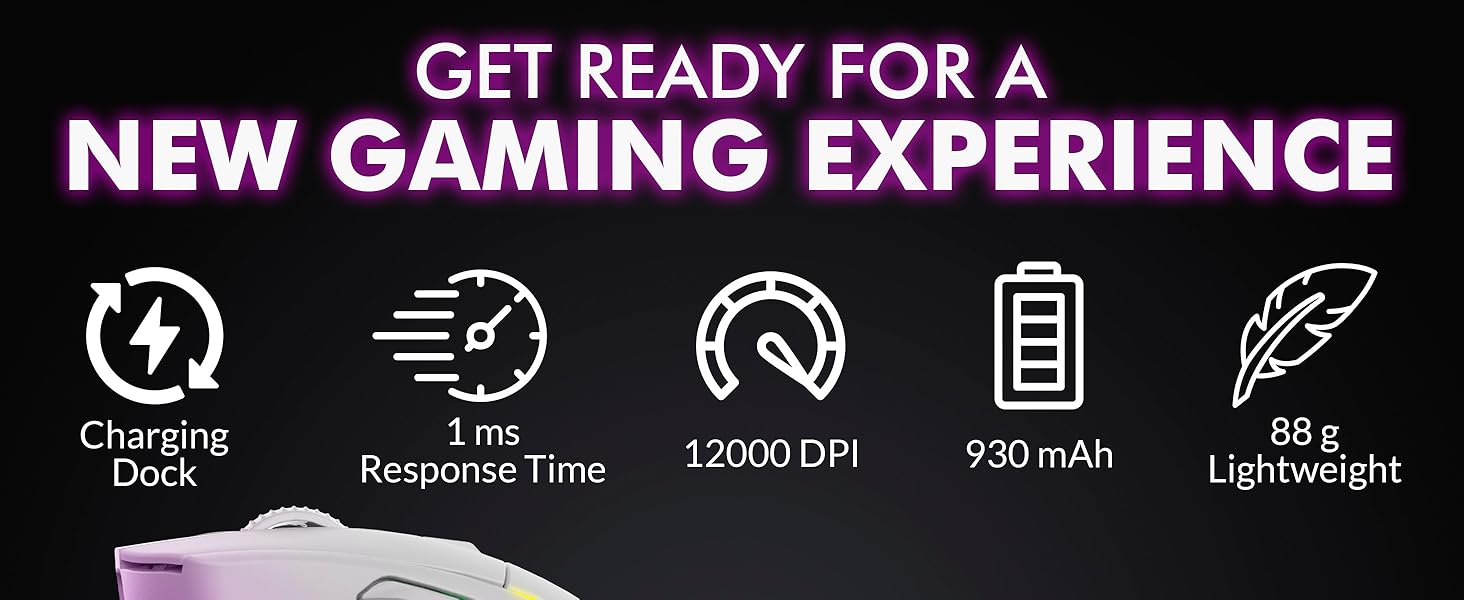
Image 4.2: Screenshot of the KLIM dedicated software interface for customizing mouse settings.
4.4. Ergonomics and Grip
The KLIM Blaze Y is designed for comfort and control, featuring anti-slip flanks and a shape suitable for various grip styles (palm, claw, fingertip).

Image 4.3: The ergonomic design of the KLIM Blaze Y mouse, emphasizing its anti-slip grip for enhanced control.
5. Maintenance
5.1. Cleaning
To maintain optimal performance and appearance, clean your mouse regularly.
- Use a soft, dry, lint-free cloth to wipe the surface of the mouse.
- For stubborn dirt, slightly dampen the cloth with water or a mild cleaning solution. Avoid harsh chemicals.
- Use a cotton swab or compressed air to clean around buttons, scroll wheel, and the optical sensor.
- Ensure the mouse is powered off and disconnected from any power source before cleaning.
5.2. Battery Care
The KLIM Blaze Y features a long-lasting built-in Lithium Ion battery.
- Avoid fully discharging the battery frequently to prolong its lifespan.
- Store the mouse in a cool, dry place when not in use for extended periods.
- If the mouse will not be used for a long time, charge it to about 50% before storing.
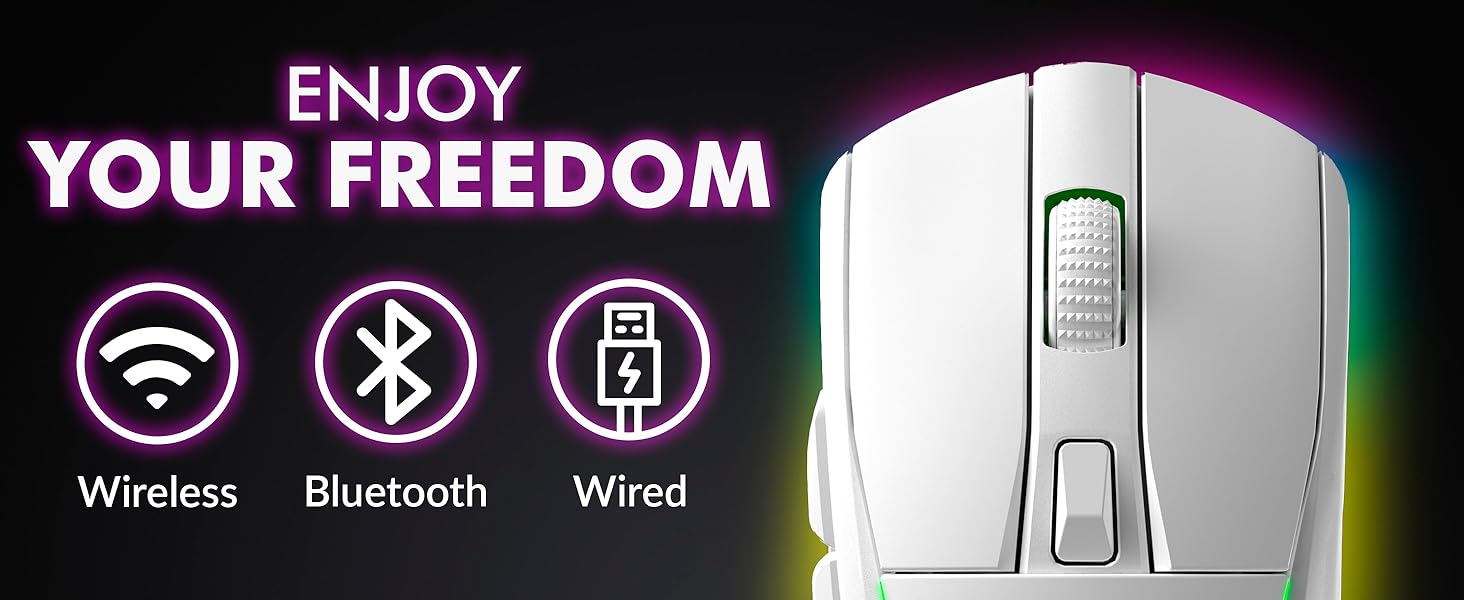
Image 5.1: The KLIM Blaze Y is built with durable switches and an improved coating for longevity.
6. Troubleshooting
| Problem | Possible Cause | Solution |
|---|---|---|
| Mouse not responding (Wireless 2.4GHz) | Low battery, receiver not plugged in, incorrect mode, interference. | Charge the mouse. Ensure USB receiver is securely plugged in. Check mouse is in 2.4GHz mode. Try a different USB port. |
| Mouse not responding (Bluetooth) | Low battery, Bluetooth off, not paired, incorrect mode. | Charge the mouse. Ensure Bluetooth is enabled on your device. Re-pair the mouse. Check mouse is in Bluetooth mode. |
| Mouse not charging | Cable/dock not connected, faulty cable/dock/port. | Ensure cable is securely connected to mouse/dock and power source. Try a different USB port or cable. Verify charging contacts are clean. |
| DPI not changing | DPI button malfunction, software conflict. | Press the DPI button firmly. If using software, ensure settings are applied correctly. Restart the mouse. |
| RGB lighting not working/customizing | Software not installed/configured, mouse setting. | Ensure KLIM software is installed and running. Check RGB settings within the software. Restart the mouse. |
7. Specifications
- Product Dimensions:
- 4.84 x 2.52 x 1.54 inches
- Item Weight:
- 11.3 ounces
- Item Model Number:
- KLIM Blaze
- Batteries:
- 1 Lithium Ion battery (included)
- Brand:
- KLIM
- Color:
- Black
- Connectivity Technology:
- Bluetooth, 2.4GHz Wireless, Wired (USB-C)
- Special Feature:
- Rechargeable, RGB Lighting, Charging Dock
- Movement Detection Technology:
- Optical Sensor
- Max DPI:
- Up to 6000 DPI (customizable via software)

Image 7.1: Overview of key performance specifications and features of the KLIM Blaze Y mouse.
8. Warranty and Support
8.1. Warranty Information
The KLIM Blaze Y RGB Rechargeable Wireless Gaming Mouse is covered by an ironclad 5-year warranty. This warranty covers manufacturing defects and ensures the product's quality and durability.
8.2. Customer Support
Should you encounter any issues or have questions regarding your KLIM Blaze Y mouse, please do not hesitate to contact our customer service team.
- Our native English customer service team aims to respond within 24 hours, even on weekends.
- For support, please visit the official KLIM website or refer to the contact information provided with your purchase.
Related documentsKLIM Blaze


Ask a question about this manual
Ask about setup, troubleshooting, compatibility, parts, safety, or missing instructions. Manuals+ will review the question and use this page’s manual context to help answer it.