
1. Introduction
This manual provides detailed instructions for the installation, operation, and maintenance of your Sena Parani M10 and A10 Motorcycle Bluetooth Headsets. This bundle is designed to enhance your riding experience by providing seamless communication and entertainment features.
The Parani M10 is tailored for solo riders, offering high-quality audio for music, podcasts, GPS directions, and phone calls. It also supports intercom communication with up to 4 riders via Sena's dedicated Parani Bluetooth Intercom Network.
The Parani A10 Intercom headset complements the M10, providing both wired and boom microphone options for clear conversations. It features Bluetooth 5.1 for smartphone connectivity and HD quality intercom with up to 4 riders within a 1 km range. An integrated LCD screen allows for quick monitoring of battery life and volume levels.
Together, these headsets offer a versatile solution for both individual entertainment and group communication during your rides.
2. Setup and Installation
Proper installation ensures optimal performance and comfort. Follow these steps to set up your Parani M10 and A10 headsets.
2.1. Package Contents
Before you begin, ensure all components are present:
- Parani M10 Headset
- Parani A10 Intercom Headset (with chosen microphone variant)
- Speakers
- Microphone (Boom or Wired)
- Mounting Clamp Kit
- USB Charging Cable
2.2. Charging the Headsets
Before first use, fully charge both the M10 and A10 headsets. Connect the supplied USB charging cable to the DC Power Charging & Firmware Upgrade Port on each unit and plug it into a USB power source. The LED indicator will change when charging is complete.

Figure 1: Parani M10 Headset with key components labeled, including the DC Power Charging & Firmware Upgrade Port.

Figure 2: Parani A10 Headset with key components labeled, including the charging port.
2.3. Mounting the Headsets to Your Helmet
The headsets can be mounted using the clamp kit. Choose a suitable location on the left side of your helmet. Ensure the mounting bracket is securely fastened.
- Attach the mounting clamp to the helmet shell.
- Slide the headset unit onto the mounting clamp until it clicks into place.
- Install the speakers inside the helmet's ear pockets, ensuring they are aligned with your ears for optimal sound.
- Attach the microphone (boom or wired) to the helmet. For boom mics, position it approximately 1-2 cm from your mouth. For wired mics, secure it inside the helmet near your mouth.

Figure 3: Example of the Parani M10 headset installed on a motorcycle helmet, showing the main unit and boom microphone.
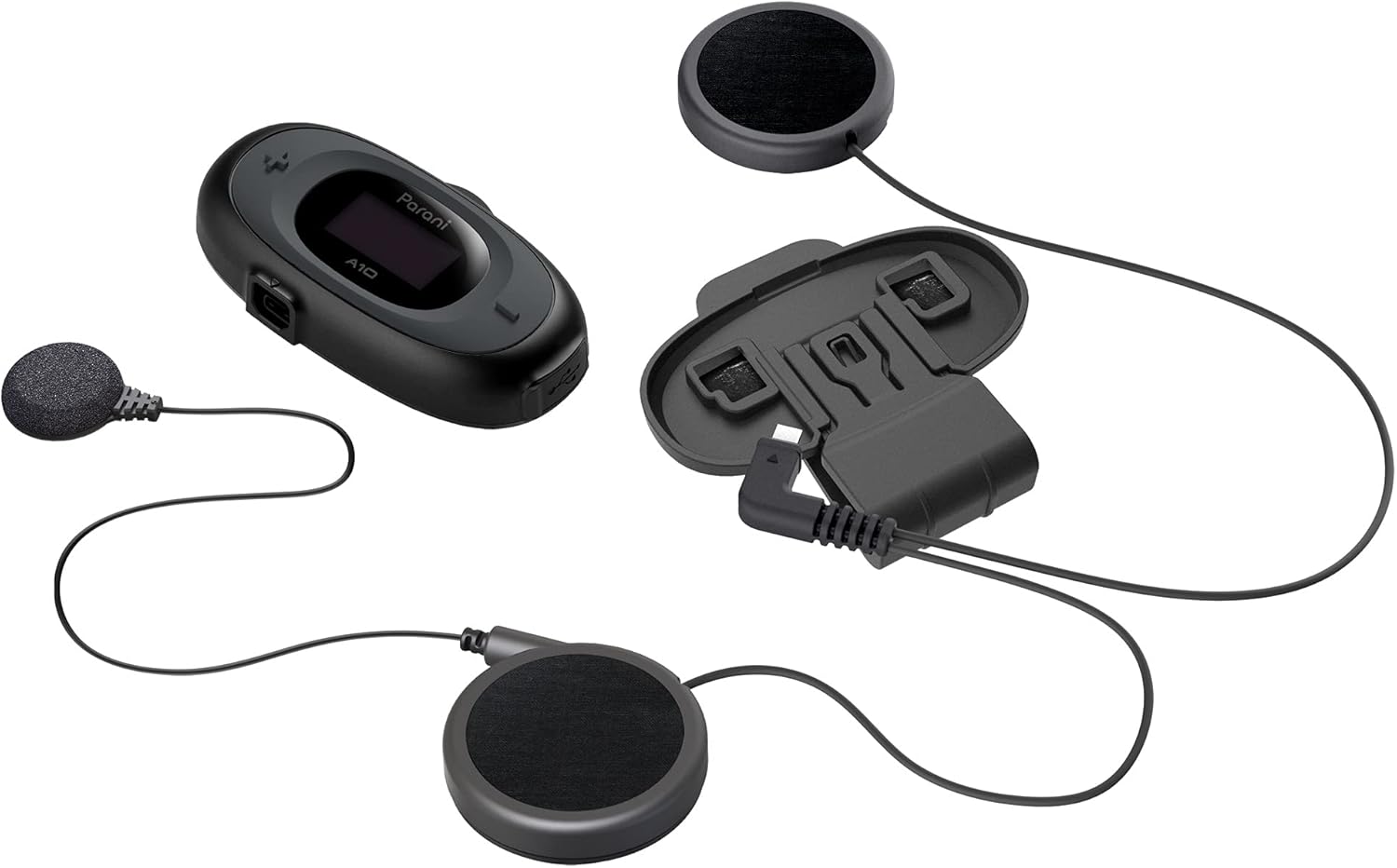
Figure 4: Parani A10 headset components, including the main unit, speakers, and the wired microphone option.
3. Operating the Headsets
Familiarize yourself with the controls and functions of your Parani M10 and A10 headsets.
3.1. Power On/Off
To power on or off the headset, press and hold the Multi-function Button and the Jog Dial simultaneously until the LCD screen displays "READY" (for power on) or "GOOD BYE" (for power off).

Figure 5: The Parani M10 headset, featuring the Multi-function Button (top) and Jog Dial (right).

Figure 6: The Parani A10 headset, showing its main controls.
3.2. Bluetooth Pairing (Smartphone)
To pair your headset with a smartphone:
- With the headset powered off, press and hold the Multi-function Button and the Jog Dial simultaneously for 5 seconds until the LED flashes red and blue, indicating pairing mode. The LCD screen will display "PAIRING".
- On your smartphone, enable Bluetooth and search for new devices.
- Select "Parani M10" or "Parani A10" from the list of found devices.
- Once paired, the LED will flash blue, and the LCD screen will show "READY".
3.3. Intercom Communication
The Parani M10 and A10 support intercom communication with up to 4 riders within a 1 km range.
3.3.1. Intercom Pairing
To pair two Parani headsets for intercom:
- Ensure both headsets are powered on.
- On the first headset, press and hold the Jog Dial for 5 seconds until the LED flashes red, indicating intercom pairing mode.
- On the second headset, repeat the same step.
- The headsets will automatically connect for intercom. The LED will turn blue, and the LCD will show the intercom connection status.
3.3.2. Starting/Ending Intercom Conversation
To start an intercom conversation, tap the Jog Dial. To end it, tap the Jog Dial again.
3.4. Music Playback and Call Handling
Once paired with your smartphone, you can control music and calls directly from your headset.
- Play/Pause Music: Tap the Multi-function Button.
- Next Track: Rotate the Jog Dial clockwise.
- Previous Track: Rotate the Jog Dial counter-clockwise.
- Volume Up: Press the (+) button.
- Volume Down: Press the (-) button.
- Answer/End Call: Tap the Multi-function Button.
- Reject Call: Press and hold the Multi-function Button for 2 seconds.
3.5. LCD Screen Information
The LCD screen on both M10 and A10 provides useful information at a glance:
- Battery life indicator
- Volume level
- Bluetooth connection status
- Intercom connection status
- Music playback status

Figure 7: The Parani M10 (left) and A10 (right) headsets, both featuring clear LCD displays for status information.
4. Maintenance
Proper maintenance will extend the life and performance of your headsets.
4.1. Cleaning
- Wipe the headset unit with a soft, damp cloth. Do not use harsh chemicals or abrasive cleaners.
- Ensure the charging port is free of dust and debris.
4.2. Battery Care
- Charge the battery fully before long periods of storage.
- Recharge the battery every few months if not in regular use to prevent deep discharge.
- Avoid exposing the headset to extreme temperatures.
4.3. Storage
Store the headsets in a cool, dry place away from direct sunlight and moisture when not in use.
5. Troubleshooting
If you encounter issues with your Parani headsets, refer to the following common problems and solutions.
5.1. No Power
- Check Battery: Ensure the headset is fully charged. Connect it to a power source and check the charging indicator.
- Power On Procedure: Confirm you are pressing the Multi-function Button and Jog Dial simultaneously for the correct duration.
5.2. No Sound or Low Volume
- Volume Adjustment: Increase the volume using the (+) button on the headset. Also, check the volume on your connected smartphone.
- Speaker Connection: Ensure the speakers are securely connected to the headset unit.
- Bluetooth Connection: Verify the headset is properly paired and connected to your smartphone.
5.3. Pairing Issues
- Restart Devices: Turn off both the headset and your smartphone, then restart them and attempt pairing again.
- Clear Pairing History: If issues persist, you may need to reset the headset to factory settings (refer to the full user manual for specific instructions on factory reset).
- Proximity: Ensure the headset and smartphone are within close proximity during pairing.
5.4. Intercom Disconnection
- Range: Ensure all intercom participants are within the 1 km range. Obstacles and terrain can affect range.
- Re-establish Connection: Tap the Jog Dial to attempt to re-establish the intercom connection.
6. Specifications
| Feature | Specification |
|---|---|
| Model Name | A10 |
| Connectivity Technology | Wireless |
| Wireless Communication Technology | Bluetooth |
| Bluetooth Version | 4.2 (M10), 5.1 (A10) |
| Bluetooth Range | Up to 1 km (0.6 miles) |
| Intercom Support | Up to 4 riders |
| Frequency Range | 20 Hz - 20,000 Hz |
| Control Type | Media Control, Remote |
| Microphone | Included (Boom or Wired) |
| Water Resistance Level | Not Water Resistant |
| Manufacturer | Sena |
7. Warranty and Support
Sena Parani headsets are backed by Sena's reputation for quality and customer support.
7.1. Warranty Information
Your Sena Parani headset bundle comes with a manufacturer's warranty covering defects in materials and workmanship. Please refer to the warranty card included in your product packaging or visit the official Sena website for detailed warranty terms and conditions specific to your region.
7.2. Customer Support
For technical assistance, troubleshooting beyond this manual, or warranty claims, please contact Sena customer support. You can typically find contact information on the official Sena website or through the retailer where you purchased the product.
It is recommended to register your product on the Sena website to receive updates and access additional support resources.


