
Introduction
This manual provides essential information for setting up, operating, maintaining, and troubleshooting your Dell Latitude 7450 Laptop. Designed for business, developer, and student use, this laptop combines performance with portability and advanced features.
Setup
1. Unboxing and Initial Inspection
Carefully remove the laptop and all accessories from the packaging. Inspect for any signs of damage. The package should contain the laptop, AC adapter, and standard battery.
2. Connecting the Power Adapter
Connect the AC adapter to the power input port on your laptop (typically on the left side) and then plug the adapter into a working power outlet. The battery will begin charging automatically.

Image: The Dell Latitude 7450 laptop shown from the left side, illustrating the power input and other ports.
3. Initial Boot and Windows 11 Pro Setup
Press the power button to turn on your laptop. Follow the on-screen instructions to complete the Windows 11 Pro setup process. This includes setting up your user account, network connection, and other preferences.
4. Fingerprint Reader Setup
The Latitude 7450 features a fingerprint reader for secure login. During or after the initial Windows setup, you can configure Windows Hello to use your fingerprint for authentication.
Operating Your Laptop
Display
The laptop features a 14.0-inch FHD+ (1920 x 1200) Anti-Glare IPS display with 400 nits brightness. It includes ComfortView Plus technology for reduced blue light emission, enhancing eye comfort during extended use.

Image: The Dell Latitude 7450 laptop open, displaying a vibrant image on its screen and showing the keyboard.
Keyboard and Touchpad
The backlit keyboard includes a Copilot Hotkey for quick access to AI assistance. The integrated touchpad provides precise cursor control. You can adjust keyboard backlight settings and touchpad sensitivity through Windows settings.
Webcam and Audio
A 5MP IR Camera with a physical shutter is integrated for privacy. It supports ExpressSign-In and Intelligent Privacy features. The laptop includes a microphone for audio recording and a headphones output for private listening.
Connectivity
Ports
The Dell Latitude 7450 offers a variety of ports for connecting external devices:
- Thunderbolt 4: For high-speed data transfer, video output, and power delivery.
- USB Ports: Multiple USB ports for connecting peripherals.
- HDMI: For connecting to external displays.
- Audio Jack: For headphones or headsets.
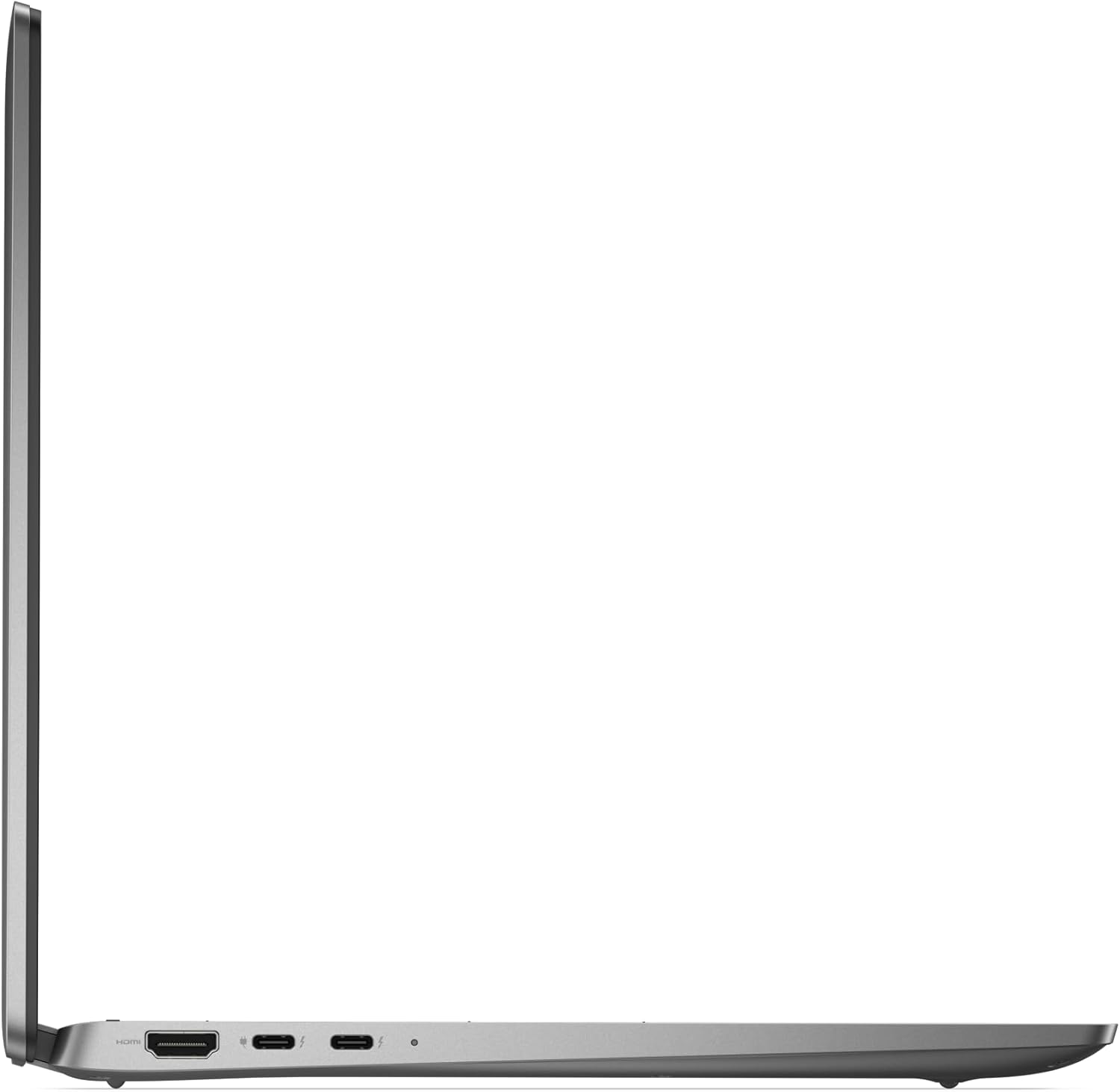
Image: Left side view of the Dell Latitude 7450 laptop, highlighting the HDMI and Thunderbolt 4 ports.

Image: Right side view of the Dell Latitude 7450 laptop, showing the USB-A ports and the audio jack.
Wireless Connectivity
The laptop supports Intel Wi-Fi 7 BE200 for fast wireless internet access, Bluetooth for connecting wireless peripherals, and NFC for near-field communication.
Maintenance
Cleaning Your Laptop
- Screen: Use a soft, lint-free cloth lightly dampened with water or a screen cleaner. Do not spray liquid directly onto the screen.
- Keyboard and Chassis: Use a soft, dry cloth. For stubborn dirt, a slightly damp cloth can be used, ensuring no liquid enters openings.
- Ports: Use compressed air to gently clear dust from ports.
Battery Care
The laptop is equipped with a 3-Cell, 57 WHr Lithium Ion battery with Express Charge and Express Charge Boost capabilities. To prolong battery life:
- Avoid extreme temperatures.
- Do not fully discharge the battery frequently.
- Store the laptop with a partial charge if not used for extended periods.
Troubleshooting
This section addresses common issues you might encounter with your Dell Latitude 7450.
No Power / Laptop Not Turning On
- Ensure the AC adapter is securely connected to both the laptop and a working power outlet.
- Verify the power outlet is functional by plugging in another device.
- If the battery is completely drained, allow it to charge for at least 15-30 minutes before attempting to power on.
Display Issues
- Blank Screen: Connect an external monitor to check if the issue is with the laptop's display or the graphics card. Press Fn + F8 (or the appropriate function key) to toggle display output.
- Dim Display: Adjust brightness using the function keys (Fn + F11/F12 or similar).
Connectivity Problems (Wi-Fi/Bluetooth)
- Wi-Fi: Ensure Wi-Fi is enabled in Windows settings. Restart your router and the laptop. Update wireless drivers if necessary.
- Bluetooth: Check if Bluetooth is enabled in Windows settings. Ensure the device you are trying to connect is in pairing mode and within range.
System Performance Issues
- Close unnecessary applications.
- Run a virus scan.
- Ensure Windows and drivers are up to date.
- Check disk space and free up storage if needed.
Specifications
| Feature | Detail |
|---|---|
| Brand | Dell |
| Model Name | Latitude 7450 |
| Processor | Intel Core Ultra 7 165U (12 Core, Up to 4.90GHz) |
| RAM | 32GB LPDDR5x |
| Storage | 512GB M.2 NVMe SSD |
| Display | 14.0" FHD+ (1920 x 1200) Anti-Glare IPS 400-nits, ComfortView Plus |
| Operating System | Windows 11 Pro |
| Graphics | Integrated Intel Graphics |
| Ports | Thunderbolt 4 (Video Output), USB, HDMI, Audio Jack |
| Wireless | Intel Wi-Fi 7 BE200, Bluetooth, NFC |
| Webcam | 5MP IR Camera with Shutter |
| Battery | 3-Cell, 57 WHr Lithium Ion (Express Charge Capable) |
| Special Features | Fingerprint Reader, Backlit Keyboard, Copilot Hotkey |
| Dimensions (L x W x Th) | 13"L x 4"W x 1"Th (Approximate) |
Warranty Information
Your Dell Latitude 7450 Laptop comes with a 3-year onsite warranty. This warranty covers manufacturing defects and hardware failures under normal use conditions. For detailed terms and conditions, please refer to the warranty documentation included with your product or visit the official Dell support website.
The EU Spare Part Availability Duration is also 3 Years.
Support
For further assistance, technical support, driver downloads, or service requests, please visit the official Dell Support website. You will need your laptop's service tag or express service code, typically found on a label on the bottom of the laptop.
Dell Support Website: www.dell.com/support


