
1. Introduction
Thank you for choosing the Earldom ET-M83 Bluetooth FM Transmitter Car Charger. This device is designed to enhance your in-car audio experience by allowing you to stream music and make hands-free calls through your car's FM radio. It also features dual USB charging ports and an emergency safety hammer function. Please read this manual carefully to ensure proper use and to maximize the device's performance.
2. Safety Information
- Always remove the device from the car's power outlet when not in use to prevent battery drain or potential hazards.
- Do not leave the device in a hot car, as extreme temperatures can damage the internal components.
- Avoid placing the device near other wireless devices to prevent signal interference.
- Do not operate the device or adjust settings while driving to maintain focus on the road.
- Keep the device away from water and moisture to prevent electrical damage.
- Do not attempt to disassemble or repair the device yourself. Contact qualified personnel for service.
3. Product Features
- Bluetooth 5.0 for stable connection and high-quality audio.
- FM Transmitter function for broadcasting audio to your car radio.
- Dual USB charging ports (3.1A + 1A) for fast charging multiple devices.
- Built-in microphone for hands-free calling.
- Supports music playback from Bluetooth devices and USB flash drives.
- LED light display for frequency and status indication.
- Integrated emergency safety hammer for breaking glass in emergencies.
- Navigation voice broadcast support.
4. Setup Guide
- Insert into Car Power Outlet: Plug the Earldom ET-M83 into your car's 12V-24V cigarette lighter socket. The device will power on automatically, and the LED display will light up.
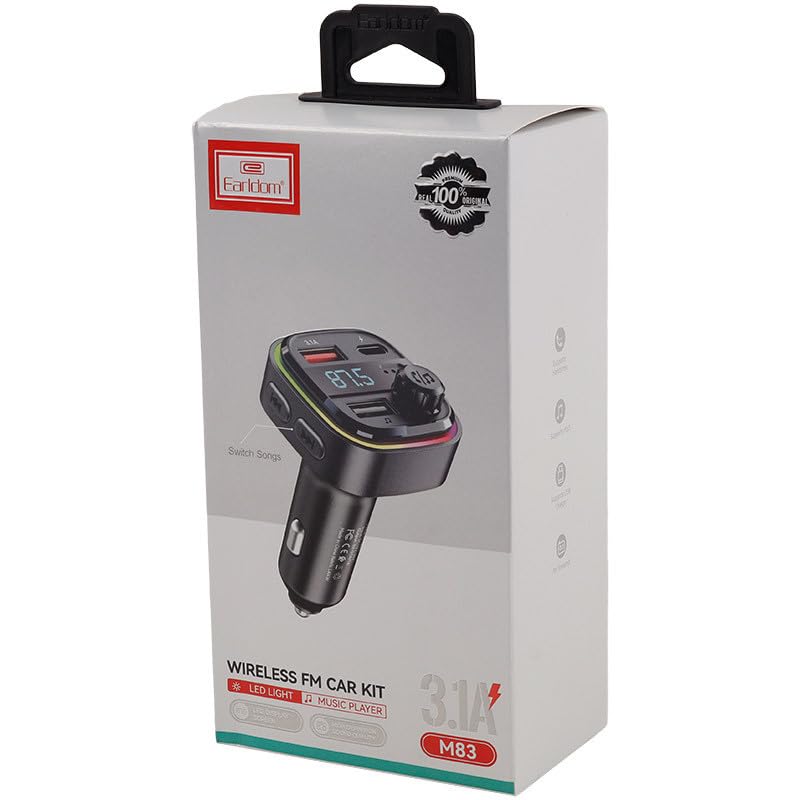
This image illustrates the Earldom ET-M83 Bluetooth FM Transmitter connected to a car's power outlet. It highlights the device's capability for navigation voice broadcast and one-button Bluetooth connection.
- Set FM Frequency: Tune your car's FM radio to an empty frequency (one with no active broadcast). Then, adjust the FM frequency on the ET-M83 to match your car radio's frequency. This is typically done by pressing and holding the multi-function button until the frequency flashes, then rotating it to change the frequency.
- Pair with Bluetooth Device: On your smartphone or other Bluetooth-enabled device, enable Bluetooth and search for available devices. Select "ET-M83" from the list to pair. Once connected, the device will confirm the successful pairing.
5. Operating Instructions
5.1 Music Playback
- Via Bluetooth: After successful Bluetooth pairing, open your music player on your phone. Audio will be transmitted wirelessly to the ET-M83 and then broadcast through your car's FM radio.
- Via USB Flash Drive: Insert a USB flash drive containing MP3, WAV, or AAC audio files into the designated USB port (usually the 1A port, check device markings). The device will automatically detect and play the music.
- Controls: Use the multi-function button to play/pause music. Rotate it to adjust volume or press it to skip tracks (specific controls may vary, refer to device markings).
5.2 Hands-Free Calling
- Answering/Ending Calls: When an incoming call is received, press the multi-function button once to answer. Press it again to end the call.
- Rejecting Calls: Press and hold the multi-function button to reject an incoming call.
- Redialing: Double-press the multi-function button to redial the last outgoing number.
5.3 Charging Devices
The ET-M83 features dual USB ports for charging your mobile devices. Connect your device's charging cable to either the 3.1A port for faster charging or the 1A port for standard charging.
This image demonstrates the fast charging capability of the Earldom ET-M83. A smartphone is connected to one of the device's USB ports, illustrating its intelligent speed control and regulated output current for efficient charging.
5.4 Navigation Voice Broadcast
When your phone is connected via Bluetooth and you are using a navigation app, the voice prompts will be broadcast through your car's speakers via the FM frequency, providing clear directions.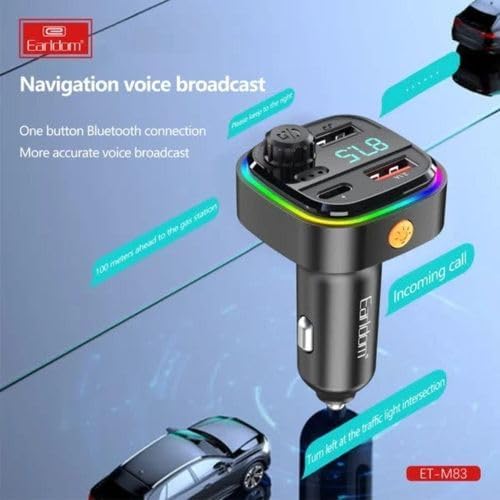
This image illustrates the Earldom ET-M83 Bluetooth FM Transmitter connected to a car's power outlet. It highlights the device's capability for navigation voice broadcast and one-button Bluetooth connection.
5.5 Emergency Safety Hammer
The robust design of the ET-M83 includes a pointed tip that can function as an emergency safety hammer. In critical situations, such as being trapped in a vehicle, this feature can be used to break car windows for escape.
This image showcases the emergency safety hammer feature of the Earldom ET-M83, designed to quickly break car windows in critical situations. It emphasizes the device's dual functionality beyond audio transmission.
6. Specifications
| Feature | Detail |
|---|---|
| Model Number | ET-M83 |
| Material | ABS Housing |
| Working Voltage | 12-24V |
| USB Output | 5V 3.1A + 1A (Dual USB) |
| Bluetooth Version | Bluetooth 5.0 (A2DP Audio Processing) |
| Bluetooth Transmission Distance | Up to 5 meters |
| Effective Microphone Distance | 0.5-2 meters |
| FM Frequency Range | 87.5-108.0 MHz |
| Weight | 50 grams |
| Special Features | Built-In Music Player, LED Light, Safety Hammer |
| Connectivity Technology | Bluetooth |
| Power Source | Vehicle Power Outlet (12V-24V) |
| Compatible Media Types | Audio File Formats (e.g., MP3, WAV, AAC) |
7. Troubleshooting
- No Power: Ensure the device is securely plugged into the car's 12V-24V power outlet. Check if the car's power outlet is functioning.
- No Sound/Static: Make sure the FM frequency on the ET-M83 matches your car radio's frequency exactly. Try changing to a different, clearer FM frequency. Adjust the volume on both the device and your car radio.
- Bluetooth Disconnection: Ensure your phone's Bluetooth is on and within range (up to 5 meters). Try unpairing and re-pairing the device. Restart both the ET-M83 and your phone.
- Poor Call Quality: Ensure the effective microphone distance (0.5-2 meters) is maintained. Reduce background noise in the car.
- Charging Not Working: Check if the USB cable is properly connected to both the ET-M83 and your device. Ensure your device supports charging via USB.
8. Maintenance
- Clean the device regularly with a soft, dry cloth. Do not use liquid cleaners or aerosols.
- Keep the device away from direct sunlight and extreme temperatures.
- Store the device in a cool, dry place when not in use.
- Avoid dropping or subjecting the device to strong impacts.
9. Warranty and Support
This product comes with a standard manufacturer's warranty. For specific warranty details, please refer to the packaging or contact your retailer. For technical support or further assistance, please reach out to the seller or manufacturer directly using the contact information provided at the point of purchase.