
T-Wolf GG-G530
T-Wolf RoboCop Competitive Gaming Mouse GG-G530 User Manual
Model: GG-G530
Introduction
This manual provides essential information for the setup, operation, and maintenance of your T-Wolf RoboCop Competitive Gaming Mouse GG-G530. Please read this manual thoroughly before using the product to ensure optimal performance and longevity.
Package Contents
- 1 x T-Wolf RoboCop Competitive Gaming Mouse GG-G530
- 1 x User Manual (this document)
Product Features
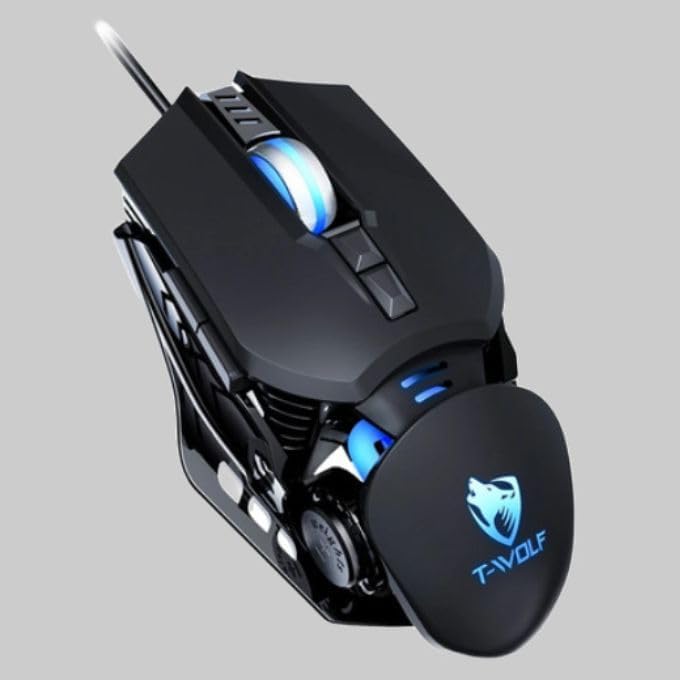
The T-Wolf RoboCop Competitive Gaming Mouse GG-G530 is designed for precision and comfort, suitable for both gaming and office use. Key features include:
- Optical Engine Design: Ensures stable operation and high sensitivity.
- Mechanical Armored Modeling: Distinctive and robust design.
- Symmetrical DIY Counterweight: Allows for adaptable weight adjustment.
- 7 Buttons: Includes left click, right click, scroll wheel, DPI switcher, and additional programmable buttons.
- Intelligent Connectivity: Plug-and-play functionality with automatic driver installation.
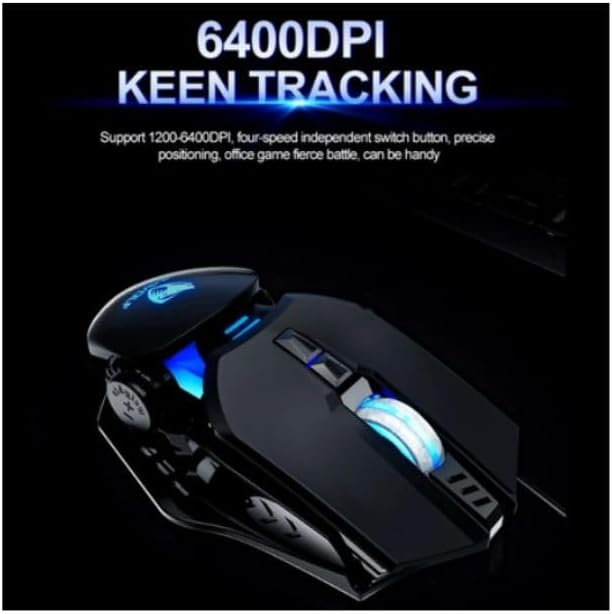
- Adjustable DPI: Four levels of sensitivity (1200/2400/3200/6400 DPI) for precise control.
- Ergonomic Design: Provides comfortable use for extended periods without fatigue.
- Four-Color Light Effect: Dynamic lighting for visual appeal.
- Wired Connection: Reliable USB interface with a 150cm cable.
- System Compatibility: Supports Windows and Mac operating systems.
Setup
- Connect the Mouse: Insert the USB connector of the T-Wolf RoboCop Gaming Mouse into an available USB port on your computer.
- Automatic Driver Installation: The operating system will automatically detect the mouse and install the necessary drivers. This process typically takes a few moments. No manual driver installation is required.
- Ready for Use: Once the drivers are installed, the mouse is ready for immediate use.
Operating Instructions
The T-Wolf RoboCop Gaming Mouse features 7 buttons for various functions. Familiarize yourself with their basic operations:
- Left Click Button: Primary selection and interaction.
- Right Click Button: Accesses contextual menus and secondary functions.
- Scroll Wheel: Scrolls through documents and web pages. Can also function as a middle click button.
- DPI Switcher Button: Adjusts the mouse sensitivity (DPI).
- Additional Buttons: The remaining buttons can be assigned specific functions through your operating system's mouse settings or compatible third-party software (note: no macro programming is natively supported by the mouse hardware).

DPI Adjustment
The mouse features an adjustable DPI (Dots Per Inch) setting, allowing you to change the cursor sensitivity on the fly. This is particularly useful for different tasks, such as precise aiming in games or fast navigation in general use.
- Locate the DPI Switcher Button, typically positioned behind the scroll wheel.
- Press the DPI Switcher Button to cycle through the available DPI settings: 1200 DPI, 2400 DPI, 3200 DPI, and 6400 DPI.
- Each press will change the sensitivity, allowing you to find the setting that best suits your current activity.
Maintenance
To ensure the longevity and optimal performance of your T-Wolf RoboCop Gaming Mouse, follow these simple maintenance guidelines:
- Cleaning: Use a soft, dry cloth to wipe the surface of the mouse. For stubborn dirt, slightly dampen the cloth with water or a mild cleaning solution. Avoid harsh chemicals or abrasive materials.
- Optical Sensor: Periodically clean the optical sensor on the underside of the mouse with a cotton swab to prevent dust buildup, which can affect tracking performance.
- Cable Care: Avoid sharply bending or pulling the USB cable to prevent internal damage.
- Storage: When not in use, store the mouse in a clean, dry environment away from extreme temperatures.
Troubleshooting
If you encounter issues with your T-Wolf RoboCop Gaming Mouse, refer to the following common solutions:
- Mouse Not Responding:
- Ensure the USB cable is securely plugged into a working USB port on your computer.
- Try plugging the mouse into a different USB port.
- Restart your computer.
- Cursor Movement is Erratic or Jumpy:
- Clean the optical sensor on the underside of the mouse.
- Ensure you are using the mouse on a clean, non-reflective, and uniform surface. Mouse pads are recommended.
- DPI Adjustment Not Working:
- Ensure you are pressing the correct DPI switcher button.
- The mouse cycles through fixed DPI settings; there is no visual indicator on the mouse itself for the current DPI level, only the change in cursor speed.
- Buttons Not Functioning:
- Check your operating system's mouse settings to ensure buttons are enabled and configured correctly.
- Test the mouse on another computer to rule out a software or system issue.
Specifications
| Model | GG-G530 |
| Material | ABS + Electroplating |
| Tracking System | Optical |
| Connection | Wired |
| Cable Length | 150 cm |
| Interface Type | USB |
| DPI Settings | 1200 / 2400 / 3200 / 6400 (Adjustable) |
| Number of Buttons | 7 |
| Service Life | Approximately three years |
| Working Method | Photoelectric |
| Light Effect | Four-color cycling |
| Item Size | 130 x 80 x 35 mm |
| Item Weight | 160 g |
| Supported Systems | Windows, Mac |
Warranty and Support
Your T-Wolf RoboCop Competitive Gaming Mouse GG-G530 comes with a 6-month manufacturer's warranty from the date of purchase.
This warranty covers defects in materials and workmanship under normal use. It does not cover damage caused by accident, misuse, abuse, unauthorized modification, or external causes such as liquid damage.
For warranty claims or technical support, please contact your retailer or the point of purchase. Please retain your proof of purchase for warranty validation.

Ask a question about this manual
Ask about setup, troubleshooting, compatibility, parts, safety, or missing instructions. Manuals+ will review the question and use this page’s manual context to help answer it.