
Introduction
The Apple AirTag is a small, elegant accessory designed to help you locate your personal items. By attaching an AirTag to your keys, wallet, backpack, or other belongings, you can track them using the Apple Find My app on your iPhone or iPad. This manual provides instructions for setting up, operating, and maintaining your AirTag.
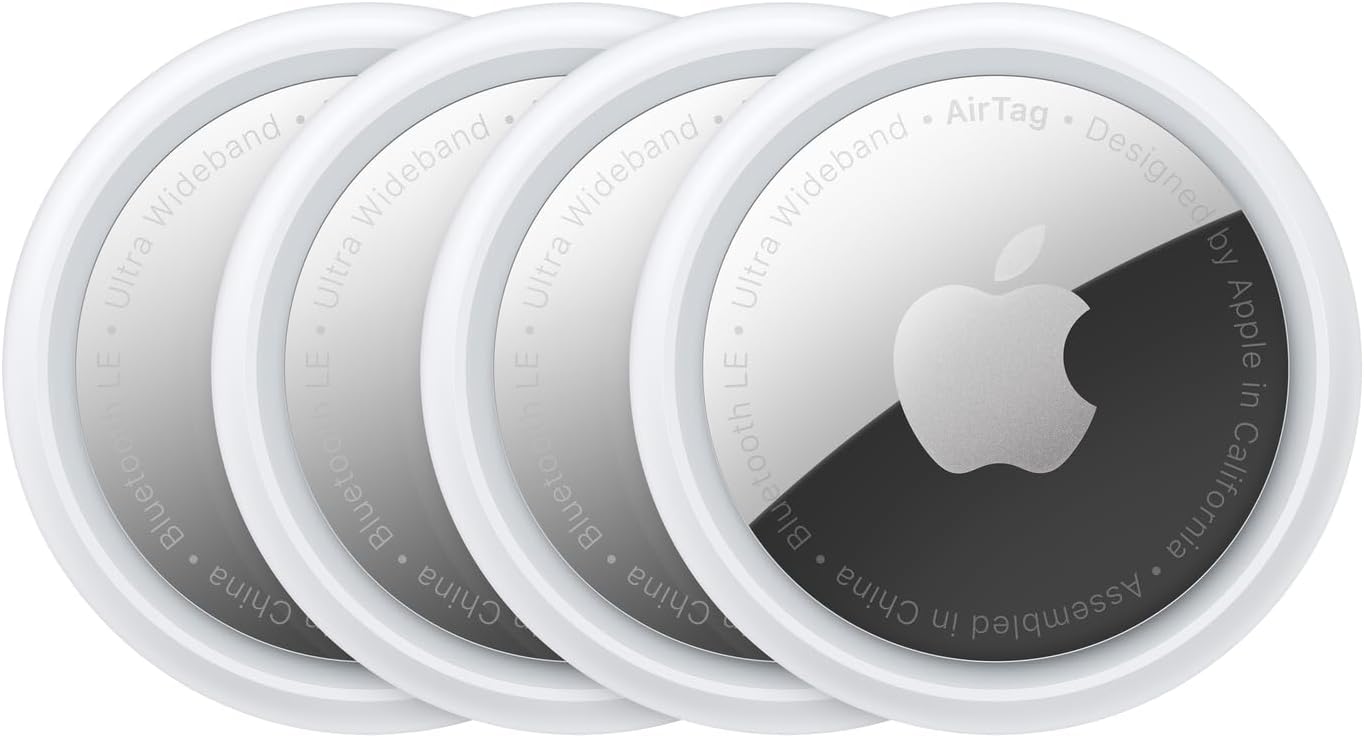
Image: Four Apple AirTags, showing their compact, circular design with the Apple logo on one side.
Setup
Setting up your AirTag is a simple, one-tap process that instantly connects it with your iPhone or iPad.
- Ensure your iPhone or iPad is running the latest version of iOS or iPadOS.
- Unwrap your AirTag. Remove the battery tab if present to activate it.
- Hold the AirTag near your iPhone or iPad. A setup animation will appear on your device's screen.
- Tap "Connect" and follow the on-screen instructions to name your AirTag and register it to your Apple ID.
- Once set up, your AirTag will appear in the "Items" tab of the Find My app.

Image: A single Apple AirTag held between a thumb and forefinger, illustrating its small size.
Operating Instructions
Finding Nearby Items
To locate an AirTag that is nearby, open the Find My app on your iPhone or iPad. Navigate to the "Items" tab and select the AirTag you wish to find. You can then:
- Play a Sound: Tap "Play Sound" to make your AirTag emit an audible tone, guiding you to its location.
- Ask Siri: You can also ask Siri, "Hey Siri, find my [item name]," and your AirTag will play a sound.
Precision Finding
For select iPhone models (those with a U1 chip), Precision Finding provides visual, haptic, and audio feedback to guide you directly to your AirTag when it's within Bluetooth range.
- In the Find My app, select your AirTag.
- Tap "Find" to initiate Precision Finding.
- Follow the on-screen directions, which will indicate the distance and direction to your AirTag.
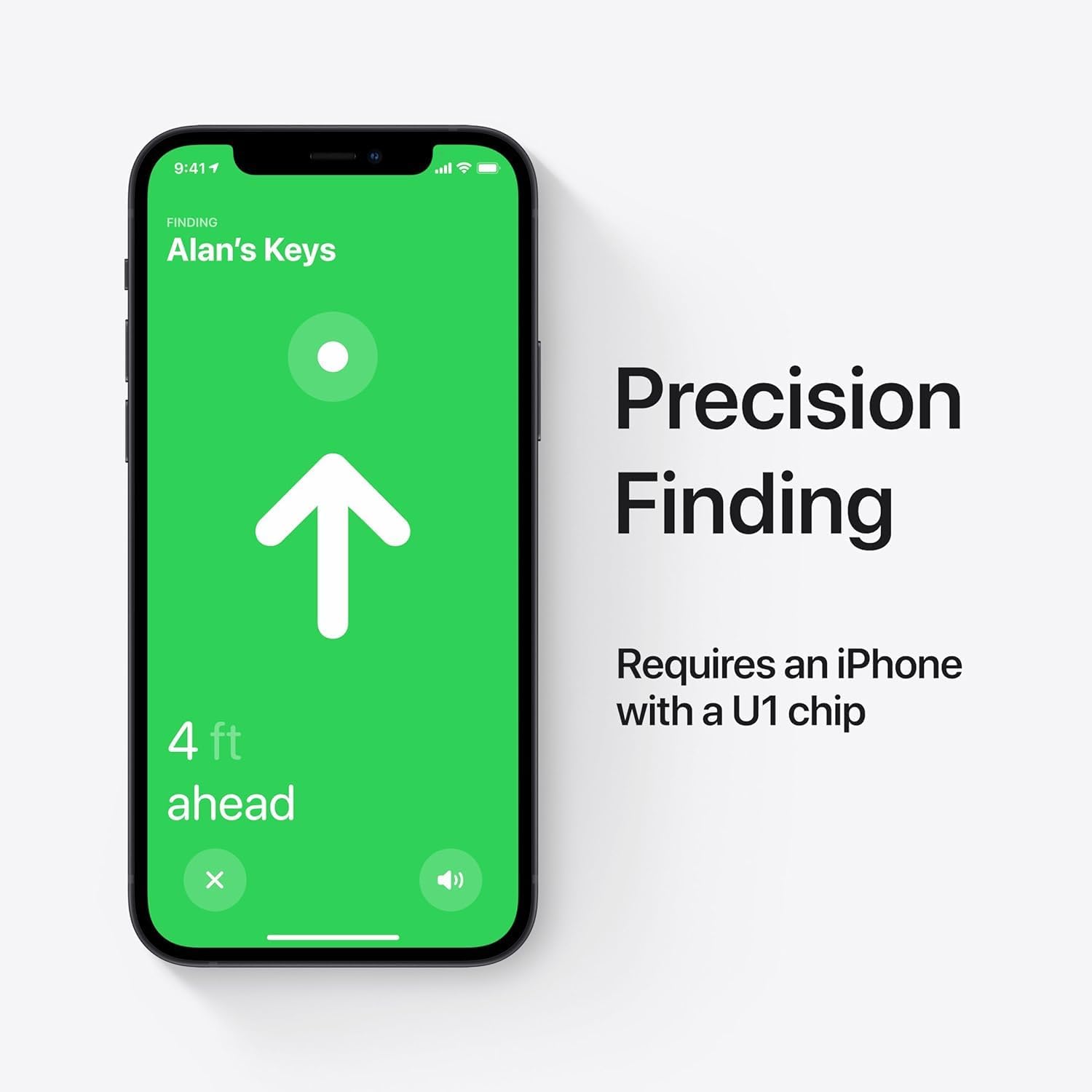
Image: An iPhone displaying the Precision Finding interface, showing an arrow pointing towards the AirTag and indicating its distance.
Finding Far Away Items (Find My Network)
If your AirTag is out of Bluetooth range, the Find My network can help locate it. This network leverages hundreds of millions of Apple devices worldwide to securely and anonymously detect your AirTag's location and relay it to you.
Lost Mode
If an item with an AirTag is lost, you can enable Lost Mode in the Find My app. When another device in the Find My network detects your AirTag, you will be automatically notified of its location. You can also provide a contact phone number or email address for the finder to reach you.
Sharing AirTags
You can share an AirTag with up to five people, allowing friends and family to track items that everyone uses, such as car keys or a shared backpack. This feature is managed within the Find My app.
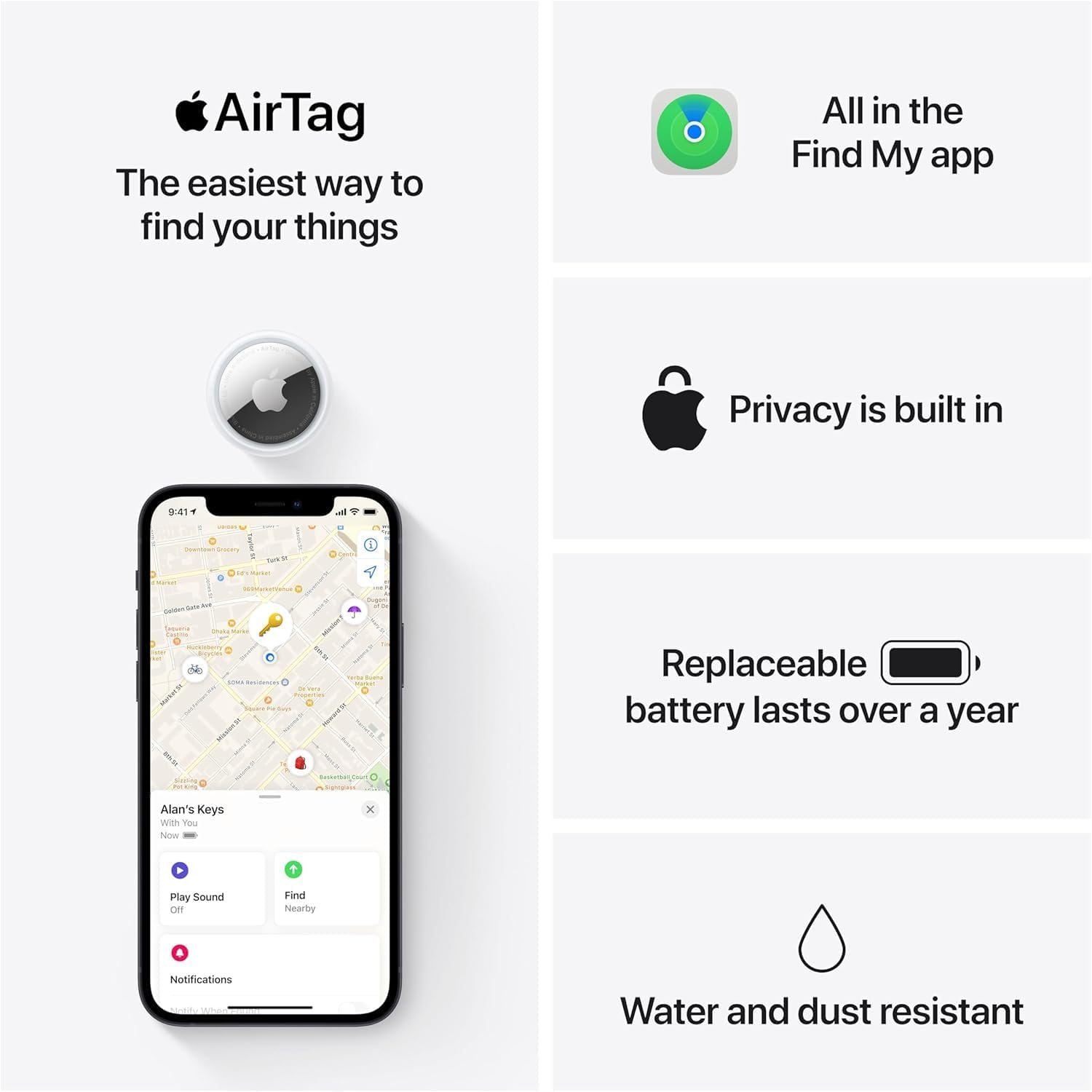
Image: An iPhone displaying the Find My app, showing an AirTag's location on a map and options to play sound or find it.
Battery Maintenance
Each AirTag is powered by a standard CR2032 coin cell battery, which typically lasts over a year with normal use. The Find My app will notify you when the battery level is low and needs replacement.
Replacing the Battery
- Press down on the polished stainless steel battery cover of the AirTag and rotate it counterclockwise until it stops.
- Remove the cover and the old CR2032 battery.
- Insert a new CR2032 lithium 3V coin battery with the positive (+) side facing up.
- Replace the cover, aligning the three tabs on the cover with the three slots on the AirTag.
- Press down on the cover and rotate it clockwise until it locks into place.
Note: Keep coin cell batteries away from small children.
Care and Safety
The AirTag is designed for durability and is IP67 water and dust resistant. This means it can withstand immersion in water up to 1 meter for 30 minutes. However, it is not waterproof and should not be intentionally submerged.
- Avoid exposing the AirTag to extreme temperatures.
- Clean the AirTag with a soft, damp cloth. Do not use abrasive cleaners.
- Ensure the battery cover is securely closed to maintain water and dust resistance.
Troubleshooting
If you encounter issues with your AirTag, consider the following steps:
- AirTag Not Appearing in Find My: Ensure Bluetooth is enabled on your iPhone/iPad and the AirTag is within range. Check the AirTag's battery.
- Cannot Hear Sound: Verify the AirTag's battery is not depleted. Ensure your device's volume is up.
- Precision Finding Not Working: Confirm your iPhone model supports Ultra Wideband technology (iPhone 11 or later). Ensure you are within close range of the AirTag.
- Location Not Updating: Ensure your iPhone/iPad has an active internet connection. The Find My network relies on other Apple devices, so updates may take time in less populated areas.
- Resetting AirTag: If persistent issues occur, you may need to remove the AirTag from your Apple ID in the Find My app and then re-add it. Consult Apple Support for detailed reset instructions.
Specifications
| Product Dimensions | 5.25 x 3.25 x 0.75 inches |
| Item Weight | 0.39 ounces |
| Model Number | MX542LL/A |
| Batteries | 1 x CR2032 per AirTag (4 included) |
| Battery Life | Over a year |
| Water and Dust Resistance | IP67 (maximum depth of 1 meter up to 30 minutes) |
| Compatible Devices | iPhone and iPad models running iOS/iPadOS 14.5 or later |
| Manufacturer | Apple |
Warranty and Support
Apple AirTags are covered by Apple's standard limited warranty. For detailed warranty information, service options, and technical support, please visit the official Apple Support website or contact Apple directly.
Official Apple Support: support.apple.com/airtag


