
1. Safety Information
Please read all instructions carefully before installation and operation. Keep this manual for future reference.
- Professional Installation Recommended: Due to the complexity of car audio systems, professional installation is highly recommended to avoid damage to the unit or vehicle.
- Power Supply: This unit is designed for a 12V DC negative ground electrical system. Ensure correct wiring to prevent short circuits or damage.
- Driving Safety: Do not operate the unit in a way that distracts you from driving. Always prioritize road safety.
- Temperature: Avoid exposing the unit to extreme temperatures or direct sunlight for prolonged periods.
- Moisture: Keep the unit away from water and excessive moisture.
2. Product Overview
The iFutniew 4022D is a 1 DIN car stereo featuring a 4.1-inch digital screen, MP5 player, Bluetooth connectivity, FM radio, USB, and an included 12-LED backup camera. It supports various media formats and offers hands-free communication.
Key Features:
- 4.1-inch Digital Screen
- 1080p Video Playback (MP5 Player)
- Bluetooth for Hands-Free Calling and Wireless Music Streaming
- FM Radio (87.5-108MHz)
- USB 2.0 Port, SD/TF Card Slot, AUX-IN
- 7-Color Backlight Options
- Supports Memory Cards up to 32GB
- Includes 12-LED IP67 Waterproof 170° Wide-Angle Backup Camera
- Remote Control and Steering Wheel Control Support
- 2-Way Video Output and Audio Output
Supported Formats:
- Video: RMVB, 3GP, MPEG, XVID, DAT, VOB, MP4
- Audio: MP3, WMA, OGG, APE, AAC, FLAC, WAV
- Image: JPG
Package Contents:
- 1 x iFutniew 4022D Car Stereo Unit
- 1 x 12-LED Backup Camera
- 1 x Remote Control
- 1 x Steering Wheel Controller
- 2 x Wiring Cables (Power and Audio)

Image: Product dimensions and included accessories. This image illustrates the physical dimensions of the car stereo unit and lists the components included in the package, such as the remote control, steering wheel controller, camera, and wiring cables.
3. Setup and Installation
Proper installation is crucial for optimal performance. Refer to the wiring diagram carefully.
3.1 Wiring Diagram
Connect the power, speaker, and auxiliary cables according to the diagram. Ensure all connections are secure to prevent malfunctions.
- Power Cable: Connect the yellow wire to the constant 12V power supply, the red wire to the accessory (ACC) 12V power supply, and the black wire to ground.
- Speaker Cables: Connect the speaker wires to the corresponding vehicle speakers. Ensure correct polarity.
- Radio Antenna: Connect the vehicle's radio antenna to the unit's antenna input.
- Video Output: Use the video output for external monitors if desired.
- Audio Output (RCA): Connect to external amplifiers if used.
3.2 Backup Camera Connection
The included 12-LED camera provides a clear view for reversing.
- Connect the camera's video output cable to the unit's "Reverse Input" (usually a yellow RCA jack).
- Connect the camera's power wire to the vehicle's reverse light power supply (12V) so it activates when reverse gear is engaged.
- Ensure the camera is mounted securely and provides a clear view of the rear.
3.3 Steering Wheel Control Connection
Connect the steering wheel control wires from the vehicle to the corresponding input on the stereo unit. Refer to your vehicle's wiring diagram for specific connections.

Image: Detailed view of the car stereo's front panel buttons and rear wiring connections. This image labels various buttons and ports, including power, mode, volume, USB, AUX, and the speaker/power socket, reverse input, radio antenna, and video/audio outputs on the back.

Image: Before and after installation views of the car stereo in a vehicle dashboard. This image demonstrates how the 1 DIN unit fits into a standard car stereo slot, showing the aesthetic change from an older unit to the new iFutniew 4022D.
4. Operating Instructions
4.1 Basic Functions
- Power On/Off: Press the power button (usually labeled O/M or similar) to turn the unit on or off.
- Volume Adjustment: Rotate the central knob or use the volume buttons on the remote/steering wheel control.
- Mute: Press the MUTE button to silence the audio. Press again to unmute.
- Clock: Press the CLK button to display the time. Use settings to adjust.
- Mode Selection: Press the MODE button to cycle through available sources (FM, USB, SD, AUX, Bluetooth).
4.2 FM Radio Operation
- Automatic Scan: Press the BAND/APS button to automatically scan and save strong FM stations.
- Manual Tuning: Use the Previous/Next Song buttons (◀◀ / ▶▶) for fine-tuning frequencies.
- Preset Stations: Use the numbered buttons (1-6) to select saved stations.
4.3 Media Playback (USB/SD/AUX)
- USB/SD Playback: Insert a USB drive into the USB port or an SD/TF card into the card slot. The unit will automatically switch to USB/SD mode and begin playback.
- AUX-IN: Connect an external audio device (e.g., smartphone, MP3 player) to the 3.5mm AUX-IN jack using an audio cable. Select AUX mode.
- Playback Controls: Use the Play/Pause, Previous/Next Song buttons for media control.

Image: Illustration of the HD video playback capability of the car stereo. This image shows the unit displaying a high-definition video, emphasizing its support for various video formats and providing a visual representation of the entertainment features.
4.4 Bluetooth Operation
The unit features integrated Bluetooth for hands-free calling and audio streaming.
- Pairing:
- Turn on Bluetooth on your mobile phone.
- Search for available devices and select "BT-CAR" or a similar name.
- Enter the PIN code (usually "0000" or "1234") if prompted.
- Once paired, the unit will display a confirmation.
- Hands-Free Calling:
- When a call comes in, press the Answer button (green phone icon) on the unit or remote to answer.
- Press the Hang Up button (red phone icon) to end a call.
- Use the built-in microphone for communication.
- Bluetooth Audio Streaming: Play music from your paired phone, and the audio will be transmitted wirelessly to the car stereo. Use the unit's controls for playback.

Image: Visual representation of the Bluetooth hands-free calling feature. This image shows a phone call interface on the car stereo screen, demonstrating how to answer or hang up calls using the unit's controls, highlighting the convenience of wireless communication.

Image: Depiction of voice transmission and navigation features via Bluetooth. This image illustrates how the car stereo can play voice prompts from a smartphone's navigation app through its speakers, enhancing driving safety and convenience.
4.5 Backup Camera Display
When the vehicle is shifted into reverse gear, the unit will automatically display the rear view from the connected camera, aiding in safe parking and reversing.
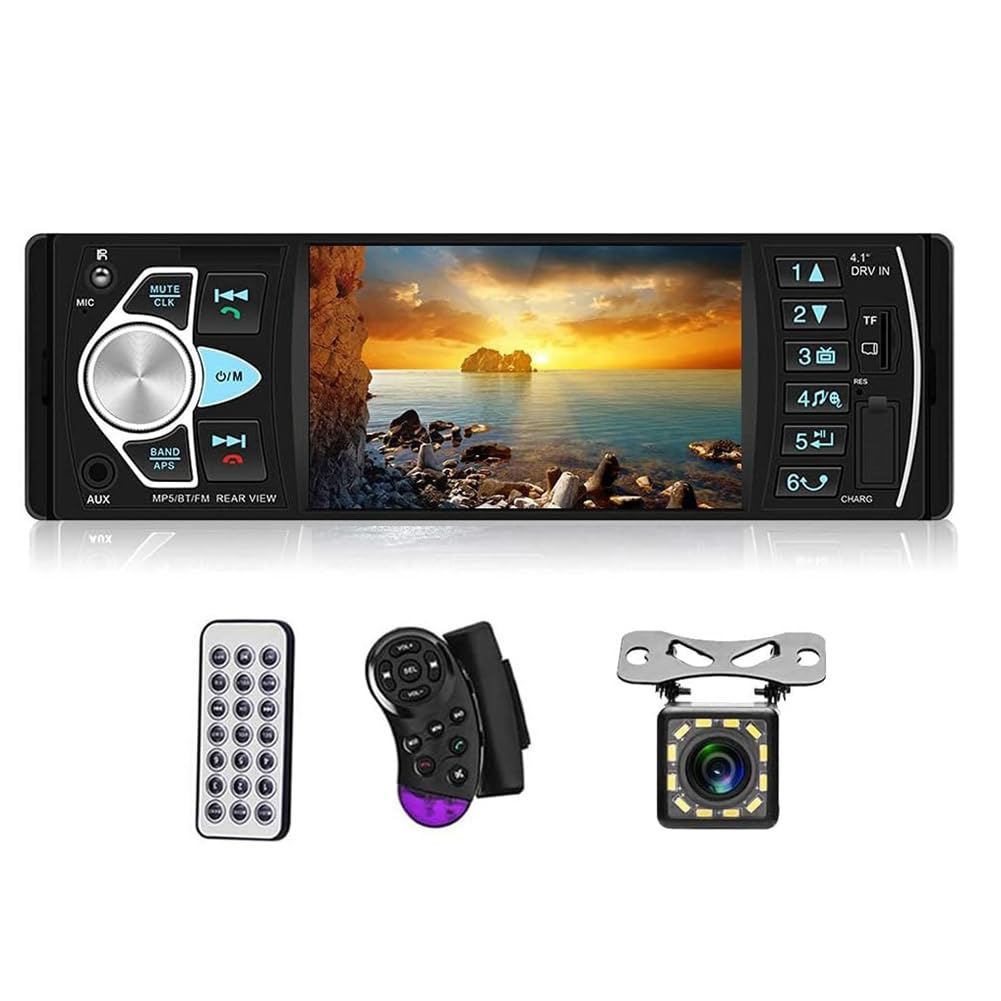
Image: High-definition reversing image displayed on the car stereo screen. This image shows the rear view from the included camera, complete with parking guidelines, and highlights features like 500W pixel resolution, 170° wide-angle, and HD night vision for improved safety.
4.6 Remote Control and Steering Wheel Control
Use the provided remote control or the connected steering wheel controller for convenient operation of various functions without touching the main unit.
5. Maintenance
- Cleaning the Screen: Use a soft, dry cloth to wipe the screen. For stubborn marks, slightly dampen the cloth with water or a screen cleaner. Avoid harsh chemicals.
- General Cleaning: Wipe the unit's exterior with a soft, dry cloth. Do not use abrasive cleaners.
- Avoid Liquids: Do not allow liquids to enter the unit, as this can cause damage.
- Temperature: Protect the unit from extreme heat or cold.
6. Troubleshooting
If you encounter issues, refer to the following common problems and solutions:
| Problem | Possible Cause | Solution |
|---|---|---|
| No power | Incorrect wiring; Blown fuse; Loose connection | Check power and ground wires; Inspect and replace fuse if necessary; Ensure all connections are secure. |
| No sound | Speaker wires disconnected; Volume too low; Mute activated; Incorrect audio source | Check speaker connections; Increase volume; Deactivate mute; Select correct audio source. |
| Bluetooth not connecting/working | Bluetooth not enabled on phone; Incorrect pairing; Interference | Ensure phone's Bluetooth is on and discoverable; Delete previous pairings and re-pair; Move closer to the unit; Restart both devices. |
| Backup camera not displaying | Camera not powered; Video cable loose; Reverse trigger wire not connected | Check camera power connection; Ensure video cable is securely plugged into "Reverse Input"; Verify reverse trigger wire is connected to reverse light. |
| Remote control not working | Dead battery; Obstruction; Incorrect angle | Replace remote battery; Remove any obstructions; Point remote directly at the unit's IR receiver. |
| Unit freezes or is unresponsive | Software glitch; Temporary error | Press the RESET button (usually a small hole requiring a pointed object) to restart the unit. |
7. Specifications
| Feature | Specification |
|---|---|
| Brand | iFutniew |
| Model | 4022D |
| Screen Size | 4.1 inches |
| Connectivity Technology | AUX, USB, Bluetooth |
| Controller Type | Manual, Steering Wheel Control, Remote |
| Special Feature | 12-LED Backup Camera |
| Compatible Devices | Smartphone |
| Audio Output Mode | Stereo, Speakers |
| Surround Sound Channel Configuration | 2.0 |
| Video Encoding Support | RMVB, 3GP, MPEG, XVID, DAT, VOB, MP4 |
| Audio Format Support | MP3, WMA, OGG, APE, AAC, FLAC, WAV |
| Image Format Support | JPG |
| Color | Black |
| Number of Channels | 2 |
| Memory Card Support | Up to 32GB (SD/TF) |
| FM Frequency Range | 87.5-108MHz |
| Unit Weight | 685.0 Grams |
| Country of Origin | China |
8. Warranty and Support
For warranty information and technical support, please refer to the documentation provided at the time of purchase or contact your retailer. Keep your proof of purchase for any warranty claims.
If you require further assistance, please reach out to the iFutniew customer support team through the contact information available on their official website or through your purchase platform.